TP-Link Archer C7 AC1750 Guide: Setup, Optimization, and Troubleshooting
Learn how to install, optimize, and troubleshoot the TP-Link Archer C7 AC1750 router. Step-by-step setup, best practices for security and coverage, plus quick fixes for common issues.


The quick answer: This guide helps you set up and optimize the tp link archer c7 ac1750 for a fast, reliable home network. You’ll learn a clear, step-by-step approach to installation, securing Wi‑Fi, updating firmware, and troubleshooting common connectivity issues. Follow practical tips, checklists, and common pitfalls to avoid frustration and improve coverage across rooms.
Why tp link archer c7 ac1750 Matters for Home WiFi
In many homes, a single router must juggle multiple devices, from phones and laptops to smart speakers and streaming boxes. The tp link archer c7 ac1750 delivers reliable dual-band coverage with practical features that help you avoid dead zones and buffering. For homeowners evaluating budget-friendly options, this model offers a solid blend of performance, firmware support, and ease of use. The Archer C7’s AC1750 class translates to real-world speeds that support everyday tasks, light gaming, and HD streaming on several devices at once. The WiFi Router Help team has analyzed numerous home-network setups and consistently finds Archer C7 AC1750 users benefit from consistent signal when placed centrally and updated firmware is kept current. By understanding its capabilities and limitations, you can design a home network that feels fast even when several devices are active. The keyword tp link archer c7 ac1750 should appear in your configuration notes as you plan bandwidth allocation and channel selection.
Core Features of the Archer C7 AC1750 That Drive Performance
The Archer C7 AC1750 supports dual-band wireless operation, allowing devices to split traffic between the 2.4 GHz and 5 GHz bands. Three external antennas, combined with Smart Signal technology, help extend coverage to living rooms, bedrooms, and home offices. Gigabit Ethernet ports enable fast wired connections for desktops, gaming consoles, and set-top boxes. A USB 2.0 port supports file sharing or printer sharing within your network. Features like guest networks, parental controls, and basic QoS help you tailor access and maintain performance as your household grows. While newer models may edge ahead on raw speed, tp link archer c7 ac1750 remains a practical choice for many homes, particularly when placement and firmware are optimized. WiFi Router Help emphasizes keeping firmware current for stability and security, and to avoid feature gaps that can occur with outdated software.
Network Planning Before Setup
Before you power on the Archer C7 AC1750, map your home’s layout and note potential interference sources: thick walls, metal appliances, and dense furniture can degrade signal. Decide central placement away from microwaves and cordless phones to minimize 2.4 GHz interference. Plan your SSID and password strategy—use distinct network names for 2.4 GHz and 5 GHz bands and choose strong, unique passphrases. Set WPA2-Personal as the minimum security standard and enable the firewall on the router. Consider a separate guest network for visitors to protect your main devices. According to WiFi Router Help, a thoughtful plan for channel selection and device allocation markedly improves reliability in mixed-device homes that include streaming devices, laptops, and mobile phones.
Setup and Configuration: Quick Overview
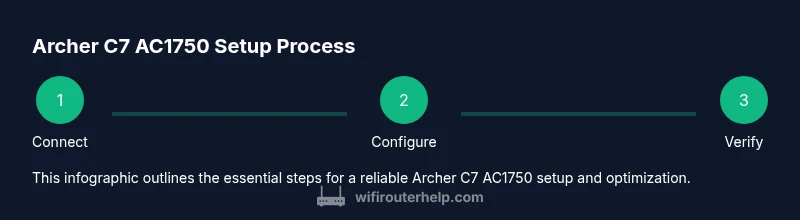
The initial setup with tp link archer c7 ac1750 is straightforward: connect the router to your modem with an Ethernet cable, plug in power, and access the web interface via 192.168.0.1 (or the default URL shown in the user guide). Run the setup wizard to configure basic internet access, set a secure admin password, and create separate SSIDs for 2.4 GHz and 5 GHz networks. Apply strong WPA2 security, and update the firmware to the latest version. Customize the guest network and parental controls if needed, then save the settings and reboot. Regularly check for firmware updates to ensure ongoing compatibility with new devices and improved security.
Placement and Channel Optimization for Reliability
Placement often determines how well the Archer C7 AC1750 performs across your home. Elevate the router at a higher position, away from walls and metal objects, and near the center of your home if possible. Use the router’s auto-channel feature as a starting point, then test 2.4 GHz and 5 GHz performance in several rooms. For crowded 2.4 GHz environments, consider prioritizing 5 GHz for high-bandwidth tasks while keeping 2.4 GHz as a fallback for range. Enable QoS to prioritize video calls and gaming during peak hours. If range remains an issue, consider a simple mesh expansion or adding a wired access point to bridge dead zones without sacrificing speed.
Security and Access Controls for the Archer C7 AC1750
Security should be a core part of any home-network setup. Change the default admin username and password, enable WPA2 security, and keep firmware up to date. Disable WPS if you don’t need it, since it can introduce vulnerabilities. Use a robust password policy for all connected devices and consider enabling a guest network with restricted access to local resources. Regularly review connected devices and enable UPnP only if you understand the implications for your network’s exposure. WiFi Router Help advises periodic checks of the firewall and firmware to defend against evolving threats.
Authority sources and Best Practices
For best practices, refer to reputable sources such as the Federal Communications Commission (FCC) guidelines on home-network security and best practices for protecting your wireless home network, as well as general standards from NIST and major tech publications. These sources help validate the approach outlined here and provide a foundation for staying current with security recommendations. The WiFi Router Help team recommends cross-referencing setup steps with reliable external resources to confirm best practices and to adapt to evolving router features.
Authority sources
- FCC: https://www.fcc.gov/
- NIST: https://www.nist.gov/
- CNET: https://www.cnet.com/topics/networking/best-wi-fi-routers/
FAQ Preview
- How do I optimize the Archer C7 for better range? - Placement and channel optimization are key, plus firmware updates.
- Should I enable the guest network? - Yes for visitors, to protect your main devices while providing internet access.
- How often should I update firmware? - Check monthly or when prompted by the router to ensure security and features keep pace with devices.
Video resources and quick next steps
Video tutorials can illustrate the exact screen steps on the Archer C7 AC1750. Use the recommended video query to find current walkthroughs that align with your firmware version and regional settings. The next step is to perform the step-by-step setup described in this guide and then verify that both 2.4 GHz and 5 GHz networks are visible on your devices. If you encounter issues, consult the FAQ section below or reach out to WiFi Router Help for targeted advice.
Tools & Materials
- Smartphone or computer with a web browser(Access the Archer C7 web interface for setup)
- Ethernet cable(For a reliable wired connection during setup)
- TP-Link Archer C7 AC1750 router(Powered off until ready to configure)
- Power adapter(Included with the router)
- Stable internet modem(Ongoing testing and validation)
- Optional USB drive or printer(For network sharing if desired)
Steps
Estimated time: 60-90 minutes
- 1
Unbox and position
Unbox the Archer C7 AC1750 and place it on a stable surface near the modem. Ensure there is space around the unit for adequate ventilation and avoid placing it inside a cabinet. Keep a short Ethernet cable handy for the initial wired connection.
Tip: Elevate the router off the desk to improve signal distribution - 2
Power up and connect to modem
Connect the Archer C7 to the modem with an Ethernet cable, then plug in the power adapter. Wait 60 seconds for the router to boot before proceeding to the admin page.
Tip: Make sure the modem is already providing a working Internet connection - 3
Access the web interface
On a computer or phone, open a browser and enter http://192.168.0.1 or http://tplinkwifi.net. Log in using the default credentials from the label on the router.
Tip: If you’re blocked, reset the router and try again - 4
Run the setup wizard
Follow the on-screen setup wizard to configure internet settings, set a strong admin password, and name your 2.4 GHz and 5 GHz networks differently.
Tip: Use distinct and memorable SSIDs to simplify device connections - 5
Configure security and firmware
Set WPA2-Personal as security, enable the firewall, and check for firmware updates. Update to the latest firmware if available to ensure compatibility with modern devices.
Tip: Disable WPS if you don’t need it - 6
Optimize placement and channels
Place the router centrally and away from obstacles. Test 2.4 GHz and 5 GHz channels in different rooms to find the best balance of range and speed.
Tip: Switch to 5 GHz for higher speeds when devices are close to the router - 7
Set up guest and parental controls
Enable a guest network to isolate visitors and configure parental-controls for devices requiring restrictions. These features help protect your primary network.
Tip: Limit guest access to Internet only when possible - 8
Review, save, and test
Review your settings, save the configuration, and reboot if prompted. Run a quick speed test near and far from the router to verify coverage and expected throughput.
Tip: Document your settings for future changes
People Also Ask
Is the Archer C7 AC1750 still a good choice in 2026?
Yes, for basic to moderate home networks it remains a solid budget option, though newer models may offer faster speeds and more features.
The Archer C7 AC1750 is a solid budget pick for small to medium homes; if you need top-tier gaming or smart-home capabilities, compare newer models.
How do I access the Archer C7 admin page safely?
Connect via Ethernet, use a secure browser, and log in with a changed admin password. Avoid using public networks to access the router directly.
Access the admin page from a device on your home network using an Ethernet or secure Wi-Fi connection, and change the admin password.
Should I enable WPS on the Archer C7?
WPS is convenient but can introduce vulnerabilities. If security is a priority, disable WPS and rely on a strong password for WPA2.
WPS is optional; disable it if you want stronger security and use a strong WPA2 passphrase instead.
What should I do if I can't connect to the internet after setup?
First, verify the modem is online and the Ethernet cable is correctly connected. Reboot the modem and router. If issues persist, re-run the setup wizard or reset to factory settings and start again.
Check the modem, reboot both devices, and re-run the setup wizard if necessary. Resetting only as a last resort.
How can I improve 2.4 GHz performance without sacrificing 5 GHz?
Balance loads by assigning devices to 5 GHz when possible and leaving 2.4 GHz for older devices. Use auto-channel or manual channel testing to reduce interference.
Put newer devices on 5 GHz and keep 2.4 GHz for older gear; test channels to minimize interference.
Do I need a firmware update every month?
Not every month, but regularly checking for updates helps security and compatibility. Install updates when available and back up settings beforehand.
Check for updates periodically; install when available and back up your config first.
Watch Video
What to Remember
- Place the router centrally for even coverage.
- Enable strong WPA2 security and update firmware regularly.
- Separate 2.4 GHz and 5 GHz networks for clarity and performance.
- Use a guest network to protect your main devices.
- Regularly test coverage and adjust placement as needed.