Synology RT6600ax Setup and Optimization Guide
Learn how to set up, optimize, and troubleshoot the Synology RT6600ax router with step-by-step guidance, best practices, and practical tips from WiFi Router Help.


Using the Synology RT6600ax, you will build a high-performance home network that balances speed, coverage, and security. This quick answer outlines the core prerequisites, how to access the web-based admin console, and the first steps to update firmware, set up a stable WAN/LAN, and enable key features like QoS and guest networks. Follow the detailed steps below for a complete guide.
What is the Synology RT6600ax?
The Synology RT6600ax is a modern router designed for serious home networks. It runs Synology Router Manager (SRM), offering a cohesive suite of tools for configuring Wi‑Fi networks, managing security, and handling advanced features like VPN, firewall rules, and parental controls. The hardware is built to support reliable performance across multiple devices, with flexible WAN options and robust QoS capabilities. According to WiFi Router Help, the RT6600ax emphasizes practical, user‑friendly controls without sacrificing enterprise‑grade features for home use. As you plan a setup in 2026, you’ll find the RT6600ax to be a strong contender when you want predictable coverage and a centralized management interface.
This section sets the stage for understanding why this model is often chosen by homeowners who want control without complexity. You’ll notice the emphasis on SRM’s modular design, which makes adding new features easier as your network grows. The device is designed for easy integration with existing broadband connections, and its security posture can be enhanced through firmware updates and well‑designed network profiles. The goal is a stable, secure, and expandable home network that accommodates streaming, gaming, smart devices, and remote work.
Why choose the RT6600ax for home networks
Choosing the RT6600ax for a home network centers on balancing performance with manageability. The router’s SRM platform provides a consistent dashboard for monitoring devices, applying quality‑of‑service rules, and configuring guest networks. For households with multiple streaming devices, video calls, and gaming, the RT6600ax offers features that help minimize latency and jitter. WiFi stability across floors and rooms is supported by a practical antenna design and a focus on interference management, especially useful in dense living environments. The WiFi Router Help team notes that the device’s firmware update cadence and security features are practical for long‑term reliability. In 2026, many users report fewer dropouts and more predictable speeds when QoS and bandwidth controls are properly configured. This section helps you weigh the benefits against potential drawbacks, such as the initial learning curve and the need to actively manage settings to keep a perfect balance between performance and security.
Hardware and specs you should know
The RT6600ax is built to support modern network demands without overflowing the user with overly technical jargon. Expect a capable processor and memory footprint designed for multiple devices, as well as a robust feature set that includes WAN failover options, firewall controls, and flexible LAN/WAN routing. While specific numbers vary by revision, the core idea is a dependable platform capable of handling high‑demand home networks with ease. The SRM ecosystem ties these hardware capabilities to software features, enabling straightforward configuration of VPNs, parental controls, and device‑level prioritization. Understanding these foundations helps you plan for future devices or changes in your internet plan. The brand’s guidance emphasizes practical, repeatable steps for configuring networking features without getting overwhelmed by complexity.
Planning your network layout
A thoughtful network layout starts with coverage mapping and device placement. Place the RT6600ax in a central location away from thick walls or metal appliances to reduce interference. If your home has dead zones, consider a mesh approach or a wired backhaul for critical areas like studios or home offices. Create distinct zones for work, streaming, and a smart home, naming SSIDs to avoid confusion. Keep the router away from other electronics that emit interference and ensure a stable power source with minimal cord clutter. This planning step helps you maximize performance and ensures the SRM network profiles you create match real‑world usage patterns.
Remember to document your layout decisions so future changes (new devices, new ISP speeds) can be implemented quickly. A well‑documented plan also makes future firmware upgrades and feature experiments less risky because you know what network paths you’re protecting.
Setup prerequisites and initial steps
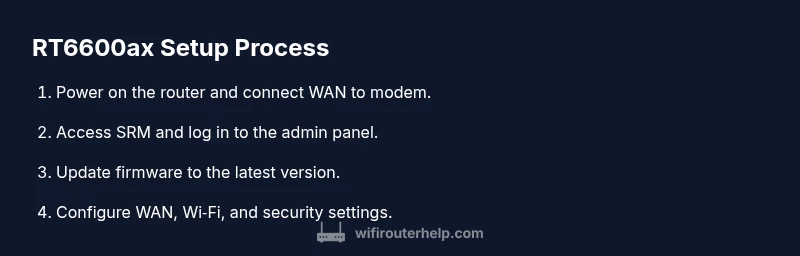
Before you begin, verify you have the essential tools and information: a wired connection between the RT6600ax and your broadband modem, a computer or mobile device with a browser or the DS Router app, and administrator credentials for the router. Confirm you have your ISP account details in case you need to configure PPPoE or bridge modes. Power on the router and connect the WAN port to the modem using a standard Ethernet cable. If you’re dealing with a gateway modem, check whether bridging is required to avoid double NAT. These prerequisites help ensure a smooth first‑boot experience and a reliable baseline for subsequent configuration.
Configuring features: QoS, VPN, parental controls
Configuring QoS helps prioritize traffic for work calls, gaming, or streaming. Start by identifying the devices or services that require consistent bandwidth, then create QoS rules that favor those paths. For VPN, SRM provides built‑in options that let you set up a VPN server for remote access, keeping your traffic secure from remote connections. Parental controls allow you to filter content, set usage schedules, and apply time restrictions to specific devices. When you enable these features, test the network to verify that legitimate traffic remains smooth while restrictions apply as intended. A practical approach is to enable features gradually and measure impact on real‑world activities.
Troubleshooting common issues
Connectivity hiccups are common during initial setups. If devices fail to obtain an IP address, confirm DHCP is enabled on the router’s LAN interface and that the modem is providing an IP in the expected range. If you notice unstable wireless performance, check channel selection, interference sources, and firmware versions. When features like QoS or VPN don’t behave as expected, revisit the relevant profiles and ensure there are no conflicting rules. For persistent issues, exporting the current SRM configuration and performing a controlled reset to defaults can be a last resort, followed by re‑importing settings from your backup. The goal is to isolate the root cause—be it hardware placement, misconfigured settings, or a temporary ISP glitch—so you can restore stable operation quickly.
Tools & Materials
- RJ-45 Ethernet cable (Cat5e or better)(Use at least 1 meter; wired connection recommended for setup)
- Computer or mobile device with a web browser(Access SRM via web GUI or DS Router app)
- DS Router app (optional)(Alternative to web GUI on mobile)
- Power outlet and stable power supply(Keep router powered during setup)
- Broadband connection (modem or gateway)(Ensure modem is available; bridging mode if needed)
- Credentials for your internet service account(Have ISP login info handy)
Steps
Estimated time: 60-75 minutes
- 1
Power on and connect the router
Power on the RT6600ax and connect the WAN port to your broadband modem using an Ethernet cable. This establishes the primary link to your internet service. If you have a separate modem, ensure it is powered and lit before proceeding.
Tip: Use a wired PC or mobile device for the initial setup to avoid wireless drops. - 2
Open SRM and log in
Open a web browser and navigate to the router's admin interface. Log in with your admin credentials or create a new admin account if prompted. If the interface is unreachable, double-check cables and network settings.
Tip: If you forget the login, use SRM account recovery or reset options. - 3
Update firmware to the latest version
In SRM, go to Firmware Update and check for new versions. Install any available updates and allow the router to reboot. Keeping firmware current is essential for performance and security.
Tip: Back up your current configuration before applying updates. - 4
Configure WAN/Internet settings
Set WAN to DHCP or PPPoE based on your ISP. If you use a modem/router combo, enable bridging to avoid double NAT. Test connectivity after saving changes.
Tip: If you experience issues, reconnect the modem and power cycle the router. - 5
Create and secure Wi‑Fi networks
Create separate 2.4GHz and 5GHz SSIDs with strong passwords. Enable WPA3 if available, otherwise WPA2‑PSK. Use distinct names and enable automatic channel selection.
Tip: Disable WPS if available to improve security. - 6
Enable QoS and basic firewall rules
Turn on QoS and set rules to prioritize essential devices or traffic (e.g., video calls, work devices). Review firewall defaults and adjust to block unsolicited inbound connections.
Tip: Run a quick speed test after enabling QoS to gauge impact. - 7
Set up guest network and backup configuration
Create a guest network to isolate visitors from your main network. Export or backup your SRM configuration after changes for easy recovery.
Tip: Schedule periodic backups to safeguard settings.
People Also Ask
Is the RT6600ax compatible with fiber, cable, or DSL ISPs?
Yes, the RT6600ax works behind most ISPs' modems. For fiber or coax services, you may need to place the ISP modem in bridge mode or use the RT6600ax as the main router.
It works with most ISPs, but bridging may be required.
Can I run a VPN server on the RT6600ax?
SRM includes built‑in VPN server options; you can enable and configure them through the admin interface.
SRM has built-in VPN features.
How do I reset RT6600ax to factory settings?
Press and hold the reset button on the back for several seconds until the router reboots, or initiate a reset from SRM.
Use the reset button or the SRM interface to reset.
What are best practices for QoS on this router?
Enable QoS, create rules by device or application, and test after applying changes to ensure responsiveness.
Prioritize key devices and apps, then test.
How can I use parental controls effectively?
Use SRM's parental controls to set filters, schedules, and time limits for connected devices.
Set filters and schedules to manage access.
How do I update firmware safely?
Check for updates in SRM, back up settings, apply the update, and reboot the router.
Back up before updating.
Watch Video
What to Remember
- Plan your network layout before setup
- Keep firmware up to date for security and performance
- Use separate guest networks for visitors
- Prioritize critical devices with QoS
- Back up SRM configuration regularly