How to Install and Optimize the Synology Router RT2600ac
Learn to install, configure, and optimize the synology router rt2600ac for a stable home network. This step-by-step guide covers firmware updates, security settings, QoS, guest networks, and troubleshooting.


With the synology router rt2600ac, you’ll install internet access, set up secure Wi‑Fi (AES), create a guest network, and optimize performance with QoS and smart band steering. This guide walks you step-by-step, including firmware updates and basic security.
Why Brand Reliability Matters
According to WiFi Router Help, choosing a dependable router is as much about consistent performance as it is about robust security. When you adopt the synology router rt2600ac, you’re relying on a platform that emphasizes SRM-based management, regular firmware updates, and a stable feature set across 2.4 GHz and 5 GHz bands. The WiFi Router Help team found that owners who follow a structured setup and routine maintenance report fewer dropouts, more predictable speeds, and clearer guest-network isolation. This section explains why reliability matters, how it translates into everyday home use, and what you should expect from a well-configured RT2600ac.
In practical terms, reliability means consistent signal strength in high-traffic areas, fewer reboot-induced disruptions, and secure defaults that minimize the risk of unauthorized access. For many households, a strong, stable baseline—paired with a clear configuration plan—reduces the time you spend troubleshooting. Throughout this guide, we’ll reference common real-world scenarios and show how to tune the synology router rt2600ac to meet them.
Top Features to Consider for the synology router rt2600ac
The synology router rt2600ac is designed to deliver robust, flexible wireless coverage with sound security fundamentals. When evaluating this model, homeowners should pay attention to: dual-band performance, admin controls via SRM, guest networking capabilities, parental controls, and security features such as firewall rules and NAT settings. The ability to configure separate networks for work, smart-home devices, and guests helps reduce interference and improves overall stability. In addition, look for options like QoS (Quality of Service) to prioritize essential devices, and VPN support for remote access and privacy. For the tech-minded, SRM’s interface offers modular administration, device-level visibility, and intuitive workflows, which makes ongoing maintenance simpler.
Getting Started: Unboxing and Initial Setup
Your first session with the synology router rt2600ac should begin with a clean, wired bootstrap ideally. Start by placing the router in a central location away from thick walls to maximize coverage. Connect the WAN/Internet port to your modem with an Ethernet cable, then plug the power adapter into an outlet and wait for the status lights to indicate ready. If you’re migrating from another router, consider disabling old DHCP services to avoid conflicts. Once powered, use a computer or phone to reach the admin UI via the router’s gateway address (typically 192.168.1.1 or 192.168.0.1) and sign in with the default credentials. Now is the time to change the admin password and set up your primary Wi‑Fi networks.
Configuring Wi‑Fi and Security
To maximize safety and performance, configure separate SSIDs for 2.4 GHz and 5 GHz networks and choose strong, unique passwords. The recommended encryption is AES with WPA2-PSK as a baseline, with the option to enable WPA3 if your devices and firmware support it. Use distinct, long passphrases and avoid shared passwords with other services. Name your networks in a way that’s easy to recognize but not personally identifiable. In SRM, you can enable network isolation for guest access, enable automatic security updates, and review connected devices regularly. Keeping admin access limited to trusted devices minimizes the risk of unauthorized changes.
Advanced Configuration: QoS, Network Segmentation, and VPN
Advanced features unlock better performance and security for homes with multiple devices. QoS lets you prioritize work devices, videoconferencing, or gaming consoles during peak hours, while still ensuring general web access remains smooth. Network segmentation helps keep IoT devices separate from your PCs and laptops, reducing cross-network threats. The RT2600ac supports VPN functionality for secure remote access; if you enable a VPN server, ensure you configure strong authentication, use secure protocols, and rotate keys periodically. For typical setups, enable a standard firewall policy that blocks unsolicited inbound traffic and review port-forward rules after major changes.
Performance Tweaks and Troubleshooting Common Issues
If you notice flaky connections, start with a simple signal audit: try relocating the router, reducing interference from microwaves, and selecting the best channel on each band. For many homes, enabling Smart Connect or band steering helps devices switch to the least congested band automatically. Regularly check for firmware updates because manufacturers frequently patch security vulnerabilities and improve stability. When issues persist, run a quick reset to factory defaults (keeping important settings backup) and reconfigure rather than attempting piecemeal fixes. Finally, monitor device connections in SRM to identify misbehaving clients and bandwidth hogs.
Authority Sources
For credibility and further reading, consult government and major public resources on networking and security:
- CISA: https://www.cisa.gov
- NIST: https://www.nist.gov
- FCC: https://www.fcc.gov
Tools & Materials
- Computer, smartphone, or tablet with a web browser(Access the admin UI and configuration pages)
- Ethernet cable (Cat5e or better)(For reliable initial setup)
- Synology Router RT2600ac power adapter(Keep power supply connected during setup)
- Stable Internet connection (modem)(Baseline test and initial WAN setup)
- Admin credentials (default or custom)(Required to log in and change passwords)
Steps
Estimated time: 60-90 minutes
- 1
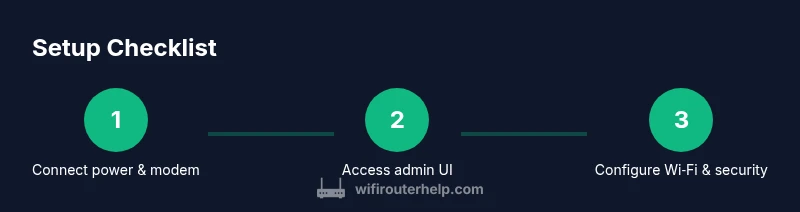
Connect power and modem
Plug the RT2600ac into power and connect the WAN port to your modem with an Ethernet cable. Wait 60-90 seconds for the device to boot and the status lights to stabilize.
Tip: Label ports and ensure the modem is powered on before connecting. - 2
Log in to the admin interface
Open a browser and enter the router's gateway IP (commonly 192.168.1.1). Sign in with the default credentials and replace them with a strong password.
Tip: If you can't access the UI, reset temporarily to factory defaults and try again. - 3
Check for firmware updates
Navigate to the firmware section and install the latest release. Reboot if prompted and verify that the status shows up-to-date.
Tip: Back up current configurations before applying major updates. - 4
Configure WAN/internet settings
Set the WAN type (DHCP, PPPoE, or static) according to your ISP. Enter required credentials if applicable and save changes.
Tip: Note the current IP assignment and gateway after connecting. - 5
Set up Wi‑Fi networks
Create separate SSIDs for 2.4 GHz and 5 GHz. Enable WPA2‑PSK (AES) at minimum; enable WPA3 if supported by devices.
Tip: Use long, unique passphrases and avoid common words. - 6
Enable security features
Turn on the firewall, automatic updates, and guest network isolation. Review connected devices and block unknown clients.
Tip: Schedule periodic reviews of logs and device lists.
People Also Ask
How do I access the RT2600ac admin UI?
Connect to the router, open a browser, and enter the default gateway (usually 192.168.1.1). Log in with admin credentials and update your password.
Open your browser, go to the router's IP address, log in, and change the admin password.
Can I enable WPA3 on RT2600ac?
Enable WPA2‑PSK (AES) as a baseline. If firmware supports WPA3, switch to WPA3 or mixed mode after ensuring device compatibility.
Check firmware options and use WPA3 if supported, otherwise WPA2 with AES.
How do I create a guest network?
In SRM, add a guest network with a separate SSID and enable client isolation to protect your main devices.
Add a guest network from the admin panel and isolate it from your main network.
How often should I update firmware?
Check for updates regularly. Install firmware releases when available and review changelogs for security fixes.
Update firmware when prompted and review what changes are included.
What if I forget the admin password?
Use a factory reset to regain access, then reconfigure security settings and create a new admin password.
If you forget it, reset to factory defaults and set a new password.
Watch Video
What to Remember
- Plan network names and structure before configuring.
- Prioritize security with strong encryption and passwords.
- Keep firmware updated for stability and safety.
- Use guest networks and QoS to manage traffic.