Spectrum Router Replacement: A Step-by-Step Guide
Learn how to safely replace Spectrum's router, choose a compatible replacement, enable bridge mode, and optimize your home Wi‑Fi for better coverage, speed, and security in 2026.


With a Spectrum router replacement, you’ll upgrade your home network by swapping Spectrum’s equipment for a compatible third‑party router or a separate gateway/modem combo. Start by confirming Spectrum supports bridge mode, gathering a new router, an Ethernet cable, and a basic understanding of your plan. Then configure, test, and secure your new setup.
What spectrum router replacement means for your network
According to WiFi Router Help, spectrum router replacement describes swapping Spectrum’s rental gateway or owned router for a compatible third‑party device. The goal is to improve coverage, reduce dead zones, and gain more control over security settings and features. When you replace, you’ll typically place the Spectrum modem in bridge mode (if you’re using a separate router) so the replacement device handles all router duties. This approach can simplify management and often unlock advanced features like guest networks, QoS prioritization, and better parental controls. However, not all Spectrum plans or gateway models support bridge mode, and some services (like voice over IP) may rely on the ISP’s device. Before you buy, identify whether your plan uses a modem‑gateway combo or a separate modem, and verify that the replacement supports the right WAN connection (Ethernet). The spectrum router replacement path can yield stronger coverage across multi‑story homes, faster wireless speeds on newer standards, and more flexible configuration options, especially if you’re upgrading from older 802.11n or AC devices.
WiFi Router Help’s guidance emphasizes validating compatibility, understanding your plan speed, and ensuring you can manage the network once the replacement is in place. This preparation helps prevent gaps in service and avoids double NAT configurations that frustrate gaming or video calls.
Compatibility and bridge mode essentials
Bridge mode is a critical concept when replacing Spectrum equipment. WiFi Router Help notes that enabling bridge mode allows the third‑party router to handle DHCP, NAT, and Wi‑Fi, while the ISP gateway acts as a simple modem. If bridge mode isn’t available or fails, you may need to use IP Passthrough or keep the ISP device as the primary router with AP isolation off; else you could have double NAT issues. Check that your new router supports gigabit WAN, modern encryption (WPA3 preferred), and at least dual‑band operation. Spectrum's terms of service could require you to own your own modem in some regions; rental devices may impose restrictions. Also consider whether your plan supports speeds beyond 500 Mbps. Testing in multiple rooms after setup will help you verify coverage. WiFi Router Help analysis shows that households that implement a properly configured bridge setup typically see more stable connections and fewer dropouts. In practice, bridging correctly is the step that unlocks the most noticeable gains in performance and reliability.
Features to look for in a replacement router
When selecting a replacement, prioritize features that directly impact home performance and future‑proofing. Look for at least Wi‑Fi 6 (or newer), support for 2.4 GHz and 5 GHz with robust beamforming, and a capable processor and RAM for smooth multitasking. A strong security suite (WPA3, automatic firmware updates, and a reputable vendor) is essential. Consider the number of LAN ports, USB connectivity for storage or printers, and a reliable QoS system to prioritize real‑time apps like video calls or gaming. Ensure the device supports bridge mode or IP Passthrough with Spectrum, and verify compatibility with common modem types. If you have a larger home, seek higher range and multi‑antenna designs or even a mesh companion option for seamless roaming. WiFi Router Help’s research highlights that selecting a router with current standards and ongoing firmware support tends to deliver more consistent performance, fewer dropouts, and easier long‑term maintenance.
Setup basics after replacement
After you choose a compatible replacement and establish bridge mode (when applicable), you’ll configure the router’s network name (SSID) and password, enable the strongest security, and set up guest networks if needed. Start with the default credentials and change them immediately to prevent unauthorized access. Update the router firmware to the latest version and enable automatic updates to protect against known vulnerabilities. Position the router centrally and away from interference to maximize coverage. If the Spectrum modem is left in bridge mode, ensure its own Wi‑Fi is disabled to avoid interference. WiFi Router Help’s guidance emphasizes documenting login details and keeping a backup of the current settings to simplify future troubleshooting. The overall goal is a stable, secure network with clear guest access and straightforward management.
Troubleshooting common issues and maintenance
If you encounter double NAT, verify bridge mode status and recheck cable connections. If speeds drop, run a wired speed test directly from the router and compare to wireless results to isolate wireless interference. Check for firmware updates, reset configurations if settings were accidentally changed, and ensure your devices have compatible security protocols. For coverage gaps, try adjusting router placement, enabling beamforming if available, or adding a mesh satellite in larger homes. Regular maintenance includes monitoring connected devices, updating firmware, and reviewing security settings. The WiFi Router Help team recommends monthly checks of firmware and passwords to maintain a strong and secure network.
Tools & Materials
- Replacement router (compatible with Spectrum)(Ensure it supports bridge mode or IP Passthrough and at least Wi‑Fi 5/6.)
- Ethernet cable (Cat5e or better)(Minimum 1 meter; longer if devices are far apart.)
- Modem/gateway to connect to (Spectrum modem or gateway provided by Spectrum)(If you plan to place the gateway in bridge mode, verify it has no services relying on the gateway itself.)
- Power supply for the replacement router(If not included, source an appropriate power adapter.)
- Access credentials for your Spectrum account(Needed to enable bridge mode and manage account settings.)
- Device manual or quick-start guide(Helpful for model-specific steps.)
- Phone or computer for setup(Used to access the router’s admin interface and manage settings.)
Steps
Estimated time: 30-60 minutes
- 1
Verify compatibility and plan
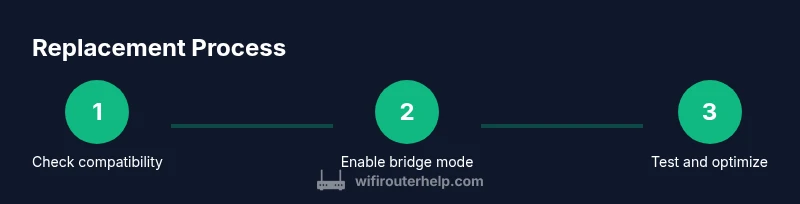
Check your Spectrum plan and confirm whether bridging is supported for your gateway. Decide whether you’ll use a standalone router behind a modem or a gateway in bridge mode. This ensures you buy the right device and avoid service disruptions.
Tip: Take a photo of your current setup and settings before making changes. - 2
Gather required equipment
Collect the replacement router, Ethernet cable, modem, power supplies, and your login credentials. Having everything at hand prevents mid‑process interruptions and helps you stay organized.
Tip: Label cables to avoid confusion during reassembly. - 3
Power down devices and disconnect
Turn off the modem and existing router, then unplug power to avoid electrical surges. This reduces the risk of hardware damage while you install the new gear.
Tip: Wait 30 seconds after unplugging to discharge residual power before reconnecting. - 4
Enable bridge mode (if using a gateway)
Log in to the Spectrum gateway admin interface and enable bridge or passthrough mode. Note that this will disable its Wi‑Fi, so have your replacement router ready. If bridge mode isn’t available, use IP Passthrough as an alternative.
Tip: If you can’t find bridge mode, contact your ISP for guidance or check official support articles. - 5
Connect the replacement router
Connect the router’s WAN/Internet port to the modem’s Ethernet port using the Ethernet cable. Power up the replacement router first, then the modem, to establish a stable link.
Tip: Confirm link lights on both devices indicate an active connection. - 6
Configure the router
Access the router’s admin page via a browser, set a unique SSID and strong password, enable WPA3 if available, and apply latest firmware. Create a guest network if you need separate access for visitors.
Tip: Change default admin credentials immediately to prevent unauthorized access. - 7
Test, optimize, and document
Run wired and wireless speed tests in multiple rooms, adjust channel selection, and consider a mesh extension if coverage is uneven. Save the configuration and keep a record of settings for future troubleshooting.
Tip: Keep firmware auto‑updates enabled to maintain security and performance.
People Also Ask
Can I replace Spectrum's router with any router?
You can replace with a third‑party router, but you’ll need bridge mode or IP passthrough and you may lose some ISP‑specific features. Check your plan and device compatibility before buying.
Yes, you can, but you’ll need bridge mode. Some features may rely on Spectrum’s gateway, so verify compatibility first.
What is bridge mode and why do I need it?
Bridge mode turns off the gateway’s router functions, letting your replacement router handle DHCP, NAT, and Wi‑Fi. This prevents double NAT and improves performance for many home networks.
Bridge mode disables the ISP router’s routing; your replacement router then manages the network.
Will my speed improve after replacement?
Often yes, especially with newer Wi‑Fi standards and better antennas. Real gains depend on your home layout, interference, and the router’s capabilities.
Often you’ll see better speeds and coverage, but it depends on layout and device.
Do I lose Wi‑Fi during bridge mode?
If you enable bridge mode, the Spectrum gateway’s Wi‑Fi is typically disabled. Use your replacement router for all wireless access.
Usually yes, the ISP Wi‑Fi is off when bridge mode is on.
How do I know if my replacement router is Spectrum‑compatible?
Check the router’s WAN type, supported standards (Wi‑Fi 6/6E), and whether the device supports bridge mode or IP Passthrough. Consult Spectrum support resources and the router’s manual.
Look for bridge mode or IP passthrough support and compatible WAN type.
Do I need Spectrum support after replacement?
Basic setup and security are typically user‑driven. Spectrum support may assist with issues related to the gateway or bridging configurations if you encounter service problems.
You can handle most setup yourself, but Spectrum can help with gateway issues if needed.
Watch Video
What to Remember
- Verify compatibility and bridge mode before buying.
- Ensure firmware is current and security is strong.
- Test speeds in multiple rooms and adjust placement.
- Document settings for easy future troubleshooting.