Spectrum Modem Router Combo: Setup, Tips, and Troubleshooting
Learn how to choose, set up, and optimize a Spectrum modem router combo for reliable home Wi‑Fi. Step-by-step guidance, practical tips, and troubleshooting from WiFi Router Help.


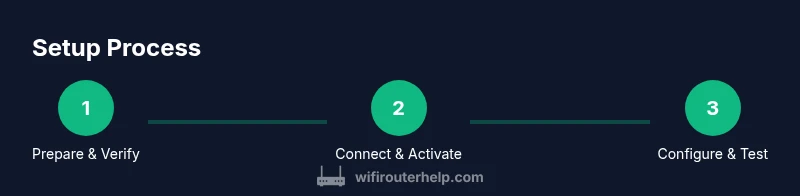
Goal: set up and optimize a Spectrum modem router combo for reliable home Wi‑Fi in two main steps: verify compatibility and perform a clean configuration. You’ll learn gateway versus bridge mode, essential security settings, and how to position the device for best coverage. This quick guide from WiFi Router Help outlines practical, field-tested steps you can follow today.
What is a Spectrum modem router combo?
According to WiFi Router Help, a Spectrum modem router combo is a single device that handles both the cable modem and wireless router functions. It offers convenience, simplified setup, and reduced cable clutter, but you sacrifice some advanced customization options. These devices are designed to work with Spectrum service, providing automatic configuration for typical home networks. When shopping, look for a model with a modern Wi‑Fi standard (Wi‑Fi 6 or 6E) and DOCSIS 3.1 support for current speeds. The WiFi Router Help team emphasizes that compatibility with your Spectrum plan and provisioned speeds matters more than the latest gimmick features.
Key terms to know include gateway mode (router and modem in one) and bridge mode (modem only, with your own router handling Wi‑Fi). Gateway mode is easier for most homes, while bridge mode gives you more control if you own a separate router. Always check whether the device can be set to bridge mode in Spectrum’s portal or via its admin panel.
Who should consider a Spectrum modem router combo?
A Spectrum modem router combo is an excellent fit for homeowners who want a simple, clutter-free setup with reliable coverage in typical living spaces. It’s particularly appealing for first-time setup, small to medium homes, and households that don’t require advanced network segmentation. WiFi Router Help notes that for many users, the convenience of a single device outweighs the incremental gains from purchasing separate modem and third‑party router. However, if you have a large home, a lot of smart devices, or enterprise-grade needs, you may prefer a separate modem or a mesh system for broader coverage and more granular control. In addition, spectra-compatible devices simplify provisioning, which reduces setup friction for new customers.
Key features to evaluate
When choosing a Spectrum modem router combo, prioritize features that impact everyday use. Look for DOCSIS 3.1 support for future‑proof cable speeds, Wi‑Fi 6 (802.11ax) support for better efficiency in busy environments, and dual‑band operation with both 2.4 GHz and 5 GHz networks. Consider MU‑MIMO and beamforming for more stable connections to multiple devices, and ensure parental controls, guest networks, and device prioritization (QoS) are available. Also check for bridge mode capability if you plan to use your own router, USB ports for printers or storage, and straightforward management via a mobile app or web interface. Finally, verify compatibility with your Spectrum plan and the claimed speeds on your account; performance hinges on correct provisioning and firmware updates.
Setup basics: gateway vs bridge mode
Gateway mode combines modem and router into a single device, offering plug‑and‑play setup and typical home coverage. Bridge mode disables the router functions in the gateway so you can use an external router for your Wi‑Fi. This is useful if you want advanced features like custom DNS, VPN, or more precise QoS rules. To enable bridge mode, access the device admin page, locate the bridge option, and follow Spectrum’s guidelines or your own router’s guidance for setting a compatible WAN connection. If you’re unsure, start in gateway mode and switch later once you confirm your network needs.
Important reminder: enabling bridge mode may remove built‑in firewall features unless you route through your own firewall. If you own a separate router, bridging typically provides better performance and control for demanding networks. Always disable the built‑in Wi‑Fi in bridge mode if you plan to rely entirely on your own router.
Placement and performance optimization
Placement matters more than you might expect. Place the Spectrum modem router combo in a central, elevated location away from thick walls, metal appliances, and large electronics that cause interference. Position the device at least a few feet from microwaves, cordless phones, and baby monitors. For best results, use the 2.4 GHz band for farther devices and the 5 GHz band for nearby devices that require higher throughput. Use the device’s built‑in channel selection or manual analysis tools to choose the least congested channel. If you have a large home, consider a mesh or whole‑home Wi‑Fi solution that complements the combo device rather than replaces it entirely.
Regularly rebooting the gateway can help clear minor firmware issues, but avoid rebooting during high‑bandwidth activities. Keep firmware up to date to maintain security and performance.
Security and firmware considerations
Security should be a top concern with any home network device. Change the default admin and Wi‑Fi passwords to strong, unique credentials. Use WPA3 if available, or at least WPA2‑AES with a strong passphrase. Disable WPS if possible, enable the device firewall, and enable guest networks to isolate IoT devices from your main network. Regularly check for firmware updates from Spectrum or the device manufacturer, as these updates fix vulnerabilities and improve stability. Consider disabling remote administration unless you need it, and review connected devices periodically to spot unfamiliar clients.
Troubleshooting common issues
If you encounter no internet after installation, start by checking the coax connection and power supply, then reboot the device. If speeds are slower than expected, test a wired connection directly to the modem and compare with wireless performance. Intermittent Wi‑Fi can result from interference, device placement, or crowded channels; try relocating the unit or changing channels. When bridging mode is enabled, verify that your own router is obtaining a WAN IP and that NAT is configured correctly. If problems persist, use Spectrum’s diagnostic tools or contact support to confirm provisioning status and device compatibility.
Spectrum compatibility and service nuances
A Spectrum modem router combo is designed to work smoothly with Spectrum’s service, but you should verify that your specific plan is provisioned for the device. Some plans or promotions may require using Spectrum‑provided equipment, while others allow you to bring your own router with bridge mode enabled. If you own the device, you’ll need to keep it updated and ensure you’re not double‑NATing by running another router behind the gateway. In some cases, Spectrum technicians may need to adjust settings in the network to optimize performance. Always confirm compatibility with your service tier before making changes.
Tools & Materials
- Spectrum account and login credentials(Needed to access provisioning and admin pages)
- Spectrum modem-router combo device(Have model and serial ready)
- Coaxial cable and power adapter(For initial connection and power)
- Computer or mobile device with browser(For configuration)
- Ethernet cable (CAT5e or better)(Wired setup and testing)
- Access to Spectrum support (phone/app)(If activation or bridging is needed)
Steps
Estimated time: 45-60 minutes
- 1
Prepare and verify
Gather your Spectrum account info, the modem-router combo, and a test device. Confirm you’re within service coverage and note your current network layout. This helps you plan placement and expectations before you connect anything.
Tip: Have a LAN cable handy for a quick hard‑wired setup to verify connectivity. - 2
Connect physically
Connect the coaxial cable and power to the modem-router combo, then plug it in. Allow the device to boot fully until the status lights indicate normal operation. A stable power cycle reduces initial setup glitches.
Tip: Avoid placing the unit behind furniture; keep it in a central location for best coverage. - 3
Activate and provision
Open a browser and follow the on‑screen prompts to activate the device with Spectrum. Ensure your device is recognized, and note the provisioning status in your account dashboard.
Tip: If activation fails, contact Spectrum support to verify service activation on your account. - 4
Decide gateway or bridge
Choose gateway mode for an all‑in‑one setup, or enable bridge mode if you plan to use your own router. Understand that bridge mode disables the router in the combo, so you must configure NAT and firewall on your external device.
Tip: If you’re unsure, start in gateway mode and test performance before switching to bridge mode. - 5
Configure Wi‑Fi details
Set your network name (SSID) and a strong password. Enable security features and create a separate guest network if supported. Apply the changes and reboot if required.
Tip: Use a unique SSID for each band (e.g., Home‑5G and Home‑2G) to simplify troubleshooting. - 6
Optimize and test
Run a speed test on wired and wireless connections. Check for stability across multiple devices, adjust channel settings if interference is detected, and confirm devices reconnect smoothly after a router reboot.
Tip: Document your preferred channels and settings for future reference.
People Also Ask
What is a Spectrum modem router combo?
A Spectrum modem router combo combines the cable modem and wireless router into a single device for simplified setup. It’s convenient for most homes, but may offer fewer customization options than separate equipment.
A Spectrum combo is a single device that handles both modem and Wi‑Fi, great for simple setups, with fewer customization options.
Should I use gateway mode or bridge mode with Spectrum?
Gateway mode is easiest for most users, providing a built‑in router and firewall. Bridge mode turns off the built‑in router so you can use your own router with advanced features. Choose based on your networking needs.
Gateway mode is simpler; bridge mode lets you use a separate router with more features.
Can I use my own router with Spectrum while still using the combo?
Yes, you can use your own router by enabling bridge mode on the combo. This prevents double NAT and allows full control over your network.
Yes, bridge mode lets you use your own router and avoid double NAT.
What should I look for when buying a Spectrum modem router combo?
Look for DOCSIS 3.1 support, Wi‑Fi 6 or newer, security features, and bridge mode capability if you plan to use another router. Ensure compatibility with your Spectrum plan.
Check for DOCSIS 3.1, Wi‑Fi 6, security features, and bridge support.
Why is placement important for Wi‑Fi performance?
Central, elevated placement reduces dead zones. Keep the device away from thick walls and electronic interference to maximize signal reach.
Central placement and elevation improve coverage and reduce dead zones.
What should I do if speeds are slow after setup?
Test wired vs wireless speeds, update firmware, check channel interference, and verify provisioning on Spectrum. If needed, reset the device to factory defaults and reconfigure.
Test connections, update firmware, and verify provisioning; reset if necessary.
Watch Video
What to Remember
- Choose gateway mode for simplicity or bridge mode for control.
- Prioritize DOCSIS 3.1 and Wi‑Fi 6 for future‑proofing.
- Position the device centrally and away from interference sources.
- Secure the network with strong passwords and regular firmware updates.
- Test both wired and wireless connections to verify performance.