Setup NightHawk Router: Complete Step-by-Step Guide
Learn how to setup NightHawk router quickly with practical steps, essential security, and optimization tips for a fast, stable home Wi‑Fi network in 2026.


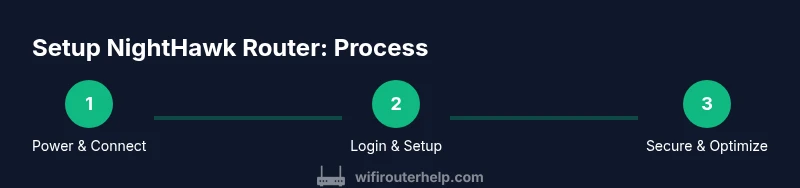
By following these steps, you will successfully setup a Nighthawk router and establish a reliable home network. You’ll connect the device, login to the admin panel, apply essential security settings, and optimize wireless performance. This quick path covers preparation, hardware connections, and key post-setup checks to ensure your WiFi is fast and stable from day one.
Setup nighthawk router basics
The NightHawk router is a cornerstone of a fast home network. In this section you’ll learn what setup achieves, what you’ll need, and how to approach the process with confidence. According to WiFi Router Help, a deliberate setup reduces future headaches and improves speed, stability, and security. The WiFi Router Help team found that most users get inconsistent results when skipping basic steps like verifying internet connectivity before logging in, using the default admin password, or leaving firmware out of date.
Key goals include establishing a reliable internet connection, creating a strong admin password, enabling WPA3 when available, and planning a sensible Wi‑Fi layout. Before you start, gather the essentials:
- A working internet connection from your ISP
- The Nighthawk router and its power adapter
- An Ethernet cable and a device with a web browser
- Your ISP login details if PPPoE or a credential is required
- A quiet, stable workspace to minimize mistakes
In the next sections you’ll walk through a safe, methodical setup that minimizes downtime and avoids common misconfigurations.
Planning your network layout and prerequisites
Placement matters as much as hardware. For best coverage, position the Nighthawk router high (on a shelf or cabinet) and near the center of your home, away from thick walls, metal, and large appliances. The WiFi spectrum uses both 2.4 GHz and 5 GHz bands; naming the networks clearly helps guests and devices choose the right band. If you have a mesh system or repeaters, keep the main router roughly in the middle and run a quick speed test to confirm baseline performance. Before you begin, decide on a memorable SSID and a unique, strong password. Prepare to note down your network name (SSID) and password in case you need to reconnect.
Also verify that your modem is compatible and that you know whether your ISP assigns a dynamic IP (DHCP) or a static/PPPoE configuration. WiFi Router Help recommends a simple, centralized layout strategy and disabling features you don’t use to reduce overhead.
Step-by-step: initial connection and login
Power down the modem and all connected devices to avoid boot conflicts, then connect the Nighthawk router's WAN/Internet port to your modem with an Ethernet cable. Power on the modem first, wait about 60 seconds, then power on the router. Open a web browser and enter the default gateway (commonly 192.168.1.1 or 192.168.0.1). Log in with the default credentials found on the device label or in the manual. Run the Quick Setup wizard if offered and set a strong admin password.
Once you can access the admin interface, change the default login information immediately and save changes. If you cannot reach the page, try a wired connection or reset the router to factory settings, then retry using a different device.
Internet settings and admin password
If your ISP uses PPPoE, enter the username and password provided by your ISP. For DHCP, ensure the router is set to obtain an IP automatically. Do not leave the admin password unchanged. Create a unique password that combines letters, numbers, and symbols. Save and back up the configuration after the settings are applied so you can restore quickly after a factory reset.
If you use a static IP, input the correct IP, gateway, and DNS values supplied by your ISP. This is uncommon for residential services but necessary for some business-grade plans.
Wireless optimization and security
Set up two separate networks: 2.4 GHz for older devices and 5 GHz for fast newer equipment. Name each band clearly (e.g., NightHawk-2.4, NightHawk-5) and enable WPA3 if available; otherwise, use WPA2 with AES. Leave Channel Width at 40 MHz for 2.4 GHz if congestion is high, or auto for simplicity. Disable WPS if your model includes it and enable a strong, unique passphrase. Turn on Guest Network isolation to prevent guests from accessing your main network.
Consider enabling QoS for latency-sensitive devices like gaming consoles or work laptops. Review firewall settings and UPnP status; disable UPnP if you don’t need it to reduce exposure.
Security hardening, parental controls, and guest access
Keep firmware up to date by checking for updates in the admin interface and enabling automatic updates if available. Create separate guest networks to protect your primary devices, and limit bandwidth or access times for children using parental controls. Regularly review connected devices and revoke access for devices you no longer recognize. Maintain a backup of your configuration file so you can quickly restore after a reset or relocation.
Troubleshooting and common issues
If you encounter slow speeds or unstable connections, run a wired speed test directly from the router to determine if the issue is Wi‑Fi or ISP-related. Check LEDs on the device: a solid power light is good, while blinking indicators may indicate a problem with WAN, Wi‑Fi, or Internet connectivity. If you cannot access the admin page, confirm you’re on the correct IP and that your device is connected with a cable. Resetting to factory defaults is a last resort.
Tools & Materials
- Nighthawk router(Model variant and power adapter included)
- Modem(With compatible service)
- Ethernet cable(Cat5e or better)
- Computer, smartphone, or tablet(Web browser access)
- Power supply(Plug into wall outlet)
- ISP credentials (if PPPoE)(Username and password)
Steps
Estimated time: 45-60 minutes
- 1
Power down and prepare hardware
Power off the modem, router, and connected devices to avoid boot conflicts. Unbox the router and gather the items listed in Tools & Materials. This prepares you for a clean, predictable boot.
Tip: Label cables so you can reconnect quickly. - 2
Connect modem to router WAN port
Plug the Ethernet cable into the modem and the router's Internet/WAN port. This creates the data path from your ISP to the router’s LAN.
Tip: Use a wired connection for the initial setup when possible. - 3
Power up and access admin page
Power on the modem, wait 60 seconds, then power on the router. Open a browser and enter the default gateway (usually 192.168.1.1). Sign in with the default credentials shown on the router label.
Tip: If you can't reach the page, try a different device or reset the router. - 4
Run Quick Setup and change admin password
If offered, run the Quick Setup wizard to apply basic settings. Immediately change the default admin password and save changes to prevent easy access.
Tip: Choose a password manager-friendly password. - 5
Configure internet connection type
Set the connection type to DHCP (most home networks) or PPPoE/static as provided by your ISP. Verify the Internet status shows connected.
Tip: If DHCP fails, double-check the cable and modem status. - 6
Configure wireless settings
Create distinct SSIDs for 2.4 GHz and 5 GHz bands, enable WPA3 if available, and set strong passphrases. Enable guest network if needed.
Tip: Use a memorable but unique SSID and password. - 7
Update firmware and backup
Check for firmware updates and install them. Back up the configuration after changes so you can restore quickly if needed.
Tip: Keep a local copy of your settings.
People Also Ask
Do I need to run the Quick Setup wizard?
The Quick Setup wizard is helpful for initial configuration, but you can skip it if you prefer manual setup. It ensures basic defaults and connectivity before you customize settings.
You can use the Quick Setup wizard for a fast start, or do it manually if you prefer full control.
What if I can't access the admin page?
Ensure your device is connected to the router with a wired or stable wireless connection, verify the gateway IP, and try a different browser. If needed, reset to factory settings and retry.
If you can’t reach the admin page, check your connections and IP address, then reset if necessary.
How do I change the admin password?
Log in to the admin panel, navigate to administration or security settings, and replace the default password with a strong, unique one. Save changes and consider storing it in a password manager.
Change the password in the admin settings and save. Use a password manager for safety.
Should I enable UPnP or keep it off?
UPnP can ease device setup but may pose security risks. Enable it only if you need automatic port forwarding, and disable it when not in use.
Only enable UPnP if you need it; otherwise keep it off for security.
Is a separate guest network a good idea?
Yes. A guest network isolates devices from your main network, protecting personal data while still providing internet access.
A guest network adds a safety layer by isolating guest devices.
How often should I check for firmware updates?
Check monthly or enable automatic updates if available to keep security and performance optimal.
Check for updates monthly, or enable automatic updates if your device supports it.
Watch Video
What to Remember
- Set up NightHawk router with a central location.
- Use strong, unique admin and Wi‑Fi passwords.
- Keep firmware updated and back up configs.
- Separate 2.4 GHz and 5 GHz networks for best performance.
- Test connectivity after each major change.