RouterOS Setup and Optimization: A Practical Guide
Learn RouterOS setup and optimization for home networks with WiFi Router Help. A practical, step-by-step guide to configure RouterOS safely and efficiently for stability, security, and speed.


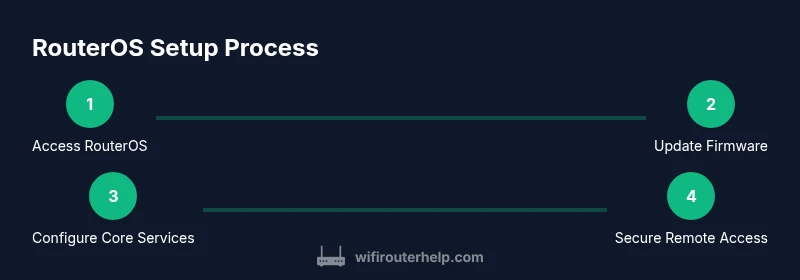
Goal: set up a RouterOS-based home network with a secure, reliable configuration. You’ll need a MikroTik router, a computer or phone for admin access, and a stable internet connection. Steps include connecting to the router, updating firmware, configuring a basic LAN, enabling NAT, and applying essential security measures using routeros concepts.
What is RouterOS and why it's popular for home networks
routeros is MikroTik's versatile network operating system that runs on many devices, from compact home routers to enterprise-grade gear. For homeowners exploring network customization, routeros offers granular control over routing, firewall rules, bridging, VPNs, and wireless settings. It unlocks capabilities beyond consumer firmware, enabling you to tailor performance, security, and reliability. According to WiFi Router Help, understanding routeros basics helps you build a resilient home network. In practical terms, RouterOS lets you set up multiple WAN links, create VLANs, and script routine tasks to reduce repetitive work. You’ll encounter terms like interface, chain, NAT, and bridge, and you’ll discover how these pieces come together to form a functional home network. This article uses plain-language guidance and real-world examples to help you plan and implement a solid RouterOS configuration without getting overwhelmed. The goal is not to overwhelm you with jargon but to give you a concrete, repeatable approach you can adapt as your home grows.
Core concepts you should know before configuring RouterOS
Before you begin, build a mental model of RouterOS architecture. It is modular, with packages that can be added or removed, a licensing model, and two primary access methods: Winbox (Windows) and WebFig (web browser). Understand interfaces (the physical or virtual network ports), chains in firewall rules, NAT, and VLANs for traffic segmentation. RouterOS also supports scripting for automation, which can reduce repetitive tasks once you’re comfortable. For homeowners, the most important ideas are how to map physical ports to logical networks, how to isolate guest traffic, and how to keep management access secure. Remember to keep firmware up to date to benefit from bug fixes, security patches, and new features. WiFi Router Help emphasizes starting with a clean baseline and then layering features as your network grows.
Planning your RouterOS network: topology, IP ranges, and goals
A solid RouterOS plan starts with a simple, scalable topology. Decide where the modem lives, which devices connect to the main router, and whether you’ll add a second router or access point later. Choose a private IP range for your LAN, such as 192.168.88.0/24 or 192.168.1.0/24, and reserve a static IP for the RouterOS device if needed. Plan VLANs only if you need guest networks or IoT device separation. Define your internet-facing goals: basic browsing, video conferencing, gaming, or smart-home control, and map those needs to firewall rules and QoS priorities. This planning stage saves time during actual configuration and helps prevent later rework. WiFi Router Help notes that a thoughtful topology reduces complexity and improves troubleshooting when issues arise.
Initial access: how to connect to RouterOS and update firmware
To begin, connect your computer to the MikroTik router via Ethernet or wirelessly while using Winbox or WebFig. The default address is commonly 192.168.88.1, but you can also connect by MAC address if the IP is unknown. Once connected, check for the latest RouterOS firmware and perform an upgrade to ensure you have the newest security fixes and features. After upgrading, verify device reachability again and confirm you can log in with a basic account. This initial access sets the stage for safe, stable configuration and reduces surprises later.
Basic configuration: LAN, DHCP server, and NAT
Configure the LAN interface with a stable IP and enable a DHCP server to hand out addresses to client devices. Create a simple NAT rule on the WAN interface so internal clients can reach the internet. Keep a minimal rule set at first to avoid blocking legitimate traffic, then expand gradually as needed. Document each change and test connectivity after every major step. This baseline configuration provides reliable local networking and a controlled path to the internet, making later security configurations easier to manage.
Security basics: firewall, admin access, and secure remote management
Security is foundational in RouterOS setups. Create strong admin credentials, disable the default admin account, and limit access to trusted management interfaces. Implement firewall rules that block unsolicited inbound traffic while permitting established sessions. Enable secure remote management methods (SSH with keys or a VPN) rather than exposing the admin interface to the public internet. Regularly review logs for unusual activity and keep a routine firmware update cycle to close vulnerabilities. By enforcing a security-first mindset from the start, you reduce exposure to threats and maintain network integrity.
Performance tips: QoS, wireless settings, and monitoring
RouterOS offers granular QoS controls, which can help prioritize latency-sensitive activities like video calls or gaming. Tweak wireless settings by selecting appropriate bands, enabling guard intervals, and avoiding overcrowded channels. Use simple traffic monitoring tools to observe bandwidth usage, connections, and error rates. Regularly review logs and statistics to spot bottlenecks or misconfigurations before they escalate into problems. WiFi Router Help observes that proactive monitoring leads to steadier performance and easier troubleshooting, especially on networks with several smart devices.
Common mistakes and pitfalls to avoid
Avoid overloading the router with too many rules at once; add features stepwise and verify each one. Don’t expose the admin interface to the internet without a VPN or SSH key-based access. Avoid relying on default passwords or leaving services enabled that you don’t use. Always back up configurations before making sweeping changes, and test after each modification. Finally, document every decision so future maintenance is straightforward and predictable.
Tools & Materials
- MikroTik router (with RouterOS)(Ensure it supports your intended features (VPN, firewall, QoS).)
- Laptop or smartphone with web browser and Winbox(Winbox is MikroTik’s Windows utility; WebFig works on any browser.)
- Ethernet cable(For initial setup and stable connections.)
- Power supply and stable power source(Avoid power interruptions during configuration.)
- Internet connection for firmware updates(Needed to fetch latest RouterOS updates.)
- Admin credentials or existing login info(For secure access and backup.)
- USB drive or cloud backup (optional)(For exporting and storing backups.)
- PoE switch or injector (optional)(Useful for PoE-powered devices during a larger deployment.)
Steps
Estimated time: 60-90 minutes
- 1
Connect to the router with Winbox or WebFig
Open Winbox or your browser and connect to the router’s local IP (usually 192.168.88.1). If the IP is unknown, you can connect via MAC address using Winbox. This first step confirms reachability and provides access to the admin interface.
Tip: If you can’t reach it, temporarily reset the device to its default configuration and try again. - 2
Update RouterOS to the latest firmware
Check for firmware updates and install the latest stable version. Firmware updates fix known vulnerabilities, improve stability, and unlock new features that simplify ongoing maintenance.
Tip: Back up the current configuration before performing an upgrade. - 3
Create a strong admin account and disable the default admin
Set a unique, complex password and create a dedicated admin user with the appropriate privileges. Disable or rename the default admin account to reduce the risk of automated attacks.
Tip: Enable two-factor authentication if available or use SSH keys for access. - 4
Configure LAN with a static IP and enable DHCP
Assign a stable IP to the router’s LAN interface (e.g., 192.168.88.1/24) and configure a DHCP server to automatically assign addresses to client devices.
Tip: Reserve a small IP range for critical devices to avoid IP conflicts. - 5
Set up NAT and basic firewall rules
Create a masquerade rule on the WAN interface to enable internet access for LAN clients. Add a minimal firewall to permit established connections and drop invalid traffic.
Tip: Start with a small rule set, then expand as you add services. - 6
Configure essential services (DNS, NTP, and time)
Point DHCP clients to reliable DNS servers and set up NTP so device clocks stay synchronized, which helps with logging and security certificates.
Tip: Use trusted DNS and consider local DNS resolution to reduce latency. - 7
Secure remote management
Disable WAN-side management or restrict it to VPN/SSH. Prefer certificate-based or key-based SSH and avoid password-based remote access unless necessary.
Tip: Test remote access first from a secure network before relying on it from anywhere. - 8
Test connectivity and backup the configuration
Ping internal devices and test internet access. Export and save the config as a backup file so you can restore quickly if needed.
Tip: Document changes and keep an up-to-date backup offline. - 9
Plan for ongoing maintenance
Schedule regular firmware checks and backups. Review logs and adjust firewall/QoS rules as your network grows.
Tip: Set a recurring reminder to review security settings.
People Also Ask
What is RouterOS and how does it differ from consumer router firmware?
RouterOS is MikroTik’s flexible, feature-rich operating system for routers. It provides granular control over routing, firewall, VPN, and wireless features, unlike many consumer firmwares that offer simpler, limited configurations. This makes RouterOS powerful for custom home networks but requires careful setup.
RouterOS is MikroTik’s full-featured router OS, giving advanced control beyond basic consumer firmware. It’s great for power users who want more options, but it takes some learning.
Do I need to reset my router to set up RouterOS?
You don’t always need to reset, but a fresh start helps avoid conflicting configurations. If you’re unsure, backup current settings first, then perform a controlled reset to default, and begin from a clean slate.
A clean start often helps. Back up first, then reset if necessary, and start fresh.
Can RouterOS run on any MikroTik hardware?
RouterOS runs on many MikroTik devices, but you should verify model-specific capabilities (RAM, CPU, wireless chipset) and the license tier before deployment. Check MikroTik’s official docs for device compatibility.
Most MikroTik devices support RouterOS, but verify hardware specs before you buy or install.
Is it safe to access RouterOS from the internet?
Direct WAN access is risky; use a VPN or SSH with keys for remote management. Disable bare password authentication and monitor access logs to detect unauthorized attempts.
Direct internet access is risky. Use a VPN or SSH keys for remote management and monitor logs.
Where can I learn more about RouterOS features?
MikroTik’s official docs and wiki provide comprehensive guidance on RouterOS features, commands, and best practices. Start with the RouterOS manual and then explore specific modules like firewall and QoS.
Check MikroTik’s official docs and wiki for in-depth, official guidance.
Watch Video
What to Remember
- Plan network topology before configuring RouterOS
- Update firmware before making major changes
- Create a secure admin account and restrict remote access
- Enable NAT and establish a solid baseline firewall
- Back up configurations and document settings