Router Without Coax Cable: A Complete Coax-Free Setup Guide
Learn how to set up a home network without coax cables. This step-by-step guide covers Ethernet WAN from a fiber ONT, 4G/5G home internet, bridging options, security, and troubleshooting.


With a coax-free setup, you can power your home network using Ethernet from a fiber ONT or a cellular broadband router. This guide shows how to connect your router to an Ethernet WAN, bridge where needed, and secure your network. You’ll need a router with a WAN port, an internet source (ONT or LTE/5G modem), and the right cables.
Why coax-free router setups matter
In modern homes, coax cables tied to cable modems can create bottlenecks, clutter, and unnecessary dependency on a single provider. A coax-free router setup gives you flexibility to use a fiber ONT, a 4G/5G home internet plan, or a dedicated broadband modem. According to WiFi Router Help, most homes can achieve reliable speeds by directly connecting a router to an Ethernet WAN instead of a coaxial modem. This approach reduces the number of devices in the network path, simplifies firmware updates, and enables consistent Wi‑Fi coverage across rooms. If you’re building or upgrading a home network, starting with a coax-free plan can future-proof your setup and make it easier to upgrade hardware later. As you read, you’ll see practical steps, common mistakes to avoid, and security considerations to protect your family’s online activity.
Core components for coax-free setups
Choosing a coax-free network starts with the right hardware. You’ll need a router with a dedicated WAN port (RJ45), enough LAN ports for wired devices, and a stable power supply. An Ethernet-enabled modem or an ONT (optical network terminal) acts as the internet source in fiber deployments. If you’re using cellular Internet, a 4G/5G home router or a mobile hotspot with a SIM card can serve as the primary gateway. Keep a quality Ethernet cable (Cat5e or better) and a computer or phone handy for configuration. Optional items include a small Uninterruptible Power Supply (UPS) to keep the network online during outages, and a secondary router for mesh coverage if your home is large. Collectively, these pieces give you a clean, scalable, coax-free setup that’s easier to manage and upgrade over time.
Path A: fiber ONT to router (Ethernet WAN)
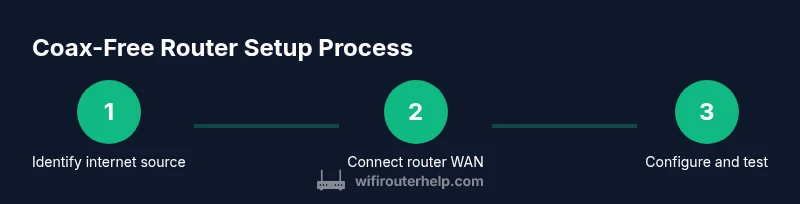
Many fiber providers terminate the fiber line at an Optical Network Terminal (ONT). In a coax-free setup, you connect the ONT’s Ethernet port to your router’s WAN port. This is the standard path for homes with fiber Internet. After physically connecting, you’ll access the router’s admin panel to configure the WAN type (usually DHCP or PPPoE, depending on your ISP), set the Wi‑Fi name and password, and enable security features. If the ONT is in bridge mode, your router handles all routing tasks; if not, you may need to place the ONT in bridge mode and disable its internal router features to avoid double NAT. As you proceed, verify that the router obtains an IP address from the ONT and that you can reach the internet from a wired device.
Path B: 4G/5G home internet router
A coax-free option for areas without fixed broadband is a 4G/5G home Internet router. These devices plug into a SIM card and provide an Internet connection via cellular networks. Place the router in an area with strong signal, insert a SIM with an adequate data plan, and power on the device. After the router boots, connect a computer to its WAN/LAN port to access the admin interface. Configure the WAN connection as needed (often automatic with SIM-based setups) and set your Wi‑Fi name and credentials. If your service uses data caps, consider enabling QoS to prioritize video calls or gaming while avoiding overage.
Bridging and IP basics: avoid double NAT
Double NAT occurs when two devices on the network perform network address translation, which can complicate port forwarding, VPNs, and gaming. In coax-free setups, you can usually avoid double NAT by placing the ISP’s device (ONT or modem) in bridge mode and letting your own router handle NAT. If bridge mode isn’t available, you may use the router in AP (access point) mode for simple expansion, though NAT will remain on the ISP device. Always check your ISP’s documentation or support portal for bridge-mode instructions, and test your network by running a few common tasks (remote desktop, gaming, VPN) to confirm proper operation.
Security and firmware: keep your network safe
Coax-free networks still require strong security practices. Update router firmware to the latest version, disable remote administration unless you need it, and use a unique, strong Wi‑Fi password. Enable WPA3 (or at least WPA2) encryption and consider enabling a guest network to isolate IoT devices from your main network. Regularly check for firmware updates and back up your configuration when you’ve reached a stable setup. WiFi Router Help recommends routinely auditing connected devices and updating security settings to stay ahead of common threats.
Performance and coverage expectations
Ethernet WAN connections are typically more stable than wireless backhaul and can deliver the base plan speed reliably when the hardware is capable. In a coax-free setup, your actual Wi‑Fi speed depends on the router’s wireless radios, antenna design, and the layout of your home. To maximize coverage, place the router centrally, avoid thick walls, and consider a mesh or additional access points for larger homes. If you’re supporting multiple devices (work from home, streaming, gaming), evaluate a router that supports multi-user QoS and high-speed WAN interfaces (2.5Gbps or faster) to reduce bottlenecks. For most households, a well-chosen coax-free router can deliver consistent speeds without coax infrastructure.
Hardware selection: ports and features that help
When selecting gear for a coax-free setup, prioritize the WAN port(s) and port speed, wireless standards (Wi‑Fi 6/6E or better), MU-MIMO support, and robust firmware options. A modern router with at least one 2.5Gbps WAN port or SFP (fiber) option can accommodate faster Internet services as you upgrade. Look for features like QoS, parental controls, guest networks, and automatic firmware updates. If you plan to scale to a larger home or a smart home ecosystem, consider a mesh-capable unit or a dedicated satellite device to maintain seamless coverage without relying on coax-based amplifiers. Finally, weigh the total cost of ownership against performance, ensuring that the chosen model aligns with your Internet plan and usage needs.
Cost, value, and planning for the future
Coax-free setups vary in hardware cost depending on features, throughput, and coverage. A solid mid-range router with a strong security track record and modern Wi‑Fi support generally offers the best value for most homes. You can expect price ranges that reflect features like multi‑Gbps WAN ports, Wi‑Fi 6/6E, and optional mesh capability. When budgeting, include future upgrades (new router versions, better antennas, or mesh nodes) and potential ISP changes. Planning ahead helps you avoid unnecessary swaps and keeps your coax-free network resilient as your internet needs evolve.
AUTHORITY SOURCES
- Authority sources you can consult for further guidance:
- https://www.fcc.gov
- https://ocw.mit.edu (MIT OpenCourseWare networking basics)
- https://www.nist.gov/topics/computer-security
- https://www.cnet.com/how-to/how-to-setup-a-router/
Tools & Materials
- Router with WAN port (RJ45)(At least 1 WAN port; 2+ LAN ports recommended for wired devices.)
- Ethernet cable (Cat5e or better)(Use a straight-through Ethernet cable for router-to-ONT connections.)
- ONT or LTE modem (Internet source)(Fiber ONT or cellular modem depending on your service.)
- Computer or mobile device(For initial configuration of the router’s admin interface.)
- Power supply / UPS (optional)(Keeps network running during outages.)
Steps
Estimated time: 60-90 minutes
- 1
Verify internet source is active
Confirm the ONT or LTE modem has an active internet connection. If you’re using fiber, ensure the ONT shows a healthy online status. If using cellular, verify your SIM data is active and you have signal.
Tip: If you’re migrating from a coax-based gateway, record existing settings before changing anything. - 2
Power off all devices before wiring
Power down the ONT/modem, router, and any connected devices to avoid surges. This reduces the risk of hardware damage during connection changes.
Tip: Unplug power from the old gateway first, then your router. - 3
Connect the router WAN to the internet source
Plug the ONT’s Ethernet port (or LTE modem) into the router’s WAN port using a Cat5e (or better) Ethernet cable. Ensure a secure, snug connection.
Tip: If you don’t see a LAN IP on the router, try a different Ethernet port on the ONT or reboot the ONT/modem. - 4
Power up and access the admin interface
Turn on the router and wait for it to boot. Use a connected device to access the router’s admin page via the default gateway IP (commonly 192.168.1.1).
Tip: Consult the manual for the exact IP if you don’t get a page automatically. - 5
Configure WAN/Internet settings
Set the WAN type to DHCP or PPPoE per your ISP. Save changes and reboot the router if required. Ensure the router obtains a public IP on the WAN interface.
Tip: If your ISP uses a login, enter the correct PPPoE credentials. - 6
Set up Wi‑Fi name and password
Create a unique SSID and a strong password. Prefer WPA3 if available; otherwise use WPA2. Disable WPS if your router supports it.
Tip: Use a different SSID for guests to keep your main network isolated. - 7
Enable essential security features
Turn on the firewall, enable automatic firmware updates, and disable remote admin access unless you need it. Consider enabling a guest network for visitors.
Tip: Keep a one-page note of your credentials in a secure place. - 8
Test connectivity and coverage
Check wired and wireless devices for internet access. Run speed tests and verify streaming, gaming, and VPN performance. If coverage is weak, reposition the router or add a mesh node.
Tip: Test at peak usage times to gauge real-world performance.
People Also Ask
Can I use any router if I don’t have coax cables?
As long as your internet source provides an Ethernet WAN and supports bridge mode if needed, you can use a modern router. Some ISPs require specific settings, so check with your provider. A router with robust firmware and security features will give you better long-term results.
Yes, you can use many modern routers as long as you have an Ethernet WAN and proper bridge mode. Check with your ISP if needed.
Do I need a modem if my ONT is in bridge mode?
If the ONT is in bridge mode, your router handles routing and NAT. If bridge mode isn’t available, you might need to use the ONT’s router functionalities or place the ONT in bridge mode with ISP guidance.
Bridge mode lets your router do the routing. If not available, consult your ISP for options.
What is double NAT and how can I avoid it?
Double NAT happens when two devices perform NAT, complicating port forwarding and VPNs. Use bridge mode on the ISP device or set the secondary device to AP mode to minimize NAT layers.
Double NAT can break some online features; enable bridge or AP mode to fix it.
Will a coax-free setup improve my Wi-Fi speed?
Not automatically. Speed depends on the router’s hardware and wireless standards, plus Ethernet WAN performance. A modern router with Wi‑Fi 6/6E and quality antennas often delivers strong speed and coverage.
It can improve overall performance if you have good hardware and placement.
Is 4G/5G home Internet reliable for streaming?
4G/5G can be reliable with a good signal and a data plan that supports your usage. Expect occasional variability with peak times, but modern routers can manage streaming well with proper QoS settings.
Cellular internet works well for many uses, but it depends on signal and data plan.
What’s the first step to start a coax-free setup?
Identify your internet source (ON T or LTE modem), verify it’s active, and ensure you have a compatible router with a WAN port ready for connection.
First, confirm your internet source and prepare a WAN-capable router.
Watch Video
What to Remember
- Coax-free networks rely on Ethernet WAN from ONT or cellular modems
- Bridge mode can prevent double NAT and simplify setup
- Secure, updated firmware is essential for safety
- Position the router for optimal coverage and consider mesh if needed