Router WiFi 6E Guide: Setup, Optimization, and Troubleshooting
Learn how to choose, install, and optimize a router wifi 6e for fast, reliable home networking. This step-by-step guide covers features, placement, configuration, and security to help you maximize performance.


Goal: you will learn how to pick, install, and optimize a router wifi 6e for a fast, reliable home network. This guide covers essential features to look for, how to position the router for best coverage, a step-by-step setup, and practical optimization tips. By the end, you’ll have a high-performance network with improved throughput, lower latency, and stable connections across your devices.
Why WiFi 6E Matters for Home Networks
According to WiFi Router Help, WiFi 6E opens the 6 GHz band for more spectrum and reduced interference, delivering a smoother experience in busy homes. The WiFi Router Help team found that households with many smart devices notice tangible improvements when upgrading to a router wifi 6e, especially for high-bandwidth tasks like 4K streaming and gaming. This section explains why the 6E standard matters and how it translates into real-world benefits such as lower contention, faster handoffs, and better stability across multiple floors. For homeowners, this translates to fewer dropped connections and more consistent performance as devices join and disconnect throughout the day.
As you consider your network, remember that the purpose of upgrading is not only faster speeds but also more reliable coverage across rooms and floors. The 6 GHz band in particular can alleviate congestion in dense living spaces, making the router wifi 6e a sensible choice for modern households with multiple streaming devices, video calls, and smart-home gadgets.
Practical takeaway: investing in a 6E-capable router can improve real-world performance even if some devices don’t yet support the 6 GHz band. The goal is to future-proof while delivering immediate benefits for compatible devices.
-1
Tools & Materials
- WiFi 6E router unit(Choose a model with 6 GHz support and at least one 2.5 GbE WAN/LAN port for wired backhaul.)
- AC power adapter(Original or compatible power supply; ensure adequate wattage for the device.)
- Ethernet cable (Cat6 or better)(For reliable WAN connection or backhaul in a mesh setup.)
- Computer or smartphone for setup(Used to access the admin interface via web or app.)
- Room layout plan (optional)(Helpful to optimize placement and avoid dead zones.)
- WiFi analyzer app (optional)(Assists in tuning channels and signal strength.)
Steps
Estimated time: 45-60 minutes
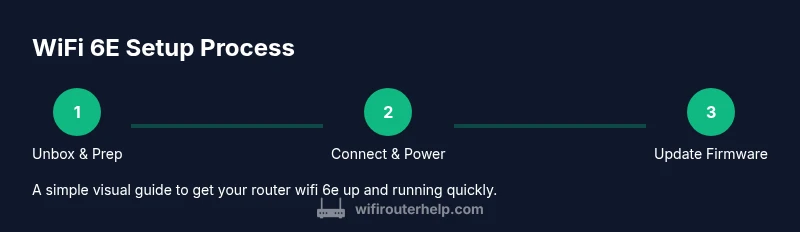
- 1
Unbox and inspect the kit
Open the box and verify all items are present. Inspect the router, power adapter, Ethernet cable, and any accessories for damage. Place the router on a stable surface away from heat sources before powering it up.
Tip: Check for any visible packaging damage and confirm you have every listed component before proceeding. - 2
Connect power and modem
Connect the router's power adapter and plug it in. Use an Ethernet cable to connect the router’s WAN/Internet port to your modem. Ensure the modem is powered on and has synced indicators before proceeding.
Tip: Prefer a wired connection between your computer and the router during setup to avoid wireless dropouts. - 3
Access the admin interface and update firmware
On a connected device, open the router’s admin page or app using the default IP or QR code. Check for firmware updates and install the latest version to ensure security and new features.
Tip: If you’re disconnected, try reconnecting to the router’s default SSID with a wired device. - 4
Configure admin credentials and basic network
Change the default admin password, create a unique SSID for each band (2.4 GHz, 5 GHz, 6 GHz if available), and set a strong passphrase. Configure DHCP range and DNS as needed for your network.
Tip: Use a strong, unique password and enable features like password-protect admin access from the internet if available. - 5
Set up security and guest access
Enable current encryption like WPA3-Personal, disable WPS, and create a guest network with internet-only access. Consider enabling a firewall and enabling logging for monitoring.
Tip: Limit guest access to the internet and disable access to local devices where appropriate. - 6
Configure QoS and device management
Set up QoS rules to prioritize latency-sensitive tasks (video calls, gaming) and allocate bandwidth where needed. Review connected devices and label high-priority gadgets.
Tip: Test playback and conferencing after applying QoS rules to confirm improvements. - 7
Position the router for optimal coverage
Move the router to a central elevation away from metal objects and large appliances. Use mesh extenders if you have dead zones; place them strategically for even backhaul and coverage.
Tip: Avoid placing near microwaves or dense walls that block signals.
People Also Ask
What is WiFi 6E and do I need it?
WiFi 6E adds a new 6 GHz band that relieves congestion and enables higher throughput for supported devices. It’s especially beneficial in busy homes with many connected devices or high-bandwidth tasks. If you don’t own 6E devices yet, you’ll still improve performance for older devices via better spectrum management.
WiFi 6E adds a new 6 GHz band for faster, less congested WiFi. It helps in busy homes, even if many devices still use older WiFi standards.
Can I use my existing modem and router with 6E?
A 6E router is not backward compatible with 6E features on older modems or routers. You may need a newer router, and ensure your modem provides a compatible connection to the internet. If your modem is rented from an ISP, check if it supports 6E features.
Older modems may not support 6E features. You’ll likely need a new 6E-compatible router and a modem that matches your ISP’s requirements.
Do I need a new modem for WiFi 6E?
The need for a new modem depends on your ISP and current equipment. If your modem supports current internet speeds and works with your service, you may only need a new 6E router. If your modem is outdated or failing to reach speeds, consider upgrading your modem too.
A new modem isn’t always required, but it depends on your service and existing gear.
How do I enable the 6 GHz band on a 6E router?
Access the router’s admin page, locate wireless settings, and enable or name the 6 GHz network as a separate SSID. Ensure devices that can use 6 GHz connect to it and adjust channels if interference is detected.
Go to wireless settings, turn on the 6 GHz network, and give it a distinct name so capable devices can use it.
Is WiFi 6E backward compatible with older devices?
Yes. WiFi 6E routers support older devices on 2.4 GHz and 5 GHz bands, but 6 GHz devices will perform best when connected to the 6 GHz network. Devices will fall back to legacy bands automatically.
Yes, older devices will still work on the existing bands, but you’ll get the best results with compatible 6E devices.
How often should I update firmware?
Check for updates monthly or enable automatic updates. Firmware updates fix security issues, add features, and improve stability for router wifi 6e networks.
Check for updates regularly or enable automatic updates to keep security and performance current.
Watch Video
What to Remember
- Choose a router wifi 6e with 6 GHz, 5 GHz, and 2.4 GHz bands
- Place centrally to maximize coverage and minimize interference
- Use WPA3 and guest networks for secure access
- Enable QoS to prioritize latency-sensitive tasks
- Update firmware regularly for security and features