Router WiFi 6: Setup, Performance, and Troubleshooting
A comprehensive guide to router wifi 6: choosing the right model, setting up a WiFi 6 network, optimizing performance, securing your home, and troubleshooting common issues for reliable, fast home internet.


You will deploy a router wifi 6 network that delivers faster speeds, lower latency, and better reliability across your home. Essential prerequisites include a WiFi 6 router, a compatible modem or gateway, and an active internet plan. This guide outlines the setup path, key features to enable, and practical steps to optimize coverage for real-world use.
What is WiFi 6 and Why It Matters for Router wifi 6
WiFi 6, or 802.11ax, represents a major step forward in wireless technology designed to improve speed, capacity, and efficiency in environments with many connected devices. When you adopt a router wifi 6, you gain better performance in crowded homes, reduced latency for gaming and video calls, and more stable connections behind multiple smart devices. The key improvements come from OFDMA, MU-MIMO, and Target Wake Time, which together enable more data to be sent to more devices with less interference. For homeowners, this means reliable streaming, faster downloads, and smoother smart-home operations—even when many devices are online at once.
Core Features You Should Look for in a router wifi 6
A strong router wifi 6 supports several core features that translate into real-world gains. OFDMA divides wireless channels into smaller subchannels so multiple devices can receive data concurrently, reducing wait times in busy households. MU-MIMO enhancements expand the number of devices that can communicate simultaneously. Target Wake Time (TWT) helps devices sleep efficiently, conserving battery life and reducing network chatter. Look for 1024-QAM for higher data throughput and 160 MHz channel support where available. Dual-band or tri-band configurations, guest networks, and robust beamforming further improve range and reliability. Security matters too: WPA3 is common on modern routers, with automatic firmware updates and parental controls as standard. If you plan to integrate with a mesh system, verify compatibility and roaming ease. Finally, sanity-check the published throughput against your actual internet plan, knowing real-world speeds vary by environment.
Planning Your Home Network Layout
Before buying or mounting equipment, map your home to determine the best spots for a router wifi 6. Central placement on a shelf or high on a bookcase tends to maximize coverage, while keeping it away from dense shelving or metal cabinets. Large obstacles like concrete walls, metal appliances, and mirrors can block signals, so avoid placing the router behind appliances or inside cabinets. For multi-story homes, consider a ceiling-to-floor approach or one upstairs and one downstairs node in a mesh setup to minimize dead zones. Group high-demand devices (streaming boxes, gaming consoles, laptops) to better estimate traffic and identify potential bottlenecks. Finally, ensure you have enough wired ports for a NAS, desktop, or gaming console to keep critical devices on wired links when possible, preserving wireless bandwidth for the rest of the network.
Quick Setup Checklist
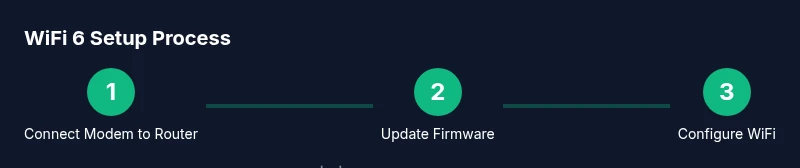
Getting online with a router wifi 6 is straightforward when you follow a plan. Start with a powered-on modem/gateway that’s functioning correctly. Connect the router to the modem with a wired Ethernet cable and power both devices. Access the admin interface from a computer or smartphone using the router’s default IP and login credentials, then immediately change the admin password to something strong. Update the router’s firmware to the latest version to fix bugs and security issues. Create separate SSIDs for 2.4 GHz and 5 GHz bands, enable the strongest security available (preferably WPA3), and set sensible network names that don’t reveal personal info. Enable guest networks and QoS for critical devices, and back up your configuration after changes.
Optimize for Real-World Performance
Real-world performance depends on more than the package label. Conduct a quick site survey to identify quieter channels on 5 GHz and ensure the 2.4 GHz band remains stable for legacy devices. Enable MU-MIMO and OFDMA to improve multi-device efficiency, and configure QoS to prioritize video calls, gaming, and work-related tasks. Update firmware regularly and confirm compatibility with current devices. If you have many smart devices, assign them to the 2.4 GHz band while reserving the 5 GHz network for high-bandwidth activities. If interference persists, consider relocating the router to a more central location or adding a mesh satellite to eliminate dead zones.
Security, Privacy, and Parental Controls
Security is as important as speed. Use WPA3 wherever possible and disable legacy protocols, update firmware automatically, and change admin credentials periodically. Create a separate guest network to isolate visitors from your main devices. Enable parental controls to manage screen time and content for younger users and review connected devices regularly. A well-maintained router wifi 6 reduces risks from new vulnerabilities and improves overall reliability. Document network settings and keep a secure backup so you can recover quickly after a reset or hardware failure.
Troubleshooting Common Scenarios
Most issues stem from placement, interference, or misconfigured settings. If devices drop connections, check for physical barriers and move the router to a central, elevated position. If a device won’t join the network, recheck SSID and password, and ensure device compatibility with WPA3. Slow speeds in a room often indicate a dead zone; relocate the router or install a mesh node. Confirm QoS isn't starving bandwidth for essential tasks and test wired backhaul if you use mesh. When firmware updates fail, download the update from the manufacturer site and apply it via the admin panel.
Future-Proofing Your Network
While WiFi 6 provides substantial performance today, plan for future-proofing by ensuring multi-gig Ethernet, solid heat management, and access to ongoing firmware improvements. Consider WiFi 6E compatibility where available, and ensure your devices will work with evolving standards. Check for easy roaming across mesh nodes and a responsive mobile app for configuration. Budget for periodic upgrades to adapt to new devices and services, preserving a fast and stable home network for years to come.
Quick Comparison: WiFi 6 vs WiFi 5
WiFi 6 delivers higher real-world speeds in dense environments, improved multi-device efficiency, and lower latency compared with WiFi 5. The gains appear when multiple devices are active, streaming, gaming, or videoconferencing concurrently. Not every home will feel a dramatic difference, but in busy households, the router wifi 6 is a prudent upgrade choice. Compatibility matters: ensure your devices support 802.11ax or higher to take full advantage of the standard.
Authority Sources
For further reading and validation, consult trusted sources: 1) FCC.gov on WiFi standards and certification, 2) IEEE 802.11ax standard details on IEEE.org, and 3) Ars Technica WiFi 6 review articles for practical performance insights.
Tools & Materials
- WiFi 6 router(Must support 802.11ax and at least dual-band, ideally tri-band for high-density scenarios)
- Modem (if separate)(Check compatibility with your ISP and a bridge mode if using a router+modem combo)
- Ethernet cable (Cat6 or better)(For a stable wired link between modem and router and for WAN/LAN backhaul)
- Computer, smartphone, or tablet(Needed to access the router admin interface)
- Power adapter and surge protector(Protects from outages and surges during setup)
- Optional mesh nodes(Use if you have large or multi-story home with dead zones)
- Labeling supplies(Sticky notes or markers to differentiate SSID names for 2.4 GHz and 5 GHz)
Steps
Estimated time: 60-90 minutes
- 1
Prepare hardware
Unbox the router wifi 6, ensure you have a compatible modem, and organize the cables. Inspect for any damage and verify power availability. This step ensures a smooth setup without interruptions later.
Tip: Keep the packaging and manuals handy in case you need model-specific instructions. - 2
Connect and power on
Connect the router to the modem with an Ethernet cable, then power both devices on. Wait 2–3 minutes for devices to boot and initialize.
Tip: Use a wired connection from a PC to the router during initial setup for reliability. - 3
Update firmware
Access the admin interface via a browser using the router’s IP address, then check for and install the latest firmware. Firmware updates fix bugs and improve security.
Tip: If automatic updates fail, download the update file from the manufacturer’s site and install manually. - 4
Configure WAN/Internet
Set the correct WAN connection type (DHCP, PPPoE, or static) as required by your ISP. Save changes and verify internet access before continuing.
Tip: If you’re unsure of the type, contact your ISP or check their self-help portal. - 5
Set up wireless networks
Create separate 2.4 GHz and 5 GHz SSIDs, enable strongest security (prefer WPA3), and select practical names. Configure password strength and consider guest networks.
Tip: Name SSIDs clearly (e.g., “HomeWiFi-2.4G” and “HomeWiFi-5G”). - 6
Enable performance features
Turn on MU-MIMO and OFDMA if available, enable QoS for priority devices, and consider enabling beamforming for stable ranges.
Tip: Test with a real device to confirm the features activate properly. - 7
Test and adjust
Run speed tests in multiple rooms, check for dead zones, and relocate the router or add a mesh node if needed.
Tip: Aim for a balance between coverage and performance; avoid over-tightening channel width where interference increases. - 8
Backup and document
Export router settings, write down your network names and passwords, and store the backup securely.
Tip: Store backups offline to prevent loss from cloud account issues.
People Also Ask
What is WiFi 6 and how does it differ from WiFi 5?
WiFi 6 (802.11ax) provides higher efficiency, better capacity, and lower latency in crowded environments compared with WiFi 5 (802.11ac). The improvements come from techniques like OFDMA and MU-MIMO, which allow multiple devices to share the wireless medium more effectively.
WiFi 6 is faster and more efficient in busy homes than WiFi 5, thanks to better handling of many devices at once.
Is upgrading to a router wifi 6 worth it for a typical home?
If you have multiple devices streaming, gaming, or teleconferencing at the same time, a WiFi 6 router often delivers noticeable improvements. For lighter users, the upgrade may be less dramatic, but it offers better future-proofing and device compatibility.
If your home has several active devices, upgrading to a WiFi 6 router usually pays off in performance and future compatibility.
Can I use a WiFi 6 router with existing equipment?
Yes. A WiFi 6 router backwards compatible with older devices using WPA2 or WPA3. You won’t get WiFi 6 benefits on non WiFi 6 devices, but your overall network remains usable.
Your existing devices will connect, but only WiFi 6 devices will get the full speed and efficiency benefits.
Do I need a new modem for WiFi 6?
Not necessarily. If your current modem supports your ISP service at the required speeds, you can typically bridge it or place the WiFi 6 router behind it. Some ISPs provide gateway devices that combine modem and router features.
A new modem is only needed if your current one doesn’t support your plan or lacks bridge mode.
How can I tell if my devices support WiFi 6?
Look for 802.11ax (WiFi 6) on device specifications, or check the device’s user manual. Many newer phones, laptops, and tablets display WiFi 6 readiness in settings.
Check the device specs or settings to confirm WiFi 6 support.
What is a guest network and why enable it?
A guest network creates a separate, isolated network for visitors. It protects your main devices and data while allowing guests internet access.
A guest network keeps your devices safe by isolating guest traffic from your main network.
Watch Video
What to Remember
- Choose a central, elevated router wifi 6 location.
- Enable WPA3 and update firmware regularly.
- Use 2.4 GHz for IoT devices and 5 GHz for high-speed tasks.
- Prioritize essential devices with QoS for stability.
- Regularly test speeds and adjust placement as needed.