WiFi 6E Router Spectrum: Setup, Compatibility, and Optimization
Learn how to choose, install, and optimize a WiFi 6E router for Spectrum. This practical guide covers compatibility, DFS channels, performance tips, and secure setup.


The Promise of WiFi 6E on Spectrum
According to WiFi Router Help, the move to WiFi 6E brings a dedicated 6 GHz band that can dramatically reduce congestion in dense homes or multi‑device environments. For households with many streaming devices, gaming consoles, and smart home gadgets, a 6E router can offer cleaner airwaves, faster real‑world speeds, and lower latency when compared to older WiFi generations. Spectrum customers often notice that the additional spectrum translates to steadier performance in high‑demand moments, especially if your current router operates primarily on 2.4 GHz and 5 GHz.
Beyond raw speed, WiFi 6E also introduces improved efficiency through OFDMA and MU‑MIMO, which helps many devices share channels more effectively. This means chores like video conferencing, cloud gaming, and 4K streaming can run concurrently without one task starving another. The upgrade is not just about speed; it’s about predictable performance for everyday activities and smarter handling of crowded networks.
If you’re new to 6E, expect some initial setup nuance, especially around router placement and channel selection. The goal is to maximize the available spectrum while minimizing interference from neighbors and household electronics. In the pages that follow, we’ll walk through a practical, Spectrum‑focused approach to getting the most from your WiFi 6E investment.
Understanding Spectrum Compatibility
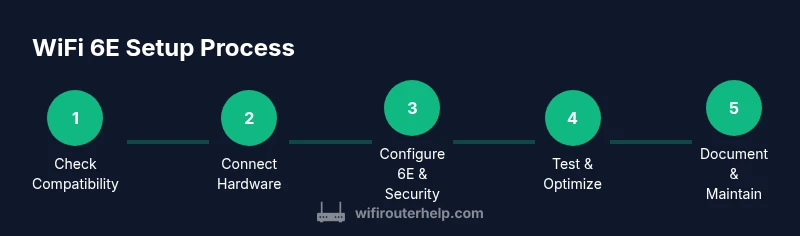
A common question is whether you can simply plug a WiFi 6E router into a Spectrum network and be done. The reality is a bit more nuanced. Spectrum service may come with a modem/gateway by default, and in some setups you’ll want to place your new WiFi 6E router in front of that gateway or in bridge mode to ensure the router handles wireless duties entirely. The core compatibility you need to verify is: (1) the modem you have is compatible with a third‑party router, (2) the router supports the 6 GHz band and modern security standards, and (3) any ISP restrictions on routing features are understood before you change bridge or gateway modes. WiFi Router Help recommends checking Spectrum’s current equipment policies and confirming DOCSIS compatibility if you use a cable modem.
In practice, many Spectrum customers will connect a 6E router to a compatible modem and use the router as the primary wireless access point, letting the ISP gateway run in bridge mode or pass‑through. This approach preserves full control over Wi‑Fi settings and upgrades, while retaining Spectrum’s reliable internet feed. Always document your current network topology before making changes, so you can revert if needed.
Key features to look for in a WiFi 6E router
When selecting a WiFi 6E router for Spectrum, prioritize features that maximize performance and reliability in real homes:
- 6 GHz band support for clean channels and reduced interference
- Support for 2.4 GHz and 5 GHz in addition to 6 GHz (tri-band) for device flexibility
- OFDMA and MU‑MIMO to improve multi‑device throughput
- Strong security options (WPA3, guest networks, automatic firmware updates)
- Robust CPU, ample RAM, and high‑quality antennas for sustained performance
- Easy administrative tooling (auto‑setup, app‑based management, and advanced QoS controls)
Beyond specs, match the router’s size and heat profile to your environment. A compact unit may be fine for a studio apartment, while a larger tri‑band router with external antennas could be better for multi‑story homes. In the end, compatibility with Spectrum’s service and your home’s layout will steer your decision. WiFi Router Help emphasizes testing a few channels after setup to confirm stable performance across devices and floors.
Planning Your Router Placement for Maximum Coverage
Placement is often the single biggest lever in home Wi‑Fi performance. A good rule of thumb is to position the router in a central, elevated location away from thick walls and metal appliances. Place it on a high shelf or cabinet roughly in the middle of your home to minimize dead zones. Avoid spots near microwaves, cordless phones, and baby monitors, which can create interference on the 2.4 GHz band. If possible, run a quick coverage test using a smartphone to map signal strength on each floor. The goal is to achieve even coverage rather than a single strong corner.
If you have a multi‑story home, you may consider adding a simple mesh extension for the far corners, but with WiFi 6E you can often achieve strong performance with a well‑placed single unit on many layouts. Remember that DFS channels may deliver extra headroom, but they can also introduce occasional interference if your neighbor’s devices or weather radar systems are active nearby. Tested placement and channel selection combined with Spectrum compatibility checks will yield the best outcomes.
Security and Privacy Considerations
Security should be built into every step of your WiFi 6E deployment. Enable WPA3 if possible, and use a strong, unique passphrase for your main network and any guest networks. Turn on automatic firmware updates to keep your router protected against evolving threats. Consider enabling features such as device‑level access controls, parental controls for family devices, and network monitoring so you know what’s connected and when.
Disable WPS if your router supports it, and use strong admin credentials on the router’s interface. Regularly back up your configuration and keep a log of changes you’ve made so you can replicate or revert settings in the future. These best practices are recommended by WiFi Router Help to maintain a secure, reliable home network while you enjoy the benefits of Spectrum and WiFi 6E.
Interoperability: Modem, Gateway, and Bridge Mode
A smooth integration with Spectrum often means carefully choosing between using the ISP gateway in router mode or bridging it and letting your own 6E router manage routing. If you keep the gateway, ensure it’s set to pass traffic to your 6E router without double NAT issues. If you bridge the gateway, your 6E router should obtain an external IP directly from Spectrum. Document each device’s IP ranges and DHCP settings to avoid conflicting addresses.
Bridge mode can simplify management and maximize performance, but some Spectrum features may require gateway involvement. Always confirm the allowed configurations with your provider before changes, and consider a temporary fallback plan if you encounter connectivity issues after reconfiguring hardware. A careful, staged approach reduces downtime and keeps your home network stable.
Configuring 6E: Channels, DFS, and Interference Management
Configuring the 6E network is where most performance gains come from. Start by enabling the 6 GHz band on your router and creating a strong, separate SSID for it. Use a password with sufficient length and complexity, and enable WPA3 security. For channel selection, let the router perform auto‑channel optimization, then manually test a few non‑overlapping channels if needed. In dense neighborhoods, DFS channels can add headroom by using radar‑protected frequencies, but you should monitor connectivity since DFS channels may temporarily disconnect devices when channel changes occur.
Turn on QoS for latency‑sensitive tasks (gaming, videoconferencing) and set per‑device priorities if your router supports it. Disable legacy protocols or devices that are incompatible with WiFi 6E, and ensure you have the latest firmware so security and performance improvements are included. Finally, run a few speed tests from different rooms and floors to verify that coverage aligns with your expectations. This hands‑on configuration is essential to getting the most from Spectrum‑connected WiFi 6E hardware.
Spectrum‑Specific Tips for 6E: DFS, Range, and Legacy Devices
DFS channels can significantly improve overall network capacity, but they require radar detection and may trigger brief outages if a new channel is selected. If practical, test a mix of DFS and non‑DFS channels to understand real‑world stability in your home. Some devices or older clients may struggle with 6E or the 6 GHz band; for legacy devices, keep a stable 2.4 GHz or 5 GHz network and ensure your 6E router is not over‑saturating them with too much interference.
Use network mapping to see which floors or rooms have the best 6E coverage and consider repositioning the router or adding one small extender only where necessary. Always verify Spectrum compatibility for any advanced features you enable, such as IPv6 support, firewall rules, or guest network controls. WiFi Router Help’s guidance emphasizes balancing cutting‑edge performance with reliable compatibility for all your devices.
Testing, Troubleshooting, and Ongoing Optimization
After the initial setup, run a battery of tests to validate performance. Compare speeds on core devices across the 2.4 GHz, 5 GHz, and 6 GHz bands, and measure latency during peak usage. If devices report weak signals, adjust placement or add a minimal mesh node in that area. Common issues include double NAT, misconfigured DNS, or a mismatch between modem and router IP ranges. Revisit your bridge settings if you encounter intermittent drops, and ensure you have the latest firmware.
Ongoing optimization is about small, iterative improvements. Schedule periodic re‑tests, monitor connected devices, and keep security settings up‑to‑date. As you add smart devices and family members’ devices, revisit your QoS rules and guest network segmentation to maintain both performance and security. With routine tuning, a WiFi 6E setup aligned with Spectrum’s service will stay robust for years to come.
Future-Proofing Your Home Network
The landscape of home Wi‑Fi is constantly evolving, and a WiFi 6E router positions you well for future devices and services. Expect firmware updates that improve stability, security, and feature sets. Consider expanding with additional 6E compatible devices or mesh nodes if your floorplan evolves, but test thoroughly before deployment to preserve performance. Finally, stay informed about Spectrum’s equipment policies and any new offerings that could affect your setup. With proactive maintenance and careful planning, your network remains resilient as technologies advance.