Where to Find Your Router: A Quick Locate Guide
Learn where to locate your router’s model, IP address, and admin details quickly. This guide covers physical labels, default gateways, and the admin page for setup and troubleshooting.


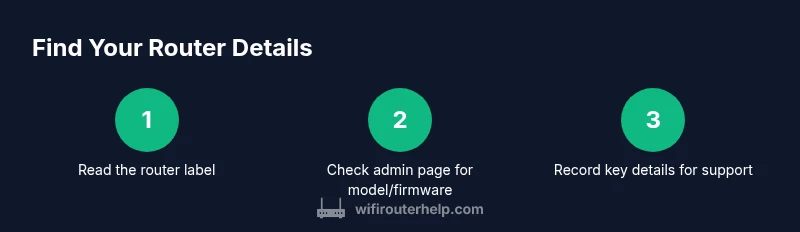
Locate your router’s essentials by reading the device label on the back or bottom, then check the admin page for model, firmware, and IP. If the label is unreadable, use your computer’s network settings to identify its default gateway and log in to the router’s web interface for exact details.
Start with safety and a quick read of the device
According to WiFi Router Help, the fastest way to find router information begins with safety and preparation. Begin by powering the device if needed, placing it on a stable surface, and ensuring you can access the back label. The WiFi Router Help team found that most users succeed when they have the physical device in view and a device to read the label or open a browser. This first scan sets the stage for accurate data collection and minimizes misreads during later steps. If you use a stand or shelf, keep the router within easy reach so you can flip it without tools. Keeping cables neat reduces the chance of pulling the device during labels inspection. After you confirm the label, move to the next steps with a clear plan and a pen to note important details.
Locating the physical label: model, serial, and MAC
Most routers have a hardware label on the bottom or back. It typically lists the model number, serial, MAC address, and the default IP address or gateway. Write down the model and serial first; they help when searching the manufacturer’s site for manuals or firmware notes. The label may also show the default Wi‑Fi network name (SSID) and password, though you should change these after initial setup. If the label is worn, inspect the underside more carefully, or use a magnifier. If you still cannot read it, the device’s packaging or quick-start guide often repeats these identifiers. Remember: a clean copy of these details speeds up troubleshooting and future support calls.
Read the admin page: what to expect in Status/Device Info
Accessing the router’s admin interface is where you confirm firmware and network details. Use the default gateway address from the label or your computer’s network settings, then log in with the credentials on the device sticker or in the manual. Once inside, navigate to sections labeled Status, Device Info, or System. Here you’ll verify the model, current firmware version, uptime, and WAN/LAN IPs. Take screenshots or copy the exact strings for your records. If your router uses a mobile app, there may be an equivalent summary page that mirrors the web interface. Consistency between the label and the admin page is your best guard against misconfigurations.
Verifying the IP address on your computer
If the label or admin page doesn’t immediately reveal the IP, check your computer’s network settings. On Windows, run ipconfig in Command Prompt and look for the Default Gateway; on macOS or Linux, use ifconfig or the Network Utility to find the gateway. That gateway is your router’s admin URL in most homes. Note the IP address, then enter it into a browser to re-open the admin page. This cross-check helps you confirm you’re accessing the correct device, especially in homes with multiple network nodes or extenders.
What to do if the label is unreadable or the UI is unreachable
If the physical label is faded or the router is not responding, consult the manufacturer’s manual or online support pages. Look for the model number on the bottom, then search for the exact model’s default login URL and credentials. If you’ve previously changed login details, try the password recovery options offered by the brand or perform a factory reset as a last resort (noting you’ll need to reconfigure your network afterward). In stubborn cases, contact customer support with your model, serial, and any photos of the device.
Document and organize your router details
Create a centralized record of your router information: model, serial, MAC address, firmware version, IP address, default gateway, login credentials, and the date of the last update. Store this in a password manager or a dedicated notes file with a backup. Keeping a current inventory helps with firmware updates, troubleshooting, and future device replacements. Routinely verify firmware versions during security checks and note any new features or changes that affect your network.
Common pitfalls to avoid when locating router information
Avoid relying on default names across devices, as some routers reuse similar IDs. Don’t confuse a mesh node’s information with your main router. Avoid resetting the device solely to retrieve details, since a reset can disrupt service. If you must reset, plan downtime and re-create essential settings. Finally, never expose login credentials in shared documents or unencrypted emails; use a password manager for secure storage.
Tools & Materials
- Router or access to a WiFi-enabled device (phone, tablet, or computer)(Needed to read labels and access the admin interface)
- Web browser(Chrome, Edge, Safari, or Firefox to login to the admin page)
- Power source(Ensure the router is powered on during steps)
- Pen and notebook(Optional for jotting down model, firmware, and IP details)
Steps
Estimated time: 20-30 minutes
- 1
Inspect the router for labels
Power on the router if needed, then flip the device and inspect the bottom and back panels for a hardware label. Note the model, serial, MAC address, and any default IPs listed. This step creates a reliable reference point before you access the admin page.
Tip: If the label is worn, use a magnifier or photograph it for later reading. - 2
Identify the router’s IP via the label or computer settings
Look for the default gateway IP on the label. If it isn’t listed, on your computer open network settings to find the Default Gateway. This IP will be used to access the admin page.
Tip: Common defaults are 192.168.0.1 or 192.168.1.1; use the one shown on the device if present. - 3
Log in to the router admin page
Open a web browser and enter the gateway IP in the address bar. Enter the login credentials from the label or manual. If you changed them and forgot, use the manufacturer’s password recovery or reset procedures.
Tip: Do not reuse credentials between devices; consider a unique, strong password. - 4
Verify model, firmware, and IP in the admin interface
Navigate to Status, Device Info, or System to confirm the model, firmware version, uptime, and WAN/LAN IPs. Record these details for your records.
Tip: Take screenshots or copy exact strings to avoid later mismatches. - 5
Cross-check with the physical label
Ensure the details in the admin page match what’s on the device label. Any discrepancy could indicate a second device or a misread label.
Tip: If there’s a mismatch, re-check the IP address and label location on the device. - 6
Document and secure your data
Record the model, serial, MAC, firmware, IP addresses, and login credentials. Save this securely in a password manager and note the date of the last firmware update.
Tip: Set a reminder to check for firmware updates every few months.
People Also Ask
How do I find my router model and serial number?
Read the hardware label on the bottom or back of the router for model and serial. If unreadable, check the manual or the manufacturer’s website by entering the model number.
Check the label on the router for model and serial, or consult the manual if the label is worn.
What if I can’t access the admin page?
Ensure you’re using the correct IP address (default gateway). If credentials are forgotten, use password recovery or reset options from the manufacturer after which you’ll need to reconfigure your network.
If you can’t log in, try the default IP again and use the password recovery process if available.
Can I locate router details using a mobile app?
Many brands provide companion apps that mirror essential router details like model, firmware, and network settings. Refer to the app’s Help or About sections for specifics.
Yes, many brands have apps that show model and firmware details.
What should I do if the label is missing or damaged?
Use the manual or product box to identify the model and reset steps. If unavailable, contact customer support with any photos of the device.
If the label is unreadable, check the box or manual and contact support with the device photos.
Is there a quick way to verify the gateway IP on multiple devices?
Yes—for each device, open network settings and locate the Default Gateway. Ensure it matches the router’s expected IP range. This helps confirm you’re connected to the correct router.
Check each device’s network settings for the default gateway to confirm you’re on the right router.
Watch Video
What to Remember
- Identify the router via the hardware label first
- Use the default gateway to access the admin page
- Verify details in Status/Device Info against the label
- Document and secure router information for future use