Router DSL Guide: Setup, Optimize, Troubleshoot & Secure Your Network
Learn how to set up and optimize a router DSL for fast, stable home internet. This step-by-step guide covers planning, equipment, configuration, security, performance tuning, and common troubleshooting.


You're going to set up and optimize a router DSL connection for reliable home internet. Essential prerequisites include an active DSL plan, a compatible router, and a modem or gateway in bridge mode if you want the router to handle NAT. The steps cover device placement, basic configuration, wireless security, and common troubleshooting. Expect to test speeds, adjust channels, enable guest networks, and maintain the setup over time.
Understanding Router DSL: What It Is and Why It Matters
In home networks, router dsl refers to the setup where a dedicated router handles wireless and wired traffic while the DSL connection from your ISP provides the internet signal through a modem or gateway. Understanding this arrangement helps you optimize performance, security, and reliability. According to WiFi Router Help, starting with a clear mental map of where your signal originates and how devices connect makes all subsequent steps smoother. A typical DSL setup uses a modem that translates the telephone line signal into IP packets; a separate router then distributes those packets to your devices via Ethernet or WiFi. When you combine a modern router with DSL service, you gain control over features like guest networks, parental controls, and Quality of Service (QoS). The more you know about the path from the DSL line to your devices, the easier it is to diagnose slowdowns, drops, or dead zones. This block frames the rest of the guide by laying out the essential concepts: bridging, NAT, and the difference between bridge mode and router mode. Bridging makes your DSL modem act as a pass-through, letting your router manage network addressing. Router dsl setups can become complex if you mix bridge mode with multiple devices, so plan ahead and document each device's role. The WiFi Router Help team emphasizes careful planning to avoid common misconfigurations that can degrade performance.
Prerequisites and Planning Before You Begin
Before diving into configuration, take stock of your environment and goals. A solid plan for your router dsl setup includes a clear map of device placement, known wall-impeding obstacles, and a practical expectation for coverage across your home. The WiFi Router Help approach recommends documenting every device’s role and keeping an inventory of network names (SSIDs) and passwords. Start by verifying your DSL service details, such as the type of connection and the maximum supported speeds, and ensure you have a compatible router that supports modern Wi-Fi standards. Consider whether you will use bridge mode to let a dedicated router handle NAT or keep your ISP modem in gateway mode and use the router for additional features. If you have a smart home ecosystem, list devices and their network requirements to minimize interference. This planning phase reduces the risk of rework during setup and makes it easier to implement features like QoS, guest networks, and parental controls without disrupting everyday use.
Equipment and Compatibility: What You Need to Know
Choosing the right gear for router dsl is crucial. Ensure your modem or gateway can be bridged if you want the router to manage the network entirely. Look for a router that supports current security protocols (WPA3), dual-band Wi-Fi, and robust QoS options. Verify compatibility with your phone line and DSL profile (ADSL, VDSL, or fiber-backed DSL services). The modem should be able to act as a pass-through if you intend to enable bridge mode. If you plan to expand later with mesh networking, verify that the router supports compatible extenders or satellite units. Keeping a simple, well-documented topology helps you troubleshoot faster when issues arise, such as slow speeds or inconsistent coverage, and makes future upgrades smoother. The goal is a reliable, scalable setup that can accommodate the household’s growing connectivity needs while maintaining strong security.
Setup Steps: From Physical Connection to Admin Console
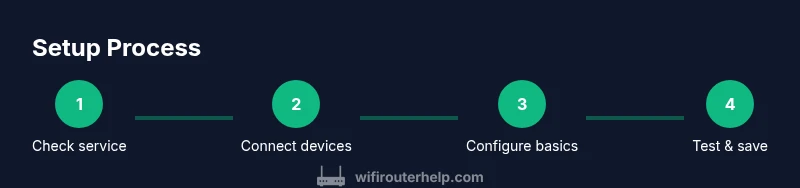
A successful router dsl deployment begins with a clean physical setup and a logical network configuration. First, connect the DSL modem to the wall jack and then connect the modem to the router via Ethernet using the WAN port. Power up devices in the correct sequence and wait for link lights to stabilize. Access the router’s admin console by entering the default IP address in a web browser and signing in with the provided credentials. If you want the router to manage your network entirely, enable bridge mode on the modem so NAT is handled by the router; otherwise, keep the modem in gateway mode and configure the router for your internal network. In this stage, set a descriptive network name (SSID) and a strong passphrase, choose WPA3 security if available, and disable remote management unless you truly need it. For a more resilient setup, consider enabling a guest network for visitors and corporate devices to isolate traffic. Visual references and step-by-step diagrams can help, so consult the admin interface’s guided setup if offered by your router brand. This is also the moment to back up your configuration after you’re satisfied with the defaults.
Security Best Practices: Locking Down Your DSL Network
Security is a cornerstone of a healthy router dsl environment. Start by changing the default admin password to a strong, unique credential and enable WPA3 encryption on your wireless networks. Disable WPS to prevent easy external access, and consider enabling a guest network with its own password to keep visitors off your main network. Regularly review connected devices to spot unfamiliar nodes and revoke access for anything unrecognized. If you have a smart home setup, isolate IoT devices on a separate VLAN or guest network to reduce potential attack surfaces. Keep firmware up to date, as updates often include important security patches and performance improvements. The goal is a secure, resilient network that preserves your privacy while supporting everyday connectivity. Remember to document any changes so you can revert quickly if needed.
Performance Tuning: Channels, QoS, and Bandwidth Management
With the DSL line delivering internet service, performance depends on how you configure wireless settings and traffic priorities. For 2.4 GHz, select a channel with the least interference in your area, often around channels 1, 6, or 11 in the United States, and verify that your 5 GHz band is delivering higher speeds where possible. Enable Quality of Service (QoS) rules to prioritize latency-sensitive devices such as video calls and gaming consoles during peak times. If your home has many devices, consider enabling beamforming or MU-MIMO if supported by your router. Set bandwidth limits for specific devices or apps to ensure essential services maintain adequate speeds. If you share your DSL connection with a lot of streaming or video conferencing, you may need to adjust settings to minimize buffering while maintaining a pleasant user experience for everyone.
Troubleshooting Common DSL Router Issues
When things don’t go as planned, a structured approach helps solve problems quickly. If you cannot access the admin page, verify you’re using the correct IP address and that your computer is connected to the router via Ethernet or Wi-Fi. If you experience frequent disconnects, check cables and power adapters, and test with a different Ethernet cable. Bridging can complicate NAT if not configured correctly; ensure both the modem and router agree on addressing. Slow speeds can result from channel interference, outdated firmware, or misconfigured QoS rules. Use speed tests to quantify performance and compare against your plan. In many cases, a factory reset followed by a clean reconfiguration resolves stubborn issues, but only after saving a current configuration backup. WiFi issues can also stem from wall materials and device placement; relocate the router to an elevated central location and away from thick walls or metal appliances.
Maintenance and Long-Term Health of Your Router DSL
To keep a router dsl system healthy, schedule regular firmware checks and backups of configuration files. Maintain a simple, organized network map showing device names, IP addresses, and MAC addresses for easier troubleshooting. Periodically review connected devices and update passwords to protect against unauthorized access. If you deploy a guest network, rotate its password occasionally and monitor guest activity. For families with kids, adjust parental controls to align with evolving schedules and safety needs. The core habit is proactive maintenance: firmware updates, security checks, and a clear, documented network topology. The WiFi Router Help team recommends treating maintenance as part of your routine rather than a one-off task, ensuring reliable performance and security over time.
Tools & Materials
- DSL modem or gateway (ISP-provided)(Must be compatible with your service and in working order)
- Wireless router(Prefer dual-band 2.4/5 GHz; look for QoS features)
- Ethernet cable (Cat5e/Cat6)(For wired connections to the modem and router)
- Power adapters for modem and router(Keep surge protection handy)
- Computer or mobile device with web browser(Access the admin interface; no special software needed)
Steps
Estimated time: 30-60 minutes
- 1
Confirm service and collect gear
Verify your DSL service is active and that you have a compatible router. Gather a DSL modem, a router, an Ethernet cable, and a device to configure the settings. Check that you can access the internet from a connected computer after the initial hookup.
Tip: Document serial numbers and default admin credentials for quick recovery if needed. - 2
Power down and connect hardware
Power off all devices. Connect the DSL modem to the wall jack and then connect the router to the modem using the Ethernet WAN port. If bridging, connect the modem to the router in bridge mode as specified by your ISP’s instructions. Power on the modem first, then the router, and wait for link lights to stabilize.
Tip: Use a stable, near-central location for the router to maximize coverage. - 3
Access the admin console
Use a computer or mobile device to access the router’s admin interface via the default IP address. Sign in with the default credentials and immediately set a strong admin password. If your ISP requires bridge mode, enable it here or on the modem depending on hardware.
Tip: Change the admin username and password before making other changes. - 4
Configure WAN and bridge mode
If you’re using a separate router, place the modem in bridge mode so the router handles NAT. If you’re keeping gateway mode, ensure the router’s DHCP range is correctly configured and that there’s no IP conflict. Save changes and reboot if prompted.
Tip: Bridge mode prevents double NAT, which can cause connectivity issues for some apps. - 5
Set up your wireless network
Create a clear network name (SSID) for both 2.4 GHz and 5 GHz bands if supported. Use a strong, unique passphrase and enable WPA3 where possible. Consider separating guest networks to protect your main devices.
Tip: Use different SSIDs for each band to optimize device connections and performance. - 6
Enable security features
Turn on firewall protections, disable remote management if not needed, and ensure firmware is up to date. Customize parental controls if required and review connected devices to remove any unknown clients.
Tip: Enable automatic firmware updates if available to keep security current. - 7
Test and optimize
Run wired and wireless speed tests to verify performance against your plan. Check signal strength in key rooms and adjust antenna orientation or relocate the router if necessary. Make small QoS adjustments if certain devices require priority.
Tip: Document test results and any adjustments for future reference. - 8
Document and back up configuration
Save a backup of the final configuration and keep a note of all settings. This makes it easy to restore after a reset or hardware changes. Schedule periodic reviews of your network to maintain performance.
Tip: Store backups in a secure, easily accessible location.
People Also Ask
Do I need bridge mode?
Bridge mode is useful when you want a separate router to manage NAT and all routing features. If you keep the modem in gateway mode, configure the router to handle DHCP and NAT to avoid double NAT issues. Always follow your ISP’s bridging instructions to avoid connection problems.
Bridge mode is helpful when using a separate router to manage network address translation. If you keep gateway mode, configure your router accordingly to prevent double NAT. Refer to your ISP for bridging steps.
Can I use a separate router with DSL?
Yes. Many homes use a separate router with DSL to gain advanced features like richer QoS, better parental controls, and more flexible guest networking. Ensure the modem can operate in bridge mode or disable its NAT when using an additional router.
Absolutely. A dedicated router often gives you more features and control. Make sure to enable bridge mode or disable NAT on the modem as needed.
What’s the difference between DSL and fiber?
DSL describes internet over telephone copper lines, typically slower and distance-dependent. Fiber uses optical cables with far higher potential speeds and lower latency. DSL performance can be significantly improved with proper router setup and interference management, but it won’t match fiber in many scenarios.
DSL runs over copper lines and is distance-sensitive; fiber is much faster and lower latency. Your results vary by service and plan.
Why is my WiFi slow after setup?
Slow WiFi after setup can come from channel interference, weak signal, outdated firmware, or misconfigured QoS. Start with a quick speed test, check channel selection, and ensure firmware is up to date. Adjust placement and consider enabling both bands and a guest network if needed.
If WiFi is slow, check interference, update firmware, and optimize placement. Use both bands and consider QoS tweaks.
How often should I update firmware?
Firmware updates should be checked monthly and applied when available. Regular updates fix security vulnerabilities and improve performance. Enable automatic updates if your device supports it and keep a backup of your configs before upgrading.
Check for updates monthly and apply them when available to stay secure and up to date.
I can’t access the admin page—what now?
If the admin page is unreachable, verify your device is connected to the router, confirm you’re using the correct IP address, and disable VPNs or proxies that might block access. A factory reset may be necessary as a last resort, followed by restoring your backup configuration.
Make sure you’re connected, use the right IP, and disable VPNs. If needed, reset and restore your backup.
Watch Video
What to Remember
- Plan network topology before configuring
- Bridge mode can simplify NAT management
- Secure WiFi with WPA3 and strong passwords
- Optimize channels and enable QoS for busy homes
- Document changes and back up configurations