Router Configuration: Step-by-Step Home Setup Guide
Master router configuration with this comprehensive step-by-step guide: login, firmware updates, core settings, Wi-Fi optimization, security basics, and troubleshooting to boost speed, reliability, and safety for your home network.


By performing proper router configuration, you will establish a fast, stable home network with fewer dropouts and better security. This quick answer outlines the essential steps: access the admin panel, update firmware, adjust core settings, and test performance. According to WiFi Router Help, a well-planned router configuration can reduce interference, improve throughput, and minimize dropped connections across smartphones, laptops, and smart home devices. The WiFi Router Help team found that many households rely on defaults that are easy targets for attackers and can lead to inconsistent performance. By understanding the core goals—security, performance, and manageability—you can tailor settings to fit your household’s patterns and internet plan.
What router configuration is and why it matters
Router configuration is the process of setting up your home network’s devices and services to work reliably and securely. This is not just about giving your devices internet access; it’s about balancing speed, stability, and protection from common threats. According to WiFi Router Help, a well-planned router configuration can reduce interference, improve throughput, and minimize dropped connections across smartphones, laptops, and smart home devices. The WiFi Router Help team found that many households rely on defaults that are easy targets for attackers and can lead to inconsistent performance. By understanding the core goals—security, performance, and manageability—you can tailor settings to fit your household’s patterns and internet plan.
Prepare for the configuration: prerequisites and safety
Before you touch settings, gather what you need and lay a safe foundation. Have your router’s model number and manual on hand, plus a device to access the admin panel. Keep the router plugged in and connected to power, preferably on a stable surface. If possible, connect your computer to the router with an Ethernet cable to avoid wireless instability during the process. Create a simple password-protect for your administrator account and plan a new unique admin password if you suspect the default was used. Finally, note your current network name (SSID) and password so you can revert if needed.
Accessing your router’s admin panel
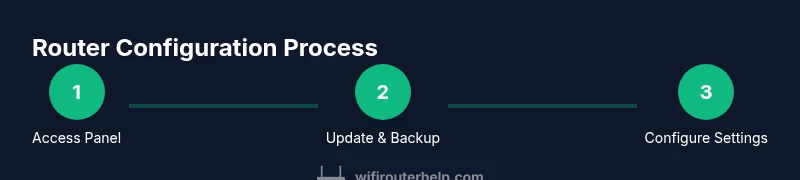
To begin, open a web browser and enter the router’s default IP address (commonly 192.168.0.1 or 192.168.1.1) or the URL found in the manual. You’ll be prompted to enter the admin username and password. If you haven’t changed them, look for the credentials on the router label or in the manual. If you cannot access the panel due to a forgotten password, use the reset procedure described in the manual to restore defaults. After logging in, immediately check for firmware updates, then back up the current configuration to a safe file on your computer. Confirm you’ve disabled remote administration unless you need it for remote access. If your router supports two-factor authentication for admin access, enable it.
Update firmware and backup current settings
Firmware updates fix bugs, security vulnerabilities, and sometimes add features that simplify configuration. Check the router’s firmware page for the latest version and use the built‑in updater to install it. Once updated, back up both the current settings and a separate export of critical fields like your Wi‑Fi passwords and port forwarding rules. This backup acts as a safety net in case you need to restore configurations after a misstep. If you’re using a cloud-managed router, confirm your cloud backup status as well.
Core network settings: DHCP, NAT, and LAN/WAN
In this section you’ll configure the core networking foundations. Ensure DHCP is enabled if you want the router to assign IP addresses automatically, or set a static IP range if you prefer manual control. Review the NAT setting to ensure it’s appropriate for your internet connection, and verify your WAN type (dynamic, static, PPPoE) matches your service plan. For most homes, using a single LAN subnet with a straightforward DHCP range avoids conflicts with devices and IP address reuse. Document the IP range and gateway address for future reference.
Wireless settings: SSID, channel, and security
Pick a descriptive SSID that doesn’t reveal your address or personal information. For security, use WPA2‑PSK or WPA3‑PSK if available, and disable WPS if present. Select a channel with the least interference in your area—use an auto‑select or a manual 1, 6, or 11 in the 2.4 GHz band depending on neighbors. For 5 GHz, use a shorter-range but faster channel width and consider enabling MU‑MIMO if your router supports it. Save your changes and test signal strength in different rooms.
Quality of Service (QoS) and device prioritization
QoS lets you prioritize certain devices or applications, ensuring essential tasks get bandwidth when the network is busy. Start with a simple rule set, such as prioritizing video calls and work devices over bulk downloads. If your router supports application-based QoS, enable it and create rules for video conferencing (Zoom, Teams) and gaming. Monitor the impact for a few days and adjust. A modest QoS setup often yields noticeable performance improvements.
Guest networks, firewall, and guest access controls
Enable a separate guest network to isolate visitors from your main network. Give guests restricted access and a unique password, and consider time-limited access. Review firewall settings and enable inbound protection features. Turn off UPnP if you don’t need it, or configure it carefully to minimize risk. Document guest network credentials just like your primary network credentials.
Troubleshooting common issues during router configuration
If you run into issues during router configuration, start with a systematic approach. Confirm you’re on the correct admin page and that you’re using the latest firmware. If a setting doesn’t apply, reset that section to default and reapply carefully. WiFi Router Help analysis shows that most problems stem from conflicting IP addresses, incorrect DHCP ranges, or password typos. Use the backup you created earlier to revert changes if needed and test after each change to isolate the problem.
Maintenance, backups, and firmware updates after configuration
After completing the setup, schedule regular maintenance tasks. Periodically check for firmware updates and re‑evaluate your QoS rules as your household adds devices. Keep a current backup of your router configuration and any custom rules; store it in a secure location. If you use cloud management or hybrid systems, verify that cloud backups are up to date. The WiFi Router Help team recommends a quarterly review of your settings to maintain optimal performance and security.
Tools & Materials
- A computer, tablet, or smartphone with a web browser(Needed to access the router's admin panel)
- Original router documentation (manual or model number)(Helpful for exact settings and default credentials)
- Ethernet cable(Optional but recommended for stable connection during setup)
- Power supply and a nearby outlet(Keep router powered during changes)
- Stable internet connection (for firmware updates)(Not required to start, but recommended)
Steps
Estimated time: 30-60 minutes
- 1
Access the router admin panel
Open a browser and enter the router's IP address (commonly 192.168.0.1 or 192.168.1.1). Log in with the admin credentials; if you never changed them, check the label or manual. This initial step establishes a secure base for all subsequent settings.
Tip: If the page won’t load, verify the device is on the same network and try an Ethernet connection. - 2
Back up current configuration
Export the existing settings to a local file before making changes. This backup allows you to revert quickly if something doesn’t work as expected.
Tip: Store the backup in a secure location separate from the router. - 3
Check for firmware updates
Install any available firmware updates to ensure compatibility and security. Do not interrupt the power during the update.
Tip: Ensure a stable power source and network connection during the upgrade. - 4
Configure WAN and DHCP basics
Set the WAN type to match your ISP (dynamic, static, or PPPoE). Enable DHCP if you want the router to assign IPs automatically.
Tip: Document the DHCP range and gateway for future reference. - 5
Set up LAN/NAT basics
Confirm the LAN IP range doesn’t conflict with your modem. Enable NAT where appropriate to translate local addresses for the internet.
Tip: Avoid overlapping IPs with the modem’s router if you have a separate gateway. - 6
Configure wireless network
Set a descriptive SSID, select a secure encryption (WPA2‑PSK or WPA3‑PSK), and choose a channel with minimal interference.
Tip: Disable WPS if available to reduce risk. - 7
Implement QoS rules
Create basic QoS rules to prioritize essential services such as video calls and work devices. Start with simple, clear rules and adjust over time.
Tip: Monitor impact and tweak gradually to avoid unintended slowdowns. - 8
Secure and back up
Change the admin password, disable remote admin if not needed, and back up the new configuration. Verify all changes by testing a few devices.
Tip: Keep a separate copy of the backup and password in a secure place.
People Also Ask
What is router configuration and why is it important?
Router configuration is the process of setting up your home network’s devices and services to work securely and efficiently. It affects security, speed, and reliability across all connected devices. Proper configuration reduces interference and helps everything—from smartphones to smart devices—perform better.
Router configuration is adjusting your home network to improve security and performance.
How do I access my router's admin panel?
Open a web browser and enter the router’s IP address (commonly 192.168.0.1 or 192.168.1.1). Enter the admin credentials found on the device label or in the manual. If the credentials were changed, use the reset procedure to restore defaults.
Open the router’s admin page and log in with admin credentials.
What should I do if I forget the login credentials?
Use the reset button on the router to restore factory settings, then log in with the default credentials and reconfigure security details. If you can, document the new password.
Reset the router and set a new password.
Should I update firmware before changing settings?
Firmware updates improve security and performance. Check for updates before applying major changes, but avoid performing updates during peak usage times.
Update firmware first, then adjust settings.
How can I set up a secure guest network?
Create a separate guest network with a unique password and restricted access. Disable sensitive services in the guest network, and consider time-limited access.
Set up a separate guest network with limited access.
Why might my speeds drop after configuration?
Mismatched settings, DHCP conflicts, or overly aggressive QoS can slow your network. Recheck WAN/DHCP ranges, disable conflicting rules, and test speeds after each change.
If speeds drop, check for conflicting settings and adjust gradually.
What to Remember
- Identify your router goals: security, performance, and manageability.
- Back up before changes and document each setting.
- Prioritize security: strong password, encryption, and disabled WPS.
- Test after changes and adjust gradually for best results.
- Regular maintenance keeps the network reliable.