Router Compatibility with Spectrum: A Practical Guide
Learn how to pick and set up a router that works with Spectrum. This guide covers compatibility basics, bridging options, setup steps, troubleshooting, and essential security tips.


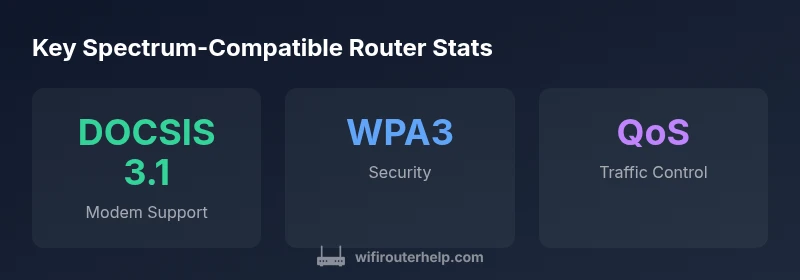
A router compatible with spectrum means using a third-party router with a Spectrum modem or gateway, typically in bridge or IP passthrough mode, so your own device handles routing. Most modern routers support Spectrum by meeting basic network standards (DOCSIS for modems, WPA3, QoS). For best results, verify compatibility with your specific Spectrum plan.
What a router compatible with spectrum means in practice
In practical terms, a router compatible with spectrum refers to using a third-party router with a Spectrum internet connection, typically behind a modem or gateway provided by Spectrum. The emphasis is on routing responsibility moving from the ISP device to your own gear so you can control Wi-Fi speed, device prioritization, and security. According to WiFi Router Help, achieving this usually requires configuring bridging mode or IP passthrough on the Spectrum device so the router handles NAT and DHCP. This approach avoids double NAT that can interfere with gaming, videoconferencing, and smart-home devices. Another key factor is compatibility with current networking standards, including support for modern Wi‑Fi generations (Wi‑Fi 5/6/6E), WPA3 security, and robust parental controls. The phrase router compatible with spectrum is not about a single model; it is about a setup that guarantees interoperability between a Spectrum plan, a compatible modem, and a consumer-grade router. This distinction helps homeowners plan for coverage, speed, and reliability rather than chasing a single device.
Spectrum's role: bridging, modems, and gateways
Spectrum offers several hardware paths for customers: a modem alone, a gateway (modem plus router), or a rental gateway device. If you prefer to use your own router, bridging mode or IP passthrough on the Spectrum device is essential. In bridging mode, the Spectrum device passes the public IP to your router, letting it perform NAT and DHCP. IP passthrough behaves similarly but can differ in how the public IP is allocated. Practically, enabling bridging mode reduces double NAT issues, improves port forwarding predictability, and allows you to implement advanced features on your own router. However, bridging can affect Spectrum Wi-Fi coverage, so many households disable the Spectrum Wi‑Fi and rely entirely on the third-party router. The key takeaway from WiFi Router Help's analysis is that bridging is a powerful option when you need control, but you should follow Spectrum’s official steps to avoid outages. As a result, you will achieve reliable coverage with fewer dropped connections, provided you choose a router that complements your modem and plan.
Choosing a Spectrum-compatible router: specs to prioritize
When selecting a router to pair with Spectrum, prioritize features that deliver reliable local coverage and fast handling of multiple devices. Look for strong CPU and RAM for smooth multitasking, support for the latest Wi‑Fi standards (Wi‑Fi 6/6E), and robust security features like WPA3 and automatic firmware updates. Manageability matters: user-friendly mobile apps, intuitive web interfaces, and clear status indicators help you diagnose issues quickly. QoS (Quality of Service) capability is valuable for prioritizing gaming, video calls, and work-from-home traffic. A router with flexible guest networks, parental controls, and easy DNS configuration can simplify daily use. Finally, check the mixer of bands (2.4 GHz and 5 GHz) and beamforming support to optimize range in larger homes. WiFi Router Help’s guidance emphasizes testing in your actual space (walls, interference, pets, and layout) to confirm real-world performance before committing.
DOCSIS basics and how it affects your router
A router itself does not carry DOCSIS; that standard belongs to the modem. When you subscribe to Spectrum, you either use a Spectrum modem/gateway or a third-party modem connected to your own router. The key compatibility concern is whether the modem is approved for your plan and whether you enable bridging or IP passthrough so your router handles NAT. In practice, you can pair a non-Spectrum router with Spectrum by using a bridging mode on the gateway, ensuring that the router receives the public IP address and can manage DHCP and routing. If you choose a separate modem, confirm it supports your expected downstream speeds and that it is listed as compatible by Spectrum. This approach maximizes control while preserving service reliability.
Bridging mode vs IP passthrough: which one to choose
Bridging mode and IP passthrough are both ways to hand off routing responsibilities to your own device. Bridging mode is often the simpler route, as it typically disables the gateway’s routing features and passes the public IP directly to your router. IP passthrough can give you similar results but may behave differently with certain devices or setups. The practical impact includes avoiding double NAT, simplifying port forwarding, and enabling full control over DNS, firewall rules, and parental controls on your router. Before enabling either mode, note that you may temporarily lose some Spectrum-provided features (like Wi‑Fi coverage from the gateway). Following the official Spectrum steps and testing connectivity after changes is essential to a stable network.
Step-by-step setup with Spectrum-compatible router
- Confirm your plan and whether bridging is supported on your current Spectrum device. 2) Decide between bridging mode or IP passthrough and review Spectrum’s official guide. 3) Connect your third‑party router’s WAN port to the modem or gateway. 4) Access your router’s admin panel to configure WAN settings, security, and Wi‑Fi. 5) Disable the gateway’s Wi‑Fi to avoid interference or double coverage, if desired. 6) Test devices across rooms and run speed tests to ensure you’re achieving expected performance. 7) Enable automatic firmware updates and set up a guest network for visitors. 8) Document your network’s IP scheme and DMZ/port-forward rules for troubleshooting. 9) Save your configuration and monitor stability over the next 48–72 hours.
Troubleshooting common issues
If devices fail to obtain an IP, check the cable connections and ensure the gateway is in bridging or IP passthrough mode. Double NAT symptoms include dropped connections or inconsistent port forwarding. If speeds taper or you notice buffering, verify that QoS is configured properly and that your router’s firmware is current. In some cases, channel interference on the 2.4 GHz band causes slowdowns; switching to 5 GHz or enabling a tri-band setup with a dedicated backhaul can remedy this. When in doubt, reset the router to factory settings and reapply a clean configuration. Finally, consult Spectrum’s support page for any service outages that might affect your area.
Advanced features to maximize Spectrum performance
Maximize performance by enabling features such as QoS, MU-MIMO, and beamforming where supported. A modern router with a robust CPU and ample RAM handles simultaneous streams more efficiently, reducing latency in busy homes. Consider enabling Smart Connect or band steering to automatically balance clients across bands, and set a separate guest network to isolate guest devices from your main network. If your router supports mesh networking, you can extend coverage across large homes with modular nodes. Regular firmware updates protect against vulnerabilities and improve stability, so enable automatic updates or schedule manual checks. Remember that your mileage varies by home layout, interference, and device count, so perform real-world tests and adjust as needed.
Security and privacy when using third-party routers
Security should be a core part of any Spectrum-compatible setup. Change default admin credentials and use a strong, unique password for your router’s management interface. Enable WPA3 when available and disable WPS to prevent offline attacks. Regular firmware updates close known vulnerabilities, and a firewall with sensible default rules helps protect your devices from outside threats. Review the router’s privacy settings to minimize data leakage and consider using a separate DNS provider with DNS-over-TLS or DNS-over-HTTPS for added privacy. Regularly audit connected devices and remove unfamiliar ones. A well-configured router reduces exposure while preserving performance for Spectrum-based internet.
Spectrum-compatible router feature checklist before you buy
- Supports the latest Wi‑Fi standard (Wi‑Fi 5/6/6E) and WPA3
- Robust QoS for prioritizing gaming, video calls, and work tasks
- Good CPU/RAM for multitasking and future-proofing
- Easy-to-use app and reliable firmware updates
- Bridging or IP passthrough compatibility to enable a clean setup
- Clear guidance from Spectrum on modem compatibility and bridging options
Spectrum-compatibility reference table
| Aspect | Spectrum Implication | Practical Tip |
|---|---|---|
| Modem Type | Modem or gateway is required; ensure it’s compatible with your Spectrum plan | Use a Spectrum-approved modem or verify bridging support |
| Bridging Availability | Bridging IP passthrough reduces double NAT | Enable via Spectrum admin interface following official steps |
| Security Features | Wi‑Fi security and firewall control shift to your router | Enable WPA3 and automatic updates on the router |
People Also Ask
Can I use my own router with Spectrum Internet service?
Yes. You can typically use your own router behind a Spectrum modem or gateway by enabling bridging mode or IP passthrough. This prevents double NAT and gives you full control over routing and Wi‑Fi settings. Check Spectrum’s official guidance for your specific device model.
Yes. You can use your own router with Spectrum by enabling bridging mode on the modem. This gives you control over your network and avoids double NAT. Check Spectrum’s official steps for your exact device.
Do I need a separate modem if I have a router?
If you already own a modem that works with Spectrum, you can combine it with your router by putting the modem in bridge mode. If you don’t own a modem, Spectrum’s gateway is a convenient option, but you’ll lose some flexibility unless you bridge it.
You can use your own modem with a router by bridging. If you don’t own a modem, Spectrum’s gateway is an option, but bridging may be needed for full control.
What is bridging mode, and how do I enable it with Spectrum?
Bridging mode disables the gateway’s routing features and passes the public IP to your router. This lets your router handle NAT, DHCP, and firewall. Enable bridging through Spectrum’s admin interface following their current steps for your device.
Bridging mode hands routing to your own router. Enable it via Spectrum’s settings for your device and test the setup afterward.
Which router features most matter for Spectrum compatibility?
Look for current Wi‑Fi standards (Wi‑Fi 6/6E), WPA3 security, QoS, guest networks, parental controls, and good CPU/RAM. These features help maximize speed, stability, and security in a Spectrum setup.
Prioritize Wi‑Fi 6/6E, WPA3, QoS, and security features to get the most from Spectrum.
Is there a Spectrum-approved modem list I should check?
Yes. Spectrum maintains a list of modems that are approved for service. If you plan to use a third-party modem, verify that it’s on Spectrum’s compatibility list for your plan and location.
Check Spectrum’s compatibility list to confirm your modem will work with your plan.
Will using my own router affect Spectrum support during outages?
During outages, Spectrum support may troubleshoot the line rather than device-specific settings. Using your own router doesn’t prevent them from helping with connectivity problems on the ISP side, but you may need to reconfigure settings after service restoration.
Outages are handled by the ISP, but you may need to reconfigure settings after service returns.
“When you pair Spectrum with a capable third-party router, you unlock consistent coverage and stronger controls over your network.”
What to Remember
- Verify bridging capability before buying a new router
- Prefer a router with modern Wi‑Fi and strong security
- Use bridging or IP passthrough to avoid double NAT
- Keep firmware up to date for best security and stability