wifi router compatible with spectrum: A Practical Guide
A practical, data-driven guide to choosing and setting up a wifi router compatible with Spectrum, with clear criteria and step-by-step setup for homeowners.


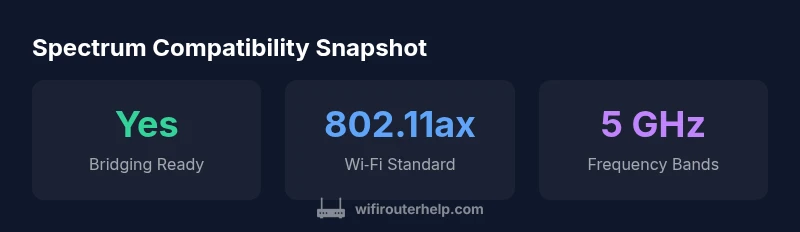
Definition: A WiFi router is Spectrum-compatible if it can operate with Spectrum’s modem or gateway and supports the ISP’s authentication and bridging requirements. To confirm, check Spectrum’s approved devices list and ensure the router supports modern Wi‑Fi standards (802.11ac/ax) and bridge mode. For practical guidance, refer to WiFi Router Help’s step-by-step setup.
wifi router compatible with spectrum: Scope and definitions
Understanding what makes a router compatible with Spectrum starts with recognizing how Spectrum delivers internet service. Spectrum typically uses a cable modem (or a gateway that combines modem and router functionality) to bring the signal from the street into your home. A router becomes part of your network when it handles Wi‑Fi creation and device management behind the modem/gateway. The phrase wifi router compatible with spectrum describes devices that can operate alongside Spectrum’s infrastructure without causing authentication issues or double NAT problems. In practice, compatibility means the router supports modern wireless standards (such as 802.11ac or 802.11ax), can be deployed in bridge mode or as the primary router, and is recognized by Spectrum’s device policies. According to WiFi Router Help, the most reliable setups rely on both a modern router and an awareness of whether you’re using a gateway in bridge mode or a stand‑alone modem with separate router. This distinction matters because it influences how you configure IP addresses, firewall rules, and your home network’s performance. A wifi router compatible with spectrum should clearly advertise compatibility with DOCSIS-based networks and support for bridging when used with Spectrum devices.
How Spectrum compatibility is determined
Spectrum’s documentation outlines key factors that affect compatibility: modem type (standalone modem vs gateway), authentication method, and the availability of bridging mode. If you’re using a Spectrum gateway, enabling bridge mode hands control of your local network to your own router, eliminating double NAT and allowing smoother traffic flow. For standalone modems, ensure the modem is on Spectrum’s approved list and that your router supports IP passthrough or bridge mode when necessary. In both cases, verify the router supports current security standards (WPA3) and has up-to-date firmware. A practical approach is to verify your chosen router against Spectrum’s official device list and consult WiFi Router Help’s setup steps to confirm your configuration will be accepted by Spectrum’s network. Additionally, monitor downstream speeds after setup; if speeds drop, recheck bridging settings and firmware status. The goal is a stable, secure home network with minimal interruptions, not just a quick connection.
Choosing a Spectrum-compatible router: Key features
When evaluating routers for Spectrum compatibility, focus on the essentials first:
- Modern Wi‑Fi standards: look for 802.11ac (Wi‑Fi 5) or 802.11ax (Wi‑Fi 6/6E); these standards deliver better range and throughput on typical Spectrum plans.
- Dual-band or tri-band support: ensures solid performance for multiple devices and bandwidth-intensive apps.
- Bridge mode and security: confirm the device can function in bridge mode and supports WPA3 and automatic firmware updates.
- USB ports, QoS, and parental controls: valuable for home offices, gaming, and family networks.
- Firmware update cadence: frequent updates improve security and stability.
- Mesh compatibility (optional): if you plan to expand coverage, choose a model that works well in a mesh setup.
WiFi Router Help recommends selecting a router with a robust feature set and a clear path to bridging or passthrough with Spectrum. Compare models using feature matrices, and don’t assume compatibility based on brand alone. Use Spectrum’s official resources and our step-by-step guides to validate each candidate before buying.
Bridging vs. firewall: Setup considerations
Two common missteps affect Spectrum compatibility: leaving the gateway in full router mode when you intend to bring in your own router, and misconfiguring NAT settings. Bridging the Spectrum gateway disables its router functions, turning the modem into a pure modem and letting your own router handle NAT, firewall, and DHCP. If you don’t bridge, you risk double NAT, which can harm gaming latency, VPN reliability, and port-forwarding. Some networks require enabling IP passthrough on the gateway instead of bridge mode, depending on the exact device and firmware. Always follow your gateway’s instruction for enabling a bridge or passthrough mode, then configure your own router with a stable SSID, strong WPA3 security, and a fixed IP range if your network uses static assignments. Planning ahead for future Spectrum updates reduces surprises down the line.
Practical setup guide: From modem to router
This is a concise, practical workflow for most homes:
- Determine whether you have Spectrum’s gateway or a standalone modem. 2) If using a gateway, enable bridge mode (or passthrough) per the device’s manual. 3) Connect your router’s WAN/Internet port to the gateway or modem via Ethernet. 4) In the router’s admin panel, configure SSID, password, and security (prefer WPA3). 5) Update firmware to the latest version. 6) Run a speed test and verify basic connectivity across devices. 7) Enable QoS or device prioritization for critical apps. If you’re using a mesh system, install the primary node near the gateway, then expand coverage with additional nodes. Always back up settings and monitor the network after changes to catch issues early.
Common pitfalls and troubleshooting Spectrum compatibility
Be mindful of these issues that commonly break Spectrum compatibility:
- Double NAT: caused by leaving the gateway in router mode alongside your own router.
- Bridging misconfigurations: incorrect passthrough settings can prevent devices from obtaining an IP address.
- Outdated firmware: security patches and stability improvements require current firmware.
- Incompatible hardware: older routers may not support newer standards or required security features.
- Inconsistent DNS or DHCP settings: ensure the router is the DHCP server if the gateway is bridged, or disable DHCP on the gateway if you’re using the router as the primary device.
- ISP policy changes: Spectrum occasionally updates device requirements; stay informed via Spectrum’s support pages and WiFi Router Help updates.
Following these practices minimizes network interruptions and ensures a smoother, Spectrum‑friendly experience.
Future-proofing your home network for Spectrum
Looking ahead, plan with growth in mind. If you anticipate higher internet speeds or more streaming and gaming devices, invest in a Wi‑Fi 6/6E router or a mesh system with a strong backhaul. Consider features such as adaptive QoS for gaming or video conferencing, robust security with automatic updates, and easy firmware management. If you expect to add more devices or households (guest networks), prioritize routers with flexible guest access controls and simple parental controls. Regularly review Spectrum’s compatibility lists and router firmware notes. A forward-looking setup avoids frequent hardware changes and helps maintain consistent performance as your home network evolves.
Spectrum compatibility checklist
| Aspect | What to check | Typical outcome |
|---|---|---|
| Wi‑Fi Standards | 802.11ac/ax support | Better performance on Spectrum plans |
| Bridge mode support | Enable/disable bridging | To prevent double NAT and simplify setup |
| Security features | WPA3, automatic updates | Stronger protection, easier updates |
People Also Ask
Is every modern router Spectrum-compatible?
Not every model is on Spectrum’s approved list. Check Spectrum’s official device list and verify compatibility with bridging or passthrough options. If uncertain, consult WiFi Router Help for guidance on model suitability and setup steps.
Most modern routers work, but always verify against Spectrum's approved list and ensure you can bridge or passthrough correctly.
Do I need a separate router if I have a Spectrum gateway?
If you want more control, use your own router in bridge mode and disable the gateway’s routing features. This avoids double NAT and typically improves performance for gaming and streaming.
Yes, you can use your own router by bridging the gateway, which helps performance and control.
What is bridge mode and why is it important for Spectrum compatibility?
Bridge mode disables the gateway’s router to prevent double NAT. It’s essential when you want full control of your home network with a dedicated router. Follow Spectrum’s instructions to enable bridge mode, then set up your own router with your preferred settings.
Bridge mode lets your router handle everything, which is important for compatibility and performance.
Will mesh networks work with Spectrum?
Yes, mesh networks can work well with Spectrum. Use the primary node connected to the modem/gateway (in bridge mode if possible) and place additional nodes around the home for better coverage. Keep gateway Wi‑Fi off if you rely on the mesh network.
Mesh networks can work, just make sure the main node is correctly placed and the gateway’s Wi‑Fi is managed.
How do I verify compatibility with Spectrum's list?
Visit Spectrum’s official compatibility page and cross-check the modem and router model. Look for notes on bridge mode, authentication, and supported standards. If needed, contact WiFi Router Help for a quick compatibility check.
Check Spectrum’s list and confirm bridging options; ask us if you’re unsure.
“A Spectrum-compatible setup hinges on modern standards, bridge-mode readiness, and a strong security posture. Verify against Spectrum's approved devices and use our setup guides to avoid common pitfalls.”
What to Remember
- Verify Spectrum compatibility against official lists before buying
- Choose a modern router with Wi‑Fi 6/6E and bridge mode
- Bridge the gateway when using your own router to avoid double NAT
- Configure security settings (WPA3, automatic updates)
- Test speeds and adjust settings after setup