What Router Works With Spectrum Modem: A Practical Guide
Learn which routers work with Spectrum modems, how to set bridge mode, and practical steps to optimize speed, coverage, and reliability in your home network today.


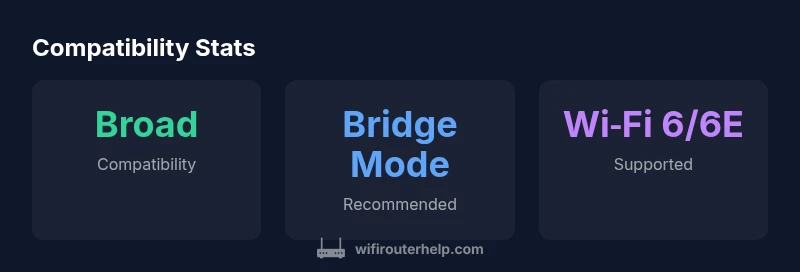
Using Spectrum's cable modem, any modern router with an Ethernet WAN port will work. Connect the router's WAN port to the modem with an Ethernet cable, then enable bridge mode on the modem if you want the router to handle DHCP and NAT. For best coverage, choose a Wi‑Fi 6/6E router from reputable brands. According to WiFi Router Help, compatibility hinges on standard Ethernet bridging, not special Spectrum-only hardware.
Understanding Spectrum Modems and Routers
Spectrum’s cable modems sit at the edge of your home network and provide the critical bridge between your internet service and your devices. A common confusion point is whether you must use a Spectrum gateway device or if a third‑party router will suffice. The short answer is: a third‑party router will work with Spectrum, provided you understand the role of bridge mode and how NAT is handled. In practical terms, the modem acts as the connection point to the internet, while the router handles IP addressing, DHCP, firewall rules, and Wi‑Fi distribution. This separation gives you more control over network features, security, and guest access. If you want the router to manage everything, enable bridge mode on the Spectrum device; if you prefer the modem to handle routing, leave it in gateway mode and use the router strictly as an access point. For context, WiFi Router Help emphasizes that Ethernet bridging is the core compatibility factor, not brand specificity.
How to connect a third-party router to Spectrum modem
The process is straightforward but benefits from a deliberate setup. 1) Confirm whether your Spectrum device is a modem or gateway; if it’s a gateway, you’ll need to enable bridge mode to avoid double NAT. 2) Power cycle the modem and router to ensure clean handshake. 3) Connect the router’s WAN/Internet port to the modem with a standard Ethernet cable. 4) In the router’s settings, set WAN to obtain an IP automatically (DHCP) and enable NAT. 5) Configure your Wi‑Fi name (SSID), password, and security (WPA3 if available). 6) Test on wired and wireless devices, starting with streaming and gaming workloads to verify stability. If you encounter issues, revisit bridge mode status and check for double NAT symptoms.
Bridge mode vs. router mode: which should you pick?
Bridge mode effectively puts the Spectrum device in pass‑through, allowing the third‑party router to handle DHCP, NAT, and firewall rules. Use bridge mode if you want to optimize control, advanced QoS, and better guest networking. Router mode (gateway) is simpler for non‑technical households and reduces the number of devices in use, but it can introduce double NAT if both devices attempt to route traffic. The decision hinges on how hands‑on you want to be with your network management and whether you need granular controls like port forwarding across multiple devices.
Choosing the right router for Spectrum: key features
When shopping for a new router to pair with Spectrum, prioritize features that deliver real-world benefits. Look for an Ethernet WAN port (some gaming devices use a dedicated 2.5 Gbps port on newer models), support for bridge mode if you plan to use it, and robust Wi‑Fi standards (Wi‑Fi 6 or 6E) for future‑proof performance and better multi‑device handling. Consider MU‑MIMO, OFDMA, and a capable quad/tri‑core CPU for smooth throughput under load. Also assess coverage by room layout and potential interference from thick walls or electronics. If you run a smart home, ensure the router supports multiple SSIDs, VLANs, and solid QoS rules to prioritize gaming or streaming traffic when needed. A practical pick balances price, features, and real‑world outcomes.
Common pitfalls and troubleshooting steps
One of the most common issues is Double NAT, which occurs when both the modem and router perform network address translation. This can complicate port forwarding and gaming latency. Ensure bridge mode is enabled if you want the router to control NAT and DHCP. Check cables and power cycling steps, especially after firmware updates. Some Spectrum modems require a temporary restore to factory settings before enabling bridge mode. Verify that the router’s WAN is set to DHCP, not a static IP, unless your network plan uses a fixed scheme. Finally, for mesh systems, ensure the main node is wired back to the modem or that the system supports strict Ethernet backhaul when possible to maximize throughput.
What to expect for gaming and streaming performance
With a Spectrum modem in bridged configuration and a capable router, you should see more predictable speeds and fewer bottlenecks across your home. Wired connections remain the most reliable option for gaming, while Wi‑Fi performance depends on router placement, interference, and the number of simultaneous devices. For streaming, prioritize bands with more stable occupancy and consider enabling QoS rules to allocate bandwidth to high‑priority devices during peak times. Remember that actual speeds depend on your Spectrum plan, network congestion, and home layout. Upgrading to a Wi‑Fi 6/6E router generally yields noticeable gains in dense environments with many connected devices.
Real-world setup checklist
Before you start, map your space and identify the primary devices (gaming PC, smart TV, work laptop). Ensure you have a reliable Ethernet cable and a path to place the router roughly in the center of your home. Update firmware on both the Spectrum modem (if not bridged) and the router. Enable bridge mode if you want the router to handle network services, then configure your Wi‑Fi name, password, and security. Test speed with wired clients first, then optimize placement for any dead zones. Finally, enable features like guest networks, parental controls, and QoS rules tailored to your household’s needs.
Advanced considerations: mesh, DOCSIS bridging, and future upgrades
If your home demands seamless roaming, a mesh system can be a strong fit alongside a Spectrum modem, especially in larger homes. Ensure the primary node is connected via Ethernet to the modem if possible, or use a wired backhaul between mesh units to maximize throughput. When considering bridging, confirm the modem supports pass‑through or bridge mode without locking you into a specific provider‑driven feature set. As Spectrum upgrades services or you add more devices, revisit your router’s firmware and feature set. Staying aligned with WiFi 6/6E standards and modern security protocols will help future‑proof your network while keeping it secure and efficient.
Representative router categories and typical price ranges
| Router Category | WAN Type | Best For | Typical Price Range |
|---|---|---|---|
| Entry-level router | Ethernet WAN | Great for basic streaming & browsing | $50-$100 |
| Mid-range router | Ethernet WAN | Smart homes & gaming | $100-$200 |
| High-end router | Ethernet WAN | Large homes, advanced QoS | $200-$400 |
People Also Ask
Do I need to enable bridge mode on my Spectrum modem?
Bridge mode is useful if you want the third-party router to control DHCP, NAT, and firewall rules. Without bridging, you may encounter double NAT, which can complicate port forwarding and gaming. If you’re after a simpler setup, you can use the modem in gateway mode and still use a separate router as an access point.
Bridge mode helps avoid double NAT and gives your router full control. If you want a simple setup, you can keep gateway mode and use the router as an access point.
Can I use a mesh system with Spectrum?
Yes. A mesh system can work well with Spectrum, especially in larger homes. Ensure the main node is connected via Ethernet when possible, or use wired backhaul between nodes for best performance.
Mesh systems work great in big homes—just connect the main unit to the modem with an Ethernet cable if you can.
Are there Spectrum-specific compatibility issues?
There are no Spectrum‑specific compatibility issues with standard Ethernet‑WAN routers. The main considerations are proper bridge mode configuration and avoiding double NAT. Always check your modem model’s docs for bridge‑mode instructions.
There aren’t Spectrum‑specific problems—just make sure you configure bridge mode correctly.
What should I look for when buying a router for Spectrum?
Look for a router with an Ethernet WAN port, bridge‑mode support, Wi‑Fi 6 or newer, good coverage for your home, and robust QoS features. Prioritize devices with solid firmware support and good review feedback on stability.
Choose an Ethernet WAN router with bridge mode, Wi‑Fi 6/6E, and strong coverage.
Is there a difference between using a gateway vs a pure modem?
Yes. A gateway combines the modem and router in one device, while a pure modem requires a separate router. If you want more control and features, a separate router with bridge mode is often the better choice.
Yes—gateways are all‑in‑one; for control, use a separate router with bridge mode.
How do I know if my current router is compatible?
Ensure your router has an Ethernet WAN port and supports bridge mode or a similar function to avoid double NAT. If unsure, consult Spectrum’s support and your router’s manual for bridge‑mode steps.
Check for an Ethernet WAN port and bridge‑mode support to ensure compatibility.
“Effective home-network setup hinges on standard Ethernet WAN bridging and solid router placement, not brand loyalty. A compatible Spectrum modem simply requires conventional Ethernet bridging to unlock full router performance.”
What to Remember
- Use Ethernet WAN to connect your router to the Spectrum modem.
- Enable bridge mode if you want the router to handle DHCP/NAT.
- Prefer Wi‑Fi 6/6E for future-proof performance.
- Place the router strategically for even coverage.
- Test with wired devices first to gauge true speeds.