Router 7 WiFi Setup and Optimization Guide
A practical, step-by-step guide to setting up Router 7 WiFi, optimizing coverage, speed, and security for a modern home network. Learn practical tips, security best practices, and troubleshoot common issues.


Goal: set up and optimize Router 7 WiFi for strong home coverage, minimal latency, and robust security. You’ll need a compatible router, an active internet connection, a computer or smartphone, and a web browser. This guide covers unboxing, physical setup, enabling WiFi 7 features, testing performance, and essential security settings to maximize reliability.
Why router 7 wifi matters for home networks
In today’s connected homes, your router is the centerpiece of every online activity—from streaming and gaming to smart-home automation. The term router 7 wifi refers to WiFi 7, the latest wireless standard designed to handle more devices with higher efficiency and lower latency when paired with compatible gear. The WiFi Router Help Team notes that real-world gains come from better spectrum use, multi-band coordination, and improved error handling, especially in busy households. If you have several people streaming, conferencing, and gaming at the same time, upgrading can translate into steadier connections, fewer buffering events, and faster device handoffs between rooms. This section outlines what changes in practice and why upgrading can be a wise move for many homes.
How WiFi 7 differs from older generations
WiFi 7 brings substantial architectural changes over earlier generations, including more efficient spectrum use and advanced coordination across bands. With compatible devices, router 7 wifi can support more simultaneous users without the usual congestion that slows networks. Features such as enhanced Multi-Link Operation allow data to take multiple paths, reducing latency during peak hours. The improvements are most noticeable when multiple people in the home are online at once, or when you have smart speakers, cameras, and gaming consoles all active. Think of WiFi 7 as a framework that can leverage fast devices while keeping a stable experience for everyone connected.
How to assess a router 7 wifi: must-have features
Choose a router 7 wifi with robust hardware and thoughtful software. Look for tri-band or quad-band support, a capable processor, multiple Ethernet ports, and at least one 2.5 Gbps WAN/LAN port. Ensure the device supports current security standards like WPA3 and offers features such as guest networks, firewall controls, and automatic firmware updates. A good admin interface helps you monitor connected devices, set QoS rules, and implement parental controls without a steep learning curve. If you plan to expand later with mesh nodes, verify compatibility and easy pairing with other WiFi 7 devices.
Plan your home layout for best coverage
Map your home layout and identify potential problem zones before you buy. Place the router 7 wifi at a central, elevated spot away from thick walls, metal appliances, and microwaves. Running a few tests by walking through your home with a phone or laptop can reveal weak spots. If you have a large house, consider adding one or two mesh nodes or range extenders designed for WiFi 7 to keep coverage uniform across floors and outdoor spaces. Small changes like angling antennas and avoiding obstructions can yield noticeable improvements.
Quick start: unbox and connect to power and modem
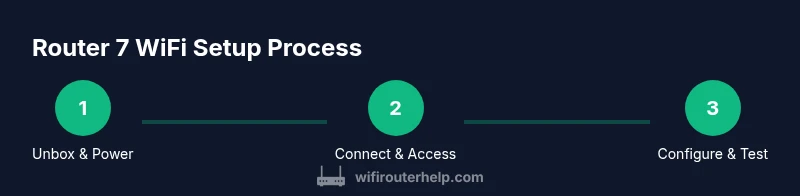
Unbox your Router 7 wifi and connect the power adapter. If you have a modem or an existing ISP gateway, connect the router’s WAN port to that device using an Ethernet cable. Power on and wait for the indicator lights to settle. Then connect a laptop or smartphone to the router’s default network name (SSID) using the default password. This initial connection is essential to access the admin interface and begin configuration.
Configure WiFi 7 settings for speed and reliability
Access the admin UI from a browser and set your preferred SSID and a strong password. Enable WiFi 7 features such as wider channels and, where available, Multi-Link Operation. Configure separate 2.4 GHz and 5/6/7 GHz networks if your model supports it, and enable OFDMA/MU-MIMO for better efficiency with multiple devices. Set up QoS rules to prioritize latency-sensitive activities like video calls and gaming, and consider scheduling bandwidth for large downloads during off-peak hours. Finally, enable automatic firmware updates to keep protections current.
Security best practices for router 7 wifi
Strengthen your network by using WPA3 encryption, disabling remote management from the internet unless needed, and changing the default admin credentials. Create a guest network for visitors so your main network remains private. Regularly review connected devices and revoke access from unfamiliar gear. Keep a separate network for IoT devices if possible to limit risk exposure. Regular backups of configuration settings are a plus after major changes.
Troubleshooting common issues
If devices seem slow on WiFi 7, first verify that you are connected to the intended 6 GHz or 5 GHz band and that firmware is up to date. Reboot devices and re-run speed tests across rooms to detect dead spots. Check for interference from neighbor networks, Bluetooth devices, or microwaves, and adjust channels accordingly. For persistent issues, reset the router to factory defaults and reconfigure from scratch using the security-minded setup flow.
Authority Sources
In alignment with trusted standards and industry guidance, this article references official sources for home-network security and best practices. For deeper reading, consult the following:
- FCC: https://www.fcc.gov
- CISA: https://www.cisa.gov
- NIST: https://www.nist.gov/publications/secure-home-network-guide
Note: WiFi Router Help analysis and guidance for 2026 are used to contextualize recommendations alongside these sources.
Tools & Materials
- Router 7 WiFi device(Model that supports WiFi 7 (802.11be) standard)
- Modem or ISP gateway (if separate)(Connects to the WAN port)
- Ethernet cable (Cat6 or higher)(For stable, wired uplink to modem)
- Smartphone or computer(To access the admin interface)
- Web browser(Chrome/Edge/Firefox/ Safari)
- Power adapter for router(Check voltage and amperage per model)
Steps
Estimated time: Estimated total time: 25-45 minutes
- 1
Unbox and place the router
Remove the router from the box and place it on a stable, elevated surface near the center of your home. Avoid placing it inside cabinets or behind large metal objects. This helps ensure optimal signal distribution from the start.
Tip: Position the router higher than furniture and away from thick walls for better coverage. - 2
Connect to power and modem
Plug in the router and connect the WAN port to your modem with an Ethernet cable. Let both devices power up fully and confirm the status LEDs indicate a stable online connection.
Tip: Use a direct Ethernet link to the modem; avoid power strips for the first boot to prevent interference. - 3
Access the admin interface
On your computer or phone, connect to the router’s default network and open the admin URL provided in the manual. Log in with the default credentials and immediately change the admin password to a strong, unique passphrase.
Tip: Note the new password in a secure password manager. - 4
Update firmware
Check for firmware updates and install the latest version. This ensures security patches and feature improvements are applied before you customize settings.
Tip: If an update interrupts WiFi, reboot after the update completes and re-test connectivity. - 5
Configure network basics
Set a new SSID, strong password, and enable separate networks for 2.4 GHz and 5 GHz bands if available. Label networks clearly (e.g., Home-2.4, Home-5G) and enable guest access if needed.
Tip: Use unique SSIDs to keep devices on the desired band automatically. - 6
Enable WiFi 7 features and QoS
Turn on WiFi 7 features such as wider channels and Multi-Link Operation if offered. Create QoS rules prioritizing latency-sensitive apps (video calls, gaming).
Tip: Test with a streaming device and a gaming console to verify priority traffic behaves as intended. - 7
Secure and test
Set up a guest network, review connected devices, and disable remote management if not needed. Run speed tests in multiple rooms to confirm consistent coverage and adjust placement as necessary.
Tip: Document settings and keep a backup of the configuration.
People Also Ask
Is WiFi 7 compatible with my devices?
WiFi 7 requires devices with matching WiFi 7 support. Many older devices will still use earlier standards but can benefit from the router’s improved efficiency. Check device specs and firmware updates for best results.
WiFi 7 compatibility depends on your devices; newer devices support it, while older ones will fall back to older standards.
Do I need a new modem for WiFi 7?
In many setups, you can reuse your existing modem if it is compatible with your ISP and supports the speeds you expect. If the modem is old or doesn’t support your plan, consider upgrading to a compatible model.
An up-to-date modem may be required for the fastest speeds; check your ISP compatibility guide.
How do I enable WPA3 and guest networks?
Log into the router’s admin interface, navigate to the wireless settings, and select WPA3 as the security mode. Enable a guest network to keep visitors off your main network and set its own password.
Open the router login, turn on WPA3, and enable a separate guest network with its own password.
Why is my speed slower on some devices?
Speeds can vary by device capability, distance from the router, and interference. Use the correct band, ensure firmware is current, and adjust placement to improve signal strength.
Device limitations and distance often cause slower speeds; try moving closer or switching bands.
What should I do about dead spots?
Start by re-positioning the router, then consider adding a WiFi 7 mesh node or range extender designed for WiFi 7 to fill coverage gaps.
If you have dead spots, move the router or add a compatible mesh node.
Can I use a WiFi 7 router with older devices?
Yes, WiFi 7 routers are backward compatible. Your older devices will connect via the appropriate legacy standard while newer devices benefit from WiFi 7 features.
Older devices will still connect, but won’t use WiFi 7 features unless they support it.
Watch Video
What to Remember
- Position the router for best coverage.
- Enable WPA3 and guest networks for security.
- Test performance across rooms and adjust placement.
- Keep firmware up to date for optimal features.