Resetting Orbi Router: Soft & Factory Reset Guide
Learn how to reset an Orbi router safely, when to use soft vs factory resets, how to back up settings, and how to reconfigure your network after a reset. This step-by-step guide covers precautions, troubleshooting, and best practices for a reliable home WiFi in 2026.


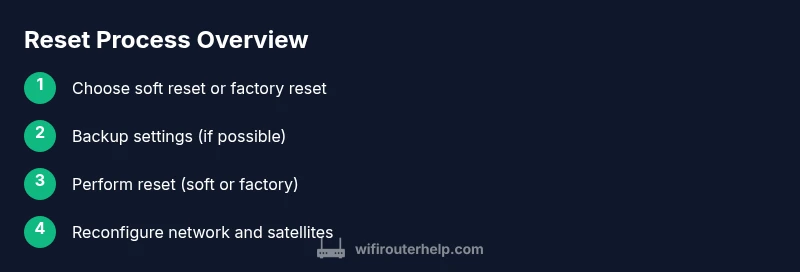
Goal: reset your Orbi router safely and restore reliable Wi‑Fi. This guide shows when to perform a soft reset versus a factory reset, how to back up settings, and how to reconfigure network names and passwords. The steps apply to most Orbi models and emphasize safeguarding your home network.
Why resetting an Orbi router might be necessary
Resetting a home Wi‑Fi router is a common troubleshooting step when you notice slow speeds, devices dropping offline, or devices failing to obtain an IP address. In many cases, a simple refresh helps clear memory, reestablish a clean connection to your modem, and re-sync the mesh satellites for better coverage. When you hear references to "resetting orbi router" in forums or guides, they’re usually pointing to two main approaches: a soft reset (power cycle) and a factory reset (restoring default settings). According to WiFi Router Help, starting with less invasive steps minimizes downtime and data loss. If you’re seeing persistent issues after a soft reset, a factory reset may be necessary, but it will erase all custom settings, including your guest networks and parental controls. In 2026, Orbi models typically offer a streamlined setup experience via the mobile app, which makes reconfiguration straightforward for most homeowners.
This section lays the groundwork so you can decide which reset path to take and understand the potential consequences before you begin. You’ll learn about when a reset is worth attempting, what data to back up, and how resets can affect your entire home network. The goal is to restore reliability without unnecessary loss of configuration or connectivity, keeping your smart devices and streaming intact.
Soft reset vs factory reset: when to use each
A soft reset is a non-destructive reboot that refreshes memory and re-establishes connections without altering saved settings. It is ideal for addressing minor glitches, slow performance, or occasional disconnects. A factory reset, by contrast, wipes all custom configurations and returns the router to its original state. This is useful when you cannot access the admin interface, when you suspect corrupted firmware, or when you need to resolve stubborn issues that a simple reboot can’t fix. For Orbi systems, a soft reset is often enough to restore normal operation, but a factory reset may be required if guest networks, parental controls, or port-forwarding rules become unusable or misconfigured. As you consider these options, be mindful of the time needed to re-enter settings and re‑connect satellites. Also note that some legacy Orbi devices may have slightly different reset behaviors, so consult your model’s manual as a precaution.
Backing up settings before a reset
Before performing any reset, it’s wise to capture current network information so you can restore it quickly afterward. Write down your Wi‑Fi network name (SSID) and password, the admin username and password, and any custom DNS, DHCP, or firewall rules you’ve configured. If your Orbi system uses the mobile app for management, check whether you can export a backup file or notes from the app. While a soft reset preserves most settings, a factory reset erases everything, so having a backup is essential to minimize downtime. If you use a satellite mesh configuration, note which devices are connected, their roles, and any guest networks that should be recreated after the reset. By preparing in advance, you reduce frustration and speed up the reconfiguration process.
How to perform a soft reset on an Orbi router
A soft reset is a quick, non-destructive restart. Start by power-cycling the system: unplug the main router (and satellites, if they are part of your setup) from power for about 30 seconds, then plug them back in. Allow a minute or two for the lights to stabilize and for devices to reconnect. If you prefer the hardware button method, you can press and release the reset button briefly (less than 5 seconds) to trigger a reboot on some models; check your model’s guidance since button behavior can vary. After a soft reset, test a few devices to verify that the connection and speed have improved. The goal is to rule out temporary glitches without changing network names or credentials.
How to perform a factory reset safely
A factory reset wipes your Orbi router clean, restoring it to its original out‑of‑the‑box settings. This is the most reliable way to fix deep-seated configuration issues, but it requires reconfiguration afterward. Locate the recessed reset button on the router, and use a paperclip or pin to press and hold it for about 10–15 seconds until the LEDs flash. Release and allow the device to reboot fully, which can take a few minutes. Once rebooted, the network will use default credentials, and you’ll need to run the setup wizard again via the Orbi app or web interface. If you have satellites, you’ll need to re‑associate them with the main router after the reset.
Reconfiguring your network after a reset
After a reset, you’ll re-create your network and re‑connect devices. Start by connecting a computer or phone to the default network name that appears on the router or in the app. Open the Orbi setup wizard and follow the prompts to set a new SSID and strong password, enable your preferred security settings, and re‑enter ISP credentials if required (for PPPoE or similar connections). Reinstall any custom DNS or port-forwarding rules, configure guest networks, and re‑enable parental controls if you need them. If you have satellites, place them within range and follow the prompts in the app to re‑sync. Finally, run a quick speed test to confirm the network meets your expectations and that all devices reconnect smoothly.
Note: After a factory reset, you’ll need to re-create all user accounts and device access rules. Take notes during setup to keep changes organized and avoid misconfigurations in the future.
Troubleshooting common reset issues
If your Orbi router isn’t behaving after a reset, begin with a power cycle to restore basic functionality. Check that the router and satellites are properly connected to the modem, that the LEDs indicate a healthy link, and that you can access the admin interface via the default IP address. If devices still fail to connect, verify that DHCP is enabled and that there are no IP conflicts in your network. In some cases, you may need to re-enter the ISP credentials or reconfigure advanced settings (DNS, MTU, or VPN) to restore full connectivity. If problems persist, consult the manufacturer’s support resources or reach out to your ISP for guidance on compatibility with current equipment.
Authoritative references
- https://www.fcc.gov (Federal Communications Commission – general guidance on home networking and wireless security)
- https://www.cisa.gov (Cybersecurity and Infrastructure Security Agency – best practices for home networks)
- https://www.nist.gov/topics/cybersecurity-framework (NIST – cybersecurity frameworks and device configuration guidance)
Tools & Materials
- Orbi router and satellites(All devices powered and accessible during reset or reconfiguration)
- Power adapters for router and satellites(Keep them plugged in during reset procedure)
- Paperclip or pin(For recessed factory reset button)
- Smartphone, tablet, or computer(With the Orbi app or a web browser for setup)
- Ethernet cable (optional)(Can help with wired management or initial setup)
- Notepad with network credentials(Record SSID, password, admin login, and custom rules before reset)
Steps
Estimated time: 30-60 minutes
- 1
Clarify the reset goal
Decide between a soft reset (non-destructive reboot) and a factory reset (erases all custom settings). A soft reset fixes minor glitches, while a factory reset is for deeper configuration issues. Ensure you have backup notes if you don’t want to lose your current network setup.
Tip: If you’re unsure, start with a soft reset and test connectivity before deciding on a full factory reset. - 2
Back up critical settings
Before touching hardware, write down your SSID, password, admin credentials, and any custom DNS or port-forward rules. If your system supports export in the Orbi app, save a backup file. This saves time after the reset and reduces post-reset reconfiguration effort.
Tip: Use the app’s backup/restore feature if available; otherwise, manually record important settings. - 3
Power down and prepare
Power off the router and satellites, unplug power adapters, and gather a paperclip. Confirm you have a stable power source and a clear workspace to avoid accidental unplugging during the reset.
Tip: Label satellites to avoid misplacement when reconnecting after the reset. - 4
Perform a soft reset
Reconnect power to the main unit after ~30 seconds, or press and release the reset button for a quick reboot (if your model supports it). Wait for LEDs to stabilize and verify basic connectivity.
Tip: A soft reset preserves settings; use it first to rule out minor glitches. - 5
Test connectivity after soft reset
Connect a device to the router’s network and check internet access. If issues persist, consider a factory reset as a next step. Repeat tests across multiple devices to confirm consistency.
Tip: Test both 2.4 GHz and 5 GHz networks if you have dual bands. - 6
Perform a factory reset safely
If a factory reset is necessary, insert a paperclip into the recessed button and hold for 10–15 seconds until LEDs flash. Release, then allow the device to reboot. After reset, the network defaults will appear and you’ll start setup from scratch.
Tip: Keep in mind this will erase all previous settings; ensure you have backups before proceeding. - 7
Reconfigure network after reset
Launch the Orbi setup wizard via the app or web interface. Create a new SSID and strong password, re-enter ISP credentials if required, and reapply any parental controls or guest networks. Reattach satellites and confirm full coverage.
Tip: Change the admin password to something strong immediately after setup. - 8
Verify and finalize
Run a speed test, confirm that all devices reconnect, and ensure guest networks and security features are active. Document any changes for future reference and consider saving a fresh backup.
Tip: Keep a backup copy of the new configuration for quick recovery in the future.
People Also Ask
What is the difference between a soft reset and a factory reset for an Orbi router?
A soft reset restarts the device without deleting settings, fixing minor issues. A factory reset restores default settings and wipes custom configurations, which requires reconfiguration afterward.
A soft reset restarts your router without losing your settings; a factory reset wipes everything and you’ll set up the network again from scratch.
Will resetting erase my internet service provider (ISP) credentials?
Factory reset clears saved credentials; you may need to re-enter PPPoE or other ISP settings during setup.
Yes, a factory reset clears saved ISP credentials, so you’ll need to re-enter them during setup.
How long does a factory reset take?
The reset itself takes a few minutes. After the reset, you’ll reconfigure the network using the setup wizard.
A factory reset takes a couple of minutes, then you reconfigure your network from scratch.
Do I need to re-pair satellites after a reset?
Yes. After a factory reset, reattach satellites to the main router using the Orbi app or web interface.
Yes, satellites need to be reattached to the main unit after a reset.
What if I can’t access the Orbi app after resetting?
Try the web interface using the router’s default IP, and ensure you’re connected to the default network. If needed, perform the reset again.
If the app isn’t accessible, use the web interface on the router or perform a fresh setup.
Watch Video
What to Remember
- Know the difference between soft reset and factory reset.
- Back up settings before performing any reset.
- Reconfigure networks thoroughly after a factory reset.
- Use the Orbi app for streamlined setup and satellite management.