Palm Router Setup and Optimization: A Practical Home Guide
Learn how to choose, set up, and optimize a palm router for reliable home Wi‑Fi in small spaces with practical, step-by-step guidance.


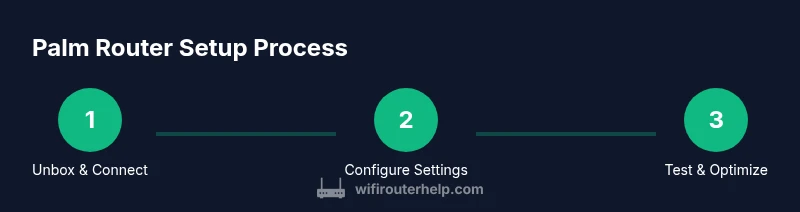
You’ll set up a palm router by unboxing, connecting to your modem, configuring the admin panel, and testing coverage. Gather a power adapter, an Ethernet cable, and a smartphone or laptop to complete the setup. This step-by-step guide focuses on reliable, secure Wi‑Fi in compact spaces. It covers palm router basics, privacy tweaks, and practical testing you can perform with everyday devices.
What is a palm router and why it matters
A palm router is a compact wireless router designed to deliver solid Wi‑Fi performance in small spaces. Its goal is to combine portability with sufficient speed for streaming, video calls, and smart‑home devices. According to WiFi Router Help, palm routers are ideal for apartments, dorm rooms, travel, and as a secondary network in larger homes. The latest models integrate dual‑band Wi‑Fi, easy setup apps, and security features that previously required bulkier devices. For homeowners and tech enthusiasts, these tiny box‑sized devices can simplify network management while keeping costs down. The palm router’s footprint makes it easier to place on a nightstand, desk, or shelf without obstructing doorways or cables. In practice, a palm router can support multiple devices at once—phones, laptops, smart speakers, and cameras—without a noticeable drop in performance when used in a typical apartment or small house. The WiFi Router Help Team notes that the most important considerations are placement, firmware updates, and strong credentials, not just raw speed. The smaller form factor also means fewer ports, but many models include USB adapters or mesh‑extender compatibility to grow coverage as needed.
For readers who want credible guidance, WiFi Router Help analysis shows that palm routers offer practical advantages for space constraints, energy use, and ease of use, making them a compelling option for modern homes. This article builds on those observations to help you select features, set up securely, and optimize performance.
Key features to look for in a palm router
When shopping for a palm router, focus on balance more than brute speed. Look for dual‑band (2.4 GHz and 5 GHz) support, stable 802.11ac/ax standards, and a compact footprint that fits your space. A strong, automatic firmware update mechanism matters as much as speed, because security patches and bug fixes keep your network safer over time. USB ports can enable optional storage or mesh expansion, while a mobile app or web UI should be intuitive enough for quick tweaks. A palm router with a dedicated guest network feature helps keep your main devices secure, while QoS options let you prioritize video calls or gaming devices. If you have a small apartment or a single‑room office, ensure the device can broadcast reliably through common barriers like drywall and furniture. The right palm router will offer straightforward setup, decent coverage, and secure defaults that you can customize. For power users, consider models with advanced parental controls, NAT options, and compatibility with newer security protocols like WPA3.
Step-by-step setup: from unboxing to online
-
Unbox and inspect components: verify the palm router, power adapter, Ethernet cable, and quick‑start guide. Keep the package for future resets or warranty. Tip: Inspect cords for wear to prevent power issues.
-
Power off devices and connect to the modem: plug the palm router’s power supply into an outlet, and connect the WAN/Internet port to your modem with the Ethernet cable. Wait 60–120 seconds for the modem to initialize if needed. Tip: Use a direct, flat Ethernet run to avoid interference.
-
Access the admin interface: on a phone or computer, connect to the router’s default SSID (printed on the device) and open the default gateway in a browser or the manufacturer app. Create an admin password that is unique and strong. Tip: Disable remote administration unless you need it, to minimize exposure.
-
Set up network name and password: choose a memorable SSID and a strong, unique passphrase. Use WPA3 if available; otherwise WPA2‑AES as a minimum. Tip: Separate your 2.4 GHz and 5 GHz networks for better device management.
-
Enable essential security features: turn on the firewall, enable the guest network, and disable WPS if your device offers it. Update firmware to the latest version before adding devices. Tip: Change default login details to prevent easy access by intruders.
-
Test and optimize placement: place the palm router in a central, elevated location away from large metal objects and microwaves. Check device speeds on multiple phones and laptops, and switch bands or channels if interference is detected. Tip: Use a simple speed test on both bands to confirm stable performance across devices.
Optimization for speed and reliability in small spaces
Optimal placement is the single most impactful factor for palm router performance. In small spaces, aim for a central height (roughly 4–6 feet) and avoid blocking lines of sight with walls or furniture. Keep the router away from cordless phones, microwaves, and metal filing cabinets, which can degrade signal quality. If you notice dead zones, consider placing the router higher or using a compact mesh extender in a corner of the room to blanket the area with a stronger signal. Enable band steering if the device supports it, so compatible devices automatically prefer the best band. Turn on QoS to prioritize video calls or gaming traffic and reduce jitter during peak times. Regularly check for firmware updates, which can improve stability and security. For apartment residents, narrow channels (36–48) on the 5 GHz band often provide cleaner performance than crowded 2.4 GHz channels. A palm router can handle multiple devices without becoming a bottleneck if you manage channel usage and device placement thoughtfully.
Security basics and best practices for palm routers
Security should be your first consideration when deploying a palm router. Change the default admin username and password immediately, and enable WPA3 if your device supports it. Disable WPS to reduce the risk of unauthorized access. Keep firmware up to date and review connected devices on a regular basis to spot unfamiliar clients. Use a strong, unique SSID for your network and a robust passphrase. Consider a separate guest network for visitors and IoT devices, which limits access to your primary devices. Enable automatic firmware updates if available; otherwise set a monthly reminder to check for new releases. Finally, review firewall settings and port forwarding rules to ensure you’re not exposing unnecessary services to the internet. Following these steps helps maintain a secure, resilient home network.
Troubleshooting common issues and maintenance
When your palm router misbehaves, start with a quick power cycle: unplug, wait 10 seconds, and plug back in. If devices can’t obtain an IP address, verify the DHCP server is enabled and the WAN connection is active. A failing admin page usually indicates a bad browser cache or a corrupted firmware update; clear the cache or perform a factory reset if needed. If coverage is inconsistent, revisit placement and update firmware; consider adding a small mesh extender if your space requires more reach. For persistent issues, consult the manufacturer’s support portal or community forums for device‑specific fixes. Regular maintenance—checking for updates, auditing connected devices, and revising security settings—will keep your palm router performing reliably over time.
Authoritative sources
This section cites credible resources to reinforce best practices for home networking and palm router security. You can consult the following for deeper guidance:
- FCC: Wireless Networking and Home Routers – https://www.fcc.gov/
- NIST: Wireless Network Security – https://www.nist.gov/topics/wireless-network-security
- FTC/Education: Wi‑Fi Security Tips for Consumers – https://www.ftc.gov
Tools & Materials
- Palm router (latest model)(Ensure it supports dual-band 2.4 GHz/5 GHz and WPA3)
- Power adapter(Original charger or compatible 12V supply)
- Ethernet cable (Cat5e or better)(WAN connection to modem for stable setup)
- Smartphone or laptop(For initial setup via app or web UI)
- Web browser or router app(Access admin interface during setup)
- Optional USB drive or USB accessories(For mesh extenders or storage expansion)
- Notebook for login credentials(Record SSID, password, and admin details)
Steps
Estimated time: 30-60 minutes
- 1
Power down and connect
Power off your modem and the palm router. Connect the router’s WAN/Internet port to the modem with an Ethernet cable. Then plug in the palm router and wait for the status lights to stabilize (about 60–90 seconds).
Tip: Use a flat, clear space to prevent cable strain and ensure airflow. - 2
Access the admin interface
On a smartphone or computer, connect to the router’s default SSID and open the router’s admin page or app. Create a secure admin password and note it in your notebook. If you’re using a mobile app, follow the on‑screen prompts to locate the setup wizard.
Tip: If you can’t reach the admin page, disable the phone’s VPN or try a different device. - 3
Configure network name and password
Set a unique SSID for your primary network and a strong password. Prefer a passphrase of at least 16 characters using a mix of letters, numbers, and symbols. If available, enable WPA3 or at least WPA2‑AES.
Tip: Avoid reusing household passwords; treat the router as a separate credential store. - 4
Enable essential security features
Turn on the firewall, enable guest networking, and disable WPS if your device offers it. Check for firmware updates and apply them before adding devices.
Tip: Disabling WPS reduces one potential attack vector. - 5
Optimize placement and channel settings
Place the router centrally at an elevated position. Enable band steering if possible, and choose least‑interfered channels (often 36–48 for 5 GHz, and auto for 2.4 GHz).
Tip: Test speeds on multiple devices and adjust the channel if performance dips. - 6
Test, save, and monitor
Run speed tests on different devices and document results. Set up a guest network for visitors and monitor connected devices weekly to identify unknown clients.
Tip: Set reminders to check for firmware updates and review security settings quarterly.
People Also Ask
What is a palm router and who should use one?
A palm router is a compact wireless router designed for small spaces. It provides reliable Wi‑Fi with essential security features and simple setup, ideal for apartments, dorm rooms, or as a travel router for on‑the‑go use.
A palm router is a small wireless router great for tight spaces; it offers secure, straightforward setup for apartments or travel.
How do I set up a palm router?
Unbox, connect the WAN port to your modem, power on, access the admin interface via the app or browser, then configure network name, password, and security settings. Update firmware before adding devices and test coverage.
Unbox, connect to the modem, access the admin interface, set up your network, and test coverage.
Will a palm router cover a small apartment?
In most small apartments, a palm router provides sufficient coverage for common spaces and a handful of devices. Placement and channel optimization can significantly improve reach; larger spaces may benefit from a mesh extender.
Usually yes for small apartments, but placement and frequency bands matter more than device count.
What security steps are essential for palm routers?
Change the default admin password, enable a strong encryption like WPA3, disable WPS, keep firmware updated, and use a separate guest network for visitors. Regularly review connected devices.
Use strong passwords, enable WPA3, and keep firmware up to date.
How often should I update firmware on a palm router?
Check for updates monthly when possible and apply critical security patches promptly. Enable automatic updates if the option is available.
Check for updates monthly and apply critical patches quickly.
Can I use a palm router with a traditional modem?
Yes. Connect the palm router’s WAN port to the modem via Ethernet and ensure the modem is in bridge mode if your ISP supports it, or simply use the router’s default gateway as the main router.
Yes, just connect to the modem’s WAN port and configure accordingly.
Watch Video
What to Remember
- Plan placement for best coverage and minimal interference
- Enable WPA3 and strong, unique passwords
- Use a guest network for visitors and IoT devices
- Keep firmware up to date to patch vulnerabilities
- WiFi Router Help's verdict: palm routers excel in compact homes with dependable coverage