Orbi WiFi 6: Setup, Optimize, and Troubleshoot for Maximum Home Coverage
Learn how to set up and optimize Orbi WiFi 6 for seamless home coverage. Step-by-step instructions, placement tips, firmware guidance, and troubleshooting.


By following this Orbi WiFi 6 setup and optimization guide, you will configure a reliable mesh network that delivers strong coverage throughout a typical home. You’ll learn how to place satellites, connect the router to your modem, and adjust settings for speed and security. Gather a modem, an Orbi WiFi 6 router, a satellite, an Ethernet cable, and a smartphone or computer to begin.
Why Orbi WiFi 6 matters for home networks
The home network landscape has changed. More devices compete for bandwidth, streaming 4K content, gaming, and smart home gadgets demand consistent performance. Orbi WiFi 6 is designed to keep pace by increasing total capacity, reducing latency, and supporting more simultaneous connections without slowing down. For households with multiple occupants, this matters more than raw speed alone: WiFi 6 improves efficiency when many devices are active at once, so video conferences, cloud gaming, and smart-home hubs can run smoothly in parallel. In practical terms, you gain more reliable coverage, fewer dead zones, and a setup that scales as you add devices. The WiFi Router Help team notes that users often see noticeable improvements after migrating to a mesh system that extends coverage beyond a single router, particularly in multi-story homes with thick walls. If you’re upgrading from an older 802.11ac setup, the long-term benefits go beyond mere speed: better stability, network responsiveness, and simpler management. This includes better handling of video calls in hallways, comfortable gaming on tablets, and reliable smart assistant interactions. It also reduces the need to constantly reposition devices or run new cables. For families with guests, the system can isolate guest traffic while preserving your private network. The upgrade path from older tech is straightforward with the right app and a few configuration choices, and the results are often immediate in real-world tasks such as streaming, file transfers, and remote work.
Understanding WiFi 6 features in Orbi: OFDMA, MU-MIMO, and more
Orbi WiFi 6 brings a set of features that help your home network run more efficiently even when many devices are online. OFDMA (orthogonal frequency-division multiple access) splits channels to serve multiple devices at once, reducing latency when smart thermostats, cameras, phones, and laptops compete for bandwidth. MU-MIMO (multi-user, multiple-input, multiple-output) allows the router to send data to several devices simultaneously rather than queuing requests, which translates to smoother streaming and quicker file transfers. Target Wake Time (TWT) helps devices sleep more efficiently, extending battery life on mobile devices while keeping them ready when needed. Beamforming focuses signal strength toward connected devices, improving range and reliability. For Orbi mesh systems, the satellite nodes extend coverage and provide continuity as you move around the home. In practical terms, you’ll notice fewer buffering events, steadier connections for video calls, and a more responsive gaming experience—especially in rooms far from the main router. WiFi 6 also improves performance in dense environments such as apartments or homes with many smart devices, giving you a more predictable experience overall. The WiFi Router Help team emphasizes that understanding these features helps you tailor your network to real-world usage rather than chasing raw speed alone.
Planning your Orbi WiFi 6 layout: placement strategies for best coverage
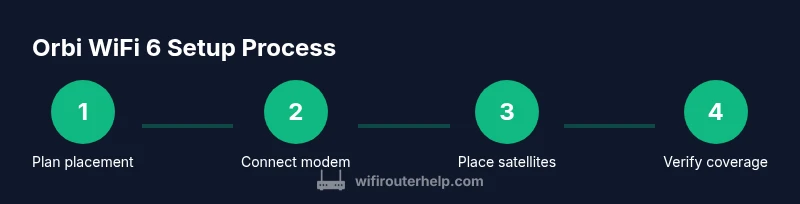
Placement is the single most important factor in achieving strong mesh performance. Start with the main router in a central location, elevated if possible, away from dense metal objects and large appliances that can cause interference. Satellite nodes should be placed within clear sight of the main router, with lines of sight preferred and obstacles like thick walls or large mirrors minimized. In multi-story homes, position satellites on different floors to bridge floors and reduce dead zones. If you have a large home or a basement, use the satellite’s light indicators as a guide: a steady amber or green light generally signals solid backhaul. Avoid extending the network across stairwells with open balconies that can cause signal loss. If you need maximum stability, consider using Ethernet backhaul between the router and at least one satellite—this removes wireless contention on the backhaul and often yields a noticeable improvement in sustained throughput and reliability.
Quick-start setup: unbox, connect, and configure using the Orbi app
Begin the setup by plugging in the modem, router, and one satellite. Connect a computer or smartphone to the router’s default SSID and launch the Orbi app. The app will guide you through creating a Netgear account, establishing your primary network name (SSID) and password, and selecting 2.4 GHz and 5 GHz bands. You’ll be prompted to update firmware if a newer version is available; completing the update ensures you have the latest features and security patches. The app also offers a network map and device list, helping you identify which devices are connected and where they’re located in the home. After initial configuration, you should see improved signal in most living spaces, with the satellite providing a clear hand-off as you move through rooms. The setup experience is designed to be intuitive, but if you encounter issues, check cables and ensure all devices are on compatible firmware versions.
Optimizing performance: backhaul options, channel selection, QoS, and security
Performance optimization focuses on three core areas: backhaul, channel management, and device prioritization. Ethernet backhaul between router and satellite is the most reliable option when available; it stabilizes the mesh and reduces interference on the wireless backhaul. For wireless backhaul, ensure the satellites have a strong signal to the main router and avoid sources of interference such as cordless phones and microwaves. Channel selection can improve performance in crowded environments; allow the app to suggest channel changes or manually select channels with less interference. QoS (Quality of Service) lets you prioritize critical activities like video conferencing or gaming, ensuring they get necessary bandwidth even when the network is busy. Security is essential: enable WPA3 where available, disable default WPS, and keep firmware updated to protect against vulnerabilities. Regularly review connected devices and remove unknown guest entries if needed; consider separating guest traffic from your main network for privacy and security while still providing internet access to visitors.
Maintenance and troubleshooting: firmware updates, resets, and common problems
Regular maintenance helps prevent performance spikes from decaying over time. Enable automatic firmware updates to benefit from the latest features and security improvements. If you encounter issues, a simple reboot of the router and satellites often resolves temporary glitches. For persistent problems, verify that the router and satellites are connected to the same network, ensure your modem is functioning correctly, and confirm the internet service is active. If a satellite appears offline, try relocating it to achieve a better backhaul signal or perform a factory reset on that unit, then re-add it through the Orbi app. Slow speeds or dead zones are frequently caused by placement, interference, or outdated firmware; recheck placement and run a speed test at multiple points in the home. For more advanced troubleshooting, consult the app’s troubleshooting wizard or reference the official support resources from the manufacturer.
Advanced tips: integrating with existing networks, guest networks, and parental controls
If you already have a router, you can bridge it with Orbi in a gateway or AP mode as needed, though this may disable some Orbi features. Guest networks provide visitors with access to the internet without exposing your private devices or files; enable this feature and customize bandwidth and access duration if possible. Parental controls let you schedule internet access, filter content, and monitor usage for kids or sensitive devices. Regularly check for firmware updates that bring new features to parental controls and guest networks. Finally, maintain a clean network map by naming devices consistently and organizing them into groups so you can quickly prioritize or quarantine devices as needed. This approach yields a robust, user-friendly home network that scales with your household’s needs while keeping security and privacy at the forefront.
Conclusion and next steps
Orbi WiFi 6 offers a compelling balance of speed, capacity, and ease of use, especially for homes with multiple devices and several smart gadgets. The mesh approach helps minimize dead zones and provides consistent performance across rooms and floors. As you apply the steps outlined above—planning placement, using the app for setup, and optimizing backhaul and security—you’ll build a resilient network that adapts to changing usage patterns. Remember to keep firmware updated, monitor device connections, and adjust settings as your home changes. With deliberate setup and ongoing maintenance, your Orbi WiFi 6 system can deliver reliable coverage now and support future upgrades.
Key takeaways
Tools & Materials
- Orbi WiFi 6 Router(Main router unit, ensure it supports WiFi 6 (802.11ax))
- Orbi Satellite(At least one satellite for mesh expansion)
- Modem(Connector from your ISP to the router)
- Ethernet Cable (Cat5e or better)(For wired backhaul and initial setup if available)
- Smartphone or computer with the Orbi app(Used for setup and ongoing management)
- Stable internet connection(Needed to activate service and validate setup)
- Optional: Additional satellites(Add more nodes to extend coverage to hard-to-reach areas)
Steps
Estimated time: 30-60 minutes
- 1
Unbox and position equipment
Unbox the router, satellite, modem, and cables. Place the router in a central, elevated location away from thick walls and metal appliances. This supports even coverage and minimizes blind spots.
Tip: Keep the router and satellite in adjacent rooms to ensure strong backhaul signals. - 2
Connect modem to the router
Connect the modem to the router’s WAN/Internet port with an Ethernet cable. Ensure both devices are powered off before connecting, then power them on in sequence.
Tip: Use a high-quality Ethernet cable to minimize link errors. - 3
Power on and initialize the Orbi app
Power up the devices and launch the Orbi app on your phone or computer. The app will guide you through the initial network setup and account creation.
Tip: Install the latest version of the app for the best experience. - 4
Create or sign in to your Netgear account
If you don’t have an account, create one to manage devices, firmware, and guest networks. If you already have an account, sign in to continue.
Tip: Enable two-factor authentication for added security. - 5
Configure network names and passwords
Set unique SSIDs for the 2.4 GHz and 5 GHz networks and choose strong passwords. Consistent naming helps devices connect to the best band automatically.
Tip: Use a different password for guest networks. - 6
Update firmware
Check for and install firmware updates. This ensures you have the latest features and security protections.
Tip: If an update takes long, avoid powering off the device mid-update. - 7
Place satellites for optimal mesh coverage
Add at least one satellite and position it to improve coverage in weak areas. Use the app’s signal indicators and move as needed.
Tip: Aim for clear line-of-sight paths and avoid placing satellites behind thick walls. - 8
Test coverage and adjust
Run speed tests in multiple rooms to verify performance. Adjust satellite positions or add more nodes if you observe dead zones or weak signals.
Tip: Consider Ethernet backhaul for reliable backhaul if possible.
People Also Ask
What is WiFi 6 and why should I choose Orbi WiFi 6?
WiFi 6 improves efficiency and capacity in crowded networks, allowing more devices to connect at once with less congestion. Orbi WiFi 6 uses mesh technology to extend coverage and maintain performance across larger homes.
WiFi 6 boosts efficiency and capacity, and Orbi adds mesh coverage to reach every room.
Can I use Orbi with an existing router?
Yes, you can set Orbi in bridge or AP mode to coexist with an existing router, but some advanced Orbi features may be limited in this configuration.
Yes, you can pair Orbi with an existing router in AP mode, though some features may be limited.
Do I need a subscription for parental controls?
Parental controls are typically available as built-in features in the Orbi app; some advanced options may require a subscription depending on the model and firmware.
Parental controls are usually built into the app; some advanced options may require a subscription.
How do I identify dead zones in my home?
Run a speed test in each room and note where the signal drops. Use the app’s network map to visualize coverage and reposition satellites or add another node as needed.
Test speeds room by room and adjust satellite placement to cover weak spots.
Is Ethernet backhaul worth it for most homes?
If you have accessible Ethernet runs, wired backhaul provides the most reliable and fastest mesh performance, especially in larger homes.
Yes, wired backhaul is often worth it for best performance in bigger homes.
What should I do if a satellite shows offline?
Check the backhaul link, move the satellite closer to the main router for a stronger signal, and re-add it through the Orbi app if needed.
If a satellite goes offline, recheck the link and reposition or re-add it through the app.
Watch Video
What to Remember
- Plan placement before setup to avoid dead zones
- Use Ethernet backhaul for best mesh performance
- Keep firmware updated for security and features
- Segment guest traffic to protect main devices
- Test across the home and adjust nodes as needed