ONT to Router Setup: A Step-by-Step Fiber Guide
Learn how to connect your optical network terminal (ONT) to a router for fiber-powered WiFi. This guide covers essential equipment, safe setup, and practical optimization tips.


Goal: successfully bridge your optical network terminal (ONT) to your home router to deliver reliable WiFi. You’ll need a compatible router, ethernet cables, a power source, and basic network credentials. This quick guide outlines the essential requirements and a safe, step-by-step sequence to get online quickly while avoiding common misconfigurations.
Understanding ONT to Router: What It Means
An Optical Network Terminal (ONT) is the fiber modem provided by your ISP. It converts fiber signals into Ethernet that your home devices can use. When you connect an ONT to a consumer router, you’re creating a local network that distributes Internet to WiFi and wired devices. The phrase 'ont to router' describes this bridge between the fiber side and your home network. In many setups, the ONT outputs to a router via a single Ethernet cable. If your network uses a separate modem (in some regions), the ONT acts as the fiber interface and the router handles NAT, firewall, and WiFi. Understanding these roles helps you diagnose issues and optimize performance. According to WiFi Router Help, clarity about where to place the router and how to configure WAN settings prevents common double NAT problems.
Prerequisites and Tools
Before starting, verify service is active, ISP credentials for WAN if required, and have at least one Gigabit Ethernet cable. You’ll need a router with a stable WAN port, power adapters, and a place to mount devices. Optional items include a network switch for wired devices, a USB drive for logs, and a basic cable tester to confirm cable quality. Make sure your computer or smartphone can access the router admin page. Keep the ISP contact information handy in case you need authentication details for PPPoE or static IP. It’s wise to perform setup during a low-usage period to reduce impact on connected devices. The WiFi Router Help team recommends labeling cables and labeling the router’s ports to avoid confusion during future maintenance.
Choosing the Right Router for Fibre Service
When selecting a router for fiber, prioritize a robust WAN port (preferably Gigabit), reliable dual-band or tri-band WiFi, and modern security features like WPA3. If you need extensive wired devices, ensure you have enough Ethernet ports or a switch. Check for Quality of Service (QoS) controls to prioritize gaming or video calls, and assess antenna design for coverage in your home. Consider firmware update cadence and customer support quality. WiFi Router Help emphasizes choosing a model that supports your ISP’s requirements and can operate with minimal downtime. Remember: a router with good hardware and solid software is a better long-term investment than chasing marginal gains in features.
Safety and Preparation
Power precautions are essential. Unplug both ONT and router before you make any connections. Ground yourself if you’re in a dry environment to reduce static discharge. Keep liquids away from electronic equipment and work on a clean, non-slip surface. Have a plan for where to place devices to maximize airflow and minimize cable strain. If you’re in a multi-user household, schedule changes during a low-traffic window to reduce downtime. Always confirm you have the correct firmware version for your device and ensure you’re using an appropriate power adapter rated for your hardware. Following safe handling practices helps prevent equipment damage and data loss.
Physical Connection: Cables and Ports
Make sure you are connecting the ONT to the router using a reliable Ethernet cable (Cat5e or higher). Locate the WAN/Internet port on your router and the Ethernet output on the ONT. Do not connect to a LAN port on the router; that would place the ONT behind the LAN, creating suboptimal routing. If your ONT has a reset button, use it sparingly—only if you need to reinitialize the device after a factory reset. Label the cable running from the ONT to the router to simplify future maintenance. After physically connecting, keep both devices powered off until you’re ready to configure settings.
Configuring the Router: WAN/Internet Settings
Power up the ONT first, then the router. Access the router’s admin page via the default gateway address (often 192.168.1.1 or 192.168.0.1) using a connected device. In the Internet/WAN settings, select the correct connection type as dictated by your ISP (DHCP for most fiber services, PPPoE or static IP in specific scenarios). If your ISP provides credentials, enter them precisely. Save changes and reboot if prompted. Once the router comes back online, it should obtain an IP from the ONT and assign a local network.
Wireless Setup: SSID and Security
Create a unique SSID (network name) and choose a strong security protocol, preferably WPA3 if the router supports it. Use a long, alphanumeric password with mixed case and numbers. Disable WPS to improve security, and enable guest networks if available to protect your main network. Consider separating 2.4 GHz and 5 GHz networks if performance is inconsistent in different rooms. Document the WiFi details in a safe place for future reference and for guests.
Common Pitfalls When Connecting ONT to Router
One common issue is double NAT, which can happen if you place the ONT behind a second router without bridge mode. Another pitfall is choosing the wrong WAN type (DHCP vs PPPoE), which prevents the router from obtaining an Internet IP. Also ensure you’re not using an old or incompatible cable that could degrade performance. If you experience frequent disconnects, check for channel interference and ensure your router firmware is current. Finally, avoid physically placing devices in confined spaces that trap heat, as overheating can cause throttling and instability.
Optimizing for Performance: QoS, Channel, and Band Steering
For households with multiple high-demand devices, enable QoS to prioritize video calls or gaming. Use automatic channel selection or manually set the least congested channel for 2.4 GHz and 5 GHz bands. Consider enabling band steering to encourage devices to move to the faster band. If you live in a dense apartment, placing the router centrally and elevating it can significantly improve coverage. Keep firmware up to date to benefit from ongoing performance and security improvements.
Troubleshooting After Setup
If you don’t have Internet after setup, verify that the ONT is powered and that the modem is online. Re-check WAN settings to confirm you selected the correct protocol (DHCP/PPPoE) and re-enter any credentials. Restart both devices if the connection fails to initialize. Use a wired device to test connectivity first, then check wireless reliability. If problems persist, consult your ISP for line checks or pursue a factory reset of the router and reconfigure from scratch.
Advanced: Bridging ONT and Router or Using Bridge Mode
In some fiber setups, you may want to place the ONT in bridge mode or use the router in bridge mode to avoid double NAT. Bridging disables the router’s NAT and firewall functions, letting the ONT handle those duties or the ISP's gateway. If you enable bridge mode, you’ll typically lose some router features and must configure port forwarding or firewall rules on a second device. Always test connectivity after enabling bridge mode and document settings to revert if needed.
Maintenance and Security: Firmware Updates and Routine Checks
Regular firmware updates improve performance and security. Check for updates monthly and apply them when available, ideally during a maintenance window. Review security settings periodically, change admin passwords, and disable remote management if not needed. Monitor connected devices and review logs when issues arise to detect suspicious activity early. A proactive maintenance routine helps keep your ONT-to-router setup stable over time.
Tools & Materials
- Optical Network Terminal (ONT)(Active service; avoid unplugging during operation)
- Router with WAN port(Prefer dual-band with WPA3)
- Ethernet cable (Cat5e or higher)(One to two meters recommended)
- Power adapters for ONT and router(Keep accessible)
- Optional network switch(If you need more wired ports)
- Cable tester (optional)(Confirm cable quality)
Steps
Estimated time: 60-90 minutes
- 1
Power down devices
Turn off the ONT and the router to prevent electrical surges when connecting cables. This minimizes the risk of damage and ensures a clean start for configuration.
Tip: Label the power cords beforehand so you reconnect correctly. - 2
Connect ONT to router WAN
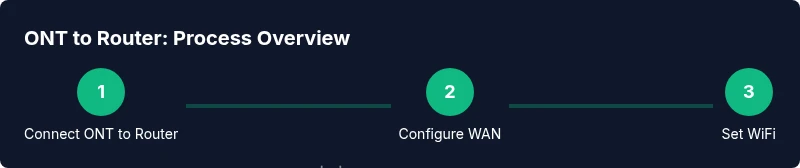
Plug one end of a Cat5e Ethernet cable into the ONT's Ethernet port and the other end into the router's WAN/Internet port. This establishes the path from the fiber interface to your home network.
Tip: Use a straight-through cable; avoid crossover cables unless specified by hardware. - 3
Power on devices in order
Power on the ONT first, wait for it to stabilize (about 60 seconds), then power on the router. This ensures the router can obtain an IP from the ONT.
Tip: If the router doesn’t boot after 60 seconds, unplug and replug the power to reset. - 4
Access the router admin page
From a connected device, open a browser and enter the router’s default gateway (commonly 192.168.1.1). Log in with the default credentials and navigate to Internet/WAN settings.
Tip: Change the admin password immediately after login for security. - 5
Configure WAN settings
Choose DHCP or PPPoE as required by your ISP. Enter any authentication details and save. Reboot if prompted to apply changes.
Tip: If unsure, contact your ISP to confirm the correct WAN type before typing credentials. - 6
Set up WiFi
Create an SSID and a strong password. Select a security protocol (WPA3 if available). Enable guest network if needed and set separate names for 2.4 GHz and 5 GHz bands.
Tip: Avoid simple names; use unique identifiers that you can recognize quickly. - 7
Test wired and wireless
Connect a device via Ethernet and another via WiFi to confirm Internet access. Run a quick speed test to verify that speeds align with your plan.
Tip: If speeds are low, try moving the router higher and away from walls or other electronics. - 8
Document and save
Record WAN type, WiFi credentials, and any custom settings. This helps with future resets or migrations to new hardware.
Tip: Keep this document in a secure location accessible to trusted household members.
People Also Ask
What is an ONT and how does it relate to my router?
An ONT is the fiber modem provided by your ISP. It converts fiber into Ethernet so your router can distribute Internet to devices via wired and wireless connections.
An ONT is the fiber modem. It feeds Ethernet to your router to create WiFi and wired networks.
Do I need to bridge the ONT and router?
Bridge mode is used to avoid double NAT in some fiber setups. It’s not always required, but it can improve gaming and streaming performance if you experience double NAT.
Bridge mode reduces double NAT; only use it if you notice routing conflicts or performance issues.
How do I access the router admin page?
Connect a computer to the router, open a browser, and enter the default gateway address (usually 192.168.1.1). Use the default credentials to log in, then change the password for security.
Open your browser, type the gateway IP, log in with the default credentials, and update your password.
What is double NAT and how can I fix it?
Double NAT occurs when two devices perform network address translation. Resolving it often involves placing the router in bridge mode or configuring the ISP gateway to passthrough.
Double NAT happens when two devices NAT. Bridge mode usually fixes it.
How often should I update firmware?
Check for updates monthly and apply them when available to maintain security and performance.
Check for updates monthly and install them when they’re ready.
What security settings should I use for WiFi?
Use WPA3 if available with a strong password. Disable WPS and enable a network firewall if your router supports it.
Use WPA3 with a strong password and disable WPS.
Do I need a separate modem with fiber service?
Many fiber services use an ONT plus a router; some regions require a separate modem. Check with your ISP for device compatibility.
Some fiber setups need a separate modem; check with your ISP.
Watch Video
What to Remember
- Identify ONT as the fiber modem and connect to the router's WAN port.
- Configure WAN type per ISP; DHCP or PPPoE as required.
- Set secure WiFi with WPA3 and strong passwords.
- Check for double NAT; enable bridge mode if needed.
- Test speeds and confirm both wired and wireless connections.
- Keep firmware updated for performance and security.