Mini Wifi Router Setup for Small Spaces
Learn to pick, install, and optimize a mini wifi router to create a secure, fast home network in compact spaces. Step-by-step setup, placement tips, and essential security basics for reliability.


With a mini wifi router, you can create a fast, compact home network in small spaces and on a budget. This guide walks you through selecting a model, wiring it properly, and optimizing settings for stability, coverage, and security. Plan to complete the initial setup in roughly 15-25 minutes, plus time for placement and testing.
Why a mini wifi router is a smart choice for small spaces
For many homeowners, a full-size router sits on a shelf or desk, hogging space and often creating coverage gaps in tiny apartments or upstairs bedrooms. A mini wifi router offers a compact form factor without sacrificing essential features. These devices are designed to fit on a nightstand or wall shelf while delivering reliable dual-band performance for web browsing, video streaming, and smart-home devices. According to WiFi Router Help, selecting a compact model can reduce clutter and simplify placement while still providing strong coverage in most rooms.
When you weigh a mini wifi router against a traditional unit, you gain portability, lower power draw, and easier cable management. For households with limited Ethernet ports, a mini router can serve as a dedicated network segment for guests, IoT devices, or streaming setups, keeping your main router free for bandwidth-heavy tasks. In dense living spaces, the smaller footprint also reduces interference from metal furniture or appliances, helping maintain stable connections as you move around. WiFi Router Help's analysis suggests that well-placed mini routers can achieve most daily online activities with minimal dead zones, especially when paired with a clean modem connection and a sensible channel plan.
Key features to look for in a mini wifi router
A good mini wifi router balances size with performance. Look for dual-band or tri-band support to separate slower IoT devices from fast streaming, and check for the latest Wi-Fi standard your devices support, such as Wi-Fi 6 (802.11ax) or Wi-Fi 6E. A compact unit should still offer essential security and management features like WPA3, a guest network, and a straightforward admin interface. USB ports can be useful for printer sharing or network-attached storage, but are not universal on ultra-small models. Consider whether you need Ethernet ports for a wired PC or gaming console, and verify firmware update frequency and ease of updating to stay protected. A strong mini router will also provide good signal strength, a simple setup process, and predictable coverage in your most-used rooms.
How to choose between stand-alone vs mesh options
Stand-alone mini wifi routers are compact, affordable, and easy to configure, ideal for small apartments or single rooms. Mesh-style ecosystems use multiple nodes to blanket larger spaces, but many \"mini\" devices can act as a mesh node when paired with other compatible units. If your goal is to cover a single room or a studio, a high-quality stand-alone mini router can be enough. For larger living areas, consider a mini router that supports mesh expansion or add a compatible node to extend coverage without breaking the compact aesthetic. Evaluate your home layout, wall materials, and the number of devices when deciding between these approaches.
Network topology and placement tips for compact networks
Place the mini wifi router at a central height, off the floor and away from metal objects or appliances that cause interference. If possible, elevate the device to a shelf or wall mount to improve signal dispersion toward primary usage areas. Keep it away from bathrooms and kitchens where humidity and heat can affect electronics. Use a single, clean cable run from the modem to the router, and avoid daisy-chaining multiple devices in a tight space. Finally, test signal strength in the rooms where you spend the most time and adjust the router location to minimize dead zones.
Step-by-step setup: unboxing to online configuration
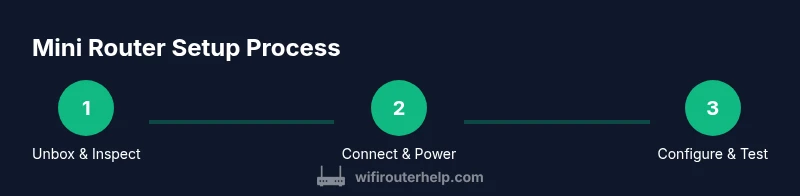
Unbox the mini wifi router and verify all components are present: the router, power adapter, Ethernet cable, and quick start guide. Connect the router to your modem with the included Ethernet cable and power it on. On a computer or phone, join the router's default network and open the admin page using the address in the manual. Create a strong admin password and confirm you can access the settings. From there, configure your internet connection type and secure wireless settings. Finally, save changes and restart if prompted.
Optimize performance and reliability in a small space
Enable the latest security protocol your devices support, typically WPA3, and consider enabling a guest network for visitors. Use a unique, strong SSID and a long password to reduce unauthorized access. If your mini wifi router supports QoS, configure it to prioritize video conferencing or gaming during peak times. Regularly check for firmware updates and monitor connected devices to prevent overcrowding and interference in a dense environment.
Security basics for mini wifi router and privacy
A mini wifi router still represents a gateway to your home network. Enable WPA3 whenever possible and disable WPS to reduce vulnerability. Create separate networks for guests and IoT devices to limit access to your main systems. Change default admin credentials, disable remote management if you don't need it, and keep a local log of connected devices for quick audits.
Troubleshooting common issues
If you experience weak coverage, try repositioning the router, away from thick walls or metal furnishings. Reboot the device and verify the modem is providing a stable connection. If devices cannot see the network, check that the SSID broadcast is enabled and that you are using the correct password. For persistent speed problems, run a speed test and compare results to your ISP plan to determine if throttling or line issues are involved.
Maintenance and future-proofing your mini wifi router
Keep firmware updated to protect against vulnerabilities and bug fixes. Periodically review connected devices and adjust QoS rules as your household usage changes. When your ISP plan increases speed, verify your mini router can handle the new throughput and consider upgrading to a model with newer Wi-Fi standards if needed.
Tools & Materials
- Modem (cable/DSL/fiber)(Active service from your ISP)
- Ethernet cable(One short patch cord (at least 1 m) for the modem-to-router link)
- Power adapter(Supply included with the router)
- Smartphone or computer(To access the router admin panel)
- Pen and paper or note app(For writing down network credentials)
- Optional USB storage or printer(If the router supports USB sharing)
Steps
Estimated time: 30-45 minutes
- 1
Unbox and verify contents
Open the box and confirm you have the router, power adapter, Ethernet cable, and quick-start guide. Inspect for any visible damage before proceeding.
Tip: Check that all pieces match the model you bought and that the firmware version is not outdated in the packaging. - 2
Connect the modem to the router and power it on
Connect the Ethernet cable from the modem to the router\'s WAN/Internet port, then plug in the power adapter and turn on the device. Wait 1-2 minutes for boot.
Tip: Use a short Ethernet run to keep the area tidy and minimize cable slack in a small space. - 3
Access the router admin page
On a connected device, join the router\'s default network and open the admin URL from the quick start guide. Log in with the default credentials.
Tip: Change the admin username and password immediately after logging in. - 4
Configure internet connection settings
Set the internet connection type (DHCP, PPPoE, or static) according to your ISP and confirm the WAN status shows connected.
Tip: If unsure, contact your ISP to confirm the correct settings before saving. - 5
Set up wireless network (SSID and password)
Create a unique SSID for your network and enable WPA3 if available; choose a long, random password for security.
Tip: Avoid using common names; differentiating your SSID helps with device management. - 6
Enable guest network and security features
Turn on a guest network if you have visitors, and enable firewall features and automatic firmware updates when available.
Tip: Guest networks should be isolated from your main devices for security. - 7
Test connectivity and place for best coverage
Run a quick speed test in key rooms and move the router to maximize coverage while avoiding interference.
Tip: Aim for a central, elevated location to minimize dead zones.
People Also Ask
Can a mini wifi router replace my ISP modem entirely?
In many setups, a mini wifi router cannot replace the modem itself; it often sits behind the modem to create a wireless network. If you have a modem-router combo or a fiber ONT, the mini router can extend capabilities or add features, but you may still rely on the main device for the actual internet connection.
A mini wifi router usually sits behind the modem. It can extend features, but it may not replace the primary modem in all setups.
Will a mini wifi router support mesh networks?
Some mini wifi routers can function as mesh nodes when paired with compatible devices, but not all models support true mesh networking. If you need wide coverage, verify mesh compatibility before purchasing.
Some mini routers can join a mesh setup if they’re designed for it; check compatibility before buying.
Is WPA3 essential for security on these devices?
WPA3 is the current standard for wireless security and is highly recommended for modern routers, including mini models. If WPA3 isn\'t available, at least use WPA2 with a strong, unique password and enable other protective features.
WPA3 is highly recommended for secure Wi-Fi; if unavailable, use WPA2 with a strong password and enable extra protections.
Can I run a VPN on a mini wifi router?
Many mini wifi routers support VPN passthrough or client VPN features, but capabilities vary by model. Check the user manual or product page to confirm VPN options before buying.
Most mini routers support basic VPN features, but it varies by model; verify capabilities before purchasing.
What should I do when I notice slow speeds after setup?
First, check if you\'re hitting your ISP plan limits or experiencing interference. Reposition the router, test with a wired device, and ensure firmware is up to date. If problems persist, contact support.
If speeds are slow, test placement, check firmware, and confirm your plan limits; update or contact support if needed.
Watch Video
What to Remember
- Choose a compact mini wifi router when space is limited
- Prioritize security with WPA3 and strong passwords
- Test and optimize placement for better coverage
- Regularly update firmware to protect against threats