Logging into a Linksys Router: Step-by-Step Guide
Learn how to log into a Linksys router safely and efficiently. This step-by-step guide covers access methods, credential recovery, and essential security practices for home networks.


Goal: access the Linksys admin dashboard to view and adjust wireless settings, security, and firmware. Confirm your device is on the same network, know the login URL or IP (commonly 192.168.1.1 or routerlogin.net), and have the admin credentials. This step unlocks configuration options and troubleshooting tools. If you’re unsure of the exact URL, start with the device's label on the bottom or consult the manual.
How login works on Linksys routers
Understanding the login process helps you access the admin dashboard safely. When you type the router address in a browser, the device serves a login page asking for credentials. If credentials are correct, you gain access to configuration options such as wireless, security, and firmware settings. If credentials are missing, you may be blocked by the router or prompted to reset. According to WiFi Router Help, logging into a Linksys router securely starts with confirming you're on the right network and using the official login URL. This helps protect your home network from phishing pages and tampered interfaces. The login portal is usually local to your home network, not exposed to the internet, and modern devices may offer a secure HTTPS connection for the admin page. The remainder of this guide dives into practical steps you can take now.
Security-first prerequisites
Before attempting to log in, set up a secure baseline. Use a device you control and keep it free of malware. Verify you’re connected to your home network, not a public hotspot, and avoid using public or guest networks for admin access. Disable unnecessary VPNs temporarily during login to prevent traffic from bypassing the router interface. Ensure you know where to find the correct login URL or IP address and be prepared to reset the router only if you truly cannot access the admin interface. This upfront hygiene reduces risk and speeds up the process.
Finding the correct login entry point
Locating the right login entry point is essential. The common methods include entering the IP address (gateway) into a browser, using a branded URL like routerlogin.net, or using the device’s default gateway as shown in network settings. Check the sticker on the router chassis, the user manual, or the manufacturer’s support site for the exact address. If your router is part of a mesh system, the login may be routed through a dedicated app or a specific admin URL. Never trust a login page that asks for payment or unusual permissions. This step ensures you land on the legitimate Linksys login page.
Access methods you may encounter
Many Linksys routers expose their admin page at a local IP such as 192.168.1.1 or 192.168.0.1. Some models allow access via routerlogin.net or myrouter.local when your device is connected to the router. If you use a Mac or Windows machine, you can find the gateway IP by running a quick network command. On mobile devices, you may be prompted to sign into the router’s Wi‑Fi network first. In some cases, a dedicated Linksys app can grant access to device settings without manual URL entry. Stick to official URLs and verify the connection is secure before entering credentials.
Step-by-step: login to your Linksys router
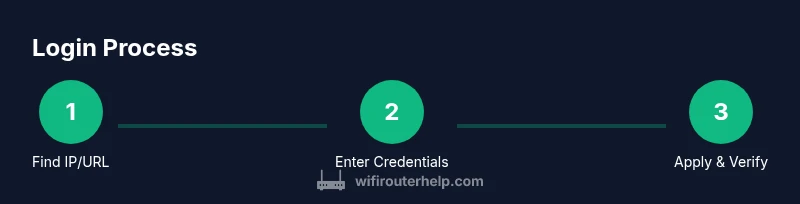
The actual login workflow is a sequence of small actions that secure your network. Start by navigating to the login entry point, then enter credentials, and finally validate the connection by visiting a known page or adjusting a simple setting (like the wireless name). Remember to keep a copy of the new password in a password manager. This block provides the narrative you’ll follow, while the dedicated STEP-BY-STEP section below gives precise actions and timings.
Post-login security practices
Having logged in, your next priority is securing the router. Change default admin credentials to a strong, unique password and consider updating the firmware to close any known vulnerabilities. Enable WPA3 or at least WPA2 encryption for wireless networks, adjust the admin access to HTTPS if supported, and disable remote admin unless you specifically require it. Create a separate guest network if your router supports it, and review port forwarding settings to minimize exposure. These steps help mitigate common security risks and preserve network performance.
Troubleshooting common login issues
If you can’t reach the login page, verify you’re on the right network and using the correct IP or URL. Ensure the device is connected via Wi‑Fi or Ethernet and that you’re not being redirected by an unusual browser extension. Clear browser cache or try a different browser. If credentials are forgotten, attempt the default admin combination shown on the router’s label; if those have been changed, prepare for a reset as a last resort. Persistent problems may indicate hardware faults or a misconfigured bridge mode.
Special considerations for mesh networks and guest networks
If your Linksys setup includes mesh nodes or a guest network, the login flow can differ slightly. Some models route the admin page through a middle node or the main router’s IP. When in doubt, start at the primary hub’s IP or UI, then confirm each satellite node inherits the correct password and settings. For security, disable admin access on guest networks and protect the primary network with a robust passphrase. This ensures you don’t accidentally expose device management to untrusted devices.
Backup and recovery tips after login
After successfully logging in and making changes, back up your configuration if the router supports it. A backup preserves settings, including wireless keys, firewall rules, and QoS configurations, in case you need to restore later. Document important changes and keep the backup offline if possible. Regularly review and refresh credentials and firmware to maintain a healthy, secure network over time.
Quick sanity checks you can perform post-login
To confirm everything is functioning properly, check device status pages for connected clients, verify firmware version, review security settings, and test wireless performance from multiple devices. If you notice anomalies, reattempt the login using a wired connection and reapply any critical changes. These checks help catch misconfigurations early and prevent future access problems.
Tools & Materials
- Device with a web browser(PC, Mac, or mobile device connected to the Linksys router network)
- Working network connection to the router(Wi-Fi or Ethernet connection to reach the login page)
- Router login URL or IP address(Common defaults: 192.168.1.1 or 192.168.0.1; routerlogin.net or myrouter.local may apply)
- Admin credentials(If unknown, plan for a factory reset as a last resort)
- Optional Ethernet cable(Helpful if wireless connection is unstable during login)
Steps
Estimated time: 10-15 minutes
- 1
Identify the router login entry point
Determine the correct login URL or IP by checking the router sticker, user manual, or your device's network settings. This ensures you reach the genuine Linksys login page and not a phishing page.
Tip: Double-check the official URL shown on the device sticker to avoid fake pages. - 2
Open the login page in a browser
Launch a modern browser on a device connected to the router and enter the IP address or URL. Avoid bookmarks or links from email to minimize risk of phishing.
Tip: If the page doesn’t load, try http:// or https:// variations and clear cache. - 3
Enter your credentials or reset if needed
Enter the router’s admin username and password. If you don’t know them, try common defaults but plan a reset if they were changed. Once logged in, you can configure settings.
Tip: If credentials are unknown, plan for a factory reset only as a last resort. - 4
Change default credentials for security
Navigate to the administration or security section and update the login username/password to a strong, unique combination. This prevents unauthorized access.
Tip: Use a password manager to store the new credentials. - 5
Apply changes and verify access
Save your changes and log out, then re-login to confirm the new credentials work. This confirms you can access the admin interface reliably.
Tip: Always test after changes to avoid lockouts. - 6
Troubleshooting login failures
If you still can’t log in, ensure you are on the correct network, disable VPNs, and try different IPs (e.g., 192.168.1.1 vs 192.168.0.1).
Tip: Disconnect secondary networks and retry with a wired connection if possible.
People Also Ask
What is the default Linksys router login URL or IP?
Most Linksys routers use 192.168.1.1 or 192.168.0.1 as the login IP. Some models may use routerlogin.net or myrouter.local. Check the device label or manual for the exact address.
Most Linksys routers use standard local IP addresses like 192.168.1.1. If unsure, check the device label or manual.
I forgot my admin password. What now?
If you can't recall the admin password, try the common defaults first. If they were changed, you may need to reset the router to factory settings, which erases custom settings.
If you forgot the password, try the default admin password first, but be prepared to reset if necessary.
Can I log in using a mobile device?
Yes. Use a web browser on your smartphone or tablet and ensure you're connected to the router network. For some Linksys systems, you can also use the Linksys app for advanced features.
Yes, you can log in from a mobile device using a browser or the Linksys app.
Why can’t I reach the login page?
Possible causes include being connected to the wrong network, using the wrong IP, or a firewall blocking the page. Ensure you are connected to the router’s network and try a wired connection.
Common causes are the wrong network or IP, or a firewall. Check your connection and IP address.
How do I reset my Linksys router safely?
A factory reset restores all settings to default and requires reconfiguration. Hold the reset button for about 10 seconds with a pointed tool, then re-enter setup.
If you must reset, hold the reset button for about 10 seconds, then reconfigure from scratch.
Should I enable HTTPS for the admin page?
If your model supports it, enable HTTPS to encrypt the login session, especially on public networks. Otherwise, standard HTTP is common but less secure.
If available, use HTTPS to secure your admin login.
Watch Video
What to Remember
- Know the router login URL or IP before attempting access.
- Change default credentials immediately after login.
- Verify you are on the genuine login page to avoid phishing.
- If login fails, troubleshoot network and use a wired connection.
- Secure your network status by keeping firmware up to date.