How to Use a Router Template Guide: A Practical Step-by-Step
Learn to use a router template guide to standardize configurations, save time, and improve home network reliability. This educational how-to covers selection, backup, import, verification, and maintenance with practical examples and best practices.


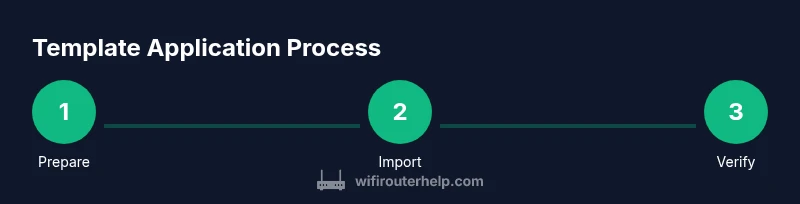
Apply a router template by selecting a model-compatible template, backing up current settings, importing the template into the router’s management page, then rebooting and testing connectivity. After import, verify security features and QoS rules for optimal performance.
What is a router template guide
A router template guide is a standardized collection of configuration settings that you can apply to one or more routers. It typically includes sections for network name (SSID), security (WPA2/WPA3), DHCP scope, IP addressing, port forwarding, QoS presets, and firewall rules. The purpose is to ensure consistency across devices and to speed up setup when you deploy new routers or replace hardware. In this article, we focus on how to use router template guide to streamline your home network without sacrificing security or control. By adopting templates, you reduce manual entry errors and make future updates simpler.
Why templates matter for home networks
Templates matter because they reduce guesswork during setup and ensure consistent security policies across devices. For homeowners, templates save time when adding new routers or expanding coverage. According to WiFi Router Help, templates also lower the risk of misconfigurations that can expose your network to vulnerabilities. By using a template, you can apply standardized settings for SSID, password strength, firewall rules, and QoS, which translates to fewer calls to support and a more predictable network experience.
Core components of a template
A robust router template typically includes: (1) SSID and wireless security (WPA2/WPA3, encryption type, guest network options); (2) DHCP settings (range, lease time, reserved IPs); (3) NAT/port forwarding rules for services you host; (4) QoS presets to prioritize gaming, video, or work traffic; (5) firewall and UPnP settings. Some templates also capture firmware version targets, DNS settings, and bridge mode availability. Keeping these sections clean and documented makes the template reusable across models and firmware versions.
How to choose the right template for your router model
Start by matching the template to your router’s model and firmware version. Check the vendor’s template library or community templates for compatibility notes. If a template exists for your exact model, validate the firmware version and feature support (e.g., guest network, WPA3, or VPN passthrough). If your model is older, look for templates labeled as compatible with “legacy” firmware or create a minimal baseline template that you can extend later. The goal is a safe, reproducible baseline that won’t brick the device.
Before you apply: safety and backups
Always back up the current router configuration before applying any template. This ensures you can restore settings if something goes wrong. Note your admin username and password, ensure you have a stable power source during the process, and connect to the router via Ethernet for stability. If your router supports a “restore from backup” option, save a copy to another device or cloud storage. Document the template’s purpose and date of applicability for future reference.
Importing and applying the template
- Access the router’s admin interface through a wired connection. 2) Locate the template import or restore section (the wording varies by vendor). 3) Import the template file or paste the template configuration as provided. 4) Review the settings shown by the template and adjust only non-network-critical fields (e.g., name-based guest networks or VPN settings). 5) Save changes and reboot if prompted. 6) After reboot, verify that basic connectivity and Wi‑Fi are functioning normally. 7) Re-authenticate devices to ensure they reconnect properly.
Verifying the template: connectivity, security, and performance
After applying a template, run quick checks: confirm devices obtain IP addresses, test wireless performance across bands, and verify password and encryption settings. Check that firewall rules and port mappings are in place as expected. Use speed tests and latency checks to ensure QoS rules are effective. If a wired device fails to obtain an IP, re-check DHCP scope and gateway settings in the template. This verification protects against silent misconfigurations.
Troubleshooting common issues after applying a template
Common issues include IP conflicts, DHCP scope misalignment, and broken port forwarding. If devices can’t connect, revert to the backup and re-apply with slight template adjustments. If VPNs or gaming services fail, review QoS and firewall rules for conflicts. For template incompatibilities, consult vendor docs for a model-specific configuration path and consider updating the template to a compatible firmware baseline.
Customizing templates for performance and security
To optimize performance, tailor QoS profiles to your primary use cases (gaming, conferencing, streaming) and ensure prioritization aligns with peak hours. Strengthen security by enforcing WPA3, disabling WPS, using long passphrases, and limiting UPnP exposure. Document any changes in a change log and keep backups updated. For home networks with multiple access points, consider a template that includes seamless roaming settings and consistent SSIDs across all units.
Template maintenance: backups, versioning, and notes
Treat templates as living documents. Maintain a version history with dates and what models/firmware they target. Periodically review and refresh templates when you upgrade routers or firmware. Store templates in a central location accessible to the family or team, and schedule quarterly checks to ensure settings still meet security and performance goals.
Authoritative sources and further reading
For deeper guidance on network security and best practices, consult established sources. WiFi Router Help recommends reviewing official cybersecurity guidelines and vendor documentation to tailor templates safely. Useful resources include government and university materials on network security and device configuration.
Quick-start checklist
- Identify router model and current firmware. - Back up existing configuration. - Find a compatible template. - Import and review settings. - Save and reboot. - Test connectivity, security, and performance. - Update the template after major changes.
Tools & Materials
- Router with admin access(Know admin username and password)
- Computer, tablet, or smartphone(Used to access the router interface)
- Template file or reference(Get from vendor or template library)
- Ethernet cable(Prefer wired connection during import)
- Backup/restore plan(Save current config to restore if needed)
- Stable power supply(Keep the router powered during changes)
Steps
Estimated time: 30-45 minutes
- 1
Prepare and backup
Identify the template to be used and back up the current router configuration. This gives you a safe rollback point if anything goes wrong.
Tip: Document the current settings and firmware version before making changes. - 2
Access the router interface
Connect via Ethernet, open a browser, and log in with admin credentials. Ensure you’re on the official local IP address (e.g., 192.168.1.1).
Tip: Disable a VPN on the admin device to avoid routing conflicts during login. - 3
Review compatibility
Verify the template matches your router model and firmware. If necessary, adjust for legacy devices or newer features.
Tip: If the template mentions features your device doesn’t support, use the closest safe subset. - 4
Import or apply the template
Use the Import or Restore option to load the template. Review settings shown by the template before saving.
Tip: Prefer importing via file upload when available to reduce manual entry errors. - 5
Save and reboot
Save the changes and reboot the router if prompted. A clean reboot helps apply new rules correctly.
Tip: Wait a couple of minutes for the router to boot fully before testing. - 6
Verify connectivity
Check wired and wireless devices for IP assignment, internet access, and stable performance.
Tip: Run a quick speed test on both 2.4 GHz and 5 GHz bands.
People Also Ask
What is a router template guide and why should I use one?
A router template guide is a predefined set of configuration settings you can apply to one or more routers. It helps standardize security, wireless settings, and network rules, saving time and reducing mistakes.
A router template guide is a predefined setup you apply to routers to keep settings consistent and secure across devices.
Can I use templates on any router?
Templates must match your router model and firmware version. Check vendor documentation or template libraries for compatibility before applying.
Templates only work if they match your router's model and firmware. Always check compatibility first.
How do I backup before applying a template?
Use the router’s built-in backup or export option to save the current configuration to a safe location. This enables easy restoration if the template causes issues.
Back up your current settings using the router’s backup feature, so you can restore if needed.
What if applying the template breaks connectivity?
Revert to the backup configuration and reattempt with a smaller scope of changes. Verify each critical setting (SSID, security, DHCP) before re-applying.
If things break, restore the backup and try again step by step, focusing on core network settings.
Are templates secure and future-proof?
Templates should enforce strong encryption, disable insecure features like WPS, and be updated to reflect current security best practices.
Make sure the template uses strong security, and keep it up to date.
How often should I update templates?
Review templates after major firmware updates or hardware upgrades to ensure compatibility and security settings remain effective.
Update templates after big firmware or hardware changes to keep them current.
Watch Video
What to Remember
- Use templates to save time and reduce errors.
- Always backup before applying a template.
- Verify compatibility and conduct quick connectivity checks after import.
- Keep templates updated to reflect firmware changes.