How to Use a Router as a Wi‑Fi Extender
Learn how to turn your existing router into a Wi‑Fi extender, expanding coverage with bridge or repeater modes. Get practical, step-by-step guidance, troubleshooting tips, and security best practices.


If you’re wondering how to use router as wifi extender, this guide explains how a second router can rebroadcast your main network to reach far corners of your home. In practice, you’re repurposing an existing device rather than buying a dedicated extender. The WiFi Router Help team notes that success hinges on choosing the right mode (bridge, repeater, or client) and configuring security the same as your primary network. The result is wider coverage, fewer dead zones, and a simpler, cost-effective upgrade path—provided you manage expectations about speed and reliability depending on your topology. It assumes you have admin access and a second router on hand.
What it means to use a router as a Wi‑Fi extender
If you’re wondering how to use router as wifi extender, this guide explains how a second router can rebroadcast your main network to reach far corners of your home. In practice, you’re repurposing an existing device rather than buying a dedicated extender. The WiFi Router Help team notes that success hinges on choosing the right mode (bridge, repeater, or client) and configuring security the same as your primary network. The result is wider coverage, fewer dead zones, and a simpler, cost-effective upgrade path—provided you manage expectations about speed and reliability depending on your topology.
Brand note: According to WiFi Router Help, starting with a plan for where the extender fits in your home improves outcomes and reduces frustration.
Compatibility and prerequisites
Not every router supports extender modes. Look for terms like Bridge Mode, Repeater, or Wireless Bridge in the admin interface. Check your main router’s docs about backhaul flexibility; some models only support one extender mode, others support multiple. Ensure both devices have current firmware and support similar wireless standards (for example, 802.11ac or 802.11ax). Decide if you want the extender to broadcast the same SSID as your main network or a separate one for easier troubleshooting. Clear planning helps you compare performance and choose the best approach for your home.
Modes explained: bridge mode, repeater mode, and client mode
Bridge mode turns the extender into a transparent network link, placing devices on the same network as the main router. Repeater mode latches onto the existing wireless signal to rebroadcast it, which can reduce throughput but is easy to set up. Client mode makes the extender act like a wireless client to the main router and then creates a separate network for devices that connect to it. Understanding these modes helps you pick the right tool for your layout and speed expectations.
Planning placement and network topology
Placement matters more than you might think. Position the extender halfway between the main router and the farthest usable area, avoiding thick walls, metal objects, and microwaves that cause interference. If possible, use a wired Ethernet backhaul between routers to maximize speed and minimize latency. If a wired backhaul isn’t practical, aim for a strong wireless link (signal strength at the extender should be solid, not marginal). Think about who and what will connect through the extender—streaming devices, gaming consoles, and smart home gadgets all have different requirements.
Common troubleshooting steps and pitfalls
If devices can’t connect or performance is poor, verify you are using the correct mode on the extender and that the main router’s settings allow backhaul traffic. Check that both routers are on compatible channels and that the extender is not sitting on a channel with heavy interference. Ensure DHCP is configured correctly on the appropriate device (typically disabled on the extender in bridge mode). Finally, confirm firmware on both devices is up to date to minimize compatibility issues.
Measuring success: testing, security, and maintenance
Test coverage by monitoring signal strength in multiple rooms and running speed tests on wired and wireless clients. Keep the administrative credentials on both routers strong and unique, and enable basic security features like WPA3 (or WPA2) and a firewall. Schedule regular firmware updates for both devices and document the topology so future changes are straightforward.
Tools & Materials
- Main router(Existing primary gateway with admin access)
- Extender/router to convert(Second router capable of Bridge/Repeater/Client modes)
- Ethernet cable (Cat5e or better)(Use for wired backhaul if possible)
- Device to configure (PC/tablet/phone)(Router admin pages require a browser)
- Power adapters for both routers(Ensure uninterrupted setup)
- Current network credentials (SSID, password)(Needed to duplicate or rename networks)
- Pen and paper or digital note tool(Document topology and settings)
Steps
Estimated time: 60-90 minutes
- 1
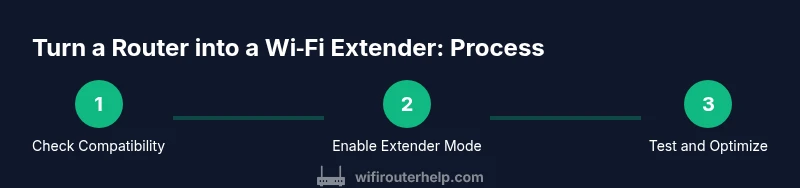
Check compatibility
Review extender mode options on the second router and confirm it supports bridge, repeater, or client mode. Check that your main router uses compatible wireless standards and firmware is up to date. This step sets up a realistic plan for your topology.
Tip: If in doubt, consult the manufacturer docs or WiFi Router Help for model-specific guidance. - 2
Gather hardware
Collect the main router, the second router, ethernet cable (if available), a device to access admin pages, and the power adapters. Having everything ready reduces mid-setup pauses and helps you verify connections quickly.
Tip: Label which router is the primary vs. extender to avoid confusion later. - 3
Access admin pages
Log into the main router's admin interface and note current settings (IP address, DHCP range, SSID). Do the same for the extender if you already connected it, or prepare to configure a default login for the second device.
Tip: Use a wired connection if possible to avoid dropped connections during setup. - 4
Enable extender mode
On the second router, enable the chosen extender mode (Bridge/Repeater/Client). This activates the core backhaul behavior and determines how devices will join the network.
Tip: If you want seamless roaming, plan to keep the same SSID across networks, but be prepared to troubleshoot handoffs. - 5
Assign LAN IP on extender
Set a static LAN IP for the extender within the main network’s IP range but outside the main DHCP pool to prevent conflicts. This helps with stable management access.
Tip: Record the IP so you can reach the extender quickly in the future. - 6
Disable DHCP on extender
In bridge mode, disable the extender’s DHCP server to avoid IP conflicts with the main router. If you’re using a dedicated repeater mode, you may leave DHCP enabled on the extender depending on the device.
Tip: Only one device on the network should assign IP addresses to clients. - 7
Configure SSID and security
Set the extender's wireless network name and security settings. You can copy the main SSID and password for seamless roaming or choose a distinct SSID for easier troubleshooting.
Tip: Prefer WPA2/WPA3 and a strong password; disable WPS if supported for improved security. - 8
Establish wired backhaul
If possible, connect the two routers with an Ethernet cable to create a wired backhaul, which delivers better speed and reliability than wireless backhaul alone.
Tip: Test different cable lengths if you’re experimenting with placement constraints. - 9
Place the extender for coverage
Position the extender halfway between the main router and the farthest area with poor signal. Avoid obstacles like thick walls, large metal objects, and appliances that cause interference.
Tip: Use a simple mobile device app or the admin UI to check signal strength from different locations. - 10
Reboot and verify connection
Power cycle both routers and confirm the extender shows a healthy link to the main router. Check that connected devices can access the Internet and that traffic routes appropriately.
Tip: If devices can’t connect, re-check the mode, SSID, and security settings as a quick triage. - 11
Update firmware
Update firmware on both routers to the latest stable version. This minimizes compatibility issues and improves security.
Tip: Backup current settings before updating, in case you need to revert. - 12
Test performance in multiple rooms
Run speed tests and monitor signal strength in several areas of the home to verify the extender’s impact. Compare wired vs. wireless performance if you have both options.
Tip: Document measurements to guide future tweaks. - 13
Secure and maintain
Enable essential security features, change default credentials, and set up a periodic maintenance reminder. Keep firmware up to date to protect against emerging threats.
Tip: Store credentials safely and consider a routine for reviewing network changes. - 14
Document topology
Record the network diagram, including which device is in bridge or repeater mode, IP schemes, and the SSIDs used. This helps future updates and troubleshooting.
Tip: Keep a copy in a secure location for quick reference.
People Also Ask
Can I use any router as a Wi-Fi extender?
Not every router supports extender modes. Check your model’s documentation for terms like Bridge Mode, Repeater, or Wireless Bridge. If unsupported, you may need a dedicated extender or a newer router.
Not every router supports extender modes. Check the manufacturer docs for Bridge or Repeater options, or consider a dedicated extender.
Will using a router as an extender slow down my network?
Potentially yes. Wireless backhaul can reduce throughput, especially if the backhaul link is weak. A wired backhaul minimizes this impact and yields better overall speeds.
Yes, wireless backhaul can slow things down, but a wired backhaul helps maintain higher speeds.
Should I use the same SSID for the extender network?
Using the same SSID can provide seamless roaming, but some devices may hand off less reliably. Using a distinct SSID makes debugging easier and lets you force client connections when needed.
A single SSID can help with roaming, but separate names can make troubleshooting easier.
Do I need to disable DHCP on the main router?
Usually you disable DHCP on the extender in bridge mode, leaving the main router to handle IP assignment. In some configurations, the extender may run its own DHCP if you’re not using bridge mode.
Turn off DHCP on the extender when you’re using bridge mode so the main router handles IPs.
How can I test if the extender is working?
Connect a device to the extender’s network and run speed tests in multiple rooms. Check the signal strength in the extender’s admin page and compare against the main router.
Test with a device on the extender network and run speed checks from several rooms.
What are common pitfalls to avoid?
Avoid using mismatched modes on both routers, keep firmware up to date, and don’t place the extender in a location with extreme interference. Document changes to simplify maintenance.
Watch for mode mismatches, update firmware, and place the extender away from interference.
Watch Video
What to Remember
- Plan topology and modes before starting setup
- Wired backhaul delivers the strongest performance
- Test coverage across rooms to verify improvements
- Keep firmware updated and secure the network
- Document topology for future changes