How to Make a Router a WiFi Extender
Learn how to convert an existing router into a WiFi extender using bridge mode, AP mode, or a wired backhaul. This practical guide covers setup, security, and troubleshooting for a stronger home network.


By reconfiguring your existing router, you can extend WiFi coverage without buying a dedicated extender. This guide shows how to enable bridge/repeater modes, use AP mode, or create a wired backhaul for better performance. You’ll need admin access to your router, a compatible second device, and a short Ethernet cable. The result is a seamless, single network with improved range.
Understanding the basics: What it means to extend WiFi
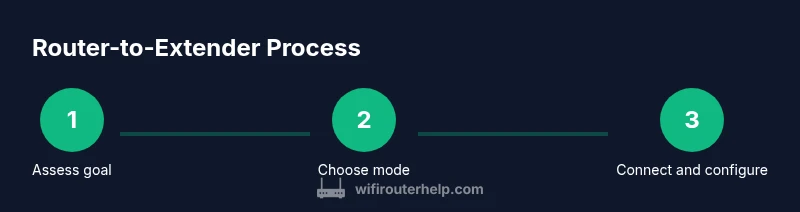
Extending WiFi with a router involves reconfiguring one device to work in tandem with your existing network rather than acting as a separate, isolated access point. The goal is a single, seamless network that broadens coverage without introducing complexity or two different SSIDs. When you make a router into a WiFi extender, you typically choose between three common approaches: bridge (or wired backhaul), AP mode, and wireless repeater. Each method has trade-offs between stability, speed, and ease of setup. In practical terms, you’ll want to assess whether you have a reliable Ethernet path to the main router, whether you’re comfortable adjusting DHCP settings, and whether your second device supports the chosen mode. WiFi Router Help recommends starting with the easiest option that still meets your coverage goals, then testing to confirm the performance gains.
Bridge mode vs AP mode vs wireless repeater: choosing the right approach
The three main avenues to extend coverage are bridge mode (often with a wired backhaul), AP mode (a connected access point), and wireless repeater/extender mode. Bridge mode usually delivers the strongest, most consistent performance when you can run an Ethernet cable to the second router. AP mode creates a separate access point that shares a single network, typically with DHCP disabled on the second device to avoid conflicts. Repeater mode relies on wireless backhaul, which is simpler to set up but can halve wireless throughput and introduce more latency. Understanding these trade-offs will help you pick the method that best fits your home layout, wall materials, and internet speed.
Assessing compatibility and the right secondary device
Not every router supports every mode. Before you start, check the second device’s documentation for bridge, AP, or repeater capabilities and confirm firmware compatibility. If you’re aiming for wired backhaul, an Ethernet-capable second router or a dedicated access point is ideal. For a wireless-only setup, ensure the devices can operate in the same wireless standard (WPA3, WPA2, etc.) and that both support the same security settings. If your secondary router is older, you may get better results with a dedicated access point designed for bridge-mode operation. The key is to select a device that can seamlessly join your existing network without creating separate subnets.
Preparing your network: plan, verify, and back up
Preparation matters. Start by noting your primary router’s LAN IP range (for example, 192.168.1.0/24) and DHCP scope. Decide whether you will use a single SSID or two, and whether you want the same password across both radios. Create a quick backup of current router settings so you can restore if something goes wrong. If you anticipate needing to revert to a standard setup, plan a reset point and ensure you know how to perform a factory reset on the secondary device.
Wiring up the best backhaul: wired vs wireless
If you can run an Ethernet cable to the second router, use it for a wired backhaul. This yields the most reliable performance with minimal interference. In rooms where wiring is impractical, a high-quality wireless link can still work, but be prepared for potential speed reductions and more variable performance depending on distance and walls. Place the second device within line of sight or with one interior wall in between to maximize signal strength. Remember that the physical layout of your home often dictates the practical choice between wired and wireless backhauls.
Security and firmware: lock it down before you connect
Update firmware on both devices to the latest stable version before making changes. Use strong admin passwords and enable WPA3 if available, or at least WPA2 with a robust passphrase. Disable WPS and consider changing the default SSID to avoid confusion with a mixed network. After enabling your desired mode, test access to the admin pages from a phone or laptop to ensure you can still reach both devices on the same network.
Placement and channel optimization: squeeze out the last bit of range
Position the second router away from microwaves, cordless phones, and metal enclosures. Use a different channel if you’re operating on a crowded 2.4 GHz band, or let automatic channel selection optimize itself. If you’re using a single SSID, verify that clients switch seamlessly between the two radios. If you notice dead zones, adjust the second device’s location and channel to improve coverage and throughput.
Troubleshooting common issues: quick fixes that save time
If devices can’t reach the internet after switching modes, check that the second router’s DHCP is correctly disabled (for bridging modes) or enabled as an access point as appropriate. Watch for double NAT, IP conflicts, and incorrect gateway settings. A quick reboot of both devices often clears stubborn caches. If problems persist, consult the device logs and reset to known-good defaults before reapplying your chosen configuration.
Maintenance and ongoing checks: keep it reliable over time
Periodically verify firmware updates, test speeds from multiple locations in your home, and recheck WiFi coverage after major furniture rearrangements. Revisit channel selections and placement if you add new devices or experience congestion. Keeping a simple diagram of your network helps you track which devices are on which channels and how traffic flows between them.
Tools & Materials
- Primary router (existing)(Ensure firmware is up to date before proceeding)
- Secondary router (bridge/AP/repeater-capable)(Check model supports bridge, AP, or repeater modes)
- Ethernet cable (Cat5e or better)(For wired backhaul when available)
- Laptop or smartphone for config(Access admin UI of both routers)
- Optional: Powerline adapters(If you cannot run Ethernet cable between locations)
Steps
Estimated time: 30-60 minutes
- 1
Gather and verify compatibility
Collect both routers and verify they support the desired mode (bridge, AP, or repeater). Check firmware versions and note the network range. This ensures the setup doesn’t fail mid-way and saves time.
Tip: Take a quick photo of current settings before changing anything. - 2
Plan your network topology
Decide between wired backhaul (preferred) or wireless backhaul. Choose SSID strategy (single vs dual). Align security (prefer WPA3 or WPA2 at minimum).
Tip: A wired backhaul reduces interference and increases stability. - 3
Access the main router’s admin page
Log in to the primary router and confirm LAN IP range and DHCP scope. Note the gateway and DNS settings you rely on. This foundation prevents conflicts later.
Tip: Use a secure browser and avoid public networks during setup. - 4
Connect the secondary router
Connect the second router to the primary one via Ethernet if you’re using wired backhaul; otherwise, position it within strong wireless signal. Power on both devices and verify link lights.
Tip: If using wireless backhaul, ensure both devices support the same wireless standard. - 5
Configure the secondary router for the chosen mode
For bridge mode: disable DHCP, assign a static IP in the primary’s subnet. For AP mode: set to AP, disable DHCP, and choose an appropriate SSID. For repeater: enable repeater/extender mode and set the same or a nearby SSID.
Tip: Document the exact settings you applied for easy revert if needed. - 6
Secure both devices
Update firmware, set strong admin passwords, enable WPA3 (or WPA2 if not available), and disable WPS. Confirm guest network settings if you use one.
Tip: Do not reuse default credentials. - 7
Test and optimize
Test device connectivity, run speed tests in multiple rooms, and adjust router placement or channel selection to maximize coverage. Validate no double NAT issues and confirm seamless handoff between radios.
Tip: Move the second router in 1–2 meter increments if coverage gaps remain.
People Also Ask
Can I turn any router into a WiFi extender, or do I need a specific model?
Many consumer routers support bridge or AP modes, but not all. Check the router’s manual or settings for bridge, AP, or repeater options before buying or trying. If in doubt, use a router known to support these features and update firmware to the latest version.
Most routers can extend WiFi with bridge or AP modes, but check your model’s features and firmware first.
What is bridge mode and how is it different from AP mode?
Bridge mode uses a wired connection to the main router and passes traffic as a single network, often with DHCP disabled on the second device. AP mode creates a separate access point that shares the same network, usually with DHCP turned off on the secondary device as well. The key difference is how the second router is integrated into the main network topology.
Bridge mode connects via a wired path and tends to be more seamless; AP mode adds another access point on the same network.
Will using a router as a wifi extender cause double NAT?
Double NAT can occur if both devices perform NAT. To avoid this, use bridge or AP mode and disable DHCP on the secondary router. If you must use repeater mode, ensure you understand how it affects routing and ports.
Disabling NAT on the secondary device after choosing bridge or AP mode prevents double NAT.
Is Ethernet backhaul necessary for best performance?
Ethernet backhaul provides the most reliable, fastest connection with the least interference. If running Ethernet isn’t possible, a well-placed wireless backhaul can still improve coverage, just expect some performance dip compared to wired.
Ethernet backhaul is best for performance; wireless is acceptable if wiring is impractical.
How do I revert my router back to normal if things go wrong?
Simply reset the secondary router to factory settings and reapply the original configuration. If you backed up your previous settings, restore from backup. Having a documented plan makes this quick and avoids network downtime.
You can revert by resetting devices and reapplying known-good settings.
Watch Video
What to Remember
- Turn your existing router into a WiFi extender to save money
- Wired backhaul via bridge mode yields best performance
- AP mode or repeater are easier but may trade speed for simplicity
- Secure both devices and keep firmware up to date
- Test coverage and adjust placement for optimal results