Can You Use a Router as Extender? A Practical Guide
Learn how to turn a spare router into an extender to boost home Wi-Fi. This guide covers modes, backhauls, setup steps, troubleshooting, and security.


Yes. You can use a router as an extender by repurposing a spare router as a wireless repeater or access point, extending coverage to dead zones. Gather a second router, an Ethernet backhaul if possible, and a computer for configuration. You'll choose bridge/AP/repeater mode, assign a static IP, and disable DHCP on the extender.
Can a router act as an extender? Understanding the core idea
If your home Wi-Fi coverage has gaps, you might wonder can you use router as extender. The answer is yes in many cases. A spare router can be repurposed to extend your network by operating as a wireless repeater, an access point, or a dedicated bridge. This approach leverages your existing hardware, saving money while improving coverage in problem rooms. However, success depends on compatibility, configuration, and the layout of your home. In this article from WiFi Router Help, we walk through practical steps, common pitfalls, and best-practice settings so homeowners can reliably expand their network without creating new problems.
Modes explained: bridge, repeater, and access point
There are three primary ways a second router can extend your coverage, each with trade-offs. A wireless repeater or extender captures your existing wireless signal and rebroadcasts it. This approach is simple but can halve throughput and amplify latency, especially over long distances. A bridge mode connects the second router to your main router via a wired Ethernet backhaul, effectively placing the second router on the same network as the primary unit. You gain stability and speed, but you’ll need an Ethernet path between devices. Finally, an access-point (AP) mode places the second router as a dedicated access point, usually with a separate cable backhaul. The main difference among these options is how they handle DHCP, NAT, and the path devices use to reach the internet. In most home setups, bridge or AP mode with a wired backhaul offers the best balance of performance and ease of management. WiFi Router Help’s guidance emphasizes choosing the mode that aligns with your goals: convenience, speed, or scalability.
Planning your layout and backhaul options
Before you start, sketch your home’s floor plan and mark potential dead zones. The geometry of your space dictates where to place the extender and how to route a backhaul. If you can run an Ethernet cable, a wired backhaul is the gold standard: it preserves speed and reduces interference. If running cables isn’t feasible, a strong wireless link between the main router and the extender can still work, especially if you use the 5 GHz band for the link and reserve 2.4 GHz for legacy devices. In large homes or with multiple floors, consider placing the extender halfway between the router and the most distant room to minimize attenuation. The WiFi Router Help team notes that avoiding thick walls and large metal surfaces is crucial for maintaining signal quality. Additionally, take the time to note the channel usage in your area; crowded channels can degrade performance, so manually selecting a clear channel is often necessary for stable operation.
Practical high-level roadmap for configuring a second router
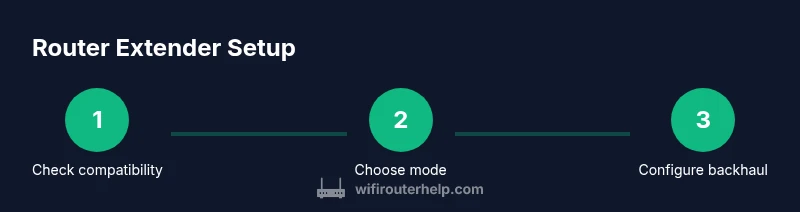
Start by checking your spare router’s capabilities and ensuring it can operate as a bridge, AP, or repeater. Next, decide whether you’ll use the Ethernet backhaul or go fully wireless. If you have a dedicated Ethernet path, connect the two routers with a cable and prepare to configure the extender in bridge or AP mode. If you’re relying on wireless backhaul, position the extender where the signal is strong but still able to relay to the farthest rooms. Access the admin interface of the second router from a laptop or phone, and create a consistent network name (SSID) and password if you’re using AP mode, or mirror the primary network’s security settings in bridge mode. After applying settings, reboot both devices and monitor for connectivity. This high-level plan minimizes surprises and helps you align hardware with your goals—whether you want seamless roaming, stronger coverage in a couple more rooms, or a cost-effective extension solution.
Common pitfalls and how to avoid them
There are several common mistakes homeowners make when turning a spare router into an extender. First, using a router that cannot support bridge or AP modes can leave you stuck with a suboptimal solution. Always verify that the device supports the mode you plan to use before starting. Second, enabling two different DHCP servers on the same network creates IP conflicts, which can lead to dropped connections. Disable DHCP on the extender when using bridge or AP modes, and ensure the primary router remains the DHCP server. Third, placing the extender too far from the primary router will yield a weak backhaul, wasting the effort and money; aim for line-of-sight coverage and adjust placement for best signal strength. Finally, neglecting firmware updates can leave you exposed to security vulnerabilities and performance issues. Keep both devices up to date with the latest firmware from the manufacturer and consider enabling automatic updates if available.
Security and network management tips
Security should be a priority when expanding your network with a second router. Start by changing default login credentials and using a strong, unique admin password. Update firmware on both devices to patch vulnerabilities and improve compatibility with modern encryption standards like WPA3. If you’re using AP mode, consider isolating guest networks to protect your main devices while enabling guest access. Turn off WPS if available, as it can be exploited. Finally, enable network access control features such as MAC filtering or client isolation on the extender where appropriate. The goal is to maintain a secure, auditable network while reaping the benefits of broader coverage. WiFi Router Help recommends testing the setup after changes to ensure there are no unintended access paths or exposed devices.
Troubleshooting checklist to diagnose and fix issues
When things don’t go as planned, a structured checklist helps identify and fix problems quickly. Start by verifying that both routers are on and connected (wired or wireless) and that the extender is in the correct mode. Check IP addresses in the same subnet to avoid conflicts. If connected via Ethernet, swap cables to rule out a faulty link. For wireless backhaul, experiment with different channels and verify that the backhaul link has sufficient signal strength (RSSI better than -70 dBm is a reasonable target in most homes). If devices in the extended network fail to obtain IP addresses, manually assign a static IP on the extender’s management interface within the primary subnet and then re-enable DHCP on the primary router. Reboot devices after changes to ensure settings take effect.
Performance expectations and measurement techniques
Even under ideal conditions, a wireless extender’s bandwidth will be lower than a direct connection to the main router. Anticipate some throughput loss due to the backhaul and shared medium, particularly on the 2.4 GHz band. To gauge real-world performance, run speed tests in rooms near the router and near the farthest corner of the home. Compare results on the same handheld device to reduce variability. For consistent results, perform multiple tests at different times of day to account for interference from neighbors and household devices. If you’re using a wired backhaul, test both devices with and without bridging to quantify the improvement. When results plateau, consider repositioning the extender or upgrading to a dedicated mesh system if your layout includes many dead zones or thick walls.
When to upgrade: mesh networks vs traditional extenders
For larger homes or spaces with multiple floors and challenging layouts, mesh networks offer more seamless roaming and consistent coverage than traditional extenders. A mesh system uses multiple synchronized nodes that hand off clients between access points, reducing the need to pick a single extender location. However, mesh kits are a bigger upfront investment and require compatible devices. If your home is moderate in size, a well-placed extender in bridge or AP mode can provide substantial improvements at a fraction of the cost. WiFi Router Help’s guidance suggests starting with a single, well-placed extender and evaluating performance before investing in a whole-mesh solution. As your needs evolve, you can expand with additional nodes or upgrade the main router to a more capable model.
Real-world example and quick validation steps
Meet a two-story townhouse where the living room couch sits roughly halfway between the main router in the basement and the far bathroom upstairs. With a spare router configured as an AP in bridge mode, the team achieved a reliable 200–300 Mbps connection in previously weak areas, enough to stream 4K video and handle video calls without noticeable buffering. The setup process was straightforward: reset the spare router, assign a static IP in the same subnet as the primary router, disable DHCP on the extender, and apply identical security settings. After installation, run a quick meter test across rooms and adjust orientation and placement based on signal strength readings. If you’re unsure where to start, choose a room with a strong signal from the main router as your starting point and move outward. This practical example demonstrates that a thoughtfully deployed second router can meaningfully enhance home Wi‑Fi without a full mesh system, especially in modest spaces.
Tools & Materials
- Secondary router(Ensure it supports bridge/AP/repeater modes)
- Ethernet cable (Cat5e or better)(Used for wired backhaul when possible)
- Laptop or smartphone(For configuring the second router via a web UI)
- Power adapters for both routers(Keep both devices powered during setup)
- Optional reference manuals or online guides(Helpful if the second router has unusual UI)
- RJ-45 Ethernet switch (optional)(Useful when testing multiple devices on the network)
Steps
Estimated time: 60-120 minutes
- 1
Power up and reset second router
Plug in the spare router and perform a factory reset to clear old settings. This ensures a clean slate for the new configuration. Note the default IP, login credentials, and any reset button procedure from the manual.
Tip: Reset to factory settings before changes to avoid inherited configurations. - 2
Check compatibility and firmware
Confirm the router supports bridge, AP, or repeater modes. Update to the latest firmware to maximize stability and security.
Tip: Firmware updates can fix backhaul compatibility issues. - 3
Decide your backhaul strategy
If you have a wired Ethernet path, plan to use it as backhaul in bridge or AP mode. If not, prepare for wireless backhaul with careful placement.
Tip: Wired backhaul generally yields the best performance. - 4
Connect devices and access the admin panel
Connect the two routers with Ethernet or prepare to access the second router via its wireless interface. Log into the admin UI from a computer on the network.
Tip: Use a browser’s incognito mode to avoid cached credential issues. - 5
Set a consistent IP scheme
Assign a static IP to the extender within the primary subnet, avoiding the main router’s DHCP range. Disable DHCP on the extender if using bridge or AP mode.
Tip: Document the IP plan to prevent future conflicts. - 6
Configure wireless settings
In AP mode, mirror the security settings of the main network or create a separate, equally secure SSID. In bridge mode, minimize changes to the main network’s SSID to maximize roaming.
Tip: Prefer WPA3 where available for stronger security. - 7
Disable DHCP on the extender
Only the primary router should issue IP addresses to avoid conflicts. Ensure the extender uses the same subnet.
Tip: DHCP conflicts are a common source of dropped connections. - 8
Save, reboot, and verify connectivity
Apply settings, reboot both devices, and confirm you can reach the internet from devices connected to the extender. Check SSID visibility and password functionality.
Tip: If you don’t see the network, recheck cable connections and IP settings. - 9
Test in multiple rooms
Move a device around the home to test signal strength and speed in the near and far zones. Use a speed test app to compare before/after performance.
Tip: Aim for at least a stable signal in previously weak rooms. - 10
Fine-tune placement and settings
If coverage is still imperfect, adjust the extender’s position or try a different channel for the backhaul. Repeat tests after each change.
Tip: Small adjustments can yield noticeable gains.
People Also Ask
Can you use any router as an extender?
Not all routers support bridge or AP/repeater modes. Check the model specs and firmware options before attempting to repurpose. If it doesn’t support the needed modes, you may need a different device or a dedicated mesh system.
Not every router can be an extender. Check its modes and firmware to confirm compatibility.
What’s the difference between a wireless repeater and a bridge?
A repeater extends the wireless signal, often reducing speed. A bridge uses a wired link to join networks, preserving more performance. AP mode sits somewhere in between, creating an access point with a stable backhaul.
A repeater boosts signal wirelessly; a bridge uses a wired link for better performance.
Do I need to disable DHCP on the extender?
Yes. In bridge or AP mode, the primary router should handle DHCP to avoid IP conflicts and ensure devices get correct IPs.
Yes—turn off DHCP on the extender so the main router assigns addresses.
Will using a router as extender reduce my speed?
Some slowdown is common, especially with wireless backhaul and 2.4 GHz links. A wired backhaul or a well-placed AP can minimize impact.
Expect some speed drop with wireless links, but wired backhaul helps a lot.
Is there a risk of double NAT?
Yes, if both routers perform NAT. Use bridge or AP mode on the extender to avoid multiple NAT layers.
There can be double NAT if both routers do NAT; bridge or AP mode helps.
When should I upgrade to a mesh system?
If your home is large or cluttered with dead zones, a mesh system provides seamless roaming and consistent coverage beyond a single extender.
Mesh is often better for big homes with many dead zones.
Watch Video
What to Remember
- Plan backhaul strategy before buying hardware
- Choose bridge/AP mode for best performance with wired backhaul
- Disable DHCP on the extender to prevent conflicts
- Test coverage in multiple rooms and adjust placement
- Consider mesh if you need seamless roaming in a large home