How to Reset Starlink Router: A Complete Step-by-Step Guide
Learn how to reset your Starlink router with safe methods—soft resets via the Starlink app and hardware/factory resets. This educational guide covers when to reset, how to perform each method, and how to reconfigure your network for reliable home Wi‑Fi.


With this guide you’ll learn how to reset your Starlink router using two safe methods: a soft reboot via the Starlink app and a hardware factory reset with the reset button. You’ll understand when to perform each reset, what to expect during the process, and how to reconfigure your Wi‑Fi name and password afterward to restore a stable home network for reliable performance daily.
What resetting a Starlink router does
Resetting the Starlink router helps clear temporary glitches, refresh DHCP leases, and restore proper Wi‑Fi distribution. A reset does not affect your Starlink service plan, but it does reset login credentials for the router admin panel if you perform a factory reset. According to WiFi Router Help, a soft reboot is often enough to fix slow speeds, dropped connections, or devices failing to obtain an IP address. The WiFi Router Help team found that most users see immediate improvement after a simple reboot via the mobile app. For many homes, this means re‑establishing a stable wireless blanket without reconfiguring every device. Before you begin, ensure you can reach the Starlink app on your phone or tablet.
If you’re troubleshooting, a reset is usually a last resort after checking basic issues like modem status, LED indicators, and device placement. A well-timed reset can restore connectivity, reduce interference, and clarify network names if multiple routers exist in your home. Remember that resets are about restoring function, not upgrading hardware. Hence, approach resets calmly and follow steps in order to minimize downtime. The WiFi Router Help team emphasizes that start with a soft reset through the app, move to hardware options only if needed, and always verify the result by testing several devices.
When to reset your Starlink router
There are several common scenarios where a reset makes sense:
- Slow or inconsistent Wi‑Fi performance across multiple rooms.
- A device repeatedly fails to obtain an IP address or experiences dropped connections.
- You recently changed network credentials and want to ensure all devices reconnect smoothly.
- You’ve installed a change in your home network, such as a new password or a different SSID, and want to apply it cleanly.
- You suspect firmware glitches after a period of heavy usage or a power outage.
In most households, a soft reboot via the Starlink app will resolve minor hiccups without altering your network name or password. If issues persist, you can move to a hardware reset or factory reset, understanding the trade-offs in each path. WiFi Router Help analysis shows that many users see improved stability after a reboot, underscoring the value of a good reset routine whenever problems arise.
Soft reset via the Starlink app
A soft reset, or reboot, is the gentlest first step and preserves your existing SSID and password. This method is quick, usually finished in under a minute, and can clear minor glitches without interrupting your home network for long. To perform a soft reset:
- Open the Starlink app on your smartphone or tablet and ensure you’re signed in to your account.
- Navigate to the router or network settings area and select Restart or Reboot. The app will trigger a power cycle of the router.
- Wait for the router to come back online and check the status indicators in the app.
Soft resets are ideal when devices report slow speeds or brief disconnects. They’re safe, reversible, and do not erase your configured network name or password. If you notice ongoing issues after a reboot, consider moving to a hardware reset to refresh the device’s internal settings more aggressively.
Hardware reset: using the reset button (soft reset vs factory reset)
Some Starlink routers include a physical reset button. Used correctly, this can perform a hardware reboot or a full factory reset depending on how it’s used. If you hold the button briefly, you’re more likely to trigger a soft reset; if you hold it longer, you may initiate a factory reset that restores the device to its default settings. Hardware resets are convenient when the app is unavailable or unresponsive. They require proximity to the router and a small tool like a pin or paperclip to press the recessed button safely.
Before you press the reset button, make sure you’re prepared to reconfigure your network afterward. A hardware reset that functions as a factory reset will erase your SSID and password, and you’ll need to set them up again. If you only need to restart services with minimal changes, a brief press or gentle hold is often enough. After performing a hardware reset, re‑check connectivity using multiple devices to confirm the issue is resolved across the home.
Factory reset: what gets erased and why you might choose it
A factory reset returns the Starlink router to its original manufacturing state. This removes all custom settings, including the SSID, Wi‑Fi password, and any port forwarding or DHCP reservations you may have configured. It is the most thorough method and should be saved for when you suspect configuration corruption that soft or hardware resets cannot fix. If you proceed with a factory reset, be prepared to re‑add devices, reconnect printers, set up parental controls, and reconfigure security settings.
If you rely on a guest network or separate IoT networks, plan to recreate those networks after the reset. Remember that your Starlink account and service remain intact; you simply lose router-level customizations. The outcome is a clean slate, which often leads to improved reliability when combined with careful reconfiguration.
Reconfiguring after a reset: re‑establishing your Wi‑Fi and security
After any reset, especially a factory reset, you’ll need to reconfigure your wireless network, including the SSID and password. Start by reconnecting a device to the default network name printed on the router label if you have not already changed it. Then access the router’s admin interface through the Starlink app to customize:
- SSID (network name)
- Password (passphrase)
- Security settings (WPA2/WPA3, if available)
- Guest network if you use multiple networks for visitors
- Parental controls and device management rules
Keep a written note of your new credentials in a safe place, and consider enabling features like automatic firmware updates and a restore point if available. Testing devices after the reconfiguration ensures no app or device silently retains old credentials. A systematic approach minimizes frustration and speeds up full restoration of services.
Troubleshooting after a reset: signs that you need more help
If the reset did not solve the problem, or if you encounter persistent issues after reconfiguring, there are a few deep-dive checks you can perform. Verify the physical connections between the Starlink dish, modem, and router, ensuring cables are snug and oriented correctly. Use the Starlink app to monitor signal strength and latency over time. If you notice abnormal spikes, re-check for interference sources like microwaves or dense walls. Also ensure you’re running the latest router firmware, as updates can include important stability improvements.
If devices still struggle, consider isolating problem areas by testing a single device, testing in a different room, or temporarily disabling optional features like QoS or firewall rules to see if performance improves. WiFi Router Help recommends documenting the steps you take and their outcomes to help identify patterns that point to a deeper issue.
Best practices: prevent a need for frequent resets
To avoid repeated resets, adopt a few steady habits: place your router in a central, elevated location away from obstructions, keep firmware current with automatic updates, and use a consistent SSID and strong password. Regularly reboot on a scheduled basis to preempt minor issues, refresh IP leases, and maintain performance. Consider creating a simple maintenance checklist that includes checks for device connectivity, app status, and LED indicators. These habits can reduce downtime and improve overall network reliability over time.
The WiFi Router Help team emphasizes proactive maintenance as a pillar of home network health. Consistent monitoring and timely updates help keep devices secure and connected without disruptive resets.
Quick recap and next steps
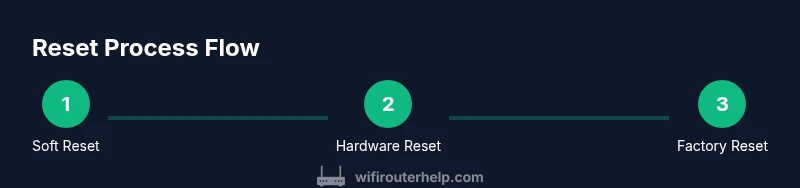
Understanding how to reset the Starlink router gives you a reliable set of tools to restore connectivity quickly. Start with a soft reboot in the app, move to a hardware reset if needed, and only perform a factory reset when serious configuration problems persist. After any reset, take a methodical approach to reconfigure settings, reconnect devices, and verify performance. If you’re unsure about any step, follow the structured process outlined here and refer back to the app status indicators as your guide. The WiFi Router Help team’s practical guidance equips you to handle common home-network issues with confidence.
Tools & Materials
- Starlink app on a compatible smartphone or tablet(Ensure the app is up to date and you are signed in to your Starlink account)
- Starlink account credentials (email and password)(Needed to access admin settings and confirm changes)
- Stable internet connection during reset(Helpful if you plan to verify app status during the process)
- Reset tool (pin or paperclip)(Needed only if performing a hardware reset via the reset pinhole)
- Device to record network credentials(Optional for noting down SSID/password after reconfiguration)
Steps
Estimated time: 15-25 minutes
- 1
Open the Starlink app and verify access
Launch the Starlink app on your phone and sign in with your Starlink account. Confirm you can reach the router settings page so you can initiate a soft reboot if needed.
Tip: Have your login credentials ready to avoid delays. - 2
Perform a soft reset via the app
In the app, locate the router status or device settings and tap 'Restart' or 'Reboot'. The router will power cycle and come back online within a short period.
Tip: Soft resets preserve your SSID and password; use this first for minor issues. - 3
Test connectivity after reboot
Once the router is back online, test several devices to verify that Wi‑Fi is stable and new IP addresses have been assigned properly.
Tip: Check both 2.4GHz and 5GHz bands if you have a dual-band setup. - 4
If needed, perform a hardware reset
If the app reboot didn’t resolve the issue, locate the reset button on the back, press and hold with a pin until the LED indicators respond to indicate a reset.
Tip: Only use hardware reset if you’re prepared to reconfigure all settings afterward. - 5
Optionally run a factory reset
For severe configuration problems, perform a factory reset to restore default settings. You will need to re‑set your SSID, password, and security options afterward.
Tip: Back up key settings or notes before this step to speed up reconfiguration. - 6
Reconfigure and re-test
After a reset, re-create your network name and password, reconfigure security options, and re‑test from multiple devices to ensure everything works as expected.
Tip: Label new credentials clearly to avoid future confusion.
People Also Ask
Will resetting the Starlink router delete my service or plan?
No. A reset only affects the router’s settings. Your Starlink service and account remain intact; you may need to reconfigure your Wi‑Fi afterward.
Resetting the router doesn’t affect your service plan; it only changes router settings, so you’ll reconfigure your Wi‑Fi after.
Will I lose my Wi‑Fi network name after a factory reset?
Yes. A factory reset returns the router to its default SSID and password. You’ll need to set a new name and passphrase during reconfiguration.
A factory reset erases your custom Wi‑Fi name, so you’ll set a new one after.
Can I reset Starlink router remotely without power?
A soft reboot via the Starlink app can be initiated remotely if you have internet access, but a factory reset requires physical interaction with the device.
You can reboot from the app if you’re online, but factory resets need you to press the button.
How long does a reset typically take?
A soft reboot is usually under a minute; a hardware reset or factory reset may take several minutes as the router reinitializes and reconfigures.
Soft reboot finishes quickly; hardware and factory resets take a bit longer as devices reinitialize.
Should I unplug the dish during a reset?
No. Resets are performed on the router. Unplugging or moving the dish isn’t required for standard resets and may interrupt service.
You don’t need to unplug the dish; resets are done on the router itself.
What should I do after resetting to improve reliability?
Reconfigure your SSID and password, enable automatic firmware updates, and place the router in a central location. Test with multiple devices to confirm stability.
After resetting, reconfigure, enable updates, and test across devices.
Watch Video
What to Remember
- Begin with a soft app reboot to fix minor issues.
- Use hardware reset only if soft reset fails.
- Factory reset clears all custom settings—prepare to reconfigure.
- Test connectivity across multiple devices after each reset.