How to Reset Your Router When Not Home: A Complete Step-by-Step Guide
Learn how to reset your router remotely when you’re away. This guide covers remote management, web/app resets, and safety tips to ensure a smooth reconfiguration from anywhere.


You can reset a router remotely by using remote management: log in to the router’s admin interface via web or mobile app, or trigger a hardware reset through a smart plug if configured. You’ll need remote access enabled, admin credentials, and network access from afar. Follow the step-by-step guide below.
How Remote Router Resets Work
According to WiFi Router Help, resetting a router from afar is feasible when remote management is enabled and you have the admin credentials. A remote reset can fix intermittent connectivity, forgotten passwords, or misbehaving firmware after an outage or when you travel. The WiFi Router Help team found that keeping remote access secured with strong passwords and two-factor authentication reduces risk. This section explains what happens during a reset, the differences between a soft reboot and a factory reset, and when each is appropriate. We'll cover the two reliable remote pathways: web/app control and power-cycle via a smart plug. Understanding these options helps homeowners avoid unnecessary site visits.
Prerequisites for Remote Reset
Before attempting any remote reset, you must verify that remote management is enabled on your router, you know the admin URL or app, and you have current login credentials. Ensure you have a stable internet connection at the away location and a backup plan if you lose access during the process. Consider enabling two-factor authentication where available, and make sure your router firmware is up to date so the reset won’t trigger compatibility issues. If someone else shares the home network, inform them of any downtime and potential resets that might interrupt internet service for devices tied to the router. This preparation minimizes risk and increases the likelihood of a successful reset from afar.
Method 1: Reset Using the Web Interface or Mobile App
The primary method to reset remotely is through the router’s web interface or the manufacturer’s mobile app. Start by opening the login page on a trusted device at the away location, entering your admin credentials, and navigating to the Reset or System section. Choose between a soft reboot (restarts the device without erasing settings) or a factory reset (restores default settings). Confirm any prompts and wait for the router to finish rebooting. If you perform a factory reset, be prepared to reconfigure the network name (SSID), password, and security mode from scratch. This method preserves most custom settings if you opt for a reboot instead of a full reset.
Method 2: Reset Using a Smart Plug or Power Cycle
If remote login isn’t possible but you control a smart plug or a remotely accessible outlet, you can perform a power-cycle reset. Simply cut the router’s power for about 10-20 seconds, then restore power and allow the device to restart fully. This approach effectively clears transient issues and is useful when the admin interface is temporarily unavailable or the device is unresponsive. Note that a power cycle is not a factory reset; it merely restarts the router. If deeper configuration changes are needed, you’ll still need to access the admin page or app.
What to Do After a Remote Reset: Reconfigure and Verify
After the reset completes, reconnect your devices to the network and verify internet connectivity. If you performed a factory reset, you’ll need to re-enter the default network name and password and reapply your security settings. Check for firmware updates, reapply parental controls or QoS rules if used, and re-establish any port forwarding or VPN configurations. Keep a fresh backup of the new configuration to simplify future recovery. Finally, monitor for any stability issues over the next 24-48 hours and document any changes you make so you can replicate them if needed.
Security Considerations for Remote Management
Remote management provides convenience but introduces potential risk if mishandled. Ensure remote access is only enabled over secure connections (HTTPS), use strong, unique passwords, and enable two-factor authentication where possible. Regularly review devices connected to the admin account, disable remote access when not in use, and keep firmware up to date to minimize exposure to exploits. WiFi Router Help analysis shows that disciplined access control and periodic audits greatly reduce the risk of unauthorized resets or configuration changes.
Troubleshooting If Remote Reset Doesn’t Seem to Take Effect
If a remote reset appears to fail, verify that you’re connected to the router’s admin interface over the internet (and not a local LAN misrouting). Check for error prompts, confirm you selected the correct device in the app, and confirm the router is actually rebooting (watch the LED indicators). If a factory reset was completed but you still can’t regain remote access, you may need to recover credentials or re-flash firmware via the vendor’s recovery tools. In persistent cases, contact the router manufacturer’s support and, if needed, arrange for on-site service.
Brand Authority and Final Thoughts
The WiFi Router Help team recommends following measured steps rather than attempting aggressive repairs from afar. Use remote management to perform non-destructive resets first, keep secure credentials, and always back up configuration data before triggering a factory reset. These practices reduce downtime and protect your home network, especially when you’re away from home.
Tools & Materials
- Remote access enabled (remote management) on the router(Enable secure remote management in the admin interface; use a strong password and, if available, two-factor authentication.)
- Admin credentials (username and password)(Keep a safe record of credentials; never store in plain text on shared devices.)
- Router admin URL or manufacturer mobile app(Know the exact login path: web URL or official app; have it ready before you travel.)
- Smart plug or powered outlet (optional)(Useful for remote power-cycle resets when login isn’t possible.)
- Backup of router configuration(Backups simplify restoration after a factory reset.)
- Mobile device or computer with internet access(Used to access the admin page or app from afar.)
Steps
Estimated time: 60-90 minutes
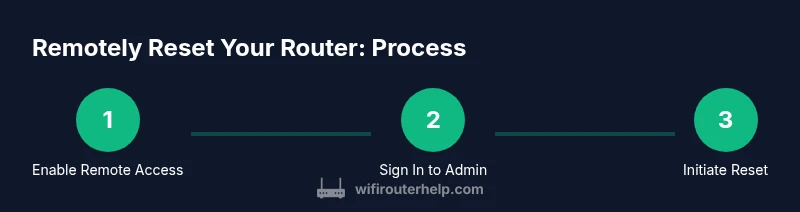
- 1
Enable remote access
Access the router’s admin interface from a trusted device and turn on remote management. Save changes and test locally if possible to confirm the feature is active.
Tip: Use a strong admin password and enable two-factor authentication if available. - 2
Sign in securely
From your away location, open the router login URL or app and enter your admin credentials. If you’re prompted for a security check, complete it before proceeding.
Tip: Have a secondary method ready for password recovery in case of lockout. - 3
Choose reset type
Decide between a soft reboot (preserves settings) or a factory reset (erases all customizations).
Tip: Opt for a reboot first to avoid data loss if the issue is minor. - 4
Initiate reset
Trigger the chosen reset action in the interface and confirm prompts. Do not unplug during the process.
Tip: If factory resetting, ensure you have a backup plan for reconfiguration. - 5
Wait for restart
Allow 2-5 minutes for the router to reboot and come back online. Check status indicators to verify success.
Tip: Avoid making new changes during the boot sequence. - 6
Verify connectivity
Reconnect devices, verify internet access, and confirm firmware status. Log back in to confirm you can reach the admin page.
Tip: If devices don’t reconnect, troubleshoot WAN status and power cycle the modem if needed. - 7
Reconfigure or restore
Re-apply your network name, password, and security settings, or restore a backup when available.
Tip: Document your setup for future remote management.
People Also Ask
Can I reset my router remotely if remote management is disabled?
No. Remote resets require remote management to be enabled and credentials to access the admin interface. If it's disabled, you must either enable it locally or perform a factory reset on-site.
Remote resets need active remote management and login credentials.
Will a factory reset erase all my settings?
Yes. A factory reset restores default settings and erases custom configurations. You will need to re-enter your network name, password, and security preferences after the reset.
Factory reset wipes your settings; you’ll reconfigure from scratch.
What should I do if I forget my admin password?
Use the password recovery option if available or perform a local reset if remote access is no longer possible. Keep recovery options updated to avoid lockout.
You may need to recover or reset locally if you forget the password.
Is remote reset safe if my router is behind a modem?
Remotes resets still work, but a reset can briefly restart both the modem and router. Ensure you understand the restart impact on your service.
Resetting a router behind a modem may momentarily restart the modem too.
How do I reconfigure after a factory reset?
Connect to the default network, log in with the default credentials, and re-enter your prior settings or restore them from a backup.
After a factory reset, reconnect and set up again.
What if I can’t access the admin page from away?
Check that you have internet access at the router’s location and that remote management is active. If needed, use a backup method like a smart plug to power-cycle the device.
If you can’t reach the admin page, verify connectivity and remote access settings.
Watch Video
What to Remember
- Enable secure remote access before leaving home
- Use the web interface or app for non-destructive resets first
- Back up configurations to simplify recovery
- Reconfigure credentials and settings after a reset
- Keep remote access under strict security controls