How to Manage Your Router Remotely: A Practical Guide
Learn secure, practical steps to manage your router remotely. Enable safe access, use VPN or cloud management, and follow best practices to protect your home network from anywhere. Includes setup, testing, troubleshooting, and monitoring tips from WiFi Router Help.


Learn how to manage your router remotely with secure, practical steps. This guide shows how to enable remote access, choose safe methods (VPN, cloud management, or DDNS), and keep your home network protected. By following these steps, you can monitor and adjust settings from anywhere while minimizing exposure. According to WiFi Router Help, always use strong passwords and updated firmware.
What does it mean to manage a router remotely?
Remote router management means accessing and adjusting your home network device from outside the local network. It enables you to view connected devices, change Wi-Fi settings, update firmware, and troubleshoot issues without being physically near the router. According to WiFi Router Help, secure remote access relies on strong authentication, encrypted connections, and up-to-date firmware. In practice, you can use the router’s built-in remote-management feature, vendor cloud apps, or a personally configured VPN to reach your home network safely. The key is balancing convenience with a tight security posture to prevent unauthorized access while you’re away. For homeowners and tech enthusiasts, remote management saves time, supports smart homes, and helps you respond quickly to outages or misconfigurations.
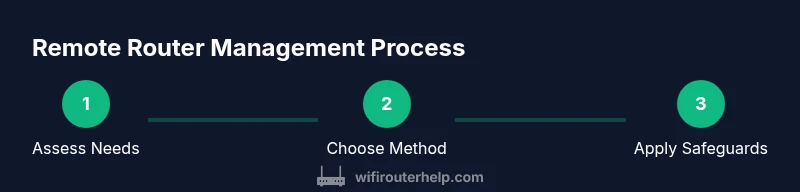
As you plan your setup, consider who needs access, from where, and when. Avoid leaving admin portals exposed to the internet; instead, opt for VPN-based or vendor-managed access whenever possible. This approach reduces the attack surface while preserving the ability to tweak settings, monitor activity, and reboot devices as needed.
Prerequisites and security foundations
Before enabling remote router management, confirm your hardware supports it and that firmware is current. Update the router to the latest stable release, then enable any available security features, such as HTTPS, unique admin usernames, and two-factor authentication if offered. WiFi Router Help analysis shows that remote access is convenient but can increase risk if not secured, so establish a baseline of protective measures: use a strong password, restrict WAN exposure, and log activity. Additionally, ensure a reliable local network, because losing LAN access during initial setup can be frustrating.
Plan your access method: decide whether you will manage the router from the same LAN, from a trusted WAN location, or through a VPN. If you don’t need constant remote access, disable WAN-side management and rely on VPN or vendor cloud services for off-site control. Finally, document your settings so you can reproduce them if changes are needed.
Step-by-step: enable remote management on your router
Enabling remote management should be done carefully and methodically. First, sign in to the router’s admin interface using a wired connection for reliability. Then navigate to the Remote Management or Administration section to check if WAN access is allowed and to select a secure access method. If possible, require HTTPS and disable plain HTTP. Finally, test from a device on a different network to confirm access works as intended and no extra ports are open. This high-level sequence applies to many modern routers while variations exist by model.
Pro tip: if your router supports a VPN server, enable it instead of exposing the admin portal to the internet. This minimizes exposure while preserving remote configurability. After enabling remote access, rotate credentials and enable two-factor authentication if available.
Using secure remote access options
There are multiple paths to secure remote router management. One option is vendor cloud management, which allows you to monitor and adjust settings through a trusted service without exposing your admin panel to the public internet. Another option is to set up a personal VPN (for example, WireGuard or OpenVPN) to connect to your home network before accessing the router. Dynamic DNS services can keep a stable hostname pointing to your home connection if your IP address changes. Whichever path you choose, ensure encryption (TLS/HTTPS), strong authentication, and consistent monitoring.
If you opt for cloud management, review the service’s privacy policy and ensure you can revoke access if a device is compromised. For VPN, configure the client on your device and the server on the router, then verify that all management traffic flows through the VPN tunnel. Regularly rotate credentials and keep the VPN software up to date.
Managing via mobile apps vs web interface
Many routers offer companion mobile apps that simplify remote management, including quick reboot, guest network setup, and firmware checks. Web interfaces often provide in-depth configuration options and detailed logs. Mobile apps are convenient for quick tasks on the go but may lack advanced features found in the web UI. Whichever you use, enable biometric or strong device-level security on your phone, and ensure your app is from an official store or developer.
For critical changes, use the web interface on a trusted device to review settings, and always log out after completing tasks. If you enable remote access via cloud services, verify that you’re connecting to the legitimate provider’s domain to avoid phishing attempts.
Troubleshooting common remote access issues
Remote management can fail for several reasons: WAN access is disabled, credentials are incorrect, or the router’s firmware blocks the connection. Double-check that WAN management is enabled for the correct interface and that HTTPS is required. If you cannot reach the router from outside, verify your dynamic DNS or cloud service configuration and confirm there are no ISP blocks on the selected port. Review the router logs for failed login attempts and adjust security settings accordingly.
If your device loses LAN connectivity during testing, reconnect locally, re-authenticate, and re-test from a different network. In persistent cases, a factory reset followed by reconfiguration can resolve misconfigurations, but back up settings first.
Advanced methods: VPN, Dynamic DNS, and secure logging
Advanced remote management often relies on a VPN, dynamic DNS (DDNS), and thorough logging. A VPN creates a secure tunnel to your home network, letting you access the router as if you were on-site. DDNS provides a stable hostname that maps to your changing IP address, simplifying remote access. Enable logging for successful and failed login attempts and periodically review logs to detect anomalies. Consider enabling alerting to notify you of suspicious activity.
For home networks with multiple devices, it can be beneficial to segment management access so not every device can configure the router. Use firewall rules to limit who can reach the admin interface and from which networks, and keep firmware updated to minimize vulnerability windows.
Security best practices and risks
Remote router management offers convenience but comes with risk. Always use HTTPS, avoid exposing the admin interface publicly when possible, and enable two-factor authentication if supported. Create unique credentials—do not reuse the same password across devices—and regularly update firmware to patch vulnerabilities. Limit access to known devices or IP ranges and monitor router logs for unusual activity. A well-planned approach reduces risk while preserving the ability to manage the network remotely.
WiFi Router Help emphasizes a defense-in-depth strategy: combine strong credentials, encrypted connections, firmware updates, access controls, and regular audits to maintain a secure remote management setup.
Quick reference checklist and monitoring
- Confirm router supports remote management and update firmware to latest version.
- Use HTTPS for admin access and enable two-factor authentication where possible.
- Prefer VPN or vendor cloud management over direct WAN exposure.
- If using DDNS, keep services up-to-date and test hostname resolution monthly.
- Limit access to trusted devices and monitor logs for anomalies.
- Periodically test remote access from a different network and after firmware updates.
- Maintain offline backups of configuration settings and a disaster recovery plan.
Authority notes: For security best practices, reference guidance from federal and industry standards to supplement vendor instructions.
Authority sources and further reading
For deeper understanding of remote router management and security, consult these sources:
- https://www.nist.gov
- https://www.cisa.gov
- https://www.fcc.gov These resources provide general security guidelines and standards that complement vendor-specific setup steps and best practices for protecting home networks.
Tools & Materials
- Computer or smartphone with internet access(Device to access router admin panel from anywhere)
- Router with remote management feature(Check vendor docs to enable remote access securely)
- Strong admin password(Use a unique password not used elsewhere)
- Updated firmware(Ensure router runs the latest stable version)
- VPN client or service(Optional but recommended for secure remote access)
- Dynamic DNS service account(Useful if your IP changes regularly)
- 2FA-capable account(Enable if supported by your router)
Steps
Estimated time: 15-30 minutes
- 1
Access the router admin interface
Connect on the same network via Ethernet if possible, then sign in with your admin credentials. This initial login is critical to verify you can reach the router locally before attempting WAN access.
Tip: Use a wired connection to reduce dropouts during the login process. - 2
Locate remote management settings
Find the Remote Management or Administration section in the UI. Note where WAN access is allowed and which protocols (HTTPS or HTTP) are enabled.
Tip: If you cannot find it, consult the manufacturer’s manual or support site. - 3
Choose a safe access method
Decide whether you will enable WAN access, use a VPN, or rely on vendor cloud management. Avoid exposing the admin interface directly to the internet whenever possible.
Tip: VPN is generally safer than exposing the admin portal to the public internet. - 4
Enable remote access securely
Enable remote access with HTTPS, disable HTTP, and restrict access to trusted networks. Set a unique admin username if the router allows it.
Tip: If available, require a device-based authentication method (e.g., certificate or 2FA). - 5
Set strong authentication
Create a strong, unique password and enable two-factor authentication if supported. Consider rotating passwords annually or after a suspected breach.
Tip: Do not reuse passwords across devices or services. - 6
Test remote access from a different network
From a mobile network or a friend's home, attempt to access the router’s admin interface to verify connectivity and security controls.
Tip: If you cannot reach it, re-check WAN settings and firewall rules. - 7
Configure VPN or DDNS if needed
Set up a VPN server on the router or a nearby device, or configure Dynamic DNS to handle changing public IPs.
Tip: Use WireGuard or OpenVPN where possible for better performance and security. - 8
Review logs and update regularly
Check login attempts, firmware status, and configured rules after enabling remote access. Schedule regular updates and security reviews.
Tip: Enable alerts if the router supports notification on suspicious activity.
People Also Ask
Is remote router management safe for a typical home network?
Remote management can be safe if you implement HTTPS, strong authentication, and access controls. Avoid exposing the admin interface directly to the internet; use VPN or cloud-based access when possible and keep firmware up to date.
Yes, with proper security measures like HTTPS and VPN, remote router management can be safe.
Do I need a VPN to access my router remotely?
A VPN is highly recommended for remote access because it creates a secure tunnel to your home network. It is safer than exposing the router’s admin panel directly to the internet.
A VPN is usually the safest option for remote router access.
Can I use my mobile data to manage the router, or should I stay on Wi‑Fi?
You can use mobile data to test remote access, but avoid maintaining administrative access over public networks. Use a trusted device and secure methods (VPN or cloud) for ongoing management.
Testing on mobile data is fine, but rely on secure methods for daily use.
What should I do if I can’t access the router remotely after setup?
Verify WAN remote access is enabled, confirm credentials, and check firewall and port settings. If needed, test with a VPN or vendor cloud service, and consult the router’s logs for clues.
If you can’t access it, re-check the security settings and test again from a different network.
How often should I review remote-access security?
Regular reviews are advised, especially after firmware updates or network changes. Check for unused rules, update credentials, and confirm that alerts are functioning.
Do periodic security reviews after updates and changes.
Should I disable remote management by default?
If you don’t need remote access, disable WAN-based management and rely on VPN or cloud access when needed. This minimizes exposure.
Disable remote access unless you plan to use it regularly.
Watch Video
What to Remember
- Enable secure remote access with a tested setup
- Use VPN or cloud management rather than exposing the admin panel
- Rotate credentials and monitor logs for unauthorized access
- Keep firmware updated and limit access to trusted devices
- Test remotely from a different network to verify configuration