How to Login to Netgear Router: A Complete Step-by-Step Guide
Learn how to login to Netgear router securely with a clear, step-by-step guide. Identify your model, access the admin page via browser or app, and update credentials to protect your home network.


Learn how to login to Netgear router securely in minutes. This guide covers identifying your model, choosing the right login method (web browser vs. app), and securing your admin account. By the end, you’ll access the router’s admin panel, confirm your network name and password, and change default credentials to protect your home network. According to WiFi Router Help, using the correct IP and strong password is essential.
Why logging in matters for Netgear routers
Understanding how to login to netgear router is essential for securing your home network and accessing configuration options. When you log in, you’re entering the device’s admin interface, where you can manage Wi‑Fi settings, guest networks, and security controls. According to WiFi Router Help, a clear login flow reduces setup time and minimizes the risk of leaving the router exposed to online threats. This step matters not just for initial setup, but for ongoing maintenance, firmware updates, and monitoring connected devices. A strong, well-documented login process also helps you recover quickly if someone changes settings or if you misplace credentials. In this guide, we’ll map out a practical, repeatable method you can follow on any Netgear router in 2026.
By sticking to a consistent login routine, homeowners can protect their networks from common threats, such as weak passwords or unchanged default credentials. The goal is not only to access the router, but to establish a baseline security posture that scales with future devices and software updates. Keep this mindset: your router’s admin interface is the control room for your home network, and secure access is the first line of defense.
Tools & Materials
- Computer, tablet, or smartphone(Any device with a modern browser or the Netgear app)
- Web browser or Netgear Nighthawk app(Chrome/Edge/Safari supported; app for mobile login)
- Netgear router(Powered on and connected to your internet service)
- Ethernet cable (optional)(Use if Wi‑Fi is unstable or you’re troubleshooting a login issue)
- Router label or documentation(Model number, default IP, and potential default credentials)
- Pen and paper or password manager(Record new admin credentials securely)
Steps
Estimated time: 15-30 minutes
- 1
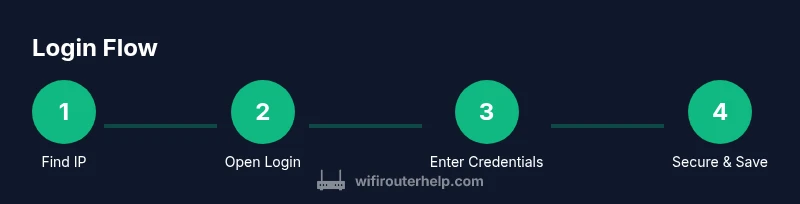
Find the router IP address and login URL
Identify the correct login address for your Netgear router. Most devices use a private IP such as 192.168.0.1 or 192.168.1.1, or a host name like http://www.routerlogin.net. Check the router’s label or documentation if you’re unsure, and verify that you’re on the same network as the router.
Tip: If you’re on a PC, run a quick check: open Command Prompt and type 'ipconfig' to see the Default Gateway IP. - 2
Connect your device to the router
Ensure your computer or mobile device is connected to the Netgear network, either via Wi‑Fi or a wired Ethernet connection for stability during login. A stable connection minimizes login errors and helps you reach the admin page without interruptions.
Tip: Wired connections are less prone to dropouts during login and initial setup. - 3
Open the login page in a browser or app
Enter the router IP address or the common login URL in your browser’s address bar. If you’re using the Netgear app, launch the app and select your router from the list to access the login screen. Avoid using random DNS names that may be unsafe on public networks.
Tip: If the page doesn’t load, disable any VPNs and refresh the connection. - 4
Enter admin credentials
On first login or after a reset, you may be prompted for an admin username and password. Try the default as printed on the router label (often admin/admin or admin/password). If you’ve changed these before, enter the updated credentials. If you don’t know them, proceed to reset as a last resort.
Tip: If you’re unsure, locate the default credentials on the device label and document any changes you’ve made. - 5
Create or update admin credentials
Once in the admin panel, immediately change the default password to a strong, unique one. Use a mix of letters, numbers, and symbols. Consider using a password manager to store this securely and enable two-factor authentication if available.
Tip: Do not reuse passwords from other services; a password manager makes this easier to manage. - 6
Review key security settings
Check vital settings like Wi‑Fi encryption (prefer WPA3 if available), admin password strength, and whether remote management is enabled. Disable features you don’t use to reduce exposure. Confirm your SSID and password are correct for other devices to reconnect.
Tip: If you see 'remote management' enabled by default, turn it off unless you specifically need it for remote access. - 7
Save changes and log out securely
Apply and save any changes you made. Log out of the admin interface to prevent unauthorized access from shared devices. If your router supports a session timeout, consider enabling a short idle timeout for added security.
Tip: Always verify you can log back in after saving; a failed login could indicate a failed save or a password change. - 8
Check for firmware updates
Navigate to the Firmware Update section and install any available updates. Updating firmware improves security and performance. Ensure you have a stable connection during the update and avoid power loss.
Tip: Back up your current settings before updating whenever possible. - 9
Back up and document your configuration
Export or photograph your configured settings (Wi‑Fi name, password, and guest network details). Store this securely. Regular backups save time if you need to reset later.
Tip: Keep a local copy you can reference; avoid storing sensitive data in unsecured locations.
People Also Ask
What is the default Netgear router login URL?
Netgear routers typically use a private IP address such as 192.168.0.1 or 192.168.1.1, or a browser URL like http://routerlogin.net. Always check the router’s label for the exact address used by your model.
The router’s login URL is usually 192.168.0.1 or 192.168.1.1, or routerlogin.net; check the device label to confirm.
What credentials should I use to login?
Many Netgear devices use admin as the username and either admin or password as the default password. If you’ve changed them before, use your updated credentials. If not, look on the label for the default pair.
Use the username admin and try the default password shown on the label, or your updated credentials if you’ve changed them.
What if I forgot my admin password?
If you forgot the admin password, you can try the reset procedure described in the router’s manual. If you perform a reset, you’ll lose custom settings unless you back them up first. After reset, login with default credentials and reconfigure.
If you forgot it, reset the router following the manual, then log in with the default credentials and set up a new password.
Why can’t I access the login page?
Common causes include being connected to the wrong network, using the wrong IP, or a browser or firewall blocking the page. Ensure you’re on the router’s network and try a different browser or device.
Make sure you’re on the correct network, use the right IP, and try another browser if access is blocked.
Is it safe to login over Wi‑Fi?
Yes, as long as you connect to your own secure network. Avoid public or untrusted networks for admin access. Use a strong password and enable encryption on the router to protect the session.
Yes, but only on trusted networks; avoid public networks for admin access and keep encryption strong.
Should I enable remote management?
Remote management is useful only if you need to access the router from outside your home. If not, disable it to reduce exposure. Always verify that secure access methods are in place if you enable it.
Only enable remote management if you truly need it; otherwise keep it off for security.
Watch Video
What to Remember
- Know your router IP and login URL.
- Change default credentials immediately.
- Disable remote management if not needed.
- Regularly update router firmware for security.
- Back up configuration after changes.