How to Access a Netgear Router Admin Page
Learn how to access a Netgear router's admin page, locate the login IP, sign in, update firmware, and secure your network with best-practice steps. This practical guide from WiFi Router Help covers common models and troubleshooting tips for homeowners and tech enthusiasts.


If you’re wondering how to access router netgear, this quick guide walks you through locating the login IP, entering credentials, and securing the device. You’ll learn the typical default addresses, when to change passwords, and how to verify access from any device on your home network. Start by confirming your device is on the same local network, then open the router page in a browser.
Why Accessing Your Netgear Router Matters
Having access to the router admin page gives you centralized control over your home network. It lets you monitor devices, set a password, update firmware, and tailor Wi‑Fi settings for performance and security. When you know how to access router netgear, you can quickly respond to odd activity, disable unwanted features, and restore optimal speeds for gaming, streaming, and smart-home devices. According to WiFi Router Help, a hands-on approach to configuration reduces misconfigurations and improves stability for most households. Regular checks help you keep a clean, safe network and minimize downtime during updates.
What you need before you start
Before you begin, gather a few essentials so the process goes smoothly. You’ll need a device with a web browser that can reach your Netgear router over the local network, a stable network connection (Wi‑Fi or Ethernet), and the router’s label or manual to confirm the exact IP address and default login credentials. If you’ve changed credentials in the past, use your current admin password rather than the default. Having these items ready prevents mid-step interruptions and ensures you can complete steps quickly.
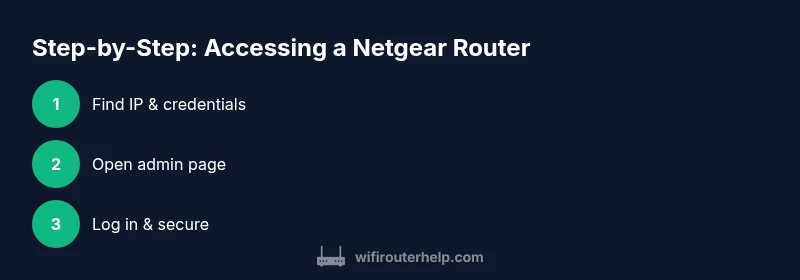
Step 1: Locate the router’s local IP address and login credentials
Identify the local IP address used to reach the router’s admin page. Most Netgear models use 192.168.1.1 or 192.168.0.1; some may use 192.168.1.254. Check the router label on the bottom or back, the manual, or the Netgear support site for model‑specific defaults. Note the default username (often admin) and password. This step is critical because using the wrong IP or credentials will prevent access.
Step 2: Open the admin page in a web browser
Open a browser on a device connected to the Netgear network and enter the IP address from Step 1 in the address bar. If you’re on a modern device, use http or https as indicated by the router’s prompts. If the page doesn’t load, verify the device is on the same local network and disable any VPNs that might reroute traffic away from the router.
Step 3: Sign in with admin credentials or perform a reset if needed
Enter your admin username and password. If you have never changed them, try the default credentials from the sticker on the router or the manual. If you still cannot log in, you may need to reset the device to factory settings following the official procedure. Note that a reset will erase custom settings, including your Wi‑Fi name and password.
Step 4: Update firmware and secure your login
Once inside the admin page, check for firmware updates under the Administration or Advanced section and install any available updates. Firmware updates improve security and performance. Change the admin password to a strong, unique passphrase, enable WPA2/WPA3 for Wi‑Fi, and consider disabling remote management unless you need it.
Step 5: Configure essential settings and test access
Reconfigure critical settings such as your Wi‑Fi network name (SSID), strong password, guest network (if applicable), and parental controls. Save changes and log out, then log back in from a different device to confirm accessibility. If you notice instability, temporarily revert to default settings and re‑apply changes gradually.
Step 6: Troubleshooting common access issues
If you can’t reach the login page, ensure your device is connected to the router, verify the IP, disable VPNs, and clear browser cache. A flickering status light or no response may indicate a hardware issue; in that case, consult Netgear’s support or perform a safe reset following the manual. Avoid repeatedly attempting to login with wrong credentials, which can lock you out.
Authority sources and best-practice guidelines
For additional guidance on home-network security and router access, refer to authoritative sources such as the FCC, CISA, and NIST. These organizations provide guidelines on keeping home networks secure, configuring strong passwords, and applying firmware updates. Keeping up with these recommendations helps you maintain a resilient setup and reduces exposure to common threats. The FCC explains how to secure your home network, CISA offers practical security advisories, and NIST provides cybersecurity standards that you can apply to router configuration.
Tools & Materials
- Device with a web browser (PC, laptop, tablet, or smartphone)(Ensure it’s connected to the Netgear network (wired or wireless))
- Active network connection (Wi‑Fi or Ethernet)(Your admin page is accessed via the local network)
- Ethernet cable (optional)(Useful for a wired, stable connection during setup)
- Pen and paper or password manager(Record new admin and Wi‑Fi credentials)
- Router manual or model label(Check for model-specific defaults and steps)
Steps
Estimated time: 60-90 minutes
- 1
Connect device to the local network
Ensure your computer, phone, or tablet is connected to the Netgear router via Wi‑Fi or an Ethernet cable so you can reach the admin page.
Tip: If you’re on Wi‑Fi, stay on the 2.4 GHz band for compatibility while you’re configuring. - 2
Find the router’s IP address
Look up the IP address used to reach the admin page. It’s commonly 192.168.1.1 or 192.168.0.1; check the sticker on the router or the model’s manual for exact values.
Tip: If you’re unsure, search Netgear model support; the model sticker often lists the default login. - 3
Open the admin page in a browser
Enter the IP address from Step 2 into your browser’s address bar and load the Netgear login page. If the page is blocked by a VPN, disable it temporarily.
Tip: Use a private/incognito window if cached credentials cause issues. - 4
Sign in or reset if needed
Enter the admin username and password. If defaults don’t work, perform a factory reset following the manual, knowing you’ll lose customized settings.
Tip: Record the new credentials in a password manager after you log in. - 5
Update firmware and secure the login
Check for firmware updates and install them. Change the admin password to a strong, unique passphrase and enable WPA2/WPA3 for Wi‑Fi; disable remote management if not needed.
Tip: Back up current settings before applying updates when possible. - 6
Test access and save changes
Logout and log back in from another device to confirm consistency. Verify that Wi‑Fi is functioning and the router accepts continued logins.
Tip: If issues persist, revert to default, then re-apply changes one at a time.
People Also Ask
What is the default IP address for most Netgear routers?
Most Netgear routers use 192.168.1.1 or 192.168.0.1 as the login IP. Always verify with the router’s label or manual for your specific model.
Most Netgear routers use 192.168.1.1 or 192.168.0.1 as the login IP.
What are common default admin credentials for Netgear routers?
Common defaults are admin for the username and admin or password for the password. If these don’t work, check the label on the device or the model manual.
Common defaults are admin for the username and admin or password for the password.
How do I reset my Netgear router if I forgot the password?
If you forget the admin password, perform a factory reset following the device manual. Note that this erases custom settings, including Wi‑Fi name and password.
If you forget the password, you may need to reset the router to factory settings as described in the manual.
Can I access the admin page from a mobile device?
Yes. Use a mobile device on the same local network and a mobile browser or the Netgear app to access the admin page.
Yes, you can access the admin page from a mobile device on the same network.
Should remote management be enabled?
Remote management is convenient for remote access but increases exposure. Enable it only if you need it and use strong authentication.
Remote management is optional. Enable only if you need remote access and ensure strong security.
What should I do if the login page never loads?
First confirm device connectivity and IP address. Disable VPNs, clear browser cache, and try a different browser or device. If still unresolved, consult Netgear support.
If the login page won’t load, check connectivity, IP, and try a different browser or device, then contact support if needed.
Watch Video
What to Remember
- Identify the correct local IP to access the admin page
- Change admin and Wi‑Fi passwords to strong, unique values
- Keep firmware up to date and disable unneeded remote access
- Test access from multiple devices to confirm changes