How to Factory Reset a Router: Step-by-Step Guide
Learn how to factory reset a router safely, when to reset, what to expect afterward, and best practices for securing your home network after restoration to defaults.


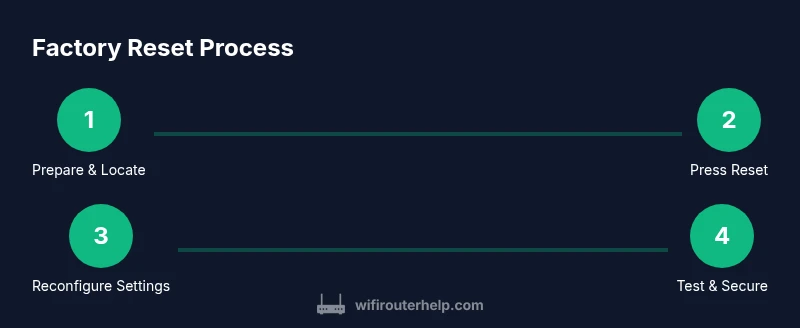
To factory reset a router, locate the recessed reset button and press it with a paperclip or pin for 10–15 seconds until the LEDs flash. Then wait for the device to reboot to factory defaults. After reset, reconnect to the network with the default credentials and reconfigure settings such as the SSID, password, security mode, and any custom DNS or port-forward rules.
What factory reset does and when to use it
According to WiFi Router Help, a factory reset restores the router to its original factory configuration, erasing all custom settings, saved networks, passwords, and any parental controls. This wipes away misconfigurations that block access, stubborn connection issues, or potential security compromises. It is most appropriate when you cannot access the admin interface, have forgotten the admin password, or you are transferring ownership to a new user. After the reset, the router presents its default network name and credentials, and you must reconfigure everything from scratch to regain control, security, and optimized performance. This step can also help resolve persistent DNS problems, IP conflicts, or failed firmware updates that are tied to corrupted settings. Remember: a reset is a last resort after simpler fixes have failed.
Safety, prerequisites, and backup plans
Before starting, unplug the router from power if you suspect a hardware fault or unusual heat. Have a connected device ready (laptop or smartphone) to access the admin interface, and keep any paperwork or stickers with the default login information handy. If possible, back up important network preferences (like a saved DNS setting or a custom DHCP range) before you reset, but many routers won’t allow backup after a factory reset since all customized settings are removed. Note that a reset will also erase parental controls, port-forward mappings, and guest networks, so be prepared to recreate them. Ensure you’re connected to a stable power source during the process to avoid a partial reset, which can leave the device in an unpredictable state. This guidance aligns with standard best practices for home networks and is backed by general best practices from the WiFi Router Help team.
Choosing the reset method: soft vs hard reset
There are two common ways to reset a router. A soft reset (also called a reboot or reboot-to-default) only reboots the device and may preserve some settings, depending on the model. A hard reset (factory reset) restores all settings to their defaults and clears saved data. For stubborn misconfigurations or forgotten credentials, a hard reset is the reliable option. If you can access the admin panel, a soft reset can sometimes resolve minor issues without losing your configurations; however, if you’re locked out of the admin interface or suspect a firmware-level problem, a factory reset is typically required. Always confirm which method your specific model supports in the manual.
How to locate the reset button on different router types
Most routers place the reset button in a recessed hole on the back or bottom panel to prevent accidental presses. You’ll need a pointed object like a paperclip or pin to depress it. Some models offer a soft reset option via the firmware interface, accessible after logging in. If you can’t locate the button, check the user manual or the manufacturer’s support site; the exact location and procedure can vary by brand and model. When pressing the reset button, apply gentle, steady pressure for the full duration specified in the manual to ensure a successful reset.
Step-by-step overview you’ll follow after starting
After initiating a reset, you’ll need to wait for the router to reboot. Once the LEDs stabilize, connect a device to the network using the default SSID and password printed on the device label. Open a browser and log in to the router’s admin page to begin reconfiguration. This block serves as a high-level map of what you’ll do next: verify connectivity, set a new network name (SSID) and password, reconfigure security settings (prefer WPA3 if available), and restore any additional features such as guest networks or parental controls. The WiFi Router Help team emphasizes documenting your new settings as soon as you complete each section.
Reconnecting and reconfiguring basics after reset
With the router reset, you’ll reconnect using the default network credentials. Immediately-accessible steps include changing the admin password to something strong, configuring the Wi‑Fi name and passphrase, selecting the appropriate security mode, and enabling features like a guest network and firewall if desired. For better security, disable WPS unless you need it for convenience, and consider setting up a unique DNS provider. If you use a DHCP server, confirm its range aligns with your devices. After completing basics, test all devices for reliable connectivity and note any devices that require manual network reconfiguration.
Advanced reconfigurations: security, DNS, port forwarding
After basic setup, tighten security by updating firmware (if available) and enabling automatic firmware checks. Change the router’s default admin username if supported, and use a strong, unique admin password. For DNS, consider a trusted provider that blocks malicious content or improves speed. If you host services or games behind your network, re-create port-forward rules carefully and document them. Review UPnP status; disable it if you don’t need it to minimize attack surfaces. Finally, set up a backup plan for your configuration by exporting a settings file if your model supports it.
Common pitfalls after reset and how to avoid them
Common pitfalls include forgetting to save changes, using weak passwords, leaving default admin credentials, and neglecting to apply firmware updates. Some users attempt to reset again to fix issues but then lose critical custom settings they had before. To avoid these problems, create a quick post-reset checklist: confirm internet access on all critical devices, enable WPA3 or WPA2-PSK with a strong passphrase, and note your new network details. If DNS or connectivity issues persist after reset, verify the cabling and the modem status, ensure the firmware is current, and consider a second factory reset only after saving essential configuration data when possible.
Documentation and keeping your network secure post-reset
Keep a secure record of your network configuration: network names, passwords, admin credentials, and any custom rules. Maintain a regular firmware update schedule and enable automatic updates if offered by your router. For households with multiple devices, document guest network credentials and guest access times as needed. Security best practices include using strong encryption, disabling remote management from the WAN side, and reviewing connected devices periodically. If you’re unsure about feature choices, consult the WiFi Router Help resources for model-specific guidance and secure defaults.
Tools & Materials
- Reset pin or paperclip(Essential for pressing recessed reset button; use a small tool to avoid damage)
- Device with web browser(Phone, tablet, or laptop to access the admin panel after reset)
- Ethernet cable (optional)(Helpful if Wi-Fi isn’t functioning immediately after reset)
- Manual or model-specific guide(Use as reference if you can’t access the admin interface)
Steps
Estimated time: 15-25 minutes
- 1
Prepare the device and locate the reset method
Ensure the router is plugged in and powered. Decide whether you’ll perform a hardware reset (button) or a software reset (admin UI) based on access. Gather a paperclip or pin to press recessed buttons. This step reduces the risk of interrupting a reset mid-process.
Tip: Having the model manual handy helps confirm the correct reset method for your device. - 2
Initiate hardware reset with a pin
Insert the pin into the recessed reset hole and hold for 10–15 seconds until the LEDs flash. Release and wait for the router to reboot. Do not release early, or you may fail to trigger a full reset.
Tip: If you must, perform a quick second hold to ensure the reset completes. - 3
Wait for reboot completion
Allow the router to complete its restart, which may take several minutes. The network will go down briefly during this period. Do not unplug the device during this phase.
Tip: Watch for the power and status LEDs to indicate stable reboot. - 4
Access the admin interface after reset
Connect a device to the router's default network via Wi‑Fi or Ethernet and open a browser to the router’s management page. If you can’t access it, retry with wired connection or consult the manual for the default IP and credentials.
Tip: Have the default login details ready or note them on the device label. - 5
Set a new admin password and Wi‑Fi credentials
Change the admin password to a strong, unique value. Recreate your SSID and a robust Wi‑Fi password, and choose a secure encryption mode. Enable features you need, such as guest networks or firewall protections.
Tip: Use passphrases for Wi‑Fi rather than simple passwords. - 6
Configure security and monitoring options
Update firmware if available, configure DNS settings, and review management options (remote access, UPnP, port forwarding). Document changes and test all devices for connectivity and access.
Tip: Disable remote admin access if not required for added security.
People Also Ask
What happens to my settings after a factory reset?
A factory reset erases all custom configurations, including usernames, passwords, and saved networks. The router returns to its factory defaults and must be reconfigured from scratch.
A factory reset wipes all your settings and returns the router to its default state, so you’ll need to set it up again.
Can I reset from the admin page instead of pressing a button?
Yes, many routers offer a soft reset from the admin interface. The exact path depends on the model, so check your manual for the exact steps.
If your model supports it, you can reset from the admin page, but it varies by model.
Will a factory reset restore firmware to a previous version?
No. A factory reset does not downgrade or upgrade firmware; it leaves the current firmware in place. You may choose to update firmware after the reset if a newer version is available.
The reset won't change the firmware version by itself; you can update afterwards if needed.
I forgot the admin password after the reset. What now?
Use the default admin login shown on the router label, or in the manual. If you can’t access it, you may need to perform the reset again or contact support for recovery options.
If you forgot the admin password after the reset, try the default login or consult the manual.
Is it safe to reset while using a VPN?
A factory reset itself doesn’t depend on VPNs. Ensure you can reconnect to the router after the reset, then re-enable your VPN client on devices as needed.
Resetting should work with or without VPNs, just reconfigure after.
Watch Video
What to Remember
- Reset only when necessary to fix stubborn issues
- Prepare by noting default credentials and updating security after reset
- Firmware updates should be checked post-reset
- Securely document new network settings and admin credentials