How to Change Router Name: A Simple SSID Rename Guide
Learn how to change router name (SSID) with a clear, step-by-step approach. Rename your network safely, apply changes, and reconnect devices—using browser or app methods. Pro tips and troubleshooting included.


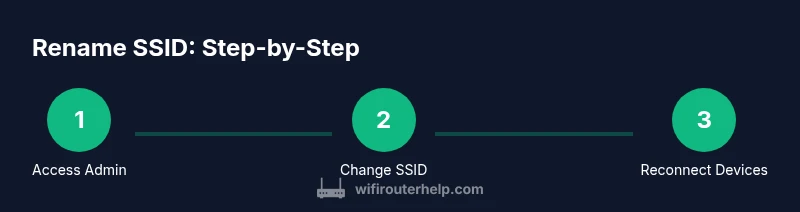
To change your router name (SSID), log in to your router’s admin page using a web browser, then navigate to the Wireless or Network settings. Edit the SSID field, choose a new, descriptive name, and save or apply the changes. Reconnect your devices to the new network name. If your router supports an app, rename there as an alternative.
What changing your router name accomplishes
A clear, unique router name (SSID) helps you identify your home network quickly, especially when neighbors' networks are nearby. According to WiFi Router Help, a well-chosen SSID reduces confusion and makes device management simpler. The WiFi Router Help team found that many households suffer from duplicate or vague names, which leads to misconnecting devices or failing to notice unfamiliar networks. In this guide, we cover why you should rename, how to choose a good SSID, and how to verify devices reconnect after the change. SSIDs broadcast publicly, so pick a descriptive but non-identifying name and avoid personal information. If you’re using a guest network, create a separate SSID for guests for better traffic separation.
When you change router name, you’re not just making your network easier to recognize; you also reduce the risk of accidentally connecting to a neighbor’s network. This is especially true in dense housing environments where multiple routers broadcast similar names. The SSID itself does not provide access credentials, but a clear name helps you confirm you’re connecting to the right device before entering passwords. Throughout this guide, we’ll emphasize practical steps, common pitfalls, and quick checks to ensure a smooth transition for all your devices. Remember to keep your security settings intact while you rename, and consider updating any saved networks on your devices after the change. For households with guests, a separate SSID is a best practice to keep guest traffic isolated from your primary network.
The goal is to keep things simple, predictable, and secure. If you are unsure how to begin, this article offers a concrete path to follow so you can confidently execute the change without disruption. The WiFi Router Help approach is practical and tested across typical home networks, focusing on reliable success rather than guesswork.
How this helps you now: a clear SSID makes device management easier, reduces confusion during setup, and improves your overall network hygiene without compromising security. This is especially useful for families with many smart devices and for anyone who wants a straightforward way to label their home network.
"section_id"": null
Tools & Materials
- Computer, tablet, or smartphone(Web browser needed to access the router admin panel)
- Router admin login credentials(Typically printed on the router label or set during initial setup)
- Internet browser(Chrome, Edge, Safari, or Firefox work well)
- Ethernet cable (optional)(Use if wireless access is unstable or you can't access the admin page wirelessly)
- Smartphone app (optional)(Some vendors allow renaming via the app instead of the browser)
- A quick note-taking method(Jot current SSID, new SSID, and password for quick reference)
Steps
Estimated time: 12-20 minutes
- 1
Access the router admin page
Open a browser and enter the router’s gateway IP (commonly 192.168.0.1 or 192.168.1.1). Log in with your admin credentials. If you don’t know the IP, check the router label or your manual. This step is required to reach the settings that control the SSID.
Tip: Tip: If you can’t reach the page, try a wired connection and disable VPNs during setup. - 2
Navigate to Wireless/Network settings
Find the section labeled Wireless, Wi‑Fi, or Network. Some routers place SSID settings under a submenu like Basic Wireless, Wireless Settings, or LAN. You’re about to edit the network name that devices see.
Tip: Tip: If using a modern mesh system, you may need to edit the main router’s settings or each node’s name separately. - 3
Change the SSID to a new name
Enter your desired network name in the SSID field. Use a descriptive but non-identifying label (e.g., FamilyWiFi_RoomA). Avoid personal information. Some routers also allow network prefixes or separate guest names.
Tip: Tip: Keep the name short and easy to read from a distance for guests and family members. - 4
Apply/Save the changes
Click Save or Apply to commit the change. The router may reboot automatically or require a manual reboot. Don’t navigate away during this operation, as a mid-process change can corrupt settings.
Tip: Tip: If prompted, reboot after applying to ensure all changes take effect. - 5
Reconnect devices to the new SSID
On each device, forget the old network if prompted, then select the new SSID and re-enter the password. Some devices reconnect automatically if they were set to connect to the network previously.
Tip: Tip: Update any saved networks on laptops or phones to speed up future connections. - 6
Consider related networks (guest, 5 GHz/2.4 GHz)
If you have guest networks or multiple bands, rename them consistently (e.g., FamilyWiFi_2.4G, FamilyWiFi_Guest). This helps keep all sections clearly labeled and reduces guest network confusion.
Tip: Tip: Document the changes so you can reproduce the setup on new hardware or after resets.
People Also Ask
Why should I change my router name?
Renaming your router name helps you quickly identify your network, reduces confusion when nearby networks have similar names, and supports better device management. It’s a simple step that complements strong security practices.
Renaming your router helps you recognize your network clearly and manage devices more easily.
Can I rename using a mobile app?
Many router brands allow renaming through their official mobile apps. If your router supports the app, you can often rename the SSID there and apply changes instantly.
Yes, many routers let you rename via the app and apply changes from your phone.
Will changing the SSID disconnect my devices?
Renaming the SSID itself does not reset passwords. After the change, you’ll need to reconnect devices to the new name using your existing password or the updated one if you changed it as part of the process.
You’ll reconnect devices to the new network name using your password.
What if I forgot my router login credentials?
If you forgot your credentials, check the router label for the default username and password, or perform a factory reset if necessary. Note that a reset will restore all settings to defaults, so you’ll need to reconfigure your network afterward.
If you forgot credentials, check the label or reset the router to defaults and set up again.
Should I hide my SSID?
Hiding the SSID won’t provide real security and can cause connectivity issues. It’s generally better to keep the SSID broadcast and rely on strong encryption and a strong password for protection.
Hiding the SSID isn’t usually helpful; focus on strong password protection instead.
How often should I rename my router?
There’s no fixed schedule to rename, but consider updating the SSID when you change ownership, move homes, or notice naming conflicts with neighbors. Regular maintenance can help keep your network organized.
Rename when ownership or network environment changes, or when there are naming conflicts.
Watch Video
What to Remember
- Choose a clear, non-identifying SSID.
- Back up credentials and settings before edits.
- Apply changes and reboot if required.
- Reconnect all devices to the new name.
- Document the new SSID for future reference.