How to Access a Router in Bridge Mode: A Practical Guide
Learn how to access your router when it's in bridge mode, including IPs, login steps, and security tips. This step-by-step guide from WiFi Router Help covers safe access, troubleshooting, and post-bridge best practices for reliable home networking.


To access your router while it’s in bridge mode, connect a computer to the router’s LAN port, use the local IP (commonly 192.168.1.1 or 192.168.0.1), and log in with the admin credentials. If the IP is unknown, check the DHCP client list on the bridged gateway. If access remains blocked, perform a controlled reset to recover default settings.
Understanding bridge mode and why access matters
Bridge mode changes the role of your main router from a full-featured router to a simple passthrough device. In this configuration, the gateway handles all routing and NAT, while the secondary router acts as a bridge. This setup is common when customers want to use a high-performance router for better Wi‑Fi coverage while keeping a managed gateway from the ISP. The question how to access router when in bridge mode comes up frequently because the admin interface often sits on a different subnet or behind the gateway’s firewall. According to WiFi Router Help, recognizing where the administrative UI lives in this topology is essential for configuring LAN IPs, firewall rules, port forwarding, and parental controls without compromising the bridge. Without access, you’ll lack the ability to adjust security settings, monitor connected devices, or troubleshoot performance bottlenecks. In this section, we map out the typical network layouts, highlight what you should expect to see when you try to reach the router, and lay out a plan for locating the correct device to administer. You’ll also learn what indicators (IP addresses, prompts, and certificate warnings) signal you’ve reached the right interface and how to proceed safely.
Quick note on safety and prerequisites
Accessing a bridged router interface can involve sensitive security settings. Before starting, confirm you have authorization to modify the device and that you won’t disrupt essential services. Ensure you know the admin credentials for the device you intend to manage, or you risk locking yourself out. If you’re not sure about the current IP address, have the gateway’s manual handy or collect data from the ISP-provided configuration app. WiFi Router Help analysis shows that documenting your network topology and listing all connected devices reduces errors during bridge-mode administration. Prerequisites include a computer or mobile device with a browser, a known bridge-mode IP, and a plan for what you’ll adjust (e.g., LAN IP range, DHCP settings, or firewall rules).
Common access patterns in bridge mode
There are three primary ways to reach the router in bridge mode: the web-based admin UI, the companion mobile app, or, in some setups, an SSH or Telnet console (less common for consumer gear). The most reliable method is a direct web browser session to the router’s LAN IP on the same subnet as the bridged gateway. In many homes, the bridge-mode IP is one of the standard 192.168.1.x or 192.168.0.x ranges. Some ISPs assign nonstandard private ranges or place the admin UI behind the gateway’s own management interface. When testing access, avoid using the gateway’s WAN address and instead use the LAN address of the device you intend to manage. If you’re unable to locate the correct IP, check the DHCP lease table on the gateway or the device’s label for default login information. Remember that changes to bridge settings can impact entire networks, so proceed cautiously and verify each step.
Step-by-step access flow overview
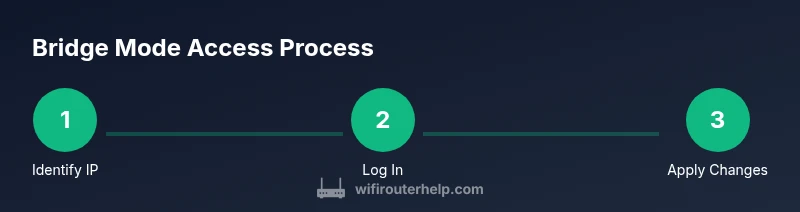
Before you begin, establish the objective: to access, configure, or revert the bridge setup. Start by identifying the correct device and IP, then connect your client to the same network. Open a browser and enter the IP address; you should see a login prompt. Use the admin credentials for that device. If the interface is blocked, confirm you’re not connected to the gateway’s management interface and try a wired connection for stability. If login fails, double-check the credentials or perform a safe reset following the manufacturer’s guidelines. This flow aims to minimize downtime while preserving network security.
Common issues and troubleshooting when accessing a bridge-mode router
Unreachable UI? Common causes include being connected to the wrong device, being on a different subnet, or the gateway blocking management traffic. IP conflicts can also prevent access if two devices share the same LAN address. If the login page loads but credentials are rejected, verify you’re using the correct account and consider password recovery options if available. Some devices require you to enable a secure management interface (HTTPS) or to install a certificate. In rare cases, the admin interface is migrated to the gateway’s own admin console; in that case, you’ll need to adjust settings from the gateway rather than the bridged device. When problems persist, a controlled factory reset should be reserved as a last resort after backing up configurations.
Post-access best practices for security and management
Once you regain UI access, prioritize security: change default credentials, enable HTTPS if supported, and consider a strong, unique password for the admin account. Limit administrative access to trusted devices, and document the changes you make for future reference. If possible, create a separate VLAN or guest network to isolate bridged devices from your primary network. WiFi Router Help recommends auditing access logs regularly and keeping firmware up to date to reduce vulnerability exposure. Finally, plan a rollback path in case bridge-mode settings cause instability, including a documented procedure to revert to full routing if needed.
Verify access, document changes, and plan next steps
After you’ve made modifications, verify that you can still access the router’s admin page from another device on your network. Take screenshots or write notes of every setting you changed, including IP address ranges, DHCP scopes, and any firewall rules. This documentation makes future troubleshooting faster and reduces the risk of misconfiguration. If you rely on the bridged device for core services, validate internet connectivity and internal network responsiveness after each change. The goal is a stable, secure bridge-mode setup with easy access for ongoing maintenance.
Tools & Materials
- Computer or mobile device with a web browser(Chrome/Edge/Safari recommended)
- Ethernet cable (optional but preferred)(Wired connection reduces discovery issues)
- Known bridge-mode IP address or IP range(If unknown, consult gateway manual or DHCP leases)
- Admin credentials (username and password)(If changed, use updated ones)
- Network topology notes(Helpful for complex setups)
Steps
Estimated time: 30-60 minutes
- 1
Prepare your equipment and locate the bridge-mode IP
Before making changes, gather your device, confirm you have admin credentials, and locate the bridge-mode IP address. Verify you can reach the bridged gateway on the local network so you don’t waste time chasing the wrong device.
Tip: Record the IP address and login details in a safe place. - 2
Connect to the bridged gateway
Connect your computer to the router’s LAN port via Ethernet or join the same Wi‑Fi network if available. Avoid using the WAN port to prevent routing conflicts. A wired link often yields more reliable access.
Tip: Use a direct Ethernet connection if possible. - 3
Open the router login page
In your browser, enter the bridge-mode IP. If the login page loads, you’ll reach the admin interface. If not, re-check the IP and ensure your device is on the same subnet.
Tip: Clear browser cache or try a different browser if the page times out. - 4
Enter credentials and verify access
Enter your admin username and password. If login fails, confirm you’re using the correct account or perform a password recovery if supported.
Tip: If you reset, ensure you have recovery options available. - 5
Secure the interface and update settings
Once signed in, change default credentials, enable HTTPS if offered, and define a unique LAN IP range to avoid conflicts with the gateway.
Tip: Change the administrator password immediately after access. - 6
Document changes and test access
Document each change and test access from another device to ensure you can reach the router after bridging is configured.
Tip: Keep a backup of known-good configurations.
People Also Ask
What is bridge mode and why would I need to access the router in this mode?
Bridge mode disables routing on the main device and forwards traffic to the gateway. Accessing the router in bridge mode is necessary for admin tasks, security tweaks, and to restore or adjust LAN settings.
Bridge mode forwards traffic and keeps routing to the gateway; you still need the router’s admin UI for configuration.
Which IP address should I use to reach the router in bridge mode?
Typically the router’s LAN IP is 192.168.1.1 or 192.168.0.1, but networks vary. Check the gateway’s DHCP lease table or the device’s manual for the correct address.
Most setups use 192.168.1.1 or 192.168.0.1; verify on your gateway.
What if the login page never loads in bridge mode?
Ensure you’re on the same subnet, try a wired connection, and confirm the IP address. If needed, reset to factory defaults before trying again.
Make sure you’re on the right network and IP; a reset may be necessary if it won’t load.
Can I access the router remotely when it’s in bridge mode?
Remote access is usually restricted in bridge mode. Use local access or a secure VPN to manage settings.
Remote access is typically limited; use local access or a VPN.
Is it safe to reset the router while bridging, and what happens?
Factory reset can restore access but will disrupt bridging. You’ll need to reconfigure bridging after resetting.
Resetting can restore access but breaks bridging until you reconfigure it.
How do I re-enable router features after bridging?
Disable bridge mode on the gateway, then reconfigure LAN/WAN and firewall on the primary router to restore routing.
Turn off bridge mode and reconfigure routing on the main router.
Watch Video
What to Remember
- Identify the correct bridge-mode IP early
- Access via LAN on the same subnet
- Change default admin credentials after access
- Document changes for easier troubleshooting
- Bridge mode preserves internet but can hide the admin UI