How to Access a Comcast Router: A Practical Guide
Learn how to access your Comcast router securely via web, app, or admin portal. This educational guide walks you through login URLs, credentials, security settings, firmware updates, and troubleshooting for a reliable home network.


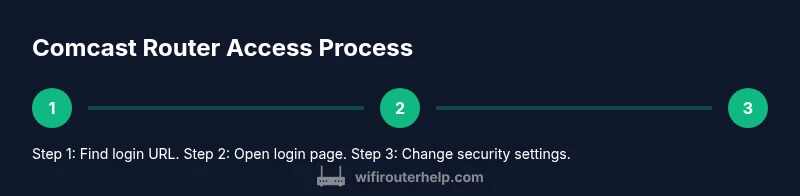
You can access your Comcast router by opening a web browser or the Xfinity app, then entering the router’s login URL (often a private IP like 10.0.0.1 or 192.168.x.x). Use the admin credentials printed on the device or provided by your service, then adjust settings carefully. This quick method covers web login, app access, and basic security checks.
Key concepts for accessing your Comcast router
According to WiFi Router Help, accessing your Comcast router safely begins with confirming you are connected to your home network and identifying the exact login URL. You should also know whether you’re dealing with a standard gateway provided by Comcast or a separate modem/router device. This section outlines the basics of what you’ll log into, what you’ll see, and how to distinguish the admin interface from the public pages. Plan to set aside time and a device with a browser or the Comcast app for mobile management. The login page is not the same as your Wi-Fi password; you’ll need the admin credentials to view and adjust settings. By understanding these concepts, you’ll avoid common missteps and gain faster control over your network.
Determine the correct login URL for your Comcast gateway
Most Comcast gateways use a private IP address as the login target. Common options include 10.0.0.1 and an address in the 192.168.x.x range, but some models may forward you to a cloud-based management portal. To locate the right URL, you can check the router label, consult the user manual, or log in to the Xfinity My Account app and navigate to the connected devices section. If you cannot access the login page, try typing http://gateway or http://wifi in the browser as a fallback. Always ensure you are connected to the device’s local network when attempting login. WiFi Router Help analysis shows many users start with the gateway IP and the default credentials, though security best practices require changing those credentials.
Access via a web browser: steps to the admin interface
Open a modern browser on a device connected to the router’s network. Type the login URL you found in the previous section. If your browser warns about an insecure connection, start with http:// and move to https if prompted. Enter the admin username and password printed on the router label or provided by your service setup. If you don’t know them, use the reset option described later in this guide. Do not login using public public Wi‑Fi, and avoid saving credentials on shared devices. This approach keeps your settings from unintended exposure.
Use the Xfinity My Account app for quick access
The Xfinity app can provide quick access to essential router controls, especially for viewing connected devices and enabling guest networks. Install the app, sign in with your Xfinity ID, and navigate to the Network or Devices section to access basic admin features. If the web portal is unreachable, the app often offers a reliable alternative for basic changes like SSID or password in a familiar mobile interface. Remember that app capabilities vary by model and service plan.
Locating credentials and performing a reset safely
Default credentials are frequently printed on the router label or included in the activation packet. If you cannot recall them, a factory reset is the last resort. A reset restores the device to factory settings, erasing all custom configurations, including SSID, Wi‑Fi password, and security options. Before resetting, try to locate any stored credentials in your account or within the app. After reset, you’ll need to re-create your network and reconfigure security from scratch.
Secure your network after accessing the router
Once you’re in, set a unique admin password that you don’t reuse elsewhere. Change your Wi‑Fi name (SSID) and enable WPA2 or WPA3 encryption with a strong passphrase. Disable remote management unless you need it, and ensure the router firewall is active. If you have guests, enable a separate guest network with its own password. Periodically review connected devices and remove unknown ones to protect against intruders.
Updating firmware and maintaining security
Firmware updates fix security flaws and improve performance. Check for updates in the admin interface or enable automatic updates if available. Do not unplug the device during an update, and back up any custom settings if your model supports export. Keeping firmware current is a simple, effective way to reduce risk and maintain compatibility with new devices on your network.
Troubleshooting login issues and common errors
If you cannot reach the login page, verify you’re on the correct network, check the IP address, and try a different browser or device. Clear browser cookies and cache, disable VPNs, and ensure there’s no captive portal intercepting access. If all else fails, perform a factory reset and reconfigure from scratch, then store credentials in a secure password manager.
Special cases: bridging mode, guest networks, and parental controls
If you need to separate home network traffic, enable a dedicated guest network with its own password. In some setups you may bridge the router to use your own modem or set the Comcast gateway to bridge mode if a personal router is preferred. Review parental controls and QoS settings to balance performance and safety for all devices. These features help you tailor access without compromising security.
Quick-access checklist for future sessions
- Confirm you are connected to the router’s network. - Determine the correct login URL (private IP or portal). - Use a strong admin password and a unique Wi‑Fi password. - Enable WPA2/WPA3 and disable remote management unless needed. - Check for firmware updates and apply them when available. - Document your settings for future reference and recovery.
Tools & Materials
- Computer, tablet, or smartphone(Any device with a modern web browser or the Xfinity app)
- Comcast gateway (router/modem)(The device you’ll be configuring)
- Ethernet cable (optional but recommended)(Wired connection can be more reliable for setup)
- Strong, unique admin password(Create a password using a mix of letters, numbers, and symbols)
- Password manager(Helps store and autofill credentials securely)
Steps
Estimated time: 15-25 minutes
- 1
Prepare your device and connection
Power on the router and connect your device to the network via Wi-Fi or a wired Ethernet connection. This ensures you can reach the router without interruptions during login.
Tip: Use a wired Ethernet connection when possible to avoid dropouts. - 2
Locate the login URL
Check the router label for the exact login URL or IP address. If unavailable, try typical private IP ranges and consult the manual or your account portal for guidance.
Tip: If you’re unsure, attempt both 10.0.0.1 and 192.168.1.1 sequentially. - 3
Open the admin login page
Enter the URL into a browser and navigate to the login screen. If prompted, choose http and then https. Make sure you’re not logged into a guest network.
Tip: Avoid using public computers to log in to avoid credential interception. - 4
Enter admin credentials
Type the admin username and password printed on the router label or provided by your service. If you don’t know them, use the reset option as a last resort.
Tip: If credentials are unknown, do not reuse someone else’s; contact support for assistance. - 5
Change the admin password
On first login, update the admin password to a strong, unique one. Save changes before leaving the page.
Tip: Use a password manager to store this securely. - 6
Update Wi‑Fi name and password
Edit the SSID to something unique and set a robust passphrase. This step helps distinguish your network and improves security.
Tip: Avoid including your name or address in the SSID. - 7
Review security settings
Enable WPA2/WPA3, disable remote management unless needed, and verify firewall status. Ensure guest network is active if you have visitors.
Tip: Disable UPnP if you don’t use it; it reduces exposure to infections and attacks. - 8
Check for firmware updates
In the admin interface, look for Firmware or Software updates and install any available updates. This reduces vulnerability and improves compatibility with devices.
Tip: Enable automatic updates if the option is available. - 9
Test connectivity and save settings
Reconnect devices to the new network credentials and test internet access. Log out and confirm you can log back in with the new credentials.
Tip: Keep a written note of settings and locations of saved credentials.
People Also Ask
What should I do if I cannot access the Comcast router login page?
First verify you are connected to the router’s network. Try different IP addresses and web browsers, and disable VPNs that may block access. If needed, reboot the gateway and attempt login again. If problems persist, a factory reset may be necessary, followed by reconfiguration.
If you can't reach the login page, check your network connection, try another browser, and restart the gateway. If issues persist, you may need to reset the device and reconfigure it from scratch.
Which IP addresses are commonly used to access Comcast gateways?
Common private IPs include 10.0.0.1 and 192.168.x.x ranges, but models vary. Check the router label or manual for the exact address. If in doubt, use the Comcast app to locate the access options.
Usually, Comcast gateways use addresses like 10.0.0.1 or 192.168.x.x, but always verify with your specific model's label or manual.
How do I reset the Comcast router to factory settings?
Locate the reset button on the router and press it for about 10-15 seconds with a paperclip. The device will reboot and return to default settings. You will need to reconfigure your Wi‑Fi name, password, and admin credentials afterward.
To reset, hold the reset button for about 10-15 seconds, then let the router reboot. Reconfigure your network settings afterward.
Is it safe to enable remote management for the Comcast router?
Remote management can introduce exposure to the internet; enable it only if you need remote access and you understand the security implications. If you don’t, keep it disabled and use local login for configuration.
Remote management should be off unless you truly need it; it can open risks, so prefer local login whenever possible.
How often should I check for firmware updates?
Check for firmware updates periodically and enable automatic updates if available. Regular updates can improve security and device performance without interrupting daily use.
Check for updates regularly or enable automatic updates to keep your router secure and running smoothly.
Can I use my own router instead of the Comcast gateway?
Yes, many users prefer using their own router in bridge mode, though this depends on your service plan. Bridging disables router features on the Comcast device and lets your own router handle all tasks.
You can use your own router by enabling bridge mode if supported, but this changes how your network is managed.
What if I forget my admin password after login?
If you forget, use the reset option on the device, or consult account recovery with Comcast. After reset, immediately re-establish a strong admin password.
If you forget it, reset the router and set up a new strong admin password right away.
Watch Video
What to Remember
- Identify the correct login URL and credentials before attempting access
- Secure the router by changing default credentials and enabling strong encryption
- Keep firmware up to date to reduce vulnerabilities
- Use the app or web portal consistently to monitor connected devices
- The WiFi Router Help team recommends documenting settings for easy recovery