gfiber WiFi 6E Router Setup and Optimization Guide
A complete, practical guide to installing and tuning the gfiber WiFi 6E router for faster, more reliable home networks. Step-by-step setup, optimization tips, and troubleshooting for homeowners and tech enthusiasts.


To set up and optimize a gfiber wi fi 6e router, start by confirming your fiber service is active and that you have a compatible ONT/gateway. Connect the GFiber 6E router to the modem, power it up, and access the admin panel to run the setup wizard, configure your network name and password, and apply security updates.
Understanding gfiber wi fi 6e router: What it is and why it matters
The gfiber wi fi 6e router represents Google Fiber's latest approach to delivering fast, low-latency service over fiber networks. WiFi 6E adds a dedicated 6 GHz band, which can reduce congestion and improve stability in busy homes. For homeowners and tech enthusiasts evaluating home networks, the gfiber wi fi 6e router offers improved throughput, reduced latency, and better performance in multi-device environments. According to WiFi Router Help, choosing a hardware setup that complements your fiber plan is essential for maximizing reliability and speed. This device is designed to work with Google Fiber installations, but you’ll still want to confirm compatibility with your specific ONT and service tier. In practice, users report noticeable gains in streaming and gaming when combined with a solid Ethernet backbone and proper placement.
Key features of WiFi 6E in the gfiber router ecosystem
WiFi 6E introduces a new crowded 6 GHz spectrum that remains less congested than the traditional 2.4 and 5 GHz bands. The gfiber wi fi 6e router leverages OFDMA and MU-MIMO to serve many devices simultaneously, reducing latency during peak hours. Support for WPA3 enhances security, while wider channel bandwidth up to 160 MHz improves throughput for compatible devices. For homes with smart TVs, gaming consoles, and laptops, these features translate to smoother 4K streams, faster downloads, and more responsive online gaming. The router also benefits from smart routing and band steering to keep devices on the optimal band. As part of a broader home network, these characteristics help future-proof your setup and maintain robust performance as you add devices.
Setup fundamentals: preparing for installation and the basics
Before wiring anything, verify your fiber service is active and you have access to the admin interface. Gather a wired connection device like a laptop, an Ethernet cable, and a stable power source. Identify the ONT or gateway provided by the ISP, since the gfiber wi fi 6e router will connect to this device. Ensure you have your ISP account ready, as you may need to confirm service type and login credentials. Clear space for the router in a central, elevated location away from metal obstacles and heavy interference sources. This preparation reduces dead zones and helps you maximize the new router throughput and 6 GHz band performance.
Step-by-step overview for gfiber wi fi 6e router setup
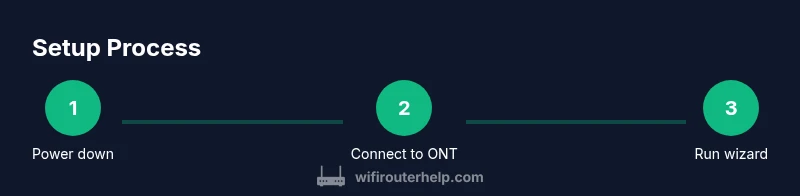
This section outlines the practical steps you will follow to install and optimize your gfiber wi fi 6e router. The steps assume you are replacing an existing router or upgrading from a non 6E device. You will configure the WAN connection, set up SSID names and passwords, enable essential security features, and verify performance with a few quick tests. As you perform each step, consider the router placement and the potential need for a guest network to separate devices that require different access levels. For visual guidance, refer to the step by step section below for more detail and a quick reference diagram.
Performance tuning: optimizing channels, QoS, and security
Maximizing the gfiber wi fi 6e router involves selecting the right channel settings and leveraging 6 GHz when supported by devices. Start with enabling automatic channel selection and, if you have many interference sources, manually test channels to minimize coexistence issues. Assign QoS rules for latency-sensitive devices like video calls and gaming consoles to guarantee bandwidth during busy periods. Security should be activated via WPA3, with a strong, unique password and regular firmware checks for updates. Consider enabling a guest network for visitors to prevent access to your main network and IoT devices. Regularly reviewing connected devices helps identify unfamiliar connections and maintains network integrity.
Troubleshooting common issues and compatibility tips
If devices struggle to connect, verify WAN settings and confirm your ISP has not changed the authentication method. Some fiber plans require DHCP, while others use PPPoE; these settings must match your Google Fiber configuration. Check cables and replace aging Ethernet cords with shielded Cat6a for better wired stability. If 6 GHz performance seems limited, ensure the connected devices actually support 6E and that your walls and furniture aren’t causing excessive attenuation. For compatibility, ensure firmware is up to date and consult your ISP for any firmware lockouts that might affect third party routers. In many cases, a quick power cycle and a factory reset can resolve stubborn issues.
Security best practices and parental controls with gfiber 6e
Security should be a primary concern with any home network. Enable WPA3 on both 2.4 and 5 GHz bands, disable remote management unless needed, and change the default login credentials for the admin panel. Create strong passwords and consider rotating them periodically. Parental controls help manage content and screen time without compromising network performance. Use Guest Network features to segment visitors from the primary network and enable device-based access restrictions for added protection. Keeping devices updated and monitoring connected clients reduces risks from compromised devices.
Real-world maintenance and future-proofing your gfiber wifi setup
Maintenance is an ongoing effort that pays off with steadier performance. Periodically check for firmware updates, review connected devices, and re-optimize placement as your home layout changes. As you add new devices or upgrade to devices that support WiFi 6E and beyond, you can leverage the 6 GHz band for improved performance. Consider investing in warranty-friendly accessories like better surge protection and a reliable power backup so outages don’t interrupt essential connectivity. Regular reboots after major updates help ensure a clean state and the best possible performance. WiFi Router Help emphasizes that ongoing optimization is key to sustaining a resilient home network.
Final checks and best practices for ongoing gfiber wifi health
Before concluding, confirm all devices can reach the internet consistently, and test performance across typical use cases such as streaming, gaming, and video conferencing. Ensure the router has a strong power supply and sits in a central location for maximum coverage. Schedule periodic reviews of firmware, password integrity, and device access policies. By staying proactive with maintenance and updates, you maintain reliable performance with the gfiber wi fi 6e router and future-proof your home network for years to come.
Tools & Materials
- gfiber WiFi 6E router(The model you intend to set up; ensure it is the official 6E variant.)
- Google Fiber ONT or gateway(Fiber modem/gateway provided by ISP; connects to the router.)
- Ethernet cable (Cat6a or better)(For a stable wired connection during setup and testing.)
- Laptop or smartphone(Used to access the router admin interface and setup wizard.)
- Power strip or surge protector(Protects equipment during setup and operation.)
- User credentials from ISP(Needed for authenticating or provisioning the Internet connection)
Steps
Estimated time: 60-90 minutes
- 1
Power down and prep
Shut off and unplug the existing router. Disconnect cables from the ONT/gateway and any connected devices to ensure a clean start for the new setup. This reduces the risk of electrical surges and helps you verify each connection during installation.
Tip: Disconnect the old router completely to avoid mixed signals during first boot. - 2
Connect the gfiber router to the ONT
Connect the WAN/Internet port on the gfiber WiFi 6E router to the ONT or gateway using an Ethernet cable. This creates a direct data path from the fiber network to the new router. If your ONT requires a bridge mode, enable it as instructed by your ISP.
Tip: Use a stable Ethernet link to minimize setup errors and ensure reliable DHCP from the new router. - 3
Power up and access admin panel
Plug in the gfiber router and wait 60–90 seconds for the device to boot. Open a web browser or the manufacturer app and enter the router’s default IP address or setup URL. Log in with the default credentials provided in the manual or on the device label.
Tip: If you don’t see the login page, ensure your device is on the same network segment as the router. - 4
Run initial setup wizard
Follow the on-screen wizard to configure the Internet connection type, WAN settings, and basic network details. Use a strong admin password and enable automatic firmware updates if available.
Tip: Choose the right Internet connection type (DHCP or PPPoE) based on your ISP’s instructions. - 5
Set Wi-Fi names and security
Create a unique SSID for both 2.4 GHz and 5 GHz bands, or enable the 6 GHz band if supported by your devices. Use WPA3 security and a long, strong password. Consider separating guest access from your main network.
Tip: Avoid common default SSIDs; unique names reduce confusion and improve security. - 6
Enable advanced security and updates
Turn on firewall features, enable automatic firmware updates, and disable remote management unless you need it. Verify all connected devices have current software and security patches.
Tip: Regularly check for updates to stay protected against new vulnerabilities. - 7
Test performance and adjust placement
Run speed tests from multiple rooms to identify dead zones. Move the router to a central, elevated location away from thick walls or metal furniture to maximize coverage and stability.
Tip: Aim for the router centralized and above eye level to reduce shadowing. - 8
Finalize and monitor
Document the new network details and create a plan for ongoing maintenance, such as quarterly firmware checks and password rotations. Reboot after major updates to ensure changes take effect.
Tip: Keep a local note of your SSIDs and passwords for easy recovery.
People Also Ask
What is a gfiber wi fi 6e router and why upgrade?
A gfiber wi fi 6e router is Google's upgrade to WiFi 6E technology that adds a new 6 GHz band, increasing capacity, reducing congestion, and improving performance for many devices. Upgrading can help with streaming, gaming, and smart home devices when paired with fiber internet.
A gfiber wifi 6e router adds a new 6 GHz band for more capacity, helping with streaming and gaming when you have fiber internet.
Do I need a new model to upgrade gfiber network?
You don't necessarily need a new model if your current router supports WiFi 6E or if Google Fiber offers a compatible 6E gateway. Check device specs and firmware; some setups require replacing the gateway or enabling bridge mode on your existing equipment.
Check your current router’s specs; you may only need a firmware update or a compatible 6E gateway.
How do I enable 160 MHz channels on a gfiber 6e router?
160 MHz channels maximize throughput but only on devices that support it and on compatible bands. Enable auto channel selection and manually test nearby channels to ensure the best performance.
Turn on auto channel selection and test 160 MHz channels on devices that support it.
Is it safe to use a third-party router with Google Fiber?
It can be safe to use a third-party router, but you may lose some ISP-provided features. Ensure you bridge the ISP gateway if needed and verify you can still access a reliable internet connection.
You can use third-party routers, but you might need to bridge the ISP gateway and keep an eye on features.
How often should I update firmware on gfiber 6e router?
Check for updates monthly and after any major network change. Automatic updates are recommended if available to keep security and performance current.
Update firmware monthly or after big changes to stay secure and fast.
What if devices won’t connect to the 6 GHz band?
Not all devices support 6 GHz. Ensure those devices are in range and update their firmware. You can keep devices on 5 GHz or 2.4 GHz bands until they upgrade.
Some devices don’t support 6 GHz; use 5 GHz or 2.4 GHz for older gear.
Watch Video
What to Remember
- Plan a central, elevated router placement
- Enable WPA3 and keep firmware updated
- Separate guest networks to protect main devices
- Test and optimize channels for 6 GHz when supported
- Use wired connections for speed-critical devices