FiOS Replacement Router: Step-by-Step Guide
Learn how to replace Verizon FiOS's gateway with a dedicated fios replacement router, including bridge mode vs IP passthrough, setup steps, and troubleshooting for a faster, more reliable home network.


This guide explains how to replace Verizon FiOS's gateway with a dedicated fios replacement router, handling bridge mode vs IP passthrough, and providing a step-by-step setup. You’ll need a compatible router, a working FiOS modem/ONT, and access to admin interfaces. We cover bridge vs NAT choices, potential pitfalls, and how to verify a stable home network.
Why replacing the FiOS gateway matters
According to WiFi Router Help, the typical FiOS gateway is a combined modem/router that can bottleneck a busy home network. Replacing that gateway with a dedicated fios replacement router gives you more control over Wi‑Fi channels, security settings, and features like quality of service (QoS) and guest networks. The WiFi Router Help team found that eliminating double NAT and moving to a straightforward router setup can improve throughput in busy households, support faster devices, and simplify port forwarding for work devices, gaming consoles, and smart home hubs. This approach pays off with better coverage on multiple floors, fewer dead zones, and easier management via a single interface. By planning ahead, you can keep TV boxes, VoIP services, and smart devices working smoothly while gaining a cleaner, more predictable Wi‑Fi experience.
WiFi Router Help analysis suggests that modern routers with upgraded antennas and beamforming can significantly improve stability and range, especially in multi‑story homes. You’ll also gain more granular controls over DNS, firewall settings, and parental controls, making it easier to tailor your network to household needs. The guidance here assumes you’re replacing the gateway rather than simply adding a mesh node; if you want a mesh system, we cover that separately at the end.
How to choose the fios replacement router
Choosing the right fios replacement router means balancing performance, features, and compatibility with your FiOS service. Look for a router that supports current Wi‑Fi standards (Wi‑Fi 6 or newer if possible), ample Ethernet ports for wired devices, and robust security features (WPA3, guest networks, and automatic firmware updates). A capable processor and enough RAM help with handling multiple devices and QoS rules. Ensure the device supports IP Passthrough or Bridge mode, if you plan to pass the public IP to the new router. Consider USB ports for storage or printers, and check that the model receives regular firmware updates. If you’re curious about real-world performance, note that many users see improved stability and easier troubleshooting after upgrading, especially in homes with many smart devices and gaming consoles. Also verify compatibility with your service tier and whether you’ll be using DSL/fiber specifics, as that can influence setup steps.
From a practical perspective, pick a model with good reviews for reliability and ease of setup. Prioritize models that offer a straightforward web UI, clear documentation, and strong customer support. If you plan to run a VPN or advanced firewall rules, confirm the firmware supports those features. Lastly, consider your budget and future needs; a slightly pricier router with longer support life can be a smarter investment than a bargain model that becomes obsolete quickly.
Bridge mode vs IP passthrough vs DMZPlus explained
When you replace the FiOS gateway, you’ll encounter three common configurations: Bridge mode, IP Passthrough, and DMZPlus. Bridge mode disables the gateway’s routing features and passes the public IP directly to your replacement router, reducing NAT overhang and simplifying advanced setups. IP Passthrough is a FiOS gateway feature that forwards the public IP to a selected device’s WAN port while keeping some gateway services active. DMZPlus creates a single device exposed to the internet behind the FiOS gateway, similar to IP Passthrough but with different firewall behavior. Each option has trade‑offs: Bridge mode minimizes double NAT but can complicate certain FiOS services; IP Passthrough is typically easier to manage but may require additional firewall considerations; DMZPlus is simplest for adding a new router but may leave some gateway services visible on your LAN. The goal is to reduce double NAT, improve performance, and retain necessary functionality like IPTV or VoIP if required by your setup.
For most home users, IP Passthrough or Bridge mode is the preferred route when replacing a FiOS gateway. Whichever method you choose, ensure you document the exact settings so you can revert if needed. The key is to have a stable connection for your replacement router while keeping essential FiOS services available if required by your plan.
Prerequisites and compatibility check
Before you begin, confirm your FiOS gateway model and service plan support IP Passthrough or Bridge mode. You’ll need access to the gateway’s admin interface (typically via a web browser on a device connected to the gateway). Have the WAN MAC address of your replacement router handy, along with a fresh firmware update for the new device. Gather a Cat6 Ethernet cable and a computer or laptop to access admin pages. If you rely on FiOS TV services or VoIP, check whether those services require special configuration on the gateway and plan for a potential temporary disruption during the switch. Finally, ensure you have a plan for wireless coverage if you disable the gateway’s Wi‑Fi, so you can quickly configure the replacement router’s SSID and security settings.
WiFi Router Help analysis shows that most FiOS gateways can be configured for IP Passthrough or Bridge mode, but the exact steps vary by model. Take time to read the specific manual for your gateway and the replacement router model. If you’re unsure, start with IP Passthrough in a test window before fully disabling gateway routing.
Safety, privacy, and best practices
Reconfiguring your home network requires careful changes to prevent exposure and service disruption. Always back up current settings before making changes and keep a record of your new configuration. Use strong, unique passwords for the new router and enable automatic firmware updates when available. Limit remote management exposure by turning it off or restricting access to trusted devices. If you have smart home installations, ensure they reconnect properly after the switch, and consider keeping the FiOS gateway in a limited role (e.g., only for IPTV/VoIP) if your plan supports it. Finally, test your network thoroughly after each change to confirm devices connect reliably, streaming works smoothly, and ports required for work or gaming are forwarding correctly. The goal is to achieve a stable, secure network while maintaining essential FiOS services during the transition. The WiFi Router Help team recommends documenting changes and testing thoroughly to ensure long-term reliability.
Tools & Materials
- Replacement router (Wi‑Fi 6/6E preferred)(Ensure it supports IP Passthrough or Bridge mode and has adequate Ethernet ports (at least 4) and USB if needed.)
- Ethernet cable (Cat6 recommended)(Used to connect the replacement router to the FiOS gateway.)
- Power adapter for new router(Keep spare power in case of outages.)
- Laptop or smartphone(For accessing the FiOS gateway and router admin pages.)
- PIN or admin credentials for FiOS gateway(You’ll need these to enable IP Passthrough/Bridge and disable Wi‑Fi.)
- Notebook to document settings(Record IP addresses, MAC addresses, and feature toggles for future reference.)
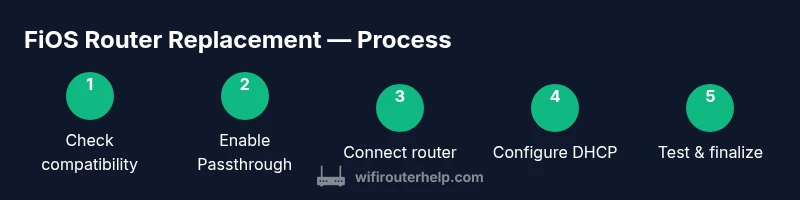
Steps
Estimated time: 60-120 minutes
- 1
Check gateway compatibility and plan
Identify whether your FiOS gateway supports IP Passthrough or Bridge mode and plan the network topology you’ll use with the replacement router. This planning step helps you avoid surprises during the switch and clarifies what features you’ll retain on the gateway versus the new router.
Tip: Have the replacement router’s WAN MAC address handy to set up Passthrough/Bridge later. - 2
Log in to the FiOS gateway and enable IP Passthrough or Bridge
Open a browser and navigate to the gateway’s admin page (commonly 192.168.1.1). Enter admin credentials, locate the IP Passthrough or Bridge mode setting, and enable it for the replacement router’s MAC address. Save changes and reboot if prompted.
Tip: Take screenshots of each setting page before changing anything for quick reference. - 3
Disable the FiOS gateway’s Wi‑Fi radios
Turn off both 2.4 GHz and 5 GHz wireless radios in the gateway’s settings to prevent interference with your replacement router’s network. This helps avoid confusing signals and ensures clients connect to the new router.
Tip: Disabling Wi‑Fi on the gateway minimizes naming conflicts with the new network. - 4
Connect the replacement router to the FiOS gateway
Use the Ethernet cable to connect the replacement router’s WAN/Internet port to the gateway’s configured passthrough/DMZ port. Power on the replacement router and let it obtain an IP address via DHCP from the gateway.
Tip: Use a direct connection initially to simplify troubleshooting.” - 5
Configure WAN on the replacement router for DHCP
Access the replacement router’s admin interface and set the WAN connection to DHCP so it receives a public IP from the FiOS gateway. Verify the status shows an active internet connection.
Tip: If you don’t obtain an IP, double‑check Passthrough/Bridge settings and reboot both devices. - 6
Set up the replacement router’s Wi‑Fi and security
Create your preferred SSID(s), strong passwords, and enable WPA3 if available. Configure guest networks if you need them and set up basic firewall rules or parental controls as needed.
Tip: Use a different SSID from the old one to help devices switch over cleanly. - 7
Test connectivity and services
Run a speed test, verify streaming and video calls work, and test port forwarding or VPN if used. Confirm your smart home devices reconnect to the new network and that IPTV/VoIP services (if any) still function correctly.
Tip: Document any service quirks and adjust settings as needed. - 8
Finalize and document your configuration
Record all important details (IP ranges, DHCP settings, firewall rules, and QoS rules) for future reference. Revisit firmware updates on the replacement router periodically and keep a backup of the configuration.
Tip: Create a recovery plan in case you need to revert to the original gateway.
People Also Ask
Can I use my own router with Verizon FiOS?
Yes. You can replace the FiOS gateway with a third‑party router by configuring IP Passthrough or Bridge mode and connecting the router via the gateway’s LAN port. Some FiOS services or features may require adjustments to keep TV or VoIP functioning.
Yes, you can use your own router by enabling Passthrough or Bridge mode and connecting the router to the gateway.
What is the difference between bridge mode and IP passthrough for FiOS?
Bridge mode disables the gateway’s routing functions, passing control to your router. IP Passthrough forwards the public IP to your device while keeping some gateway features. The choice depends on your service needs and the gateway model.
Bridge mode turns off the gateway’s routing; IP Passthrough forwards your public IP to the router.
How do I enable IP Passthrough on a FiOS gateway?
Log in to the FiOS gateway admin page, locate IP Passthrough, choose the replacement router’s MAC address, and save. Reboot as needed and verify the router receives a valid IP.
Open the gateway, enable IP Passthrough, pick your router’s MAC, and reboot to apply.
Will using a replacement router affect my FiOS warranty or support?
Using a third‑party router is generally supported, but policies vary by service and plan. If you encounter issues, Verizon support may guide you through gateway configurations without guaranteeing gateway defaults.
Support policies vary; you may need to revert settings for official support in some cases.
Do I need a specific router model for FiOS compatibility?
Most modern routers with IP Passthrough/Bridge support will work. Check that the model supports your desired features (Wi‑Fi standard, QoS, security) and has current firmware.
Most models work as long as they support Passthrough or Bridge mode and current firmware.
What if I can’t access the FiOS gateway admin page?
Ensure you’re connected to the gateway’s network, have the correct credentials, and try a different browser. If needed, reset the gateway to factory defaults and retry, noting that this will restart your service and may require reconfiguration.
Make sure you’re on the gateway’s network and try again; a factory reset may be a last resort.
Watch Video
What to Remember
- Prepare with the right gear and a clear plan
- Choose a modern fios replacement router with Wi‑Fi 6, QoS, and multiple Ethernet ports
- Use IP Passthrough or Bridge mode to minimize NAT and simplify your network
- Document changes and test thoroughly, as The WiFi Router Help team recommends.