How to Set Up and Optimize the FiOS Quantum Gateway Router
Step-by-step guide to install, secure, and tune the FiOS Quantum Gateway Router for fast, reliable home Wi-Fi with practical tips and troubleshooting.


Goal: set up, secure, and optimize your fios quantum gateway router for reliable home Wi‑Fi. You’ll learn how to connect hardware, access the admin panel, customize your SSID and password, enable essential protections, update firmware, and test performance. By following these steps, you’ll reduce interference and improve speed across devices.
What is the FiOS Quantum Gateway Router and why it matters
The fios quantum gateway router is a combined modem and router device used with Verizon FiOS fiber service to distribute internet to your home. It handles the conversion from fiber to Wi‑Fi and provides a local network where all your devices can connect. Understanding its role helps you optimize placement, channel selection, and security. According to WiFi Router Help, a proper initial setup reduces common performance bottlenecks and improves stability across multiple devices. The FiOS Quantum Gateway Router supports several modern security features, but default settings often leave opportunities for improvement. In practice, you’ll want to prioritize a strong, unique Wi‑Fi password, up‑to‑date firmware, and sensible security configurations to minimize risk while maximizing throughput. Clear labeling on the device and using the correct admin URL will save you time during the initial setup.
Core capabilities and limitations
The FiOS Quantum Gateway Router is designed for simplicity and reliability, with built‑in firewall features, guest networks, and parental controls in some firmware versions. It handles most households well when positioned centrally and kept up to date. However, limitations exist: older firmware, interference from dense walls, and occasional default configurations that expose the admin interface. The goal is to tailor your settings to your home layout and devices, not to over‑engineer a system. WiFi Router Help’s analysis shows that most users gain noticeable performance improvements by updating firmware promptly and configuring two separate networks (2.4 GHz and 5 GHz) with unique passwords.
Prerequisites and planning your setup
Before you start, collect the items you will need and plan your network layout. Confirm you have active FiOS service and a valid Verizon account, along with the admin access credentials. Decide on a network name (SSID) and a strong password that you will remember. Map out where you’ll place the gateway for optimal coverage, ideally near the center of your home away from thick walls and metal objects. Having a rough floor plan helps you determine the best router location and whether you’ll need additional access points or a mesh system in the future.
Wireless performance landscape: 2.4 GHz vs 5 GHz, channels, and placement
The FiOS Quantum Gateway Router typically transmits on both 2.4 GHz and 5 GHz bands. The 2.4 GHz band offers longer range but slower speeds, while the 5 GHz band provides higher throughput but shorter reach. For most homes, a mixed approach works best: keep critical devices on 5 GHz when possible while reserving 2.4 GHz for IoT devices that don’t require high bandwidth. Channel selection matters; automatic channel choice is convenient but can be less optimal in crowded apartments. If you experience interference on 2.4 GHz, switching to a less congested channel at the 2.4 GHz band can yield noticeable improvements in performance. Positioning is equally important: a central, elevated location away from walls and metal enclosures reduces dead zones and improves signal consistency across rooms.
Security best practices for the FiOS Quantum Gateway Router
Security should be a core part of your setup. Change the default admin password to a unique, strong passphrase and disable remote management unless you need it. Enable WPA2‑WPA3 mixed mode or the highest available security standard, and turn off WPS if it is exposed. Regularly update firmware to patch vulnerabilities and improve stability. Consider enabling a guest network for visitors to keep your main network private, and enable parental controls if you need to manage access for devices used by children. These steps significantly reduce risk without sacrificing convenience.
Advanced configurations: guest networks, parental controls, and bridge mode considerations
Guest networks allow visitors to connect to the internet without accessing your main devices. Parental controls can help manage content and screen time for younger users. If you own a separate router, you might consider bridge mode to pass the public IP and simplify a more complex network topology, or you can keep the FiOS gateway as the primary router and add a dedicated access point to extend coverage. When bridging, be aware that some FiOS features (like voice services or battery backup behavior) may be affected, so plan accordingly and consult Verizon support if needed.
Maintenance and long‑term care: firmware updates, reboots, and monitoring
Set a routine to check for firmware updates and install them promptly. Schedule regular reboots if you notice slowdowns or flaky connections, but avoid daily restarts which can disrupt ongoing tasks. Monitor connected devices and bandwidth usage to identify culprits of slowdowns. Keeping a clean, well‑placed router and a predictable reboot schedule can dramatically improve reliability over time.
Real‑world use cases and troubleshooting tips
In a typical home with multiple streaming devices, smart TVs, and work‑from‑home setups, you may observe fluctuations in speed. Start with the basics: verify cable connections, confirm the firmware is current, and test speeds using a local wired connection. If you experience persistent issues, isolate devices by moving them to different bands, checking for interference from neighbors, and adjusting placement. For more stubborn problems, a factory reset followed by a careful re‑setup often resolves configuration conflicts.
Tools & Materials
- FiOS Quantum Gateway Router(Ensure you have an active FiOS service and the device is labeled with the model information)
- Computer or smartphone(Used to access the router admin panel and run speed tests)
- Ethernet cable (Cat5e or better)(For a stable initial setup and troubleshooting wired tests)
- Power adapter and outlet(Keep a surge-protected outlet handy)
- Verizon account login(Needed to access account-based features and support)
- Optional: additional access point or mesh satellite(For larger homes, plan if you need extended coverage)
Steps
Estimated time: 30-60 minutes
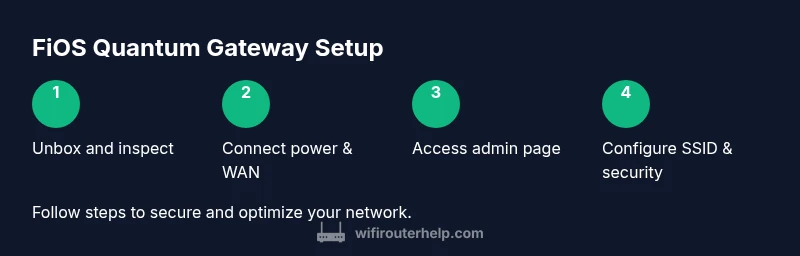
- 1
Unbox and inspect the FiOS Quantum Gateway Router
Remove the device from the packaging and verify all included items. Check for any visible damage and ensure you have the power adapter, documentation, and cables. This initial check prevents surprises during setup.
Tip: Take a photo of the device label for quick reference to the default IP, model, and login info. - 2
Connect power and the network line
Plug the router into a surge-protected outlet and connect the appropriate line from your FiOS ONT or service box to the WAN/Internet port. Ensure the link lights indicate a healthy connection before proceeding.
Tip: If you don’t see an Internet light, try reseating the cable or power cycle the ONT and router. - 3
Access the router admin page
Use a wired or wireless device to navigate to the default gateway address. Sign in with the credentials provided by Verizon or the ones you created previously. If you don’t have credentials, contact Verizon support to recover access.
Tip: Prefer a wired connection for initial login to avoid dropped Wi‑Fi during setup. - 4
Set a unique Wi‑Fi name (SSID) and password
Create an SSID that is easy to recognize but not personally identifying. Use a strong password with a mix of letters, numbers, and symbols. Separate the 2.4 GHz and 5 GHz networks if possible for easier device management.
Tip: Do not reuse default passwords; consider a passphrase rather than a simple string of characters. - 5
Enable security features and update firmware
Turn on the highest security mode supported (WPA2/WPA3), disable WPS, and apply the latest firmware update. Firmware updates often include performance improvements and security fixes that protect your network.
Tip: Check for updates at least monthly and after any major configuration change. - 6
Configure guest network and parental controls
If available, enable a guest network to isolate visitors’ devices from your main network. Set up parental controls if you need to manage access times or content filters for specific devices.
Tip: Label the guest network separately and avoid sharing sensitive admin credentials on that network. - 7
Test, optimize, and save settings
Run wired and wireless speed tests in key areas of your home. Reposition the router as needed to balance coverage and speed, then save all changes and reboot to finalize the setup.
Tip: Keep a network map showing device placement and band assignments for future tweaks.
People Also Ask
What is the FiOS Quantum Gateway Router and what does it do?
The FiOS Quantum Gateway Router combines a modem and router to distribute FiOS internet to your home. It handles network address translation, wireless distribution, and some security features. Understanding its role helps you configure settings that improve performance and reliability.
The FiOS Quantum Gateway Router is a combined device that brings FiOS internet to your home and shares it via Wi-Fi. It helps you manage your network and security in one place.
Can I replace the FiOS gateway with my own router?
In many cases you can use your own router, but you may need to bridge the FiOS gateway or disable its routing features. This depends on your service plan and equipment. Check with Verizon support before making changes to avoid service disruption.
You can often use your own router, but you may need to bridge or disable the gateway's routing features. Verify with Verizon before changing settings.
How do I recover or reset admin access if I forget the password?
Use the password recovery options provided in the admin portal or contact Verizon support to reset credentials. A reset may restore factory defaults, so you’ll need to reconfigure your network afterward.
If you forget the admin password, use the portal recovery options or contact Verizon to reset. Expect to reconfigure your network after.
What’s the best practice for channel selection on dual-band routers?
For most homes, let the router auto-select channels, but manually testing a few non-overlapping channels (e.g., 1, 6, 11 on 2.4 GHz) can improve performance. Use 5 GHz for devices that need high throughput, and leave 2.4 GHz for longer range devices.
Auto usually works, but try a non‑overlapping channel like 1, 6, or 11 on 2.4 GHz, and keep high‑throughput devices on 5 GHz.
How often should I reboot the FiOS Quantum Gateway Router?
A monthly reboot is a reasonable routine to clear stale memory and apply updates. Avoid excessive reboots, which can interrupt ongoing tasks.
Reboot about once a month to refresh the system and apply updates, not more often than needed.
What should I do if I can’t access the admin page after setup?
First, verify you’re using the correct gateway IP and ensure devices are on the same network. If needed, perform a soft reset by rebooting the router, then retry login. If problems persist, contact Verizon support.
Check the gateway address and network, reboot the router, and retry. If problems persist, contact Verizon.
Watch Video
What to Remember
- Set a strong admin password and privacy settings first
- Separate 2.4 GHz and 5 GHz networks for better device management
- Regularly update firmware to maintain security and performance
- Test coverage and adjust placement for optimal signal
- Use guest networks and parental controls when appropriate