Factory Reset Xfinity Router: Step-by-Step Guide
Learn how to safely perform a factory reset on your Xfinity router. This guide covers when to reset, two reset methods, step-by-step instructions, reconfiguration tips, and common pitfalls. Includes authoritative sources for best practices and a quick video search query.


By following this guide, you can factory reset xfinity router to restore factory defaults and clear custom settings. This is useful for troubleshooting, reconfiguring a compromised network, or handing the device to another user. Before resetting, note your current Wi‑Fi name (SSID) and password, and prepare to reconfigure your network afterward. If unsure, start with the physical reset method.
What a factory reset xfinity router does
A factory reset returns your Xfinity router to its original factory settings. This action clears custom network names (SSIDs), passwords, firewall rules, port forwards, and any saved VPN or parental-control configurations. After a reset, the device behaves as if it just came out of the box. The goal is to remove persistent misconfigurations, malware remnants, or conflicts caused by software updates. Remember that a reset does not change your internet service or the account status with your provider; it only resets the device’s internal settings. According to WiFi Router Help, performing a factory reset should be considered a last-resort troubleshooting step when other fixes fail. The team found that many users run into ongoing connectivity issues simply because a prior change wasn’t fully reverted. A reset gives you a clean slate to rebuild a stable, secure home network.
When to perform a reset
Use a reset to recover from stubborn router freezes, repeated disconnects, or after you suspect a configuration change corrupted the device. If you’ve forgotten the admin password or cannot reach the router’s admin interface, a reset can restore access. If you’re selling or giving away the gateway, a reset ensures previous credentials aren’t reused. Additionally, after a firmware update, some users report odd behavior; a reset can help reinitialize settings cleanly. For Xfinity devices, remember that the reset reverts to default network names and passwords, so you’ll need to reconnect all your devices using the new credentials you configure. The WiFi Router Help team notes that resets should be followed by reconfiguration rather than random changes, to avoid reintroducing the same problem.
Reset methods at a glance
There are two primary ways to perform a factory reset on an Xfinity router:
- Physical reset button: Locate the recessed reset button on the back or bottom of the unit. Use a paperclip or pin to press and hold the button for about 10–15 seconds until the status lights flash or reboot. This method does not require a login and is useful if you’ve forgotten admin credentials or can’t access the admin interface.
- Admin portal reset: Access the router’s admin page through a web browser or the Xfinity app. Navigate to the security or advanced settings area and choose Restore Factory Defaults. This method preserves the reboot behavior but requires admin access. If you’ve changed the login details, you may need to recover or reset them to proceed.
Note: A factory reset will erase all personalized settings, including your Wi‑Fi network name, password, firewall rules, and port forwards. You will need to reconfigure these after the reset.
Before you reset: prepare
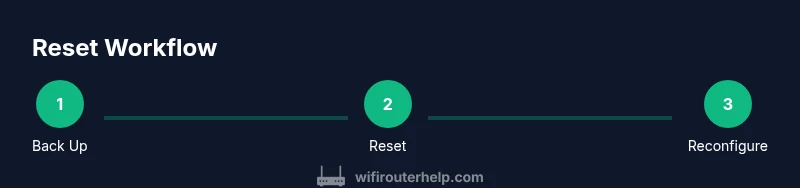
Before initiating a reset, gather essential information and backups. Write down your current network name (SSID) and password so you can reconnect devices after the reset. If you rely on custom port forwarding, firewall rules, or parental controls, document those configurations or take screenshots for reference. Ensure you also have access to your Xfinity account credentials, because you’ll likely need to sign back in to reconfigure or re‑activate your gateway in the app or portal. Finally, consider performing a backup of any important router settings if your device offers a save or export option. This preparation minimizes post-reset friction and speeds up restoration of your preferred network setup.
Step-by-step: physical reset (quick flow)
If you choose the physical reset method, you’ll typically follow these actions in sequence. The goal is to force the device to forget current settings and reboot into factory defaults. Have a small tool at hand (paperclip) and be prepared for a short downtime while the device reboots. Afterward, you’ll re‑enter your chosen network name and password and reconfigure any advanced settings you previously used. This approach is widely used because it does not depend on admin access and is reliable even when the login credentials are unknown.
After the reset: reconfigure your network
Once the router returns to factory defaults, you’ll need to set up your network from scratch. Start by connecting a device to the default SSID printed on the device label or shown in the app. Then, choose a unique, strong network name and a robust password. Enable WPA3 if available, or WPA2 at minimum, and adjust security settings like firewall and guest networks according to your home needs. Reapply any necessary port forwards or VPN configurations, and verify that all critical devices reconnect smoothly. If you use a modem‑gateway combo from Xfinity, you may also need to re-provision the device in the Xfinity app to reestablish service. Finally, perform a speed check to confirm the network performance is stable after the reconfiguration.
Common pitfalls and safety tips
- Don’t rush a reset: ensure you’ve saved essential details before wiping settings to avoid friction during reconfiguration.
- Avoid frequent resets: repeated resets can mask underlying issues and disrupt connected devices.
- Protect admin access: change the admin password after the reset and use unique credentials to prevent unauthorized changes.
- Don’t unplug during reboot: interrupting the reboot can leave the device in an unresponsive state; wait for all lights to stabilize.
Authority sources
- FCC: Home Network Security guidance, https://www.fcc.gov/consumers/guides/home-network-security
- CISA: Home Network Security best practices, https://www.cisa.gov/publication/home-network-security-guide
- FTC: Protecting Your Wireless Network, https://www.consumer.ftc.gov/articles/0015-protecting-your-wireless-network
Tools & Materials
- PIN or paperclip(to press recessed reset button (hold for 10–15 seconds))
- Smartphone or computer(to access admin page or Xfinity app during setup)
- Current network details (SSID, password)(to reconfigure after reset)
- Xfinity account credentials(to re-activate/reconfigure gateway after reset)
- Optional backup of router settings(to restore preferred configurations after reset)
Steps
Estimated time: 15-25 minutes
- 1
Back up and note settings
Before starting, write down your current network name (SSID) and password. If you’ve customized firewall rules or port forwards, document them or take screenshots. This helps you restore the exact setup after the reset and reduces downtime.
Tip: Having a saved configuration makes re‑setup faster and reduces the chance of missing an important rule. - 2
Choose reset method
Decide between a physical reset (button push) or a software reset through the admin portal. The physical method works even if you can’t access the admin page, while the portal method preserves a digital trail of changes but requires login.
Tip: If you’re unsure about your login credentials, use the physical reset first to regain access. - 3
Perform the physical reset
Press and hold the recessed reset button with a paperclip for 10–15 seconds until the lights flash or the device reboots. Release, then wait for the device to come back online.
Tip: Do not press longer than 20 seconds; excessive pressure won’t speed up the reset and could damage the button. - 4
Wait for reboot
Allow 2–5 minutes for the gateway to complete its reboot cycle. Do not unplug or power cycle again during this time as it can corrupt startup files.
Tip: Observe the status lights; a solid power and connectivity light usually indicates a healthy reboot. - 5
Reconfigure network settings
Use the default SSID or your chosen new name, set a strong password, and enable modern security (WPA3 if available). Re‑apply any custom rules or port forwards you noted earlier.
Tip: Avoid using default credentials; choose a unique admin password for ongoing security. - 6
Test connectivity
Reconnect devices and run a quick speed test to verify everything works as expected. Check that your smart home devices reconnect automatically and that guest networks (if used) operate correctly.
Tip: Test both wired and wireless devices to ensure the reset didn’t affect any Ethernet‑based services.
People Also Ask
Will resetting my Xfinity router affect my internet service?
No. A factory reset only affects the router’s internal settings. Your internet service itself remains active, but you’ll need to reconfigure the gateway and reconnect devices afterward.
No—the reset doesn’t disable your service. You’ll just need to sign back into the gateway and reconnect devices after reconfiguring the network.
Will I lose all my customized settings after a reset?
Yes. A factory reset restores default network name, password, and settings. You’ll lose port forwards, firewall rules, and parental controls unless you record them beforehand.
Yes. A reset restores defaults, so you’ll need to re‑enter custom rules and credentials.
Can I reset remotely or only with physical access?
Most factory resets on consumer gateways require physical action or admin access to the device. If you can reach the admin page, you can perform a reset there; otherwise use the physical button.
Usually you need physical access or login to the admin page to reset.
How long does a reset take?
The reset itself is quick, but the gateway may take several minutes to reboot and reinitialize your network after configuration.
It’s typically a few minutes for the device to reboot and for you to reconfigure settings.
What should I do if I can’t access the admin page after reset?
Try the physical reset again or use the Xfinity app to re‑provision the gateway. If problems persist, contact your service provider for assistance.
If you can’t access the admin page, try again with a physical reset or use the app to provision the device.
Should I reset my modem and router separately?
If you have a separate modem and router, you may need to reset both devices. Start with the gateway device from your provider and then check your other router if you use a separate unit.
If you’re using separate devices, you might reset both, starting with the gateway.
Watch Video
What to Remember
- Reset clears most custom settings and returns the device to factory defaults
- Back up SSID/password before resetting to simplify reconfiguration
- Choose reset method based on accessibility to admin pages or login credentials
- Reconfigure security and network details after reset for best protection
- Avoid frequent resets to prevent unnecessary downtime