How to set up and optimize eero wifi 6 for your home network
Learn how to set up, optimize, and troubleshoot eero wifi 6 for a fast, reliable home network. Step-by-step guidance on placement, security, and maintenance from WiFi Router Help.


You will learn to set up and optimize an eero wifi 6 system for reliable home coverage. Ensure you have a compatible modem, an internet connection, and a smartphone with the eero app installed. This guide uses a clear, step-by-step approach to layout, security, and maintenance.
Why eero wifi 6 matters
In dense homes with many connected devices, the WiFi 6 standard brings improved efficiency, lower latency, and better throughput when multiple devices contend for airtime. eero as a mesh system extends coverage with multiple nodes that communicate back to the gateway, reducing dead zones. According to WiFi Router Help, the key advantage of wifi 6 in a home mesh is better spectrum reuse and smarter channel management, which translates to more stable connections in kitchens, basements, or rooms far from the router. This section explains why upgrading to an eero wifi 6 setup can be a practical move for households with streaming, gaming, and smart-home devices.
Getting started: prerequisites and planning
Before you begin, map your space and inventory your devices. Identify the primary modem, choose a stable location for the gateway, and plan where to place additional nodes for coverage. You’ll want to minimize obstacles like thick walls and metal appliances that block signals. Also confirm your ISP provides gigabit or near-gigabit service if you expect high-speed performance. WiFi Router Help recommends noting entry points, such as where the living room and home office meet, so you can plan node placement with a mental map of high-traffic zones. This planning yields fewer reconfigurations after initial setup and reduces poke-and-hope tinkering.
Unboxing and initial setup with the eero app
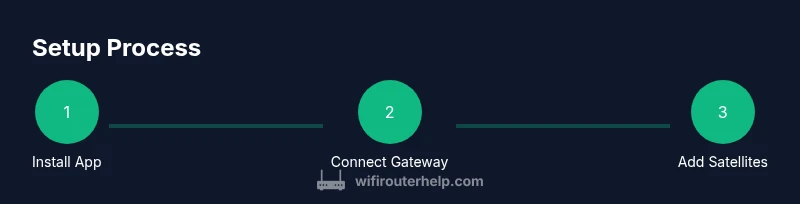
Unbox the gateway, power it on, and install the eero app on your smartphone. Create or sign into your eero account, then follow the on-screen prompts to connect the gateway to your modem via Ethernet. The app will guide you through naming your network, setting a strong password, and adding the first satellite node if you have one. During setup, keep the gateway near a power outlet and at a central location away from large metal appliances for best results. WiFi Router Help notes that the app-based configuration reduces manual tweaks and centralizes control.
Optimizing placement for best coverage (mesh considerations)
Placement is critical for mesh systems. Aim for elevated, open spots roughly halfway between the gateway and intended coverage areas. Avoid stacking devices in cabinets or near microwaves and cordless phones. Each satellite should have a good line of sight to the gateway and to other satellites; if a satellite sits in a dead zone, move it a few feet at a time and retest. For larger homes, consider 2-4 satellites to eliminate weak corners. WiFi Router Help emphasizes testing speed in key rooms using the eero app’s built‑in diagnostics to verify coverage as you move nodes.
Configuring security and guest networks
Security starts with a strong password and up-to-date firmware. In the eero app, enable WPA3 if available, disable WPS, and create a guest network for visitors to keep your main network private. Consider enabling automatic security updates and periodic password changes. The guest network should be isolated from your main network to prevent lateral movement if a guest device is compromised. WiFi Router Help recommends labeling networks clearly (e.g., Home, Guest, IoT) to avoid accidentally connecting a device to the wrong network.
Maintenance, updates, and troubleshooting common issues
Regular maintenance is essential for long-term performance. Check for firmware updates in the app, verify connected devices, and monitor speeds across rooms. If you notice buffering, run a quick speed test in both close and distant rooms. If a device repeatedly disconnects, relocate the nearest node or perform a factory reset of that node and re-add it to the network. For issues with specific devices, ensure they’re using the latest driver or OS version and reconnect to the network.
Comparing eero wifi 6 to other options
eero wifi 6 offers a streamlined app-based setup and a mesh approach that is particularly user-friendly for non-technical homeowners. Compared with single-router systems, mesh networks typically provide more reliable coverage in larger homes. When evaluating alternatives, consider node density, warranty, and compatibility with your existing hardware. WiFi Router Help highlights that choosing a system with good customer support and frequent firmware updates helps future-proof your home network.
Advanced features: QoS, Bridged mode, and integration with existing hardware
Quality of Service (QoS) allows you to prioritize bandwidth for latency-sensitive tasks like gaming or video calls. Bridged mode can be useful if you already own a separate router and want to bypass some routing features, but it can complicate your network if misconfigured. Integrations with smart-home hubs and voice assistants can simplify routines but may introduce additional attack vectors if not secured. The eero ecosystem is designed to be modular, allowing you to expand coverage as needed. WiFi Router Help recommends documenting any advanced configurations and testing them in a controlled way to avoid unintended outages.
Authority sources
- Federal Communications Commission (FCC) – WiFi standards overview: https://www.fcc.gov
- Institute of Electrical and Electronics Engineers (IEEE) – 802.11ax (Wi‑Fi 6) specifications: https://www.ieee.org
- University IT guidance on home network security: https://www.clemson.edu/it/security
Tools & Materials
- modem compatible with your ISP(Must support your internet plan's speeds)
- smartphone with the eero app(iOS or Android)
- Ethernet cable (Cat6 or better)(Use for gateway-to-modem connection)
- power outlet near the gateway and satellites(Plan for central placement)
- room map or floor plan(Helps plan node placement)
Steps
Estimated time: 30-45 minutes
- 1
Install the eero app and create an account
Download the eero app from the App Store or Google Play. Open the app, create or sign into your account, and prepare to add your gateway device. The app guides you through connecting the gateway to your modem with an Ethernet cable and naming your network. This step establishes the control center for your entire mesh system.
Tip: Have your modem’s login credentials handy in case the app prompts for them during setup. - 2
Connect the gateway to the modem
Power off the modem briefly, then connect the gateway via an Ethernet cable to the modem’s WAN/Internet port. Power the modem back up and wait for the gateway to register in the app. A stable link is essential before adding satellites.
Tip: Use a high-quality Cat6 cable and avoid routing the cable through walls where it could be damaged. - 3
Add extra nodes for mesh coverage
Place additional eero nodes around the home to blanket areas with signal. Start with rooms that have the most devices or worst signal; place nodes at roughly equal distances from the gateway and from each other. Reboot nodes as needed for the app to detect them.
Tip: Avoid placing nodes directly on floors or behind large appliances; elevate them to improve signal propagation. - 4
Run the setup wizard and name your networks
Follow the app’s guided setup to name your main network and, if desired, a guest network. Set a strong password and enable features like WPA3 if offered. The wizard will also test connectivity and indicate if any nodes require repositioning.
Tip: Create a memorable, unique password and consider enabling password-less login options if security policies permit. - 5
Enable security features and automatic updates
In the app, turn on automatic firmware updates and enable WPA3. Review security settings, disable WPS, and create a separate guest network. Regular updates keep the system protected from new threats and bugs.
Tip: Schedule periodic checks in the app to confirm all devices receive updates promptly. - 6
Test speed and coverage in multiple rooms
Run speed tests in near-field and far-field locations to verify the mesh is delivering as expected. If spots underperform, adjust node positions or add another satellite. Use the app’s diagnostics to monitor client connections.
Tip: Test during peak usage times (evening) to assess real-world performance. - 7
Configure a basic QoS and prioritization
If you have latency-sensitive devices, configure QoS rules so gaming and video calls get higher priority. Start with simple rules and expand as needed. This improves real-time performance without slowing background tasks.
Tip: Keep QoS rules simple to avoid conflicts with device-level settings. - 8
Maintain and rotate devices as needed
Periodically verify node health, check firmware, and re-evaluate placement if you add new devices or rooms. Regular maintenance prevents performance drop-offs and ensures secure operation.
Tip: Set a quarterly reminder to review network layout and firmware status.
People Also Ask
What is eero wifi 6 and why should I care?
eero wifi 6 is a mesh router system that leverages the Wi‑Fi 6 standard to improve efficiency, reduce latency, and provide better performance in homes with many connected devices. It helps optimize home networks by distributing coverage across multiple nodes.
eero wifi 6 uses the latest Wi‑Fi standard to deliver better performance in busy homes. It spreads coverage with multiple devices to reduce buffering and lag.
Do I need a separate modem for eero wifi 6?
Yes. The eero gateway connects to a modem provided by your ISP. Ensure the modem supports your plan’s speeds and is compatible with your service. The gateway then creates your mesh network.
You’ll still need your modem from your internet provider. The eero gateway sits between the modem and your home network.
Can I use eero wifi 6 with an existing router in bridge mode?
Bridge mode is sometimes used when integrating with an existing router, but it can complicate configuration. Many users run eero as the primary router for simplicity and to maximize mesh performance.
You can use bridge mode, but it’s often simpler to let eero handle routing in a dedicated setup.
How many nodes do I need for a 2,000 sq ft home?
Node requirements vary by layout, walls, and interference. Start with 2 nodes for 2,000 sq ft and add more if you notice dead zones or slower speeds in key areas.
Around two to four nodes are common for this size, depending on walls and furniture.
Is eero wifi 6 backward compatible with older devices?
Yes. eero wifi 6 maintains compatibility with older WiFi devices and standards, ensuring devices that don’t support WiFi 6 can still connect, though at their own speed.
Old devices will still connect, but won’t benefit from the WiFi 6 speed upgrades.
How do I update firmware on eero devices?
Firmware updates are typically automatic in the eero app. You can also force a check within the app to ensure you’re running the latest version for security and performance improvements.
The app usually updates automatically, but you can manually check for updates anytime.
Watch Video
What to Remember
- Plan node placement with space for expansion
- Use the eero app to simplify setup and testing
- Enable security features and separate guest networks
- Keep firmware up to date for protection
- Test in real usage scenarios to validate coverage