eero Mesh WiFi: Setup, Optimize, Troubleshoot
Learn how to set up and optimize eero mesh wifi for whole-home coverage. Step-by-step guidance, tips, and troubleshooting to improve reliability and security across all rooms.


Set up an eero mesh wifi system to create a seamless, reliable home network with better coverage from living rooms to bedrooms. Start with a compatible modem, install the eero app, create an account, and connect the primary device to your modem. Place beacons strategically for even signal, then optimize security and guest networks. This guide covers setup, optimization, and troubleshooting.
What is eero mesh wifi and why it matters
eero mesh wifi is a multi-node wireless system designed to eliminate dead zones and provide steady coverage throughout a home. When you deploy eero mesh wifi, a central gateway connects to your modem, and additional beacons extend coverage to far corners of living spaces. According to WiFi Router Help, mesh networks like eero deliver smoother roaming as you move from room to room, reducing the need to reconnect to different access points. Understanding how this technology works helps homeowners plan placement, ensure compatibility with their internet plan, and maximize performance. The result is faster, more reliable streaming, gaming, and video calls across all devices at home. In short, eero mesh wifi makes “wifi everywhere” a practical reality for most floor plans and lifestyles.
How eero mesh wifi differs from traditional routers
Traditional routers rely on a single access point, which creates pockets of weak signal and coverage gaps. A mesh system like eero uses multiple nodes to blanket the home with coverage, enabling devices to switch between beacons without dropping connections. This approach supports larger homes, multi-floor layouts, and busy networks with many smart devices. WiFi Router Help notes that mesh networks excel at consistency and scalability; you can add beacons as your space changes, without overhauling the entire network. If you’re tired of dead zones in the kitchen, basement, or attic, eero mesh wifi offers a practical, future-friendly alternative to a single-router setup.
Planning your network: coverage, placement, and room mapping
Begin with a home map to identify likely trouble zones: far bedrooms, basements, or rooms behind thick walls. Plan to place the main gateway near the modem, then spread beacons in a roughly even pattern to cover high-usage zones. Consider the primary activities in each space—streaming in the living room, gaming in a bedroom, work-from-home in a study—and position beacons to minimize interference from walls, appliances, and metal obstacles. WiFi Router Help emphasizes that good layout reduces rework and improves signal quality. A simple room-by-room plan helps you estimate the number of beacons needed for optimal eero mesh wifi performance.
Core components and compatibility: hubs, beacons, and modems
An eero system typically includes a gateway device (the main unit) and one or more beacons that extend coverage. Each beacon adds another coverage point, so the overall network becomes more resilient to congestion and distance. Ensure your modem provides a working ethernet WAN port and that it is compatible with your internet plan. For best results, disable legacy features on your modem that can conflict with the eero, and keep the device firmware up to date. In a typical setup, you connect the gateway directly to the modem, then add beacons as needed to fill coverage gaps. The goal is a seamless, single SSID network that your devices can roam across without interruptions.
Step-by-step setup using the eero app
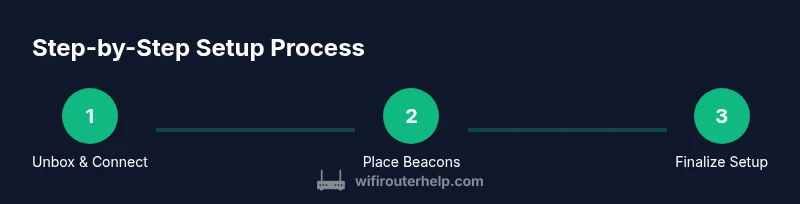
The eero app guides you through device discovery, network naming, and security settings. Start by downloading the app on your phone, creating or signing into your account, and following the prompts to connect the gateway to your modem. After the gateway is online, add beacons in suggested locations and allow the app to optimize channel selection automatically. The app also lets you set a strong network name and password, enable guest networks, and configure parental controls. If you want to visualize coverage before laying out devices, use the app’s signal heat map to identify weak spots and adjust placements accordingly.
Security, guest networks, and parental controls
Security should be a priority in any home network. In the eero app, enable automatic firmware updates, activate firewall protections, and configure a robust password. A guest network keeps visitors isolated from your main network, preserving privacy and security for connected devices. Parental controls let you manage kid-friendly access times and filter content across all devices on the network. WiFi Router Help recommends reviewing these settings during initial setup and revisiting them periodically as your family’s needs evolve. This approach helps maintain a safer, more controllable eero mesh wifi environment.
Performance tuning: speeds, firmware updates, and monitoring
Performance optimization starts with firmware updates, proper beacon placement, and monitoring device connections. The eero app provides real-time speed tests, device bandwidth usage, and health status for all nodes. A common performance improvement comes from ensuring each node has a strong backhaul; if possible, use wired Ethernet connections between the gateway and beacons for maximum stability. Also, consider enabling Quality of Service (QoS) features for devices that demand stable bandwidth, such as gaming consoles and work-from-home setups. Regularly check for interference sources like microwaves or cordless phones and relocate beacons if needed.
Troubleshooting common issues and maintenance
Most issues with eero mesh wifi can be resolved with a few steps: restart the gateway and beacons, verify the modem is online, and re-run the setup process in the app if needed. If devices cannot connect, test with a wired connection to confirm where the fault lies, then inspect position and signal strength using the app’s heat map. Firmware updates should be enabled to fix known bugs and security flaws. Regular maintenance—checking coverage, testing speeds in multiple rooms, and updating settings—helps sustain reliable performance over time. For persistent problems, a factory reset of all devices and a fresh setup often resolves stubborn issues.
Authoritative sources and best practices
For governance and best practices, consult established sources that cover wireless networking, privacy, and security in connected environments. The FCC provides consumer-focused guidance on home networks, while CISA and NIST offer broader security context relevant to connected devices. These references help ensure your eero mesh wifi setup adheres to recognized standards and remains resilient against common threats. Remember to balance performance with privacy by controlling data sharing and keeping devices updated.
Real-world scenarios: apartment, townhouse, and multi-floor homes
In a small apartment, a single gateway with one or two beacons may suffice for solid coverage. In a multi-story home, you’ll likely need multiple beacons on different floors to eliminate dead zones. Consider apartment layouts with thick walls or metal studs, which can attenuate signals. In this scenario, be prepared to experiment with beacon placement, using the eero app’s heat map to guide adjustments. WiFi Router Help notes that most homes benefit from a tailored approach rather than a one-size-fits-all setup. The result is a stable eero mesh wifi experience that supports streaming, gaming, and smart-home devices.
Quick reference and getting the most from your eero mesh wifi
As you implement these steps, keep the goal in mind: reliable, secure coverage throughout your home with a single, easy-to-manage network. The eero system is designed to scale with your space, so you can start small and expand as needed. By following best practices and staying mindful of placement, you’ll enjoy improved signal, fewer interruptions, and a smoother online experience for every family member. The WiFi Router Help team emphasizes practical, tested techniques for real homes, not just theory.
Final thoughts and how WiFi Router Help helps you
The WiFi Router Help team believes in approachable, step-by-step guidance that homeowners and tech enthusiasts can follow without frustration. By focusing on planning, proper placement, and proactive maintenance, you can unlock the full potential of eero mesh wifi. If you’re ready to dive deeper, this guide is your starting point for a reliable, scalable home network that adapts to your needs over time.
Tools & Materials
- eero mesh wifi kit (primary unit + beacons)(Ensure you have enough beacons for your home size; consider future expansion.)
- Modem with active internet connection(Bridge mode may be required if your modem has built-in router features.)
- Ethernet cable (Cat5e or better)(Used to connect the gateway to the modem during initial setup.)
- Smartphone or tablet with the eero app(iOS or Android; ensure you have network access on the device during setup.)
- Notebook or device for room mapping(Helpful for planning beacon placement and coverage map.)
- WiFi analyzer app (optional)(Useful for diagnosing interference and channel usage.)
Steps
Estimated time: 60-90 minutes
- 1
Unbox and prep
Open the kit, verify all components, and confirm you have a modem with a working internet connection. Create a quick room map to plan beacon placement. Keep a notepad handy for notes during setup and avoid placing devices on metal surfaces that can cause interference.
Tip: Take photos of serial numbers and cable labels to speed future troubleshooting. - 2
Connect the gateway to your modem
Power off the modem, connect the gateway’s Ethernet port to the modem, then power on the modem first followed by the gateway. This establishes the primary link for your eero network. Allow a couple of minutes for the gateway to boot and begin broadcasting.
Tip: A wired connection for the initial setup reduces the risk of setup errors. - 3
Install and sign in to the eero app
Download the eero app, sign in or create an account, and follow the on-screen prompts to connect the gateway. The app will scan for devices and guide you through naming your network and setting a strong password. Ensure you grant necessary permissions for location and device configuration.
Tip: Use a device you can access easily on your home network during setup. - 4
Create your network name and password
In the app, name your network and set a strong password. Choose unique, non-identifiable names for each SSID and enable security options offered by the app. This step ensures you have a clean, secure entry point for all devices.
Tip: Use a password with a mix of upper/lowercase letters, numbers, and symbols. - 5
Place the first beacon
Position the gateway centrally in your home, ideally on a shelf about chest-height with minimal obstructions. Avoid placing it behind furniture or inside cabinets where signal can be trapped. Use the app’s heat map to gauge coverage after this initial placement.
Tip: Aim for central placement to maximize initial coverage area. - 6
Add additional beacons for coverage
Install beacons in areas with weak signals, such as far bedrooms or basements. Space them to balance coverage and avoid overcrowding signals in a single location. The app will suggest optimal beacon positions and adjust automatically.
Tip: On multi-floor homes, place beacons on each floor near central hallways. - 7
Update firmware and enable security features
Check for firmware updates in the app and install them. Enable automatic updates to keep your network secure and compatible with new devices. Turn on firewall protections and configure the default security settings.
Tip: Automatic updates reduce the chances of security gaps. - 8
Enable Guest Network and parental controls
Create a separate guest network to keep your main network isolated. Set up parental controls if needed to manage time limits and content access for family devices. Customize access rules per user or device if the app supports it.
Tip: Name the guest network differently from your main network for clarity. - 9
Run a network speed test from multiple areas
Use the app or a trusted speed-testing site to measure performance in key rooms. Compare speeds on various devices to ensure consistent throughput and identify any problem spots that require repositioning a beacon.
Tip: Carry out tests while streaming or gaming to simulate real usage. - 10
Fine-tune device settings and group devices
Assign devices to your preferred groups (e.g., work, gaming, streaming) if supported by the app. This helps in applying QoS rules and prioritizing bandwidth for critical tasks. Adjust any device-specific settings if your network has many connected devices.
Tip: Group devices by usage to optimize performance for important activities. - 11
Set maintenance reminders
Schedule quarterly checks for firmware updates, beacon position, and security settings. Regular checks help sustain peak performance and protect against evolving threats.
Tip: Keep a simple calendar reminder for updates and re-evaluation. - 12
Troubleshooting basics if issues arise
If devices fail to connect, restart the gateway and beacons, verify your modem connection, and re-run setup in the app. Check for interference sources, and relocate beacons if signal strength is inconsistent.
Tip: A factory reset is a last resort; document your settings before doing so.
People Also Ask
What is eero mesh wifi and how does it differ from a traditional router?
Eero mesh wifi uses multiple connected nodes to blanket your home with coverage, reducing dead zones. Unlike a single-router setup, devices roam seamlessly between beacons for consistent performance.
Eero mesh wifi uses multiple beacons to provide seamless coverage across your home instead of relying on one router.
Can I use eero mesh wifi with my current modem?
Yes, as long as your modem has an ethernet WAN port and provides active internet service. The eero sits between the modem and your devices.
Yes, you can use eero with most modems that have an ethernet port.
Do I need an eero Secure subscription for basic wifi?
Basic wifi works without a subscription, but some advanced security features require an optional eero Secure plan.
Basic wifi is free; advanced security features may require a paid plan.
How many beacons do I need for a two-story home?
A typical setup uses one gateway plus 1-3 beacons depending on the floor area. In a two-story home, place beacons on both floors to improve coverage.
For a two-story home, expect two beacons in addition to the main unit.
What should I do if devices won't connect to the eero network?
Restart all eero devices, verify the modem connection, and re-run the setup in the app. Ensure the device is on the correct network and band.
If devices won't connect, reboot and re-run the setup.
Is there a wired backhaul option for eero mesh wifi?
Yes. You can connect beacons with Ethernet cables to create a wired backhaul, which improves stability and speeds in larger homes.
You can use a wired backhaul for better stability.
Watch Video
What to Remember
- Plan coverage with a home map before placing beacons.
- Place beacons strategically to minimize dead zones.
- Enable automatic firmware updates and security features.
- Use guest networks and parental controls for family safety.
- Regularly test speeds and adjust placement as needed.