eero wifi system setup and optimization guide
Learn how to install, configure, and optimize an eero wifi system for reliable mesh coverage across your home, with practical steps, tips, and safety reminders.


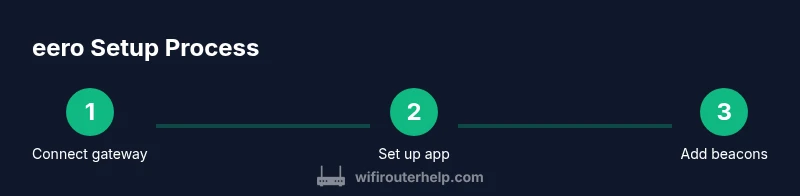
With an eero wifi system, you’ll deploy whole-home coverage by connecting the gateway to your modem, placing beacons in key rooms, and finishing setup in the eero app. You'll configure network names, guest access, and parental controls, then run speed tests and optimize bands. The goal: fast, reliable WiFi with simple, app-driven management.
Understanding the eero wifi system and mesh basics
The eero wifi system is a consumer-friendly mesh networking solution that uses a main gateway plus additional beacons to blanket a home with reliable wireless coverage. Unlike a single-router setup, eero nodes share the same network name and password, dynamically routing traffic to the best path. In practice this means fewer dead zones and a smoother experience when moving between floors or rooms. According to WiFi Router Help, this architecture reduces bottlenecks by distributing the load across multiple radios and simplifying management through a dedicated mobile app. The system supports guest networks, basic device prioritization, and optional security features that can be activated with a subscription. Understanding the core pieces—gateway, beacons, app, and cloud management—helps you plan coverage without overbuilding the network.
Planning your coverage: size, placement, and goals
Before placing devices, map your home layout and identify problem areas such as hallways, stairwells, and rooms far from the modem. Start with the gateway near the ISP connection and then place beacons at midpoints to extend the signal toward far corners. The goal is to achieve even signal strength across common living areas and workspaces, with stronger coverage where you use laptops, streaming devices, or smart home hubs. For multi-story homes, place at least one beacon on each floor and avoid closing doors or mounting behind large metal objects. Use the eero app’s built-in coverage map to visualize dead spots and adjust placement accordingly. WiFi Router Help’s guidance emphasizes starting with essential coverage and then expanding incrementally to avoid overprovisioning.
Getting started: setup in the eero app
Begin by connecting the gateway to your modem with the included Ethernet cable and powering both devices. Download and open the eero app on your phone, then follow the on-screen prompts to create or sign in to your account. The app will guide you through naming your network, setting a strong password, and adding any beacons you own. As you add beacons, place them in the recommended locations and watch the app’s signal indicators. If you run into trouble, use the app’s diagnostics to identify connection or placement issues. The goal is a straightforward, guided setup that you can complete without technical help.
Security, privacy, and parental controls
Configure the guest network separately to keep your main devices secure when visitors are online. Use the app to set a strong primary password, enable encryption, and apply firewall rules if offered by the service. For households with kids or shared devices, enable parental controls and schedule internet access where needed. Regularly review connected devices and remove old items. Keep firmware updated to close vulnerabilities, and consider enabling automatic updates so you won’t miss important security improvements. This section emphasizes practical, user-friendly protections that align with a modern home network.
Performance optimization and troubleshooting
Mesh networks like eero adapt to home layout, but performance can vary with interference, thick walls, and device density. Use the eero app to run speed tests from different rooms and adjust beacon placement based on signal strength. If you notice slowdowns, try relocating a beacon or enabling band steering to encourage older devices to use the less congested band. Check for firmware updates and reboot the gateway if devices repeatedly drop connections. The section shows how you can diagnose issues without specialized tools.
Common pitfalls and how to avoid them
Don't rely on a single beacon to cover a large, multi-story home. Avoid placing beacons behind furniture, inside cabinets, or near large metal appliances. Keep devices away from microwaves and cordless phones, which can cause interference. For best results, perform setup in a quiet environment and give the system time to stabilize after first boot. If problems persist, contact support with your gateway’s serial number and a description of the rooms affected.
Verdict: practical best practices for long-term use
The WiFi Router Help team recommends a measured approach: start with a solid baseline (gateway plus a couple of beacons) and expand only as needed to cover real problem areas. In our assessment, the eero system excels at simple setup, intuitive app-driven management, and reliable performance for most homes. For households with stricter security or privacy requirements, weigh the value of an optional subscription to access more advanced features. WiFi Router Help’s verdict is that most homeowners will benefit from a scalable, maintainable mesh network that can grow with their home.
Authoritative sources
- FCC: https://www.fcc.gov/consumers/guides/wi-fi-security
- NIST: https://www.nist.gov/topics/wireless-network-security
- FTC: https://www.consumer.ftc.gov/articles/0014-wi-fi-security
Tools & Materials
- eero gateway device(One unit (the primary router))
- eero beacons(Add additional beacons for coverage)
- Modem with active internet connection(Connected to your ISP)
- Smartphone or tablet with the eero app(iOS or Android)
- Ethernet cable(For initial gateway connection, if available)
- Power outlets(Near installation spots)
- Optional: Ethernet backhaul cable(If you have wired backhaul in your home)
- Notebook or device to record network names(Optional)
Steps
Estimated time: 30-60 minutes
- 1
Connect the gateway to the modem
Power off your modem, then connect the eero gateway to the modem using the included Ethernet cable. This establishes a single path to the internet for all connected devices. Power on the modem after the gateway is connected to ensure a clean handshake between devices.
Tip: If you have a combo modem, unplug and plug back in after 30 seconds to reset the connection. - 2
Power up and install the app
Plug in the gateway and open the eero app. Create or sign in to your account and follow the on-screen prompts to begin setup. The app will guide you through basic security steps and network naming.
Tip: Keep your phone close to the gateway during setup to ensure a smooth connection. - 3
Create your network name and password
In the app, set a unique network name (SSID) and a strong password. For security, enable WPA2/WPA3 if available and consider separating guest and main networks for guests.
Tip: Use a mix of upper/lowercase letters, numbers, and symbols for a robust password. - 4
Add beacons to extend coverage
Place beacons at midpoints between the gateway and far rooms to extend signal efficiently. Avoid obstructions like thick walls or metal appliances that can block radio waves.
Tip: Leave at least 6-10 feet of clearance from walls and large metal objects. - 5
Run network tests and optimize
Once devices connect, run speed tests in the app from multiple rooms to gauge performance. Reposition beacons as needed based on signal strength indicators.
Tip: If a room shows weak signal, try moving a beacon slightly closer to the center of that space. - 6
Enable security features and guest networks
Set up a guest network to protect your main devices and configure any available parental controls. Review connected devices and revoke old access as needed.
Tip: Use a strong, unique password for the guest network and enable automatic firmware updates. - 7
Fine-tune for performance
Check for interference sources (neighbor networks, microwaves) and enable features like band steering where offered. Let the system stabilize for 24–48 hours before making further changes.
Tip: Avoid changing too many settings at once; small adjustments reduce confusion. - 8
Maintenance and ongoing setup
Keep firmware up to date and periodically re-check coverage maps in the app. If you move houses or remodel, re-evaluate beacon placement.
Tip: Document your gateway and beacon serial numbers for future support.
People Also Ask
What is the difference between the eero gateway and beacons?
The gateway is the main device that connects to your modem, while beacons extend coverage to reach distant rooms. Beacons rely on the gateway and other beacons to route traffic, creating a mesh network that reduces dead zones.
The gateway connects to your modem, and beacons extend coverage across your home to create a mesh network.
Can I use the eero system with my existing modem?
Most modems work with eero, but you may need to enable bridge mode on the modem if you want the eero system to manage the network. Check your ISP documentation for compatibility.
Yes, you can usually use eero with your current modem; you may need to enable bridge mode on the modem.
Do I need a subscription for advanced features?
Basic network features are included without a subscription. Advanced security and device management options may require an optional subscription, depending on the features you want.
Basic features work without a subscription; some advanced security options may require one.
Where should I place beacons for best coverage?
Place beacons in central locations away from large obstacles, preferably on different floors to minimize dead zones. Use the app’s coverage map to guide placement.
Put beacons in central spots on each floor and check the coverage map in the app.
How do I troubleshoot if devices keep dropping connection?
Run a quick diagnostics in the app, check beacon signal strength, restart the gateway, and confirm firmware is up to date. If issues persist, re-check placement and consider adding another beacon.
Use the app diagnostics, verify signal strength, and reboot the gateway; add a beacon if needed.
How often should I update the firmware?
Allow automatic updates if possible, or check manually every few months to ensure devices have the latest security fixes and performance improvements.
Keep firmware updated for security and performance.
Watch Video
What to Remember
- Plan coverage before placement
- Use the app to guide setup and management
- Enable security features and keep firmware updated
- Extend coverage with beacons to eliminate dead zones