eero Pro Setup and Optimization Guide for Home WiFi
A comprehensive, step-by-step guide to setting up and optimizing the eero Pro mesh WiFi system for reliable home coverage without the confusion of traditional routers.


In this guide you will learn how to set up and optimize the eero pro mesh WiFi system for reliable home coverage. You’ll need your modem, at least one eero Pro unit, a smartphone with the eero app, and an active internet connection. Follow the step-by-step process to maximize speed, reduce dead zones, and keep devices secured.
What is eero Pro?
The eero Pro is a premium mesh WiFi router from eero that expands coverage across homes with multiple units. It uses a mesh topology to provide seamless roaming so devices connect to the strongest signal as you move through rooms. In practice, you place one primary unit near your modem and add satellite units to extend coverage. The goal is to eliminate WiFi dead zones and simplify management with the eero app. According to WiFi Router Help, the eero Pro family is designed for plug-and-play setup and automatic updates, which minimizes manual configuration. When you first set up, you’ll create a network name (SSID) and a password; the app handles device detection, parental controls, and basic security settings. The system can support guest networks and family profiles, which helps keep primary devices on the main network while guests connect safely. The hardware is designed to be quiet and unobtrusive, blending with typical home décor. While the device is straightforward, understanding the basics of mesh networks helps you position satellites effectively, especially in multi-room homes. Overall, eero Pro aims to deliver consistent performance with minimal hands-on tuning.
Why choose an eero Pro for your home network?
Choosing an eero Pro for your home network offers several practical benefits that align with a modern, connected lifestyle. First, its mesh design spreads WiFi coverage evenly, reducing dead zones in living rooms, bedrooms, and home offices. The system automatically routes traffic to the strongest node, improving reliability when you move around the house with laptops, phones, or smart devices. Second, the setup is intentionally straightforward: a single app guides installation, device naming, parental controls, and guest networks, which helps families manage access without specialized networking knowledge. Third, automatic firmware updates help keep security features current without manual intervention, reducing the risk of vulnerabilities over time. Fourth, the product family supports scalability; as your home or device needs change, you can add satellites without reconfiguring the entire network. Finally, the focus on user privacy and simple guest access makes it easy to share WiFi with visitors while keeping your main network protected. In practice, these elements translate into fewer calls for tech support and more reliable streaming, gaming, and smart-home operation.
Tools & Materials
- eero Pro unit(s)(One primary unit and optional satellites for larger homes)
- ISP-provided modem(Connects to the WAN port; avoid double NAT by using bridge mode if needed)
- Smartphone or tablet with the eero app(iOS or Android; ensure app is up to date)
- Ethernet cable(Used to wire the primary unit to the modem during setup)
- Power adapters(Power supplies for each eero Pro unit; use surge protection)
- Optional: additional eero Pro satellites(Place in far corners to extend coverage)
Steps
Estimated time: 60-90 minutes
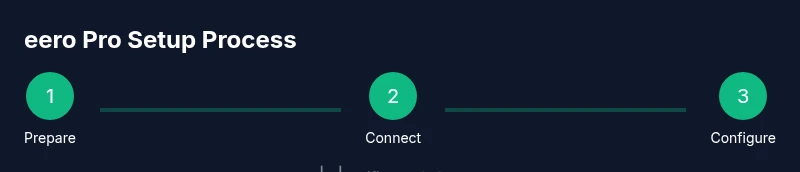
- 1
Prepare your gear and prerequisites
Gather the eero Pro unit(s), modem, and a device with the eero app installed. Confirm you have an active internet connection and a clear space near the modem for the primary unit. If you plan to add satellites, map out where you’ll place them for best coverage.
Tip: Have the space around the modem clear of clutter to improve airflow and heat management. - 2
Connect the primary eero Pro to the modem
Power off your modem, connect the primary eero Pro to the modem using an Ethernet cable, then power both devices back on. Wait for the eero light indicators to signal that the device is ready. This establishes the network’s root node.
Tip: If the modem has a built-in router, consider placing it in bridge mode or using the eero as the main router. - 3
Install and open the eero app to start setup
Open the eero app and sign in or create an account. The app will guide you through naming your network and creating a password. You’ll be prompted to place additional satellites if you have them.
Tip: Allow the app to scan for updates during setup for optimal performance. - 4
Add extra eero Pro units if needed
If you have satellites, place them in locations that balance coverage with distance from the main unit. The app will help you test signal strength and adjust placement as needed. Completing this step yields a true mesh network.
Tip: Aim for even spacing between nodes, avoiding dead zones in commonly used rooms. - 5
Name your network and set a strong password
Choose a unique SSID and a strong, memorable password. Consider enabling a guest network for visitors so that guests don’t access your main devices. Save settings and allow devices to reconnect.
Tip: Use a password manager to store WiFi credentials securely. - 6
Update firmware and optimize settings
Check for and install firmware updates via the app. Review security settings, enable firewall features, and ensure devices are set to receive automatic updates. Tweak QoS or device prioritization only if you notice consistent bottlenecks.
Tip: Firmware updates often include security patches—don’t delay. - 7
Test coverage and performance across your home
Walk through your home with a connected device to test speed and reliability in key areas like the living room, bedrooms, and home office. If signals are weak, move satellites or add another unit as needed. Re-test until coverage is even.
Tip: Keep track of slow spots and adjust satellite placement accordingly. - 8
Finalize and monitor over time
Document your network name and password, and keep the app installed for ongoing monitoring. Periodically re-check coverage and updates to maintain peak performance.
Tip: Schedule a quarterly quick check to ensure everything runs smoothly.
People Also Ask
How many eero Pro units do I need for a two-story home?
A two-story home commonly benefits from 2-3 nodes, with one main unit and one or two satellites placed strategically to cover stairs and distant rooms. The exact number depends on floor plan and walls. Start with the minimum and add satellites as needed based on real-world testing.
For a two-story home, start with two units and add more if you notice coverage gaps.
Can I replace my existing router with eero Pro?
Yes, eero Pro can replace a separate router, but you may need to configure bridge mode on your modem or disable its built-in router to avoid double NAT. The app guides you through the recommended setup path for a clean mesh network.
Yes, but you might need to adjust bridge mode on your modem to avoid double NAT.
How do I reset an eero Pro device?
Resetting returns the unit to factory settings. Use a paperclip to press and hold the reset button for about 15 seconds until the light changes. After reset, run setup again in the app to rejoin the network.
To reset, press the reset button with a pin for about 15 seconds, then set up again in the app.
Does eero Pro support a guest network?
Yes, eero Pro supports a guest network that provides internet access without exposing your main network or devices. You can customize the guest network name and password in the app and set time-based access if needed.
Yes—there’s a guest network you can customize for visitors.
What should I do if performance is slow even after setup?
First, confirm firmware is up to date. Check satellite placement and ensure there are no large metal obstacles. Run the built-in speed test and consider adding another satellite if coverage is uneven.
Update firmware, re-check satellite placement, and test with a speed check.
Is eero Pro secure by default?
Eero Pro includes basic security features and regular updates. Enable automatic updates, review connected devices regularly, and use a separate guest network to keep main devices protected.
Yes, with automatic updates and regular device reviews, your network stays protected.
Watch Video
What to Remember
- Position eero Pro units for even coverage
- Use the app for updates and management
- Enable a guest network for visitors
- Avoid double NAT by understanding your modem setup