eero 6 Setup & Optimization Guide
Master setup, optimization, and troubleshooting for eero 6 with clear, step-by-step guidance to improve coverage, speed, and reliability at home.


Goal: set up an eero 6 mesh network and optimize WiFi coverage while preparing quick troubleshooting steps for common home network issues. You’ll need the eero 6 device(s), a broadband modem, a stable internet connection, and the latest version of the eero app. According to WiFi Router Help, starting with a clean modem reboot and updating firmware yields the best reliability.
What is eero 6 and why it matters
According to WiFi Router Help, the eero 6 is a consumer-grade mesh WiFi system designed to blanket homes with reliable wireless coverage. It leverages Wi-Fi 6 (802.11ax) to improve throughput when many devices are active, and uses multiple nodes to create a seamless network across rooms. For homeowners, this means fewer dead zones, simpler network management, and consistent speeds for streaming, gaming, and smart-home devices. In practice, eero 6 shines when you place a primary unit near your modem and add satellites to extend coverage to bedrooms, basements, and backyards. The WiFi Router Help team found that the system's auto-configuration and user-friendly app are major advantages for non-technical users, though savvy users can fine-tune settings for specific layouts. When evaluating any mesh system, consider your home’s size, wall materials, and the location of high‑bandwidth devices; eero 6 offers a balanced option for many households.
Key features of the eero 6 that affect home networks
The eero 6 supports Wi‑Fi 6, which helps multiple devices like phones, laptops, smart speakers, and cameras operate more smoothly at once. The mesh approach reduces dead zones and makes roaming between rooms feel seamless. In addition, the eero app provides simple setup, guest networks, parental controls, and automatic updates. WiFi Router Help analysis shows that auto‑configuration and adaptive path selection simplify day-to-day maintenance, while real-world performance depends on device placement and interference. For homes with thick walls or many floors, adding at least one satellite can drastically improve coverage, especially in far corners of the house.
Planning your deployment: placement and network design
A thoughtful deployment starts with mapping your home’s layout and noting high‑bandwidth zones (living rooms, home offices, and media rooms). Position the primary eero unit near the modem, away from large metal appliances, microwaves, and direct heat sources. Place additional nodes in open spaces about 1–2 rooms apart to balance signal strength and backhaul. Avoid stacking units on shelves behind doors or inside cabinets, which can trap signals. Label networks clearly so devices connect to the intended SSID, and consider a dedicated guest network for visitors. WiFi Router Help’s guidance emphasizes keeping the main router centralized to maximize coverage and reduce hop count across floors.
Getting started with the eero 6 app
Begin by installing the eero app on a smartphone or tablet. Create or sign in to your account, then connect the primary unit to the modem with the included Ethernet cable. The app will guide you through naming your network, choosing a strong password, and configuring security settings like WPA3 when available. Add satellites by plugging them in and following in‑app prompts to extend coverage. After installation, run a quick in‑home test to ensure devices in distant rooms receive adequate speeds. The ease of use is one of eero’s strongest selling points for homeowners.
Optimizing coverage and performance: best practices
After setup, walk your home with a connected device to gauge signal strength. Use the eero app’s signal indicators to move satellites until you see solid bars in every key room. For interference‑prone environments, let the router pick the best channel automatically, or switch to a non‑overlapping channel manually if you observe slowdowns. Keep firmware updated, which improves security and stability. If you add more devices or new smart‑home hubs, consider reorganizing the network name or guest access to keep main devices on the fastest path.
Security, guests, and parental controls
Enable a strong admin password and consider enabling WPA3 on supported devices for stronger protection. Use the guest network feature to isolate visitors from your main network, preserving privacy and speed for household devices. Parental controls can help manage screen time and content. Regularly review connected devices in the app so you know what’s on your network. These measures help maintain a safe, high‑performance home network, especially in households with many smart devices.
Troubleshooting common issues
If devices report weak signal in certain rooms, try repositioning satellites and avoiding obstructions like thick walls or metal furniture. Ensure the primary unit has a stable connection to the modem and that the firmware is current. A simple modem reboot and rebooting the eero units can resolve many temporary glitches. If issues persist, check that the device firmware is up to date and test with a wired device to isolate wireless vs. hardware problems. Users should also verify that the router is in bridge mode when using another router in the network to avoid double NAT. The WiFi Router Help team recommends taking deliberate, small adjustment steps and testing impact before moving another unit.
Maintenance, updates, and ongoing care
Regular firmware updates are essential for security and performance. The eero 6 system updates automatically, but you can trigger checks in the app. Periodically review connected devices and adjust your security settings as new features arrive. For larger homes or evolving needs, consider expanding with additional eero units and revisiting placement if you notice coverage gaps. The WiFi Router Help team recommends this proactive maintenance approach to sustain reliable home WiFi over time.
Authority sources
- FCC: https://www.fcc.gov
- NIST: https://www.nist.gov
- CISA: https://www.cisa.gov
Tools & Materials
- eero 6 device(s)(One or more units depending on coverage area)
- Broadband modem(Connected to ISP; ensure you can access the admin page)
- Ethernet cable(Cat5e or better for backhaul to the primary unit)
- Smartphone or tablet with the eero app(iOS/Android, internet access required)
- Stable power outlets near each unit(Avoid power strips if possible)
- Basic network information (SSID/password)(Your current network names and passwords; optional if starting fresh)
- Optional: spare Ethernet cables(For future backhauls or wired devices)
Steps
Estimated time: 30-45 minutes
- 1
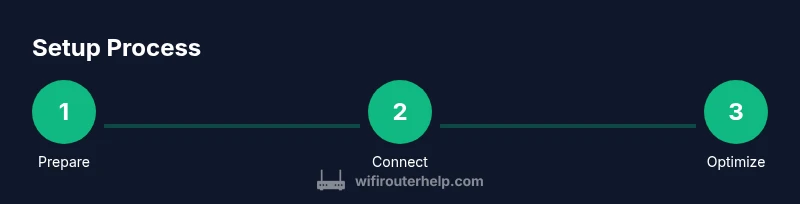
Prepare your modem and internet connection
Power cycle your modem and verify your internet service is active before adding any eero device. This ensures the primary unit can obtain an IP address and initialize properly.
Tip: Do a quick check with a wired device to confirm internet access before wiring the eero. - 2
Connect the primary eero to the modem
Plug the primary eero’s Ethernet port into the modem using the supplied cable. Wait for the LED to indicate a stable link (blue/white depending on model).
Tip: Keep the primary unit within line of sight of the modem for the initial setup. - 3
Set up the network in the app
Open the eero app, create or sign in to your account, and follow prompts to name your network and set a strong password. Select security options like WPA3 if available.
Tip: Use a unique, long password and disable default guest networks if you don’t need them yet. - 4
Add additional eero units for coverage
Plug in satellites in open spaces and follow in-app prompts to extend the mesh. Aim for balanced signal so devices move seamlessly across rooms.
Tip: Place satellites 1–2 rooms apart rather than stacking them in one location. - 5
Test coverage and adjust placement
Run the app’s in-home speed tests and check signal in far corners of the house. Reposition units as needed to improve weak areas.
Tip: Focus on critical zones like bedrooms and home offices first. - 6
Enable security features and save settings
Review security options in the app, enable WPA3 if supported, and set up a guest network for visitors. Regularly update firmware.
Tip: Keep the admin password fresh and rotate it periodically.
People Also Ask
What is the eero 6 and what does it do?
The eero 6 is a WiFi 6 mesh router that creates a seamless home network by using multiple nodes to extend coverage. It aims to improve speed and reliability for many devices across a typical house.
The eero 6 is a WiFi 6 mesh router that helps you get strong, reliable coverage throughout your home.
Can eero 6 work with my existing modem?
Yes. Connect the primary eero to your modem’s WAN port and use bridge mode if you have a separate router from your ISP to avoid double NAT.
Yes, you can use eero 6 with most modems. Just connect the main unit to the modem and consider bridge mode if you have another router.
How many devices can eero 6 support?
eero 6 scales with your network size. Real-world results depend on your internet plan and traffic; expect smooth performance with typical households and multiple smart devices.
It scales with your home, but capacity depends on speed and usage.
Do I need a subscription for features?
Basic setup, guest network, and some parental controls are available without a paid subscription. Premium features are part of eero Secure+.
Some features are free; premium options require a subscription.
What is the best placement for eero units?
Place the primary unit near the center of the home and satellites in open spaces about 1–2 rooms apart for balanced coverage.
Center the main unit and place satellites a short distance away for best coverage.
How do I reset the eero 6?
To factory reset, hold the reset button until the LED blinks. Reconfigure from scratch using the eero app.
Hold the reset button until the light blinks, then set it up again in the app.
Watch Video
What to Remember
- Place eero units strategically for even coverage.
- Keep firmware updated for security and performance.
- Use guest networks to protect main devices.
- Enable WPA3 where possible and review connected devices.