eero Router Set Up: Complete Step-By-Step Guide
Learn how to set up your eero router with a clear, step-by-step guide. This article covers modem connections, app-based configuration, adding satellites, securing your network, and troubleshooting.


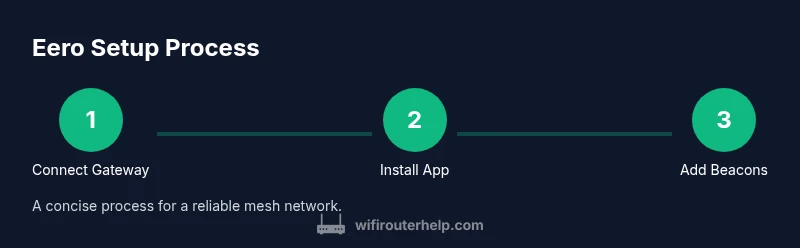
Set up an eero router by connecting the gateway to your modem, installing the app, creating or signing into your account, adding satellites if needed, naming your network, and setting a strong password. The full process typically takes about 25-40 minutes and establishes a fast, reliable mesh Wi‑Fi system.
Why eero for Home Wi-Fi
According to WiFi Router Help, a well-designed mesh system like eero can simplify coverage across multiple rooms by automatically routing traffic to the strongest signal. This makes streaming, gaming, and video calls more reliable, especially in larger homes. In this guide we focus on practical, hands-on setup steps that homeowners and tech enthusiasts can perform without specialized equipment. You will learn how to maximize coverage, optimize performance, and keep your network secure from day one. Think of eero as a scalable backbone for a modern home network, where each beacon or satellite acts as a relay to deliver consistent speeds in every corner of your space. By prioritizing placement and updates, you reduce dead zones and frustrating disconnects for devices like work laptops, smart TVs, and mobile devices.
The guidance below emphasizes actionable steps, not theory alone. You will finish with a tangible, functioning network and a clear plan for maintaining peak performance as your home grows and your family adds more devices.
What You Need Before You Start
Before you dive into setup, gather a few essentials to avoid interruptions. You’ll need your modem, the eero gateway, one or more satellite beacons if you have a larger home, a smartphone or tablet with the eero app installed, and a stable power outlet. Have a pen and paper handy to record your network name and password. A wired Ethernet connection between the modem and gateway typically yields the most reliable results and speeds. If you are upgrading from a prior router, consider keeping the old router on a separate network temporarily to compare performance during the transition. A quiet, distraction-free setup environment helps you follow prompts without mistakes and reduces the chance of misnaming your network.
Quick Reference: What the eero App Does
The eero app guides you through every major step from creating an account to naming your network and adding satellites. It performs basic network checks, helps place beacons, and provides real-time feedback on signal strength. Using the app also makes it easier to update firmware and apply security settings. If you are unsure about a feature, the app explains what it does in plain language, helping you avoid overcomplication. The app also centralizes device management, so you can see who is connected and adjust access remotely. By enabling notifications, you stay informed about updates and potential issues without actively monitoring the dashboard.
Step-by-Step Setup Overview
The setup workflow is straightforward: connect the gateway to the modem, install the app, sign in or create an account, follow on-screen prompts to configure your network, and optionally add satellite beacons. After your network is created, you can fine-tune placement, then run a speed test to verify performance. Advanced users can enable guest access, parental controls, and device prioritization if desired. For most homes, a single gateway plus one or two satellites balances performance and cost. If you move, you can reconfigure quickly and re-optimize beacon placement to adapt to your new floor plan.
Positioning Beacons for Best Coverage
Mesh systems thrive when beacons are placed thoughtfully. Start by locating the gateway near the modem and central areas of your home. Avoid thick walls and large metal objects that can block signals. Place beacons in open areas on different floors, ideally within a 20–30 meter line of sight of the gateway. If you notice weak spots, move a beacon just a few feet until you see stronger signal indicators in the app. Keep beacons away from devices that emit heat or heavy interference, such as microwave ovens or cordless phones, to maintain stable performance.
Security and Privacy Best Practices
Protect your home network by choosing a strong, unique password and enabling the guest network for visitors. Keep firmware updated automatically so you benefit from security patches. Disable default admin accounts and review connected devices in the app regularly. Consider enabling features like device-level access controls to limit what each device can do on your network. Regularly rotating passwords and auditing connected devices reduces the risk of unauthorized access. If you use smart home hubs, configure them with dedicated profiles to minimize cross-device exposure and maintain privacy.
Troubleshooting Common Setup Issues
If the app cant find the gateway, first ensure the gateway is powered and connected to the modem with a working Ethernet cable. Restart the modem, gateway, and your phone, then re-run the setup in the app. If you still have problems, try a soft reset by holding the reset button for 5–10 seconds and reattempting the setup. Check for indicator lights as visual clues to status. If the gateway accepts the setup but speeds are inconsistent, verify that you have placed beacons effectively and consider moving them closer to areas with weaker coverage. If your internet service requires an authentication step, ensure your ISP credentials are current and that your modem is properly bridged to the eero network.
Maintenance, Updates, and Final Checks
Once your eero network is up, enable automatic firmware updates and run a quick speed test from multiple rooms to confirm coverage. Reposition beacons if needed to fill any gaps and recheck internet speed during peak usage times. Keeping a simple log of changes (names, passwords, device additions) helps you troubleshoot quickly in the future. Plan periodic checks every few months to ensure firmware stays current and that your network settings align with evolving security practices. A proactive approach reduces surprises during important video calls or streaming sessions.
Tools & Materials
- eero router (gateway)(Unbox and inspect for any damage)
- Modem(Ensure modem is provisioned by ISP)
- Ethernet cable(Connect gateway to modem)
- Smartphone or tablet with internet(Install the eero app from App Store/Play Store)
- Power outlet or surge protector(Provide reliable power for router)
- Pen and paper(Record network name and password)
Steps
Estimated time: 30-40 minutes
- 1
Unbox and connect gateway
Unbox the gateway and connect it to your modem using an Ethernet cable. Plug in the gateway and wait for the LED to indicate it is ready to configure.
Tip: Use a dedicated Ethernet port on the modem for best reliability - 2
Install the eero app and sign in
Download the eero app and sign in with an existing account or create a new one. The app will guide you through the initial setup and provide on-screen instructions.
Tip: Enable notifications so you don’t miss setup prompts - 3
Follow in-app prompts to configure network
In the app, name your network and set a strong password. Choose the security settings you want and enable auto updates for firmware.
Tip: Choose a memorable but unique network name and a strong password - 4
Add satellites/beacons if needed
If your home is large or has dead spots, add one or more beacons. Place them in central locations away from obstacles to extend coverage.
Tip: Aim beacons midway between the gateway and coverage gaps - 5
Test coverage and performance
Run a quick speed test in several rooms using a wired or wireless device to verify consistency. Adjust placement if speeds drop noticeably.
Tip: Look for consistent results across 2.4 GHz and 5 GHz bands - 6
Enable security features
Turn on features like guest network and device access controls, and review connected devices in the app.
Tip: Limit access for guest devices and regularly review connections - 7
Keep firmware up to date
Let the app automatically update firmware to ensure you have the latest security fixes and performance improvements.
Tip: Do not interrupt updates; allow the device to reboot if required
People Also Ask
What is the first step to set up an eero router?
The first step is connecting the gateway to your modem with an Ethernet cable and powering it on. Then open the eero app to begin configuration.
Connect the gateway to your modem with Ethernet, power it on, and start the eero app setup.
Do I need a separate modem with eero?
Yes, you need a compatible modem from your ISP. The eero works with most cable and DSL modems. Check with your ISP if you’re unsure.
Yes, you still need a modem from your ISP.
Can I extend coverage with beacons?
Yes, add beacons to reach hard-to-cover areas. Place beacons in central locations away from large walls to maximize signal.
Beacons can extend coverage; place them to cover weak spots.
How secure is my eero network?
Use a strong password, enable the guest network for visitors, and keep firmware updated to protect against threats.
Set a strong password and keep firmware updated to stay secure.
What if the app can’t find the gateway?
Restart the gateway, modem, and phone. Ensure your phone is connected to the correct network, then re-run setup in the app.
Restart devices and try again with the app.
Watch Video
What to Remember
- Run the app-based setup to configure network name and password
- Place beacons strategically for optimal coverage
- Enable automatic firmware updates for security
- Test speeds in multiple rooms after setup
- Secure your network with a strong password and guest access