How to Set Up and Optimize a D-Link Wifi Extender
Learn how to install, place, and optimize a D-Link wifi extender to boost home Wi-Fi coverage. Step-by-step setup, placement tips, and troubleshooting from WiFi Router Help.


By the end you will successfully extend your home Wi-Fi using a D-Link wifi extender, improve coverage, and reduce dead zones. You’ll need a working router, a powered extender, and access to your router’s admin page. The WiFi Router Help team found that most homes benefit from placing the extender halfway between the router and weak zones, with minimal interference.
Why a D-Link wifi extender matters
If your home has dead zones or thick walls, a D-Link wifi extender can be a practical solution to extend coverage without wiring. A typical home with multiple stories benefits from a device that receives a stable signal from the router and rebroadcasts it to farther rooms. With a D-Link wifi extender in your toolkit, you can often achieve more even speeds and fewer dropouts in living rooms, home offices, and bedrooms. The approach is to place the extender where it can hear the router but still serve the far corners of your home. Remember that performance depends on the underlying router, the building layout, and interference from neighbors' networks or devices like microwaves. For homeowners new to this setup, this guide explains the steps in clear, actionable terms so you can get reliable results.
Understanding your coverage goals and measurements
Before buying or placing an extender, map your current Wi‑Fi experience. Use a smartphone to walk through your home and note where the signal drops below acceptable levels. Consider each floor, thick walls, and distances from the router. A D-Link wifi extender works best when you can set a target coverage radius and verify it with simple tests like streaming a video or joining a video call in rooms far from the main router. Keep expectations realistic: extenders boost existing signals, they do not magically create new speed. By defining zones of strong, acceptable, and weak coverage, you can decide where to place the device and how to fine‑tune the network for reliability.
Placement strategies to maximize performance
Placement is the single most important lever for a D-Link wifi extender. Start by positioning the device roughly halfway between your router and the farthest rooms with usable signal, ideally a higher shelf away from metal obstructions and appliances. Avoid placing it behind a couch, inside a cabinet, or near a microwave, which can degrade the signal. If you have a two‑story home, try ceiling height placement or on a hallway wall where the extender has line‑of‑sight to both floors. For many layouts, a two‑step approach works: first verify basic coverage with a phone test, then adjust to minimize dead spots while keeping the router within reasonable range. A little experimentation goes a long way with the d link wifi extender.
Choosing the right D-Link model for your home
D-Link offers a range of extenders designed for different homes and budgets. For small apartments, a basic dual‑band model with one Ethernet port often suffices. For larger houses or devices that demand steadier throughput, consider a higher‑capacity model with stronger antennas and, if possible, multiple Ethernet outputs. When evaluating options, focus on coverage area, support for 2.4 GHz and 5 GHz bands, and the availability of a dedicated backhaul option. Remember: your router’s capabilities and the physical layout of your home ultimately drive extender performance more than the price tag alone. A well‑matched D-Link wifi extender can be a cost‑effective way to close gaps without a full mesh system.
Step-by-step setup: power and initial connection
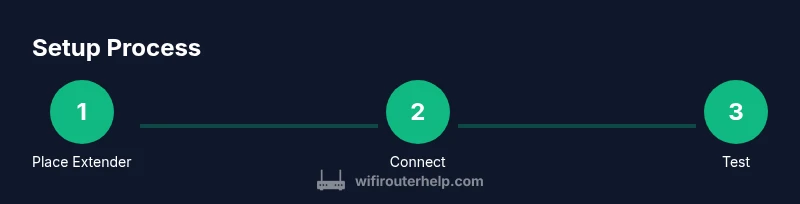
- Place the extender near a power outlet and in view of the router. Plug it in and wait for the power indicator to show a stable light, which confirms the device is booted. 2) On your phone or computer, scan for the extender’s default network name and connect to it. 3) Open a browser or the D-Link app and follow on‑screen prompts to begin the configuration; the screen will show the extender's default address and login steps. 4) If prompted, choose to connect to your existing router’s network. 5) Save any prompts and move to test the extended network in nearby rooms.
Step-by-step setup: configuring network name and password
- After the initial connection, configure the extended network name (SSID) and a strong password. Consider using a distinct SSID for the extender while keeping your main network name if you want clear separation, or use the same SSID for seamless roaming if supported by your devices. 7) Select the appropriate security mode, preferably WPA2‑AES or WPA3‑AES if available. 8) Ensure you save the settings and reboot the extender if required. 9) Reconnect your devices to the new network and verify that streaming, video calls, and gaming devices see improved performance in previously weak areas.
Configuring advanced features for better performance
Advanced options can help tailor performance to your home. Enable dual‑band operation and ensure both 2.4 GHz and 5 GHz bands are active. If your extender supports an isolated guest network, consider enabling it for visitors while keeping your main network secure. Adjust the transmit power if you see the extender’s signal saturating walls or leaving rooms in shadow. Turn off WPS for security, and enable automatic firmware updates if available. Finally, consider creating a fixed backhaul where the extender uses a wired Ethernet connection to the router when possible to maximize stability in high‑demand scenarios.
Troubleshooting common issues
If the extender isn’t showing up on your network, restart both devices and re‑run the setup flow. If performance is weak, try repositioning the extender to a spot with better line‑of‑sight to the router, while still covering the target rooms. Check for interference from neighbor networks and move away from microwaves or wireless speakers. Ensure firmware is up to date and that the extender is using the correct security protocol. If you still have problems, consult the model’s troubleshooting guide for specific indicators and LED color codes.
Security and maintenance tips
Keep security strong by updating firmware regularly and changing default credentials. Disable WPS if it’s not needed, and enable automatic updates if the device supports it. Periodically verify that the extended network is functioning as intended and re‑test coverage after any major home changes, like new devices or rearranged furniture. Document the network names and passwords in a safe place to avoid confusion during future updates. Regular maintenance helps ensure long‑term reliability with your d link wifi extender.
Tools & Materials
- D-Link wifi extender(Ensure it is powered and within range of your router during setup.)
- Router with active internet connection(You’ll need a working network to pair the extender.)
- Smartphone, tablet, or computer(Used to access the setup interface (browser or app).)
- Ethernet cable(Helpful for initial wired configuration if supported by the model.)
- Power outlet near extender location(Ensure a stable power source.)
- Paper and pen or notes(Record network names and passwords.)
- Web browser or D-Link app(Used to access the extender setup.)
Steps
Estimated time: 45-60 minutes
- 1
Plug in the extender
Place the extender near a power outlet and plug it in. Wait for the power indicator to become stable, signaling that the device is powered on. This establishes a reference point for the rest of the setup.
Tip: If the LED is dim, try a different outlet closer to the router. - 2
Connect to the extender's default network
Using a smartphone or computer, connect to the extender’s default network name (SSID). This creates the initial bridge between your device and the extender for configuration.
Tip: Turn off mobile data to prevent interference during the initial connection. - 3
Open the setup interface
Open a browser or the D-Link app and follow the prompts to locate the extender’s setup screen. The device will display its default address or a local URL to access configuration pages.
Tip: Have the extender’s manual handy in case the default address differs. - 4
Connect extender to your router
Scan for your existing Wi‑Fi network and select it to bridge the extender. Enter your router’s Wi‑Fi password if prompted. This step links the extender to your home network.
Tip: If your router uses a guest network, avoid bridging through it unless you intend separate access. - 5
Configure the extended network
Set the extended network name (SSID) and a strong password. Decide whether to use a separate SSID from your main network or to unify them if your devices support seamless roaming.
Tip: Create a memorable but unique SSID for easy identification. - 6
Choose security and save
Select WPA2‑AES or WPA3‑AES for security. Save the settings and allow the extender to reboot if required. This helps protect your home network from unauthorized access.
Tip: Avoid leaving WPS enabled to reduce risk of unauthorized access. - 7
Test the extended coverage
Reconnect devices to the extended network and test streaming, video calls, and gaming in rooms that previously suffered weak signals. Confirm consistent performance across different walls and floors.
Tip: Run a quick speed test in multiple rooms to validate the improvement. - 8
Optimize channels and backhaul
Check if the extender supports automatic channel selection; enable it if possible. If you have a wired backhaul option, connect the extender via Ethernet to improve stability.
Tip: Use the 2.4 GHz band for longer reach and switch to 5 GHz for high‑speed devices when near the extender. - 9
Secure and update
Update firmware to the latest version and review admin credentials. Schedule periodic checks for updates to maintain security and performance.
Tip: If an update fails, retry after a few minutes and verify your internet connection.
People Also Ask
Is a D-Link wifi extender compatible with all routers?
In most cases, extenders work with most routers since they connect to the existing network. If you run into issues, consult the extender’s compatibility guide.
Most routers work with D-Link extenders; check compatibility if you encounter issues.
Do I need to reset my network or extender during setup?
Usually you don’t need a full reset. If you run into problems, reboot both the router and extender and retry the setup.
Normally no reset is needed; reboot and retry if issues appear.
What is the difference between a wifi extender and a mesh system?
A wifi extender repeats the existing signal, while a mesh system uses multiple nodes for seamless roaming. Extenders are typically cheaper but may not feel as seamless as mesh.
Extenders repeat signals; mesh gives seamless roaming but costs more.
Why is the extender showing weak signal in some rooms?
Common causes are distance, walls, interference, and outlet placement. Reposition the extender and adjust channels if needed.
Distance, walls, and interference are the usual culprits; try repositioning.
How do I secure my extender?
Change the default password, enable WPA2 or WPA3, and avoid using WPS for security.
Use a strong password and current encryption; disable WPS if possible.
Can I wire the extender to the router with Ethernet?
Some models support Ethernet backhaul; check model capabilities and use a wired port if available.
Yes, some extenders support a wired backhaul for stability.
Watch Video
What to Remember
- Place the extender midway between router and dead zones.
- Choose a model that fits home size and devices.
- Update firmware and secure settings after setup.
- Test coverage in multiple rooms to confirm improvement.
- Use a distinct network name if needed to avoid confusion.