How to Use a Wifi Extension Router to Extend Your Home Network
Learn how to choose, place, and configure a wifi extension router to eliminate dead zones. Step-by-step setup, placement tips, and troubleshooting for a stronger home network in 2026.


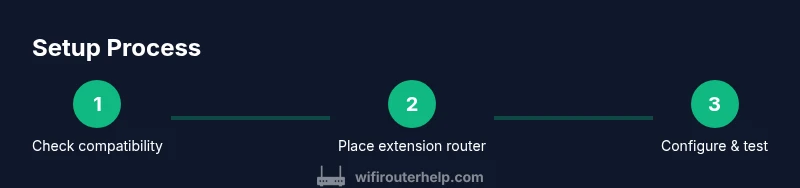
Learn how to choose and set up a wifi extension router to extend your home network. You’ll evaluate compatibility with your current router, pick an optimal location, and configure secure settings. This step-by-step guide walks you through placement, basic setup, and common troubleshooting to reduce dead zones.
What is a wifi extension router?
A wifi extension router is a dedicated device designed to extend the coverage of your existing wireless network. It can operate as an access point, repeater, or in bridge mode, depending on the model. In practice, it helps you push signal into far corners of the home or office where the main router's signal would otherwise be weak. The WiFi Router Help team notes that many people confuse this with simple range extenders, but a true wifi extension router often offers more flexible placement and better security options. When choosing one, look for dual-band support (2.4 GHz and 5 GHz), compatibility with your current router, and a straightforward setup experience. For homeowners, the goal is to reduce dead zones without creating new interference or network complexity. A well-chosen extension router can also provide wired backhaul options and better QoS controls for gaming or streaming. By understanding your space, you can select a device that aligns with your existing gear and your performance goals. According to WiFi Router Help, clarity about placement and mode dramatically improves real-world results more than fancy specs alone.
Why you might need one: different scenarios
Many homes hit coverage limits with a single router, especially in multi-story layouts or with many smart devices. A wifi extension router helps when walls, stairwells, or large rooms block signals, or when your current router is already overloaded handling multiple devices. In a busy home with work-from-home computers, a dedicated extension device can offload traffic and free the main router for essential tasks. Consider a wifi extension router if you notice slowdowns in bedrooms, basements, or outdoor spaces. It can also help optimize signal for streaming devices and gaming consoles by allocating bandwidth more predictably. The decision to deploy an extension router should factor in your home size, wall materials, and the number of connected devices. WiFi Router Help finds that a common misstep is adding devices without checking topology, which can create new dead zones rather than solve them.
Key features to look for in a wifi extension router
To maximize value, look for a device with strong dual-band performance, flexible operating modes, and solid security. Essential features include: dual-band support (2.4 GHz and 5 GHz), multiple Ethernet ports for wired backhaul, support for WPA3 security, and an intuitive setup app. Some models offer a dedicated backhaul port, which is ideal if you can run a cable from the main router. If you plan to blend with a mesh system, confirm compatibility and avoid double-NAT configurations unless you know how to configure bridge modes. Prioritize devices that clearly advertise easy firmware updates and clear instructions for setting up guest networks and parental controls. Finally, check throughput claims against independent tests and user reviews to avoid overpromising performance. WiFi Router Help emphasizes matching your device to real-space needs rather than chasing the highest theoretical speed.
Placement and network topology for best coverage
Placement matters more than the latest chipset. Position your extension router halfway between the main router and the areas with weak signal, avoiding large metal appliances, microwaves, and dense walls. Elevation helps; try mounting on a shelf or placing on a high piece of furniture to reduce interference from furniture and appliances. If possible, use a wired Ethernet backhaul from the extension router to the main router for the most stable performance, especially in harsh RF environments. In air-conditioned rooms or near windows with multiple signals, the extension router should be tucked away from direct light and heat that could affect performance. Test signal strength with a phone app at each key seating area and adjust height and orientation for the strongest, most stable connection. A well-placed device minimizes dead zones and supports reliable streaming and conferencing.
Setup options: access point, repeater, bridge mode
Your wifi extension router can operate in several modes depending on your topology. Use Access Point (AP) mode if you can wire a backhaul from the main router to the extension router; this creates a single, seamless network with the extension providing extra coverage. Repeater mode amplifies an existing wireless signal but can halve the effective bandwidth on the 2.4 GHz band; this is useful where wiring backhaul is impractical. Bridge mode creates a direct link between routers and is often used to connect separate networks in larger homes or offices while preserving a shared network. Choose the mode that aligns with your layout, then configure the same SSID or a distinct one for easier device management. Always disable double-NAT when bridging to prevent routing conflicts. The flavor of your setup—AP, repeater, or bridge—determines how you roam through your space.
Performance tips: channels, security, QoS, firmware
For optimal performance, set the 2.4 GHz band to a least-crowded channel (6-11 in the US) and consider manually anchoring the 5 GHz band to a less congested channel. Enable WPA3 security where available; if not supported, use WPA2-PSK with a strong passphrase. Turn on QoS for latency-sensitive devices like gaming PCs and video calls, and reserve bandwidth for high-priority traffic if your router supports it. Keep firmware up to date—vendors frequently release fixes for security vulnerabilities and performance improvements. Disable features you won't use (UPnP, WPS) to reduce attack vectors. Finally, test after changes with a speed test and throughput checks in the areas that matter most, adjusting placement and settings as needed.
Troubleshooting common issues
If devices fail to connect or you notice IP conflicts, verify you are in the correct mode and that DHCP is configured properly. If speeds drop on the extension router, check channel selection and ensure you’re not saturating the network with IoT devices. interference from neighbors can degrade performance; use a Wi‑Fi analyzer to identify crowded channels and switch bands or islands as needed. If you suspect a firmware bug, perform a factory reset and reconfigure from scratch, keeping a written record of your desired settings. Finally, ensure the extension router has adequate ventilation to prevent thermal throttling and reboot if necessary.
Authority sources
- FCC: https://www.fcc.gov
- Cisco: https://www.cisco.com
- NIST: https://www.nist.gov
- Additional reputable sources can provide context on security and interference considerations.
Tools & Materials
- Ethernet cable (Cat5e or newer)(Use at least Cat5e for stable wired backhaul when available)
- Laptop, tablet, or smartphone(Used to access the extension router's admin page)
- Web browser (Chrome, Edge, Safari)(Open the router's setup URL)
- Pen and notepad(Record network names and passwords)
- Wi-Fi analyzer app (optional)(Helps identify crowded channels and interference)
Steps
Estimated time: 25-40 minutes
- 1
Verify prerequisites and update firmware
Check that your main router is on the latest firmware and verify the extension router is also able to run recent software. Update firmware on both devices if updates are available, then back up current settings before making changes.
Tip: Keep a note of current settings in case you need to revert. - 2
Place extension router for best coverage
Choose a location roughly midway between the main router and the farthest dead zones. Avoid obstructions like thick walls, metal cabinets, and appliances that cause interference. Elevation helps.
Tip: Test signal in common seating areas after moving the device. - 3
Connect to the main router for initial setup
Connect the extension router to the main router with an Ethernet backhaul when possible. If wired backhaul isn’t feasible, ensure the wireless link is strong and not heavily overloaded by other devices.
Tip: Use a wired backhaul if you can—it's the most reliable option. - 4
Log into the extension router's admin interface
Access the device via its default gateway URL, usually printed on the device or in the manual. Create a strong admin password and record it securely.
Tip: Disable remote admin unless you need it for remote management. - 5
Choose the correct operation mode
Select AP mode for a wired backhaul, Repeater mode to extend an existing wireless network, or Bridge mode to connect two networks with minimal routing. Confirm DHCP is configured correctly for the chosen mode.
Tip: Avoid running two devices as DHCP servers on the same network. - 6
Configure SSID and security
Decide whether to use the same SSID as your main router or a distinct one for easier troubleshooting. Enable WPA3 if available; if not, use WPA2 with a strong passphrase.
Tip: Label networks clearly to prevent device confusion. - 7
Test performance and adjust settings
Run speed tests in key rooms, verify 2.4 GHz and 5 GHz bands are functional, and tweak channel selection if interference is detected. Confirm a stable connection for essential devices.
Tip: If speeds lag, try a different channel or reduce the extension router's load. - 8
Document configuration and back up
Record the final network names, passwords, and router IPs. Create a backup of the configuration so you can restore quickly if needed.
Tip: Store backups securely and keep a copy offline.
People Also Ask
What is the difference between a wifi extension router and a range extender?
A wifi extension router is a dedicated device that can function as an access point, repeater, or bridge, allowing more control over topology and security. A traditional range extender typically rebroadcasts the existing signal and may reduce throughput on 2.4 GHz. A true extension router often offers more configuration options and wired backhaul support for better performance.
A wifi extension router is a versatile device for expanding coverage with options like AP, repeater, or bridge mode. Range extenders rebroadcast signals and can cut throughput, so a dedicated extension device can provide more reliable performance.
Will it slow down my internet?
If configured poorly or placed in a location with heavy interference, speeds can degrade. Properly set up with a wired backhaul or a strong wireless link and appropriate channel selection, a wifi extension router should improve overall coverage without significantly reducing core internet speeds for most devices.
Poor placement or misconfiguration can slow things down. With a good setup and test, you should gain coverage without a major speed hit.
Is bridge mode better for performance?
Bridge mode connects networks with minimal routing overhead, which can improve throughput between interconnected devices. However, the exact benefits depend on your home layout and existing equipment. If you want a single network with stable roaming, AP mode with wired backhaul is often simplest and most reliable.
Bridge mode can boost performance in some setups, but for simplicity and reliability, AP with wired backhaul is a solid choice.
How can I avoid interference from neighbors?
Use a Wi‑Fi analyzer to identify crowded channels and switch to less congested ones. Prefer 5 GHz for high-throughput areas and keep 2.4 GHz for legacy devices. Consider enabling beamforming if supported and ensure your SSID names are distinct to avoid confusion.
Check which channels are crowded and switch to clearer ones. Use 5 GHz where possible and keep your network names clear.
Is WPA3 necessary?
WPA3 is the strongest current standard and recommended when available. If your devices don’t support WPA3, use WPA2 with a strong, unique passphrase and disable weaker options. Always keep firmware up to date to protect against evolving threats.
WPA3 is best, but if not supported, use WPA2 with a strong password and update firmware regularly.
Watch Video
What to Remember
- Choose the right deployment mode (AP, repeater, or bridge) based on your topology.
- Place the extension router mid-point to reduce dead zones and maintain signal quality.
- Use dual-band networks and secure settings (WPA3) for performance and security.
- Test speeds after setup and adjust channels to minimize interference.