Cisco Router Setup and Troubleshooting: A Practical Guide
Learn how to configure, secure, and troubleshoot a Cisco router with step-by-step guidance, CLI basics, and practical tips for a stable home network.


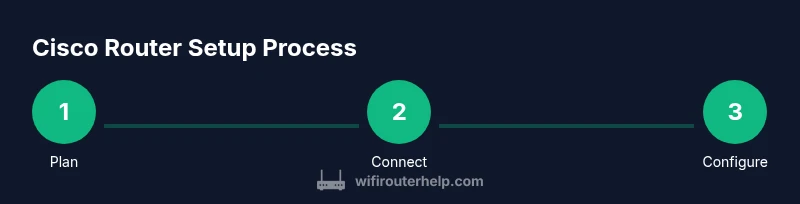
Within minutes, you will configure, secure, and troubleshoot a Cisco router using both CLI and GUI. Start with a network plan, assemble essential tools, and confirm internet access. Then perform a safe initial setup, lock down admin access, and verify connectivity across wired and wireless clients. This guide covers practical steps, common pitfalls, and best practices for home networks.
What is a Cisco router and why it matters
A Cisco router is a network device that directs traffic between your home network and the wider internet. While consumer-grade routers are common in homes, a Cisco router offers enterprise-grade features, more precise control, and robust security options. For homeowners, choosing a capable Cisco router means you can scale as your devices, smart-home gadgets, and workloads grow. This article helps you understand the core concepts, why a Cisco router matters for reliability, and how to approach setup without getting overwhelmed. According to WiFi Router Help, the long-term benefits include better traffic management, stronger access control, and clearer visibility into how your network behaves. By understanding fundamentals like routing, NAT, and DHCP, you’ll be better prepared to optimize performance and security across both wired and wireless clients.
Cisco router models and choosing the right one
Cisco offers a range of router platforms, from small office/home office (SOHO) models to high-end enterprise devices. For a typical home environment, you’ll want a model that supports at least gigabit routing, optional wireless radios, and a reliable security feature set. When choosing, consider how many devices you’ll support, whether you need VPN capabilities, and if you require advanced QoS for gaming or video calls. WiFi Router Help analysis shows that model selection matters for performance and future-proofing; a slightly higher-capacity device can prevent early bottlenecks as your network grows. Look for features like dual-band wireless, optional firewall rules, and simple firmware upgrades to keep your network safe and current.
Planning your home network topology
Before you touch the hardware, sketch a simple network layout. Identify the internet connection type (fiber, cable, or DSL), the device you’ll place at the network edge, and where you’ll put your wireless access points. A clean topology reduces confusion during configuration and helps you allocate IP ranges, subnets, and DHCP scopes efficiently. Decide on a primary wired LAN for desk devices, a separate guest network, and how to segment IoT devices. Planning also clarifies cabling needs, power placement, and cooling considerations to avoid overheating during long setup sessions. As you plan, document IP schemes and naming conventions so future changes are painless and reversible.
Initial access: console vs web GUI and basic configs
Accessing a Cisco router can be done through the console port for initial setup or via a web GUI if the device supports it. The console method is more reliable for first-time configuration, especially when you haven’t yet enabled remote management. Start by connecting a console cable from your PC to the router, powering on, and opening a terminal session. You’ll enter privileged EXEC mode, then global configuration to set a hostname, enable password, and basic security. If your model supports a GUI, you can later enable HTTPS access and migrate routine tasks to the web interface for ease of use. This mixed approach gives you both control (CLI) and convenience (GUI) as you build a solid baseline configuration.
Step-by-step: Initial setup of a Cisco router (CLI-first)
Step 1: Connect and boot
Connect the console cable from your computer to the router’s console port, power on the device, and wait for the boot sequence to complete. This establishes a direct, reliable path for initial configuration. Tip: ensure your terminal emulator is set to 9600 baud, 8 data bits, no parity, 1 stop bit.
Step 2: Access privileged EXEC mode
In the terminal, press Enter to see a router prompt. Enter enable to access privileged EXEC mode. This mode lets you perform system-wide configurations and view status. Tip: configure a temporary console password if you plan to work on it remotely later.
Step 3: Enter global configuration
From privileged EXEC, type configure terminal to enter global configuration mode. Here you’ll set the hostname, define management access, and begin interface configurations. Tip: keep a backup of your current configuration before making major changes.
Step 4: Set a hostname and enable password
Assign a descriptive hostname for easy identification, then configure an enable secret for privileged access. This combination helps prevent unauthorized admin access. Tip: use a long, complex password and store it securely.
Step 5: Configure a management interface and SSH/HTTPS access
Enable basic remote management by configuring SSH for secure CLI access and HTTPS for the GUI if supported. Disable Telnet to prevent cleartext credentials. Tip: restrict remote management to a known admin IP if possible.
Step 6: Configure LAN IP addressing and a basic DHCP scope
Set up the LAN interface with a private IP (for example, 192.168.1.1/24) and create a DHCP pool for clients. Ensure the DNS server addresses are reachable and consistent. Tip: keep DHCP scopes simple and documented for future changes.
Step 7: Enable basic NAT and a minimal firewall posture
Configure a simple NAT rule to translate internal addresses to the public Internet address, and enable basic firewall features available on your device. Tip: test NAT behavior by connecting a client and verifying outbound access from LAN to WAN.
Step 8: Save configuration and verify
Write the configuration to non-volatile memory and reload if required. Verify that devices on the LAN receive IPs, can reach the gateway, and can access the Internet. Tip: perform a quick ping test from a wired client to a known external address.
Securing your Cisco router: hardening best practices
Security is essential from day one. Start by using strong unique passwords for both console and remote management, and enable SSH access with best practices such as public-key authentication if the device supports it. Disable unused services and protocols (for example, Telnet, HTTP if you only want HTTPS, and unnecessary remote management). Create access control lists (ACLs) to limit who can reach management endpoints and consider configuring a firewall or basic intra-network segmentation to keep guest devices from accessing private LAN resources. Regularly review user accounts and audit logs to detect suspicious activity early. Keeping firmware up to date is a core habit that reduces exposure to known vulnerabilities. As WiFi Router Help emphasizes, security is a continuous process, not a one-time task.
Wireless considerations: configuring WiFi on a Cisco router
If your Cisco router includes built-in wireless radios, you’ll typically configure SSIDs, security, and channel settings either via CLI or the GUI. Create one or more SSIDs with strong WPA3 or WPA2-PSK protection, and enable features like client isolation for guest networks. Choose robust passwords and consider separate networks for IoT devices. For gaming or streaming, enable QoS rules that prioritize latency-sensitive traffic. Position access points to minimize dead zones and interference, and ensure firmware keeps pace with evolving security standards. In practice, a well-planned wireless setup dramatically improves reliability for video calls and gaming while preserving bandwidth for critical tasks.
Troubleshooting common Cisco router issues
Troubleshooting often starts with basic connectivity checks: verify physical cabling, confirm power, and ensure the device boots into a usable prompt. If clients report no Internet, validate the WAN interface status, NAT rules, and default route configuration. When wireless devices can’t connect, check SSID broadcast, security settings, and the DHCP scope. If you see alternate subnets or IP conflicts, review your IP addressing plan and DHCP settings. Always check for recent changes or firmware updates that might affect behavior. Using show commands (show ip route, show running-config) helps you diagnose routing or configuration problems quickly and accurately. WiFi Router Help recommends a disciplined approach: reproduce the problem, locate a single root cause at a time, and document your fixes for future reference.
Advanced features to unlock: QoS, VPN, and guest networks
Advanced users can unlock QoS to prioritize voice and gaming packets, configure VPN tunnels for secure remote access, and set up guest networks with isolation from the main LAN. QoS rules should reflect real-world usage patterns, not just theoretical bandwidth. VPN options vary by model but typically involve defining tunnel interfaces, encryption methods, and access controls. Guest networks add a safety layer by preventing guest devices from accessing private resources while still allowing Internet access. For many homes, these features balance performance and security as the network grows. The WiFi Router Help team notes that careful feature tuning yields tangible improvements in stability and privacy across everyday activities.
Tools & Materials
- Cisco router(Model chosen by your home network; ensure it supports required features (VPN, QoS, GUI).)
- Console cable (RJ-45 to DB9 or USB-to-Serial)(Needed to access the router's CLI via the console port.)
- Computer with Ethernet port(Used for CLI or web GUI; ensure up-to-date OS.)
- Web browser(To access the web-based GUI for initial setup.)
- Ethernet cables(Connecting devices and LAN ports.)
- Terminal emulator software(PuTTY, Tera Term, or equivalent for CLI access.)
- Power supply and cables(Stable power during setup; UPS recommended for longer sessions.)
- Notepad or configuration backup method(Record changes and back up configs.)
Steps
Estimated time: 60-90 minutes
- 1
Connect the hardware and power on
Attach the console cable from your PC to the router's console port, then power on the device and wait for the boot sequence. This establishes a direct path for initial configuration and avoids network IP conflicts during first login. Pro tip: have the terminal emulator ready to capture boot messages for future reference.
Tip: Verify that the console session shows a router prompt and that you can press Enter to begin. - 2
Access privileged EXEC mode
At the prompt, type 'enable' to enter privileged EXEC mode. This level provides access to system-wide commands needed for core configuration. Ensure you have an initial admin password ready to enforce security from the outset.
Tip: If prompted for a password, use the one you intended for admin access and avoid leaving it blank. - 3
Enter global configuration
From privileged EXEC, run 'configure terminal' to enter global configuration mode. In this mode you’ll set hostnames, management access, and the foundation for security policies. This is the staging ground for all subsequent settings.
Tip: Keep a clean, labeled configuration file to track changes. - 4
Set a hostname and enable password
Configure a descriptive hostname (e.g., 'LW-Router-Home') and create an 'enable secret' password for privileged access. This step improves manageability and security, especially when you document multiple devices.
Tip: Use a long, complex password and store it securely. - 5
Configure management access (SSH/HTTPS)
Enable secure remote management by turning on SSH and, if supported, HTTPS for the GUI. Disable Telnet to prevent credential exposure. This balances accessibility with security for ongoing administration.
Tip: If possible, restrict access to known admin IP addresses. - 6
Set up LAN interfaces and DHCP
Assign a private IP to the LAN interface (for example, 192.168.1.1/24) and configure a DHCP pool for clients. Ensure DNS servers are reachable, and adjust default gateway settings so devices can reach the Internet without manual IP configuration.
Tip: Document your IP scheme to simplify future changes. - 7
Configure basic NAT and routing
Create a simple NAT rule to translate internal addresses when outbound traffic reaches the Internet, and set a default route to the WAN interface. This step enables devices on your LAN to access external networks.
Tip: Test outbound connections from multiple LAN devices to confirm NAT works. - 8
Save configuration and verify
Save the running configuration to NVRAM and perform basic verification with show commands. Confirm that wired devices obtain IPs, DNS resolves, and Internet access is functional.
Tip: Always verify both LAN and WAN connectivity before concluding. - 9
Document and back up
Export the configuration to a file and store it securely. Regular backups help you quickly recover from mistakes or device changes. Consider creating a baseline config you can reproduce on other devices if needed.
Tip: Keep a changelog for auditing and troubleshooting.
People Also Ask
What is a Cisco router and why choose one for a home network?
A Cisco router is a network device from Cisco Systems that routes traffic between networks. For home networks, it provides enterprise-grade features, reliability, and advanced security options, though setup can be more involved than consumer devices.
A Cisco router is a reliable enterprise-grade option that offers advanced features for home networks; it may require a bit more setup than consumer models.
What’s the difference between CLI and GUI configuration?
CLI provides granular control and scripting capabilities; GUI offers a friendlier, click-based approach for common tasks. Many admins start with the GUI for basic setup and use CLI for advanced or repetitive tasks.
CLI gives fine-grained control and scripting; GUI is easier for everyday tasks; you can mix both as you learn.
How do I secure my Cisco router effectively?
Use a strong enable password, enable SSH with proper authentication, disable Telnet, keep firmware up to date, and restrict remote management to trusted IPs via ACLs or firewalls.
Set strong passwords, activate SSH, stay current with firmware, and limit who can manage the router remotely.
How do I reset my Cisco router to factory defaults?
You can perform a physical reset using the reset button or restore defaults via CLI with commands like 'write erase' and 'reload'. Back up current configs before resetting.
Factory reset restores defaults; back up configurations first to avoid losing custom setups.
Is a Cisco router suitable for gaming or streaming?
Yes, with proper QoS and network tuning, a Cisco router can support gaming and streaming. Expect more setup complexity than consumer models, but you gain precise control over traffic prioritization.
It can be great for gaming with QoS; the setup may require more careful tuning.
Where can I find official firmware updates for my Cisco router?
Cisco provides firmware updates on its official support site. Ensure you download the correct model and read any release notes before upgrading to avoid compatibility issues.
Firmware updates are on Cisco’s support site; pick the right model and review notes before updating.
Watch Video
What to Remember
- Plan before you configure for a stable network.
- Use strong credentials and enable secure admin access.
- Test LAN, WAN, and WiFi connectivity before finishing.
- Back up configs and document changes for future maintenance.